
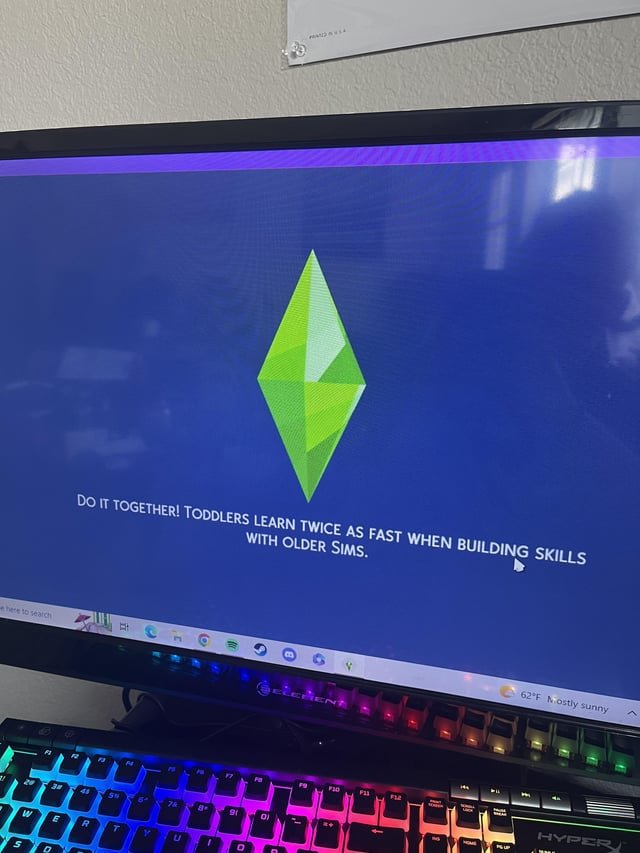
The most common reasons your Sims game isn’t loading are corrupted game files, outdated mods or custom content, insufficient system resources, or problems with the game’s installation itself.
Frustration hits hard when you are excited to play, but suddenly your Sims game won’t load. It’s a common problem, and many players wonder, “why is my sims game not loading?”. It can be annoying when this happens.
Don’t worry, though. There are several reasons why this can occur, and troubleshooting steps you can take to get back into your Sim world. This guide aims to clarify the most likely causes.

Why is My Sims Game Not Loading?
It’s super frustrating when you’re all set to play The Sims, but the game just won’t load! You’ve got your snacks, your comfy chair, and you’re ready to build the perfect house or create the silliest Sim family, but then… nothing. Just a blank screen or a never-ending loading icon. Let’s dive into why this happens and how you can get back to playing.
Common Culprits: System Issues
Sometimes, the problem isn’t the game itself, but your computer. Here are a few common system problems that can stop your Sims game from loading:
Your Computer Doesn’t Meet the Game’s Needs
Every game has a list of requirements, like how much space it needs on your hard drive, how much memory your computer needs (RAM), and what kind of graphics card you should have. If your computer doesn’t meet these needs, the game might struggle to load or not load at all. Think of it like trying to fit a big toy in a small box—it just won’t work!
- Check the Minimum Requirements: Look at the game’s packaging or the game store page online to see what the minimum and recommended system requirements are.
- Compare with Your Computer’s Specs: To see what your computer has, you can do these:
- On Windows: Press the Windows key, type “System Information”, and open it. Look for things like Processor, Installed RAM, and BaseBoard Product (which can help you find out your Graphics Card online).
- On Mac: Click the Apple icon at the top-left of your screen, select “About This Mac”, and see the information.
Outdated Drivers
Drivers are like instructions for your computer parts to talk to each other. Graphics card drivers are very important for playing games. If your drivers are old, they might not work well with newer games. Imagine trying to use an old map for a brand-new city; you’d probably get lost!
- Update Your Drivers:
- For Windows: Search for “Device Manager” using the Windows key. Find the “Display Adapters” section, right-click your graphics card, and choose “Update driver.”
- For Mac: Graphics card driver updates usually come with system updates, so ensure your Mac is updated to the latest version in “System Preferences” > “Software Update”.
Not Enough Hard Drive Space
Games take up a lot of space! If your hard drive is almost full, the game might not have enough room to load properly. Think of it like trying to build a giant castle on a tiny patch of sand; you simply won’t have enough room.
- Check Your Hard Drive Space:
- On Windows: Open “File Explorer” and click “This PC” to see how much space you have.
- On Mac: Click the Apple menu, choose “About This Mac,” then click “Storage.”
- Free Up Space:
- Delete old files you don’t need anymore.
- Move files to an external hard drive.
- Uninstall programs or games you don’t use often.
Overheating
If your computer gets too hot, it might slow down or even shut down to prevent damage. This can cause your game to fail to load or crash. It’s like if you try to run too fast in the sun, you’ll need to stop to cool down.
- Keep Your Computer Cool:
- Make sure the vents on your computer aren’t blocked.
- Use a laptop cooling pad.
- Don’t play games in very hot rooms.
Game-Specific Issues
Sometimes the problem comes from within the game itself. Let’s look at some of the common game-related problems:
Corrupted Game Files
Sometimes, game files can get damaged or corrupted, which is like having a broken piece in a puzzle. If those important pieces are broken, the puzzle, (or your game) won’t work.
- Verify Game Files: Most game launchers (like Steam, Origin, or the EA App) have a feature to check your game files for problems. Here’s how to do it:
- On Steam: Right-click the game in your library, go to “Properties,” then “Local Files,” and select “Verify integrity of game files.”
- On Origin/EA App: Go to your game library, find The Sims, and click the three dots (more options), then select “Repair.”
Mods and Custom Content (CC)
Mods and CC are fun ways to add more stuff to your Sims game, like new clothes, furniture, or even gameplay changes. But sometimes, they can cause problems if they are old, broken, or clash with each other. This is like mixing the wrong ingredients when baking; the recipe won’t work.
- Troubleshoot Mods and CC:
- Remove Mods and CC Temporarily: Move your Mods folder out of your Sims 4 folder. You can put it on your Desktop for now.
- Test the Game: Try launching the game without mods and CC. If it works, then the problem is probably with one of your mods or CC.
- Add Back Gradually: Put your mods and CC back into your folder in small groups. Each time you add a group back, start the game to check if it still works. That way, you can find out which one is causing the issue.
- Look for Updates: Visit the site or page where you got your mods and CC to see if there are newer versions or if anyone has posted that there is a problem with the mod or CC.
Conflicts with Other Programs
Sometimes, other programs on your computer can interfere with your game. This is like trying to have two people talk at once; they end up just confusing each other.
- Close Unnecessary Programs: Close programs running in the background that you are not using, especially resource-heavy programs, such as video editing software or other games.
- Temporarily Disable Overlays: Some programs use overlays (little pop-ups) on games, which might cause problems. For example, Discord overlay or Steam overlay. Try disabling these overlays to see if that helps.
Game Not Up To Date
Sometimes your game might not be up to date and this can cause loading issues. Make sure your game is updated to the latest version
- Check for Game Updates: Usually game launchers will automatically update your game but in case this doesn’t happen then you can check for updates manually.
- On Steam: Steam usually updates games automatically if the feature is enabled. To check manually, go to your library page and click the download icon at the bottom of the game page, if there are pending downloads, steam will download the latest updates for you, other wise it will say “All downloads complete”.
- On Origin/EA App: Go to your library page, find the game, click the “Update” icon on the game, if there’s an update, the EA app will update your game automatically.
Internet Related Problems
Sometimes, the problem isn’t on your computer at all, but with your internet connection. Here are some things that can go wrong when you have bad internet:
Weak or Unstable Internet Connection
Some games need a stable internet connection to work properly, especially games that have online features. If your internet is weak or keeps cutting out, it can stop the game from loading or cause it to crash.
- Check Your Internet Connection:
- Make sure you are connected to your wifi and are receiving good internet signal.
- Try restarting your router and modem. Turn them off, wait for about a minute, then turn them back on.
- Try connecting to the internet using a wired connection instead of WiFi.
Server Issues
Sometimes, game servers can have problems, which is like if the store where you get the game has a problem, then you can’t get your game. This is usually a problem on the game’s end and not yours, which is not your fault.
- Check Server Status: You can often find out about server issues on the game’s official website or their social media pages. They will let you know if there are problems with the server, and when they think the game should be working again.
Other Potential Issues
Let’s explore some less common but still important reasons why your game might not be working.
Operating System Issues
Sometimes problems with your operating system, either Windows or MacOS, can cause your game to not load.
- Update your OS: Make sure that your operating system is updated.
- On Windows: Press the Windows Key and type “Check For Updates” and then select it. Click the button “Check For Updates” and Windows will start checking if there are any updates.
- On MacOS: Click the Apple icon on the upper left side of your screen, select “System Settings” and then “General”. Now, click “Software Update” and click the “Update Now” button.
Antivirus Software
Sometimes, antivirus programs might mistake your game for a harmful program, which can cause it to stop working. It’s like if a guard mistakes you for a bad guy and won’t let you into the store.
- Temporarily Disable Antivirus: Try disabling your antivirus temporarily and try opening the game, if it works, then you should add an exception to your antivirus software so it doesn’t think your game is harmful.
Background Apps
Some apps running in background can interfere with your game, so it is recommended to close the unnecessary programs that are running in the background.
- Close Background Apps: You can close the background apps from Task Manager in Windows and from the Activity Monitor in MacOS. Close the unnecessary apps one by one until the game works and you can know which app caused the game to not load.
Troubleshooting Steps
If you’re still having trouble, try these general steps to pinpoint the issue:
- Restart Your Computer: Sometimes, a simple restart can fix many issues.
- Run the Game as Administrator: Right-click the game’s shortcut and select “Run as administrator”. This gives the game more permissions.
- Reinstall the Game: If nothing else works, uninstall the game and then install it again. This can help fix some problems with broken files.
- Check Game Forums: Search for help online, and see if other players have had the same problem and if they have found a solution.
Getting your Sims game to load can sometimes feel like solving a tricky puzzle. By looking at these different areas, from your computer’s specs to the game’s files, you can often find the cause and get your game back up and running. Remember to start with the most likely causes and go through the steps one by one. Don’t worry, you’ll be creating your dream Sims families in no time!
How To Fix Sims 4 STUCK on LOADING SCREEN & taking FOREVER to load (100% works)
Final Thoughts
In summary, various issues can cause ‘why is my sims game not loading’. Corrupted game files, outdated mods, or insufficient system specs are common culprits. Always check for game updates, remove conflicting mods, and ensure your device meets the minimum requirements. Performing these troubleshooting steps will increase the chance that your game launches successfully.

