
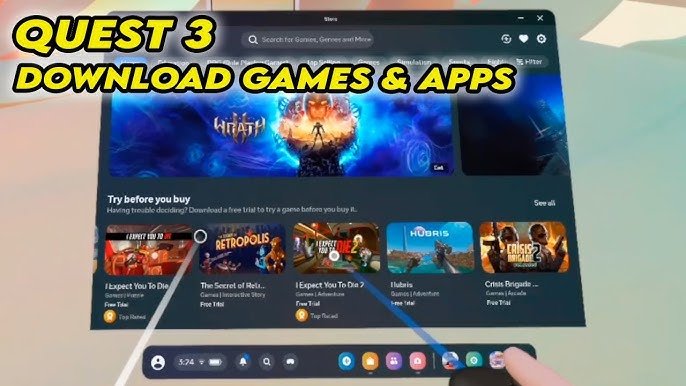
To buy games for Meta Quest 3, you can browse and purchase them directly from the Meta Quest Store within your headset or through the Meta website or mobile app.
Stepping into the world of virtual reality with the Meta Quest 3 is exciting, and naturally, you’re eager to fill it with fantastic games. The question on everyone’s mind is, how to buy games for meta quest 3? It’s easier than you might think.
There are multiple ways to get your hands on awesome VR titles. You can explore the Meta Quest store using your headset, which is very convenient. Also, you can use your phone or computer to browse, and then get the games.

How to Buy Games for Meta Quest 3
So you’ve got your shiny new Meta Quest 3, and you’re ready to jump into some amazing virtual worlds! But how exactly do you get those awesome games onto your headset? Don’t worry, it’s easier than you might think. This guide will walk you through all the ways you can purchase and download games for your Meta Quest 3, ensuring you’re playing in no time.
The Meta Quest Store: Your Main Hub
The most common place you’ll be getting your games is the Meta Quest Store. Think of it like the app store on your phone, but specifically for VR games. It’s where Meta keeps all the officially supported titles for your headset. You can access the store in a few ways:
Accessing the Store on Your Headset
This is the most direct way to get games. When you have your Meta Quest 3 on, just follow these steps:
- Put on your headset and turn it on.
- Use your controllers to navigate to the main menu. This usually looks like a little house or the Meta logo.
- Look for the icon that says “Store.” It usually looks like a shopping bag.
- Once you’re in the store, you can browse through categories like “New Releases,” “Top Sellers,” and “Coming Soon.”
- You can also search for specific game titles using the search bar.
Once you find a game you want, you can click on it to see details, such as the price, ratings, and screenshots. If you like what you see, just hit that “Buy” button! You will then be guided to complete the purchase.
Using the Meta Quest Mobile App
Did you know you can also buy games from your phone? That’s right! Using the Meta Quest app (available on both iOS and Android) you can purchase games remotely and have them ready for when you use your headset. Here’s how:
- Download the Meta Quest app from the App Store or Google Play Store and log in with your Meta account.
- At the bottom of the app screen, find and tap the “Store” icon (it looks like a shopping bag).
- Browse games just like you would on the headset store, using categories and the search bar.
- Select the game and click the button to buy and complete the purchase through the mobile app.
- Your game will automatically download to your headset the next time it’s connected to Wi-Fi and turned on!
This is super convenient if you want to buy something before you start playing or simply browse on a bigger screen.
Accessing the Store Through a Web Browser
Yes, the web browser is another method of purchasing your game. You can also visit the Meta Quest Store through your computer’s web browser. Here is how:
- Open your web browser, go to the Meta Quest website, and log in with your Meta Account.
- Find the option for the Meta Quest store and browse the store, add your desired games into your cart and proceed to payment.
- You will receive an email confirming your purchase.
This method can be helpful if you need to use a keyboard for easier searching or prefer a larger screen for browsing.
Payment Methods
Okay, you’ve found the games. How do you pay for them? Meta makes it pretty easy with a few common payment methods:
- Credit or Debit Cards: This is probably the most used way of buying games. Meta accepts most major credit and debit cards.
- PayPal: If you have a PayPal account, you can use that too. This is a nice option for added security.
- Meta Store Credit: You might occasionally get Meta store credit through promotions or as gifts. You can use this credit to buy games. Check your Meta account to see if you have any credit available!
Adding or Changing Payment Information
Before buying anything, you’ll want to make sure your payment info is correct. You can do this either in the headset, in the mobile app, or on the website.
- In the Headset: Go to your settings and find the section called “Payment Methods.” Here you can add or remove cards and update your information.
- In the Mobile App: Tap on your profile picture and go to the “Payment” section. You can add a payment method here or edit an existing one.
- On the Website: Go to the Meta website, log in, and find your account settings. There should be a “Payment Methods” section where you can manage your payment options.
Understanding Game Prices
Like most game stores, prices for Meta Quest 3 games vary quite a bit. Some things that affect game prices are:
- Game size and complexity: Big, complex games with lots of content usually cost more.
- Newness of the game: Brand-new games might be pricier when they first come out.
- Developer’s choices: Independent developers sometimes offer their games at lower prices, while bigger studios often set higher prices.
- Sales and deals: Keep an eye out for sales and deals! The Meta Quest Store has regular promotions, so you can often find good games at lower prices.
Checking for Sales and Discounts
Nobody likes to pay full price all the time! Here are some tips for finding discounts:
- Check the Meta Quest Store Regularly: The store often has a dedicated section for current sales and discounts. Check it often.
- Sign up for email newsletters: Meta and some game developers send out email newsletters. These often include notices about upcoming sales.
- Follow social media: Follow Meta Quest and your favorite game developers on social media. This can be a good way to find out about flash sales and limited-time deals.
- Use third-party websites: There are websites dedicated to tracking VR game deals. Search online to find sites that do this.
Game Bundles and Packs
Sometimes, you can buy game bundles or packs. These are groups of games sold together at a discounted price. If you want multiple games in a series or from the same developers, a bundle might be a good option for you. Always check the games included in a bundle to make sure they are all games you are interested in.
Gift Cards
Meta Quest gift cards can be a fantastic present or a way to manage your spending. You can buy gift cards for the Meta Quest store at many online and physical retailers. If you receive one or buy one, you can redeem the card on your Meta account using your headset, the mobile app, or the web browser. The credit will then be added to your account, allowing you to purchase any game of your choice.
Game Ratings
Before buying a game, it’s a great idea to check the game rating! Just like movies have ratings (G, PG, PG-13, R), video games have age ratings too. These ratings help you figure out if a game is suitable for you or your kids. Pay attention to these ratings, especially when buying for children.
Game Demos and Free Trials
Sometimes, you can try a game before you buy it! Some games have free demos, or trial versions. These let you play a part of the game for free, so you can see if you like it. Always look for demo options, since trying a demo game is a good way to make sure a game is fun before committing to a purchase.
Installing and Updating Games
After you’ve bought a game, it’s time to get it on your headset! Here’s how:
- Automatic Downloads: Most of the time, games you buy will automatically start downloading to your Meta Quest 3. If your headset is connected to Wi-Fi, your new games will usually appear in your game library.
- Manual Downloads: If you don’t see your game downloading, you might have to start the download yourself. Go to your library on the headset, look for your game, and start the download from there.
- Updating Games: Games sometimes get updates, just like apps on your phone. Your headset will usually download updates automatically. If you are having trouble playing the game, try checking to see if there is a pending update. If so, you should download the update and it may help the game work better.
Returning Games
Sometimes, you might buy a game and decide it’s not for you. Meta usually lets you return a game if it meets a few conditions, here is a summary of the conditions:
- You have played it for less than two hours.
- You have purchased it no more than two weeks ago.
- Not all games are eligible for returns. Check the game page for more information.
To request a refund, go to your purchase history in the Meta Quest app or website and request a refund.
Third-Party Game Platforms
While the Meta Quest Store is the main place for Meta Quest 3 games, some games may also be available on other platforms like SteamVR. If you use Steam to play games on your computer, you might be able to play these games with your Meta Quest 3 via a cable or wirelessly. This is something that some people may find useful if they want to play Steam games, but remember that you will need a fairly powerful computer to do so.
Stay Safe While Buying Games
It’s important to stay safe when buying anything online, including VR games. Only buy games from the official Meta Quest Store or other legitimate game platforms. Be careful about buying games from unknown sources. You may not get what you pay for, or you could even get a virus on your devices. And always make sure to protect your password.
Buying games for your Meta Quest 3 doesn’t need to be confusing. Whether you’re on the headset itself, using the handy mobile app, or browsing from your computer, getting new games is designed to be as simple as possible. Be sure to take advantage of sales, bundles, demos, gift cards, and all the options available to help you have great experiences in your virtual adventures. Happy gaming!
Meta Quest 3: How to Download & Install Games & Apps
Final Thoughts
Buying games for your Meta Quest 3 is straightforward. You can purchase directly through the headset’s store. Alternatively, the Meta app on your phone facilitates game purchases.
The official Meta website also provides a platform. Remember to check for deals and bundles before buying. how to buy games for meta quest 3 is simple. Select your game, complete payment and enjoy.

