
Steam games download slowly because of factors like poor internet connection, server congestion, or limitations on your computer’s hardware.
Frustration mounts when that eagerly awaited game crawls to a halt. Why is my steam game downloading so slow? It’s a common question among gamers. We know this issue can test even the most patient player. Many factors could be contributing to this frustrating experience.
Internet speed is a big influence and can cause slow downloads. Server load, especially during peak times, impacts download speeds too. Your computer’s specs and disk write speeds are also important, sometimes overlooked factors.

Why is my Steam Game Downloading so Slow?
Okay, so you’re super excited to play that new game on Steam, but the download is crawling at a snail’s pace. It’s frustrating, right? You’re not alone! Many gamers face this problem, and there are several reasons why your Steam game downloads might be going slow. Let’s dive into the common culprits and figure out how to speed things up.
Your Internet Connection: The Main Suspect
The biggest factor in download speed is, without a doubt, your internet connection. Think of it like a water pipe: if the pipe is narrow, the water (your download) won’t flow very fast. Here’s a breakdown of what to look for:
Your Internet Speed Plan
First, what speed are you actually paying for? Your internet service provider (ISP) offers different plans, and your download speed is directly linked to the speed you signed up for.
If you have a plan that says “up to 25 Mbps,” your download speed can be limited to that. Remember, that’s “up to,” not a guaranteed speed. You might experience slower speeds during peak hours when many people in your area are using the internet.
Here’s how you can check your internet speed:
- Run a Speed Test: Use websites like Speedtest.net or Fast.com to see your current download and upload speeds. Compare these results to what your ISP promised you.
If your speed test result is significantly lower than what you’re supposed to be getting, contact your ISP and discuss the issue with them.
Wired vs. Wireless
How do you connect to the internet? Wi-Fi is convenient, but a wired connection (Ethernet cable) is generally more reliable and provides faster, more consistent speeds.
Think of it as driving on a highway versus a bumpy dirt road. Ethernet offers a more direct and smoother path for data.
- Try an Ethernet Cable: If you’re using Wi-Fi, try connecting your computer directly to your router with an Ethernet cable. This can make a big difference.
Other Devices Using Your Connection
Are other people or devices using your internet connection at the same time? Streaming videos, playing online games, and large file downloads all compete for bandwidth. It’s like having too many cars on a single road: everyone slows down.
- Minimize Network Usage: Ask others to pause downloads or streaming while you are downloading your game. Close any programs or apps on your computer or other devices using the internet.
Steam Server Issues: It’s Not Always You
Sometimes, the problem isn’t with your connection, but with Steam’s servers. Steam is a vast platform, and occasionally its servers get congested or experience problems.
Steam Download Region
Steam allows you to choose a download region. If the selected region is experiencing high traffic, it may affect your download speeds.
Here’s how to change your download region on steam:
- Open Steam and click on “Steam” in the top left corner.
- Select “Settings.”
- Click on “Downloads.”
- Under “Download Region,” select a different server. Try a server that is geographically close to you, but not the one you usually use. Sometimes a nearby server that is not the primary one can give you better speeds.
- Restart Steam to apply changes.
Steam Server Status
Before you start troubleshooting your own network, check if Steam is experiencing issues. There are third-party websites that track steam server status, or you can check social media or steam forums to see if others are reporting similar problems. If Steam is having trouble, there’s not much you can do except wait for them to resolve it.
Your Computer: Is It Getting in the Way?
Your computer’s settings and even its hardware can also contribute to slow downloads.
Background Processes
Lots of programs running in the background can eat up your computer’s resources and slow down your download speed. These programs might include other downloads, antivirus software, or even browser extensions.
- Close Unnecessary Programs: Close any applications that you aren’t actively using, especially those that might be using the internet.
- Check Task Manager: Press Ctrl + Shift + Esc (or Cmd + Space, then type ‘Activity Monitor’ on Mac) to open Task Manager (or Activity Monitor). See if any programs are using a lot of your CPU or network.
Antivirus Software and Firewalls
Sometimes, antivirus software or firewalls can mistakenly block or slow down downloads from Steam. They might see Steam’s downloading process as suspicious activity, even though it’s completely safe.
- Temporarily Disable: Try temporarily disabling your antivirus or firewall (do this at your own risk and turn it back on as soon as you are done with the download). Then, see if your download speeds improve. If they do, you might need to configure your security software to allow Steam.
Hard Drive Health
Your hard drive might also impact the download speed. A failing or full hard drive will slow things down.
- Check your Disk Space: Ensure you have plenty of free space on your hard drive to download the game.
- Run a Disk Check: Use your operating system’s tools to check for any hard drive errors.
Steam Settings and Configurations
Steam has settings that can affect your download speeds. It is essential to review these settings to make sure they’re not hindering your downloads.
Download Throttling
Steam has a feature that lets you limit your download speed. It might be unintentionally activated.
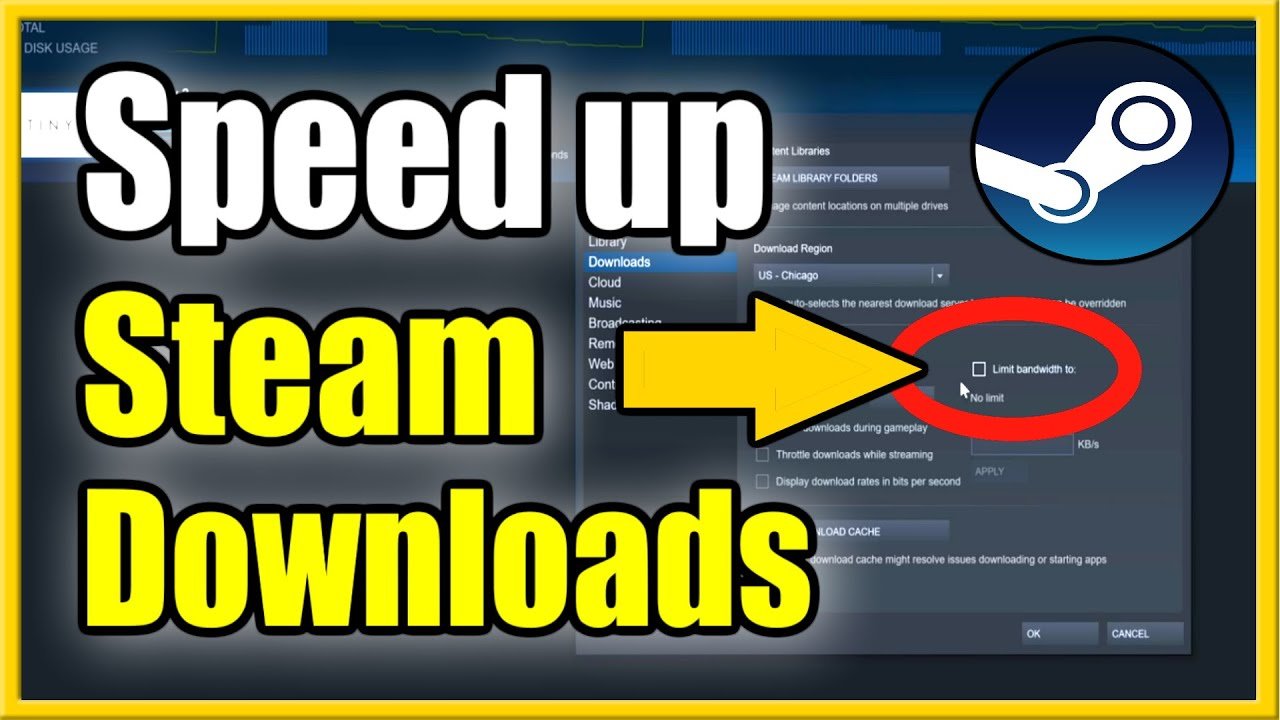
- Check Steam Download Limits: In Steam’s settings (Steam > Settings > Downloads), ensure the “Limit bandwidth to” option is unchecked or set to unlimited.
Clear Download Cache
Like your web browser, Steam uses a cache to store some downloaded data. Sometimes, a corrupted cache can cause issues with downloading games. Clearing Steam’s download cache can sometimes fix the problem.
- Open Steam and click on “Steam” in the top left corner.
- Select “Settings.”
- Click on “Downloads.”
- Click on “Clear Download Cache” button and confirm.
- Restart Steam to apply changes.
Hardware Issues
In rare cases, your computer’s hardware itself could be causing issues. Outdated drivers or other hardware-related problems can affect download speeds.
Outdated Drivers
Drivers are small programs that allow your computer’s hardware to work properly. Outdated or corrupted network drivers can negatively affect your download speed.
- Update Your Network Driver: Go to your computer’s device manager and find the network adapter, then update its drivers.
Computer Age
If your computer is very old, it might not have the hardware capable of quickly processing downloads. It could be that your computer’s age is a contributing factor to slower speeds.
Other Factors
Here are some other factors that can cause slow downloads, although less common:
Peak Internet Hours
Like a traffic jam on the highway, internet speeds are generally slower during peak hours when many people are online at the same time. Typically these are evenings when most people are back home after work or school.
- Download at Off-Peak Hours: If you can, try downloading games during off-peak hours, like late at night or early in the morning.
VPNs and Proxies
Using a VPN (Virtual Private Network) or proxy server can sometimes slow down your downloads. While VPNs offer security, they route traffic through extra servers, which can reduce your speed.
- Temporarily Disable VPN/Proxy: Try turning off your VPN or proxy server temporarily to see if that improves your download speed.
Damaged Ethernet Cable
If you are using an Ethernet cable, a damaged cable can cause poor internet speeds. Try using a different ethernet cable to see if that fixes the issue.
Slow Steam downloads can be annoying, but it is something you can fix. By looking at your internet connection, computer performance, and steam settings, you should be able to solve this problem. Try these steps to get back to gaming quickly and efficiently. Remember to be patient, and don’t get discouraged!
How To Fix Steam Games Slow Download Speed!
Final Thoughts
Your slow Steam downloads likely stem from network congestion, distant servers, or background application interference. Internet speed is a major factor, check your connection. Additionally, Steam settings might limit download speed.
These factors contribute to the frustrating experience. ‘why is my steam game downloading so slow’ is often due to a combination of these. Troubleshooting involves checking your network, Steam settings, and background apps to improve download speed.

