
Your Steam game is opening on the wrong monitor because Windows is set to display it on that screen or because the game itself has saved its display settings to use that monitor.
Isn’t it frustrating when you fire up your favorite Steam game, ready to dive in, only to find it appearing on the wrong display? You’re not alone! Many gamers grapple with this exact issue. Why is my steam game opening on the wrong monitor, you might ask? It can really interrupt your gaming flow and cause a headache.
This happens more than you think, and usually has a very simple fix to bring you back to your gaming experience, whether it’s an issue with how Windows settings work or the game itself saved its last location. Let’s get into the nitty gritty.

Why is My Steam Game Opening on the Wrong Monitor?
Okay, so you’re excited to play your favorite Steam game, you click “play,” and… it pops up on the wrong screen! It’s super annoying, right? You’re not alone! Lots of gamers deal with this issue, especially those of us with multiple monitors. But don’t worry, there are several reasons why this happens and, more importantly, solutions to fix it. Let’s dive into the common culprits and how to get your games displaying where you want them to be.
Understanding How Windows Handles Multiple Monitors
Before we jump into Steam specifics, let’s quickly understand how your computer, specifically Windows, deals with multiple displays. Windows sees each of your monitors as a separate “display.” It assigns a number to each one (like Display 1, Display 2, etc.) and has a main display where new windows and apps usually open. This “main” display setting is key to understanding where your games appear.
The “Main Display” Setting
Your main display is like the “home base” for your computer. Most of the time, if you haven’t told your computer otherwise, it will open new programs and app windows on this display. Steam games, by default, often try to open on this main display. If you want your game on a specific monitor, you might have to adjust the Windows settings. Think of it like this: the main monitor is the default landing spot for new things. You need to show Windows which spot you prefer.
How to Find Your Main Display Settings
Finding these settings is pretty easy. Here’s how you can do it in Windows:
- Right-click on your desktop.
- Select “Display settings”.
- Look for the “Multiple displays” section.
- You’ll see rectangles representing each monitor. Click on the monitor you want as your main display.
- Scroll down to find the option “Make this my main display.” Tick the box next to this option.
- Click apply to save the changes.
The next time you open the game, there is a good chance it will be on the monitor you selected as your main display.
Steam’s Internal Display Settings
Steam itself also has a few settings that impact where your games launch. These settings usually interact with how Windows manages the monitors. So, even if you fix the Windows main display settings, you might also need to check your Steam configuration.
Checking Steam’s Big Picture Mode
Steam’s Big Picture Mode can sometimes override your display settings. Big Picture Mode is designed for playing games on your TV, so it assumes you have a single primary display. Here’s how to check if Big Picture Mode is affecting your game launch:
- Open Steam.
- Click “View” from the top menu.
- If you see the option “Enter Big Picture Mode,” click it and then exit it. This toggling may fix some launch issues.
- If you are already in Big Picture Mode, exit and try relaunching the game.
Steam Game Launch Options
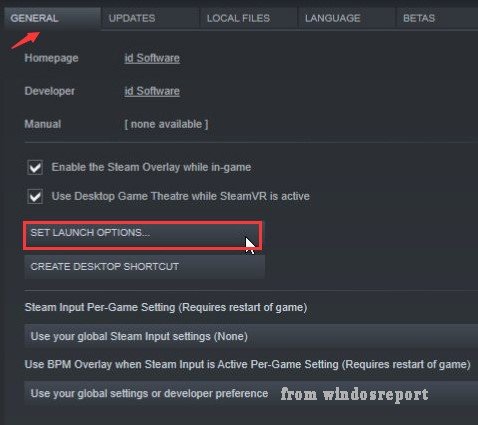
Another thing to try, is to add special launch options to a specific game in Steam. These options tell the game where you want it to appear. This method is more targeted and useful for specific games that consistently open on the wrong monitor.
How to Use Game Launch Options
- Open your Steam library.
- Right-click the game you’re having trouble with.
- Select “Properties”.
- Click the “General” tab.
- Find the “Launch Options” field.
- Here you can add specific commands. For monitor selection, you might use commands like “-windowed” along with “-monitor
“. For example, if you want to use the second monitor use this command “-windowed -monitor 2”. - Close the window.
Experiment with different numbers in the command to see which monitor works best for you. It is worth mentioning that these commands won’t work on all games.
The Game’s Own Display Settings
Many games have their own display settings, that can sometimes override both Windows and Steam settings. Games tend to remember the last monitor they were played on, which can cause problems when moving between different configurations.
Checking Game’s Video Options
Most games have an in-game menu to choose display settings. Inside this menu you will be able to select which monitor you are using to play the game on.
- Launch the game that is launching on the wrong monitor.
- Find the settings or options menu inside the game. Usually this is located on the start menu or under video or display.
- Look for display options, screen options, video settings, or other similar settings.
- Choose a specific monitor from the dropdown menu
- Click apply or save, depending on the layout.
Fullscreen vs Windowed Mode
The display mode can play a significant role in where the game appears. Games that run in fullscreen mode tend to lock onto a single monitor, while windowed or borderless windowed modes can be more flexible. Borderless windowed mode is often the ideal solution as it looks like fullscreen but is more easily moved between monitors. Try toggling between these modes in the game’s settings to see if it fixes the monitor issue.
- Go to the game’s settings or options menu.
- Find video settings, display options or screen settings.
- Toggling between display modes, fullscreen, windowed, and borderless windowed.
- Try using different display modes and relaunch the game to see if the problem is fixed.
Graphics Card Settings
Sometimes, your graphics card drivers might have their own settings that affect how games are displayed. These settings can override both Windows and Steam configurations. For example, Nvidia and AMD users have specific control panels where you can alter the way games launch.
Nvidia Control Panel Settings
If you have an Nvidia graphics card, you can find some settings that may cause issues with your monitors. These options tend to focus on 3D settings but can affect your game display.
- Right-click on your desktop.
- Select “NVIDIA Control Panel.”
- Go to “Manage 3D settings.”
- Look for options related to “Multi-display/mixed-GPU acceleration” or “Preferred graphics processor.”
- Make sure these settings are configured to use your primary monitor and the dedicated graphics card if you have one.
- Apply the settings and restart your computer.
AMD Radeon Settings
AMD users have a similar set of settings in the AMD Radeon control panel.
- Right-click on your desktop.
- Select “AMD Radeon Software.”
- Go to the “Gaming” tab.
- Select “Global Graphics” or a specific game profile.
- Look for settings that might affect monitor selection or multi-display setups.
- Try making the appropriate changes and click save.
Troubleshooting Additional Issues
Sometimes the problem isn’t as straightforward, and there might be other less common reasons that cause the issue. Here are some additional things to consider:
Outdated Graphics Drivers
Old or corrupted graphics drivers can cause all sorts of display issues, including problems with games launching on the wrong monitor. You should make sure that the drivers are up to date for your graphics card. Here’s how:
- Visit the website of your graphics card manufacturer (Nvidia or AMD).
- Download and install the latest drivers for your specific graphics card model.
- Restart your computer after the update.
Corrupted Game Files
Sometimes, the game itself might have corrupted files, causing issues with how it displays on your monitors. Try verifying the game files through Steam to rule this out.
- Open your Steam library.
- Right-click on the game.
- Select “Properties.”
- Go to the “Local Files” tab.
- Click the “Verify integrity of game files…” button.
- Allow Steam to complete the verification and download any missing or corrupted files.
Conflicts With Other Applications
Some third-party applications or overlays may also conflict with your game’s display settings, causing the game to open on the wrong monitor. Sometimes these programs need to be closed before the game is launched. Usually this is more of a software conflict that a bug.
- Close any background apps or overlays.
- Relaunch the game to see if it fixed the issue.
- You can try using a clean boot to see if this fixes the problem by disabling startup programs.
Fixing the issue of your Steam game opening on the wrong monitor can sometimes feel a bit tricky, but by systematically checking each of these potential reasons, you can usually get your games launching exactly where you want them to. From checking the main display setting in Windows to diving into the game’s own graphics settings or Steam’s launch options, there are many possible fixes to try. Remember to be patient and methodical, and you’ll be back to gaming on the correct screen before you know it.
How to Open Game on Second Monitor on Steam (Full 2024 Guide)
Final Thoughts
In essence, your game launches on the incorrect display because Windows often defaults to the primary monitor. Sometimes, Steam also remembers previous launch settings. The game’s own configuration can also influence this behavior.
To resolve ‘why is my steam game opening on the wrong monitor’, users need to check the display settings in both Windows and Steam. For the game itself, examine if there is a specific configuration you must adjust. These actions usually fix this annoying issue.

