
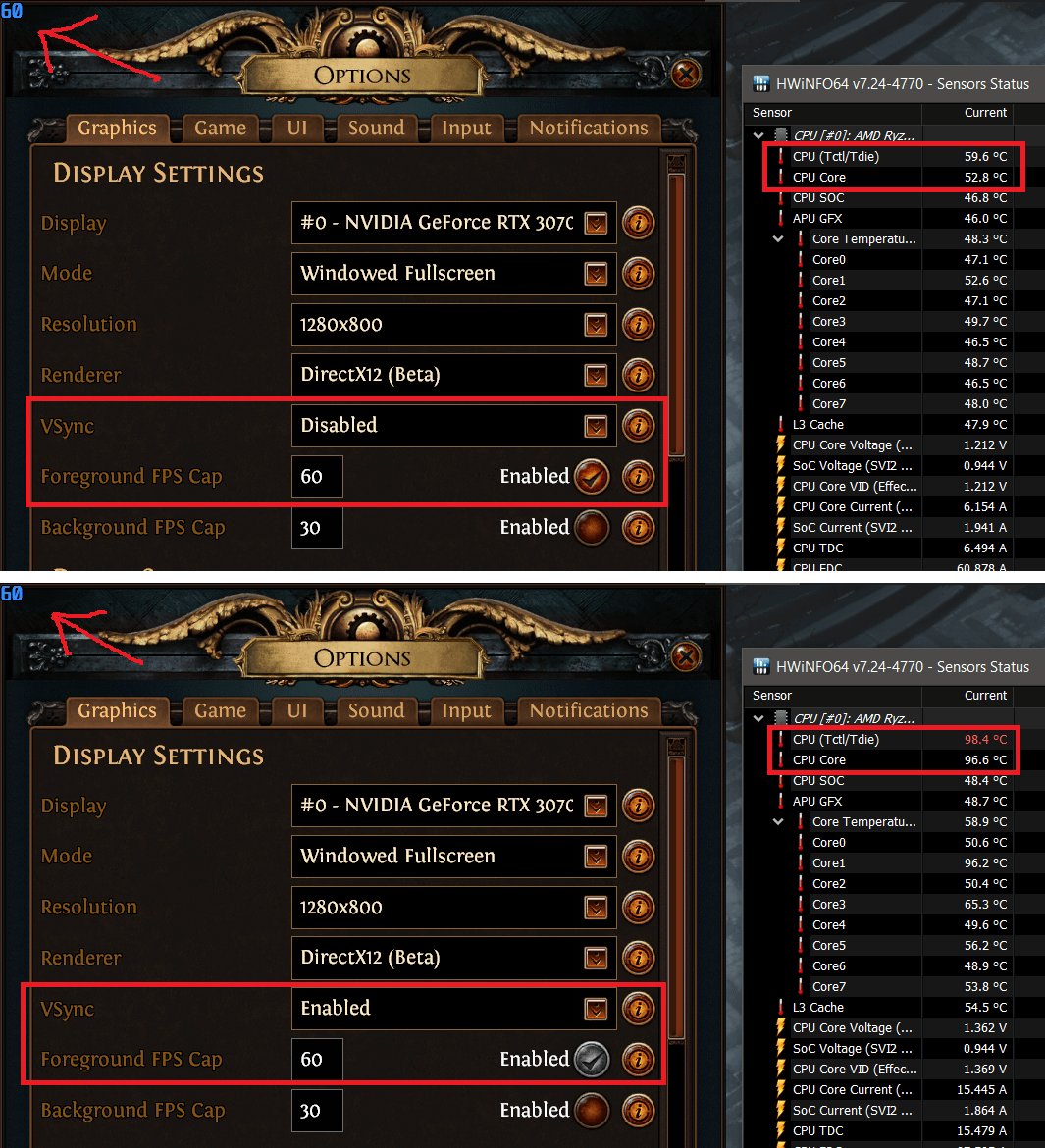
Vsync often causes problems due to input lag and stuttering when the game’s frame rate doesn’t perfectly match the monitor’s refresh rate.
It seems like a simple fix, right? Just enable vsync to stop screen tearing. But why is vsync always causing problems in games? It often introduces noticeable input delay, making games feel less responsive.
This is because vsync forces the graphics card to wait for the monitor to refresh before displaying a new frame. When frame rate drops below the refresh rate, it can create stuttering.

Why is VSync Always Causing Problems in Games?
Okay, let’s talk about VSync. You’ve probably heard about it, especially if you’re a gamer. It’s that setting in your game’s graphics options that promises to fix screen tearing. Sounds great, right? But then you turn it on, and suddenly things feel… off. You might experience lag, stuttering, or just a general feeling of your game not being as smooth as it should be. So, why does this happen? Why does something that’s supposed to help so often create more problems?
Understanding the Basics: What is VSync and What is Screen Tearing?
Before we get into the problems, let’s make sure we understand what VSync actually does and what it’s trying to fix. Imagine your monitor is like a painter working on a canvas. The canvas is your screen, and the painter is your graphics card (GPU). The GPU is drawing frames (pictures) of your game really fast. But here’s the thing: your monitor has a specific refresh rate. This rate tells you how many times per second your monitor updates the image it shows. It’s measured in Hertz (Hz), like 60Hz, 144Hz, or even higher.
Screen tearing happens when your GPU sends frames to your monitor faster than your monitor can refresh. The result is that the top part of your screen might show one frame, while the bottom part is showing the next frame. This creates a visual “tear” where the two frames don’t line up. It looks like a broken image, which is distracting and can be really annoying. Here’s where VSync comes in.
VSync, short for Vertical Synchronization, tries to solve screen tearing by forcing your GPU to wait until the monitor is ready for the next frame. Instead of letting the GPU rush ahead and send out frames whenever it wants, VSync makes sure the GPU and the monitor are in sync (working together properly) so no screen tearing will happen. That is what VSync is for in simple terms, now let’s discuss the problems that it usually causes.
The Root of the Problem: Input Lag and Performance Issues
The main issue with VSync is that it often introduces input lag and other performance problems. Why? Well, let’s imagine a situation where the GPU is very fast, and can create many frames per second, faster than the monitor’s refresh rate. When VSync is active, your GPU must wait until the monitor is ready for the next frame. Let’s say your monitor refreshes 60 times per second and your GPU can produce 100 frames per second. VSync will limit the GPU to 60 frames per second to keep things in sync.
Now, what happens when your GPU cannot produce the frames per second equal to your refresh rate? Let’s say that your monitor is 60Hz and your GPU is only able to create 40 frames per second, here are two cases that can occur when VSync is enabled:
- Double Buffering (The Most Common Method): When VSync is on, but the graphics card cannot match the monitor’s refresh rate, things get a little tricky. Let’s say your monitor refreshes 60 times a second (60Hz), but your GPU only manages 40 frames a second. With VSync on, the GPU is forced to either wait until the next monitor refresh, or it will show the previous frame again to keep everything in sync. So, instead of showing the newest frame, you might be seeing an older frame, which results in stuttering. This waiting adds a delay, known as input lag. Every time a new frame is ready, the input may feel delayed, like your game is responding slowly to your clicks or presses.
- Triple Buffering (Less Common, But Better): Triple buffering tries to reduce input lag by giving the game’s graphics engine two buffers to work with. The first is being displayed on the screen, while the second one is being used by the GPU to render the next frame. This way, the GPU can work on a frame ahead of time. It is slightly better than double buffering in many situations as it reduces the input lag and provides a more smoother experience.
So, VSync solves the screen tearing problem but often creates input lag and stuttering. Let’s dive deeper into some specific reasons and how to address them.
The Impact of Frame Rate Drops and VSync
We’ve mentioned that VSync works best when your GPU is consistently hitting or exceeding your monitor’s refresh rate. But what happens when your frame rate drops below that point? The effect of using VSync can be amplified when your GPU fails to produce frames at the refresh rate of your monitor.
- Stuttering: As described before, When your frame rate drops significantly below the monitor’s refresh rate, VSync can cause stuttering. VSync forces the graphics card to wait for the next refresh cycle when it doesn’t have a new frame ready. This waiting creates delays and that is seen as stutters on your monitor.
- Frame Rate Limitations: VSync will cap your frame rate to match your monitor’s refresh rate. This is not usually an issue when you can achieve the refresh rate, but when your hardware is capable of more, VSync acts as a limiter. If you have a very powerful computer that is capable of producing more frames per second, VSync can prevent you from experiencing that additional performance.
Why VSync Doesn’t Always Play Well With Adaptive Sync Technologies
Technologies like AMD FreeSync and NVIDIA G-Sync are designed to fix screen tearing in a much more effective way, and generally these technologies offer better results when compared to VSync. Instead of forcing the GPU to adjust to the monitor, Adaptive sync technology adjust the monitor’s refresh rate to match the GPU’s output, within a specified range. This helps reduce the input lag that VSync causes, and also gets rid of screen tearing.
However, VSync can sometimes interfere with these adaptive sync technologies, and can lead to unexpected issues. When VSync is turned on with Freesync or G-Sync, it can re-introduce input lag and stuttering when the frame rate drops outside the variable refresh rate range of the adaptive sync technology. It’s best to use adaptive sync without VSync enabled for optimal performance, unless you’re seeing tearing issues despite having these technologies enabled.
Here’s the main thing: Adaptive Sync technologies are almost always preferred over VSync because of the superior performance and reduction in input lag, alongside the removal of screen tearing. However, sometimes it’s necessary to try them both to find out which one is working better for you.
Specific Scenarios Where VSync Causes Trouble
Let’s look at some common gaming scenarios where VSync can cause a lot of issues.
Fast-Paced Games
Fast-paced games like first-person shooters (FPS) or racing games, often require a quick response to input, with the least amount of delay. In these games, input lag can be a severe issue, and can make the game unplayable. If VSync is causing your game to feel less responsive, you might want to turn it off and try using adaptive sync technology, if your monitor and GPU support it.
Games with Fluctuating Frame Rates
Games that have sudden and drastic changes in the frame rate, are prone to stuttering with VSync. For example, large open-world games sometimes have a lot of variation in the frame rate. In these cases, VSync might not work properly. The sudden drops in the frame rates can cause noticeable stuttering and delays with VSync enabled.
Older Games and Compatibility Issues
Sometimes the game’s code can have issues with VSync. Some older games might not support VSync properly, which can create visual bugs and unusual behavior. In these cases, it is best to try the game without VSync enabled to see if it improves the gameplay experience.
Troubleshooting VSync Issues
So, what do you do when VSync causes problems? Here are some troubleshooting steps:
Turn Off VSync and See What Happens
The most basic troubleshooting step is to turn VSync off entirely and see how the game performs. If the game runs better, then it was the VSync that was causing the problem. This can be a great way to know whether to move to the other solutions.
Use Adaptive Sync (G-Sync or FreeSync) If Possible
If you have a monitor and GPU that support adaptive sync technologies, make sure that you have them turned on. Adaptive sync usually solves the screen tearing issues with a much lesser input lag. If your game supports it, you might want to use adaptive sync instead of VSync, as it is far superior to VSync in many situations.
Adjust Game Graphics Settings
Sometimes, the reason VSync is causing problems, is because your GPU is struggling to maintain a stable frame rate. Try lowering the graphics settings of your game to see if you can maintain a stable frame rate. The lower the graphical settings, the more frames your GPU will produce. Try to target the refresh rate of your monitor. When your GPU can maintain a stable frame rate, VSync might start working correctly and might not create issues.
Update Your Graphics Drivers
Sometimes, outdated graphics drivers can cause issues with VSync and other graphics settings. Make sure that your graphics drivers are always up to date. This can often solve a lot of problems, and not only with VSync.
Experiment with Triple Buffering (if available)
As we explained before, triple buffering might help to reduce the amount of input lag and improve smoothness. If your game supports it, experiment with triple buffering and see if it makes the game more enjoyable. If it doesn’t work, you can always revert back to double buffering.
Monitor Your System’s Performance
Using monitoring software, you can see how your system is performing and if any particular hardware component is struggling. You can also see the game’s frames per second. See if your GPU is consistently reaching the refresh rate of your monitor, or if the frame rate drops a lot below that number. Based on that data, you might be able to optimize your settings.
Alternative Solutions to Screen Tearing
If VSync is consistently causing problems, and adaptive sync isn’t an option for you, what can you do about screen tearing? Here are some alternatives:
- Limiting Frame Rate: Some games have a built-in frame rate limiter. You can also use third-party software to limit the frame rate. By limiting the frame rate to match the refresh rate of your monitor, you can minimize screen tearing. This is not as effective as adaptive sync, but better than VSync in some cases.
- Playing in Windowed Mode (sometimes): In some cases, running a game in windowed mode instead of fullscreen might help with screen tearing, especially in older games. This is not the best solution, but might be worth trying if you have problems with screen tearing.
In short, VSync is a very useful tool, and it eliminates screen tearing, however, it is not perfect. It often causes other issues such as input lag and stuttering. There are other options you can try, if you don’t want to use VSync, like adaptive sync, or other settings that might help to reduce screen tearing. The best option for you will depend on your hardware and the game that you play. Try them all to see which works best for you.
SHOULD YOU USE VSYNC? #VALORANT
Final Thoughts
Vsync’s attempt to synchronize frame rates with monitor refresh rates often introduces input lag and stuttering. This happens when the game struggles to consistently maintain the target FPS. It’s an ongoing problem that players face.
The core issue lies in the forced waiting. Vsync makes the graphics card wait for the monitor, and this can be detrimental. why is vsync always causing problems in games? It seems this feature meant to create smoother visuals ironically causes more issues, hence the frustrations.

