
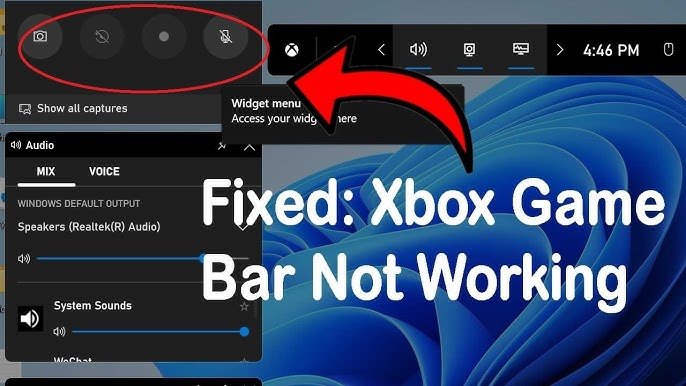
The Game Bar might not be recording your voice if the microphone permission is disabled, the wrong input device is selected, or if the microphone itself isn’t functioning correctly.
Ever wonder why sint game bar ecording my voice? It can be really frustrating when you are trying to capture epic gameplay moments but your voice isn’t being recorded alongside it.
Often the issue boils down to a few simple settings. Sometimes Windows might block mic access or pick the wrong input. Checking these settings can often quickly resolve the voice recording problems.

Why Isn’t Game Bar Recording My Voice?
It can be super frustrating when you’re all set to capture that epic gaming moment, complete with your awesome commentary, only to find out that Game Bar isn’t picking up your voice! You’re not alone; many gamers have faced this audio recording puzzle. Let’s dive into why this happens and how to get your voice back in the game. We’ll explore all the common reasons, and we’ll look at how to fix them.
Understanding How Game Bar Records Audio
Before we troubleshoot, let’s talk a little bit about how Game Bar captures audio. Game Bar uses the microphone that’s currently selected as your default recording device in Windows. It’s also important to know that it captures both game audio and microphone audio. This is why making sure your default settings are correct is step number one to making your voice heard. Think of it like a radio station; if your microphone isn’t tuned in, no one can hear you!
The Importance of Default Microphone Settings
Your computer has a primary microphone that it uses for most things. This is your default recording device. If Game Bar isn’t using this microphone, it will have difficulty recording your voice. To check your default microphone, follow these steps:
- Click on the Windows Start button.
- Type “Sound Settings” and press Enter.
- Scroll down to the “Input” section.
- Choose the correct microphone from the dropdown menu.
- You should see a little bar that moves when you speak, this confirms your microphone is working.
Make sure that the correct microphone is selected as the default. If the wrong microphone is selected, it’s like trying to talk into the wrong end of a phone – no one will hear you! It is so important that your microphone is selected correctly as default.
Common Reasons Your Voice Isn’t Being Recorded
There can be multiple culprits when your voice isn’t making it into your gameplay recording. Let’s explore some of the most common reasons:
Microphone Privacy Settings
Windows has privacy settings that control which apps have access to your microphone. If Game Bar doesn’t have permission to use your microphone, it won’t be able to record your voice. To fix this you need to grant permission to the Game Bar for using the mic. Let’s see how to do that:
- Click on the Windows Start button.
- Click on the Settings Cog.
- Click on Privacy.
- Scroll down to Microphone
- Make sure ‘Allow apps to access your microphone’ is turned On.
- Make sure under ‘Choose which Microsoft Store apps can access your microphone’ the Game Bar is turned On.
If these settings are off, it is like putting a lock on your voice, no one can hear it. Be sure that the toggle is turned on for your microphone to be recorded.
Incorrect Audio Input Device
Sometimes, even if your microphone is set as the default, Game Bar might be trying to use a different input device. This can happen if you have multiple microphones or audio input sources plugged into your computer. For instance, you might have a headset microphone and an external USB microphone plugged in at the same time. In this instance you have to select the proper microphone that you wish to use.
To check this:
- While recording, check the little audio icon in the Game Bar.
- You might find a gear icon there. Click on that.
- Check the input device that is selected.
- Change the device if it is not the one you intended to use.
Always double-check that the correct microphone device is selected on Game Bar itself.
Outdated Audio Drivers
Audio drivers are special software that allows your computer to communicate with your microphone. If these drivers are old or broken, your microphone might not work correctly, and that means no voice will be captured. To fix the issue, you should update your audio drivers. Here is how you update your drivers:
- Right-click on the Windows Start button.
- Click on Device Manager.
- Click on the “Audio inputs and outputs”.
- Right-click on your microphone.
- Click on “Update driver”.
- Select “Search automatically for drivers”.
Keeping your audio drivers up-to-date is important, as it can be like giving your microphone a tune-up. It will help everything function properly, ensuring that your voice gets captured when you are recording your gameplay.
Software Conflicts
Sometimes, other software can interfere with Game Bar’s ability to record your voice. This is more common if you use programs that also control audio devices. For example, third-party recording software or voice communication apps might try to take control of your microphone, leaving Game Bar unable to use it. To resolve this try closing other voice recording software you have open.
Here are the steps that you can take:
- Close other voice recording programs when you record on Game Bar.
- Try restarting your computer after closing the other voice recording programs.
Think of it like a busy street. If too many cars try to go down the same lane, there will be a traffic jam. Software conflict is similar, too much software will try to access the microphone resulting in Game Bar not working correctly. Make sure to close other software which is using the microphone.
Game Bar Settings Issues
Sometimes the Game Bar settings themselves could be causing the problem. There are a few settings that you can change to make sure your voice gets recorded.
Game Bar Audio Settings
There are a few settings you can modify directly from game bar to make sure your voice gets recorded. Here is how to access the Audio settings in Game Bar:
- Open the Game Bar by pressing the Windows key and “G” at the same time.
- Click on the gear icon which will open up the settings.
- Click on the audio tab in the left-hand side.
- Make sure ‘Record Game Audio’ is enabled.
- Make sure ‘Record my mic when I’m recording a game’ is enabled.
Check the above setting to make sure that both are enabled. These two setting make sure game audio is recorded and your mic is enabled.
Microphone Problems
Sometimes, the problem is with the microphone itself. It might be broken, have a loose connection, or be experiencing some other hardware problem. Here are a few things to look at.
- Test your microphone with other programs, such as Discord or Zoom.
- Check if the microphone cord is connected properly.
- Try a different microphone to see if it fixes the issue.
These basic tests are important. You want to make sure that the hardware is functioning correctly.
Windows Updates
Windows Updates can be both a help and sometimes a hindrance. Sometimes the update can change settings. After an update, it’s a good idea to check your microphone settings again to make sure everything is still working correctly with Game Bar. The process of checking the audio settings again is very simple, here’s a reminder:
- Open the Windows Start button.
- Type “Sound Settings” and press Enter.
- Scroll down to the “Input” section.
- Choose the correct microphone from the dropdown menu.
Also make sure that under privacy settings, the microphone settings are still set to on and Game Bar has the permission. Windows Updates are not always perfect, so it is a good idea to check after an update to make sure everything works as it should.
Troubleshooting Steps
Okay, so now we’ve talked about a lot of potential problems. Let’s go through a systematic troubleshooting guide. It’s best to go through these steps one by one until you get your voice to record on Game Bar. Remember, patience and persistence are key. Here’s a guide that will help:
- Check Your Default Microphone: Verify that the correct microphone is set as the default recording device in Windows sound settings.
- Review Microphone Privacy Settings: Confirm that Game Bar has permission to use your microphone in Windows privacy settings.
- Examine Audio Input Device: Make sure that Game Bar is using the correct audio input source. You can access this through the audio settings in game bar.
- Update Audio Drivers: Make sure your audio drivers are up-to-date by going through Device Manager.
- Close Conflicting Software: Close any other programs that might be using the microphone. Also restart your computer for best results.
- Review Game Bar Audio Settings: Confirm that record game audio and record my mic are enabled.
- Test Your Microphone: Make sure your microphone works properly on other recording softwares.
- Restart Your Computer: Sometimes a simple restart can resolve some software issue.
- Check for Windows Updates: Make sure that the updates haven’t changed your mic settings.
If you follow these steps carefully, you should be able to figure out why Game Bar isn’t recording your voice. The key is to go through each one carefully. Often times, you will find the root cause.
It’s important to not give up right away. Troubleshooting can take a bit of time. If the recording still doesn’t work try going through the steps again.
Hopefully, after reading this, you’ll be back to recording your awesome voiceover gameplays. So, next time your Game Bar doesn’t record your voice, remember these steps. Good luck, and happy gaming!
Xbox Game Bar Not Recording Voice/Mic (All Windows PC/Laptop)
Final Thoughts
The game bar’s voice recording feature might be unintentionally activated. Check your settings to ensure the correct input device is selected. Sometimes, conflicting audio drivers can also cause problems.
You need to verify your privacy permissions. The “why sint game bar ecording my voice” question often arises from misconfigured audio settings. The solution often involves simple setting adjustments.

