
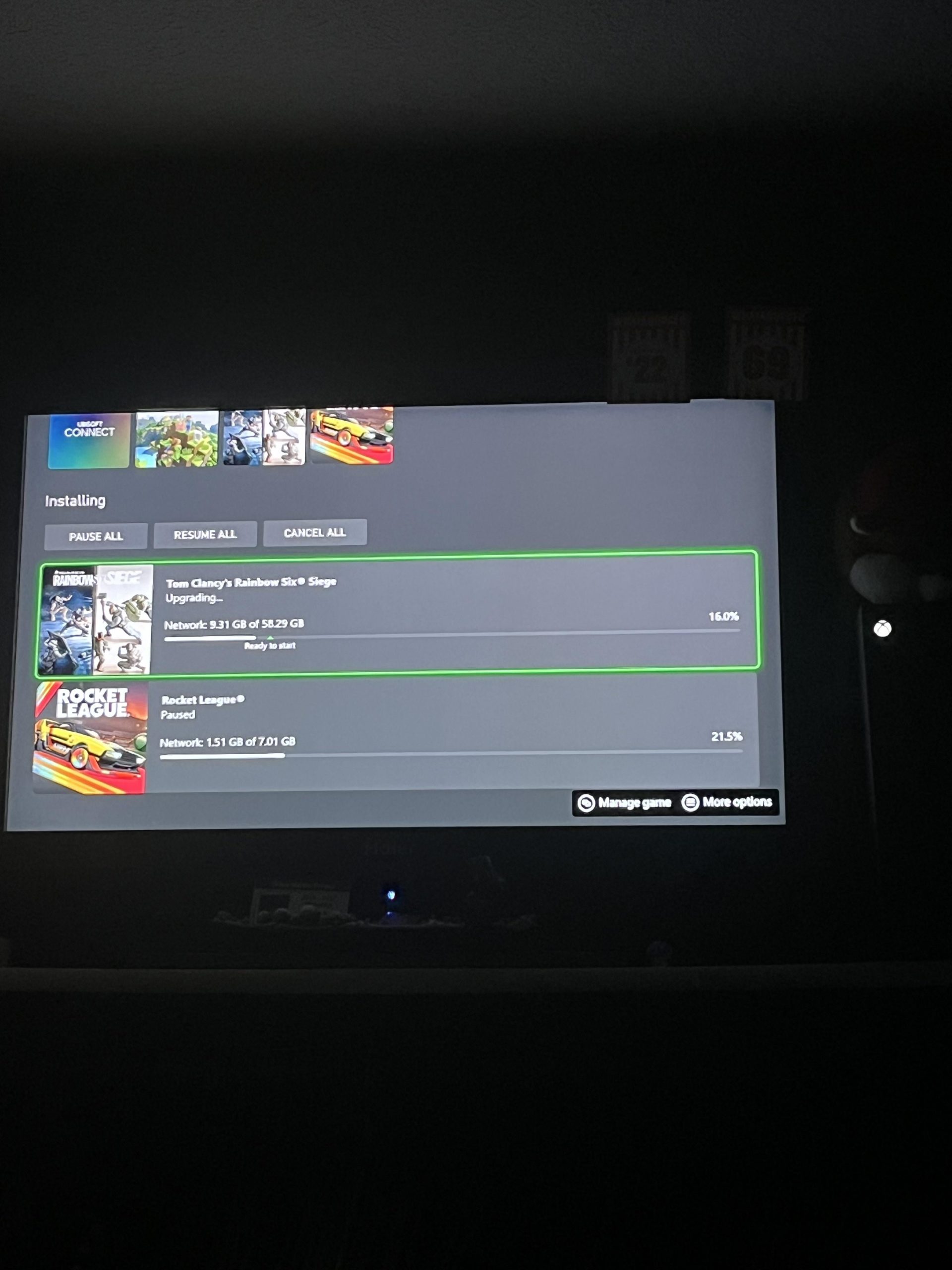
Your game won’t update because of various issues such as insufficient storage, poor internet connectivity, corrupted game files, or outdated system software.
Frustration mounts when your favorite game refuses to update, leaving you staring at that dreaded loading screen. We’ve all been there, wondering why wont my game update. This seemingly simple process can be surprisingly complex.
Several factors could be at play, from your device’s storage space to the very network you’re connected to. There are also potential issues with the game files themselves or even the software that runs your device. Let’s explore the common causes and how to get back to gaming.

Why Won’t My Game Update?
It’s super frustrating, right? You’re all set to jump into your favorite game, maybe with a new update promising cool features, and then… nothing. The update just won’t download. It’s like the game is playing hard to get! There are several reasons why this happens. It’s rarely one single thing, but we can definitely look into the most common issues. Let’s break down why your game might be refusing to update and what you can do to fix it.
Internet Connection Problems
One of the biggest reasons a game won’t update is simply your internet connection. Games and their updates are big files, and they require a stable and strong connection to download properly. Imagine trying to fill a swimming pool with a tiny garden hose – it’ll take forever, and if the hose keeps getting blocked, the pool won’t get filled at all. That’s similar to what happens when your internet isn’t up to par.
Checking Your Internet Speed
First, let’s test your internet speed. You can do this by going to websites like Speedtest.net. These sites will give you a download and upload speed measurement. Look for a number that’s not super slow, if you’re constantly getting low scores, your internet is probably the culprit. You should contact your internet service provider. Here are some more common things you can check.
- Wi-Fi Signal Strength: Is your device far from the router? Walls and other objects can weaken Wi-Fi signals. Try moving closer to the router or consider using a wired connection (Ethernet cable) if possible, as a wired connection is usually faster and more stable.
- Other Devices Using the Internet: Are others in your house streaming videos, playing online games, or downloading files? All these activities compete for internet bandwidth. Temporarily pause these activities or try updating your game later when less people are using the connection.
- Restart Your Router: Like computers, routers can sometimes glitch. Unplugging your router, waiting 30 seconds, and plugging it back in can often fix temporary connection issues.
Storage Space Issues
Games take up a lot of space on your device, and updates need extra room to download and install. If you’re running low on storage, your device might prevent the update from happening. Think of your storage like a closet. If it’s full, you can’t fit anything new inside. Your device needs some space available in order to download the file, and it needs enough space to be able to install the update. Here’s how to make sure storage isn’t your problem:
Checking Storage Space
You need to check how much storage space you have available. This process is a little bit different, depending on which platform your game is. But, here are some general guides for each platform:
- PC: Go to ‘This PC’ or ‘My Computer’ on your Windows PC, and check your hard drive or solid-state drive space available. On a Mac, click the Apple logo in the top left, select ‘About This Mac,’ and then ‘Storage.’
- Consoles (PlayStation, Xbox, Nintendo Switch): Navigate to the settings menu and look for ‘Storage’ or ‘Memory.’
- Mobile (Android, iOS): Check the settings app and find the ‘Storage’ or ‘General’ section.
Once you’ve located your storage, you will want to see if there is enough space available, If you see there isn’t enough space, you will need to remove some files in order to make space.
Freeing Up Space
Here’s how to create room for your updates:
- Uninstall Unused Apps/Games: Get rid of any games or apps you don’t play anymore. Every little bit helps.
- Delete Old Files: Remove old photos, videos, music, or documents that are taking up space.
- Cloud Storage: Move some files to cloud services like Google Drive, iCloud, or Dropbox if you have them, or purchase cloud storage space if you are frequently running low on space.
- Transfer Files: If you’re on a PC, move large files to an external hard drive or USB drive to clear room on your main drive.
Game Platform Issues
Sometimes, the problem isn’t with your device or connection, it’s with the game platform itself. Game platforms like Steam, PlayStation Network, Xbox Live, and the App Store (for mobile games) can experience issues. These can range from simple bugs to larger server issues. It’s like the store where you buy your game having a temporary problem.
Server Downtime
Game servers need maintenance every so often. This may be to fix technical issues, or to put in the latest update. When servers are down, updates can’t happen. You can usually check the platform’s website or social media pages for updates on server status. You can also check on independent websites like Downdetector.com. If the servers are down, you have no choice but to wait until the problem is fixed.
Platform Bugs and Glitches
Sometimes, bugs or glitches on the platform can interfere with updates. This is less common, but it does happen. In that case, you might need to take the following actions:
- Restart the Platform: Exit out of the game platform and restart it. This often fixes glitches.
- Update the Platform: Make sure that the platform itself is updated. Sometimes platforms have to be updated, or else certain features of a game won’t work correctly.
Game-Specific Problems
Each game is made differently. There might be issues that are specific to a certain game. These issues could be anything that the developer is responsible for.
Game Bugs
Like platforms, sometimes a particular game may have issues. If a game is brand new, then the chances of these bugs are even more common. These could be anything, including.
- Corrupted Files: If game files get messed up, it can prevent updates. You will have to do things like:
- Verifying game files through the launcher.
- Uninstalling and reinstalling the game.
- Game Launcher Issues: The game launcher, which is the application you open before playing the game, may be having trouble connecting. You may have to do things like:
- Restart the game launcher.
- Check for updates for the game launcher.
Game Compatibility Issues
Sometimes, a game update may not be compatible with your device or its operating system. For instance, some games might stop working on outdated phones or computers. Game developers sometimes stop supporting old operating systems, which can also cause issues with updates. Here is what you can do:
- Check System Requirements: Make sure your device meets the minimum system requirements for the updated game. You can usually find this information on the game’s website or the game platform.
- Update Your Device: Make sure that your computer, phone or console has the most current software. Operating system updates often include compatibility and security changes that can resolve update issues.
Device Issues
Sometimes, the issue isn’t with the game, your internet, or the platform, but with the device you’re using to play the game. Let’s look at some common device-related issues that might hinder updates.
Software Conflicts
Sometimes, another program or app running on your device can interfere with game updates. For instance, antivirus software may mistakenly block the game update process. Similarly, certain background apps can hog resources that a game update needs, creating a conflict.
- Temporarily Disable Antivirus: Turn off your antivirus software briefly while updating the game, and then re-enable it. Be sure that you have an antivirus enabled when you are done updating the game, for safety.
- Close Unnecessary Apps: Shut down any applications you are not currently using. This allows your device to focus on the game update.
- Restart Your Device: Restarting your computer, console, or mobile phone can often resolve temporary software glitches.
Hardware Problems
On rare occasions, your device itself might have a hardware issue that’s preventing game updates. If your device has issues such as a hard drive that’s failing or overheating, the game update process could run into problems. In these cases, if you have a computer or console that needs repair, make sure to have it seen by a professional.
Firewall and Security Software
Firewall and security software is designed to protect your computer from harmful files and websites. However, they can also sometimes mistakenly flag game updates as potential threats. This can prevent the game from updating properly, causing an error in the update process. Here’s how to make sure this isn’t the case:
Adjusting Firewall Settings
You may need to make adjustments to your firewall or security software settings to allow game updates to pass through. Here are the steps you need to take:
- Allow Game Access: Check your firewall settings and make sure that the game launcher and game files are allowed to connect to the internet.
- Disable Temporarily: Temporarily disable the firewall, if you are comfortable doing this, while the update is taking place. If this works, you should make sure that the game is permitted by the firewall, so this problem does not occur again in the future.
Incorrect Date and Time
An incorrect date and time on your device can sometimes cause issues with game updates. Many games verify their connection by checking the current date and time. If the device has the wrong date or time set, that can cause issues.
How To Correct Date and Time
Here’s how you can ensure that your date and time settings are accurate:
- Automatic Updates: Set your date and time to update automatically. This ensures your time is always correct.
- Check Manually: If it isn’t possible to do automatic updates, then make sure that the date and time settings are set to the actual date and time.
VPN or Proxy Issues
Using a VPN (Virtual Private Network) or a proxy server can sometimes interfere with game updates. These tools can alter your connection and location, which can cause game servers to not recognize your connection. You should temporarily disable your VPN and proxy to try and see if that is the problem.
Pending Updates
Sometimes, another game, or the platform itself, has pending updates. Some platforms will make you finish these pending updates first before you can update another game. Check your platform to see if there are any games that need an update. If that’s the problem, then update those games first before trying to update your desired game.
Outdated Device Drivers
Device drivers are software that allow your computer to communicate with hardware components like the graphics card. If your drivers are outdated, it may prevent games from updating properly. Keeping the device driver current is important. Most game platform will tell you if you are missing a crucial driver.
Updating Your Drivers
You can update your drivers in the following way:
- Check the Device Manager: On Windows PC, go to the Device Manager and check for updates for your graphics card or network card.
- Download Manually: You may have to go to your manufacturer’s website (Such as NVIDIA, AMD, etc) and manually download the latest drivers.
- Use a Driver Updater: There are third party software programs that can update your drivers.
Reinstalling the Game
If you have tried everything, and the game is still not updating, one option you have left is reinstalling the game. This may fix any issues that are causing the game to not update. It also gives a fresh start. Make sure you back up your save files before deleting the game. If the game is connected to cloud saves, your save files will usually return automatically.
Game updates can be complex. Many factors are working together to ensure updates work as planned. If the game is still not updating, you might want to contact the game developer or platform support for more help. Remember to be patient. These problems can be solved with some testing.
How to Fix Game or App Installation Problems on Xbox Series X/S/One
Final Thoughts
So, the next time you ask, “why wont my game update”, consider a few things. Network issues, storage space, and server problems cause most update failures. Ensure your device has enough space and a stable internet connection.
If problems persist, check the game’s official website or social media. Sometimes developers might need to address glitches or push a patch later. Keeping your software current is a must.

