
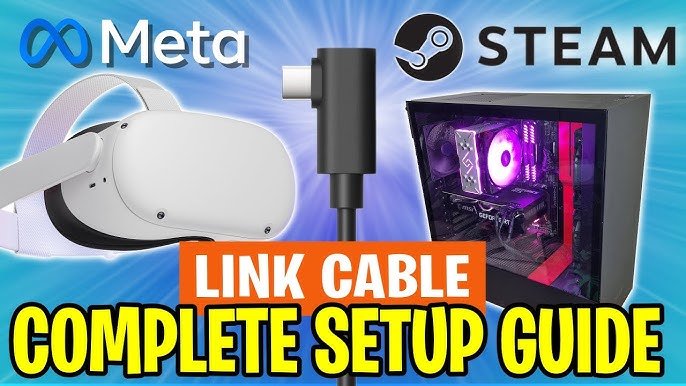
Your Quest won’t start VR games on PC because either your Oculus software, PC, or the Quest itself isn’t properly connected or configured.
Have you ever felt that frustrating moment when you’re ready to dive into a virtual world, but your Quest refuses to cooperate? You might be wondering, why wont my quest start vr games on pc? It’s a common issue, and several factors can contribute to this problem, often involving connections or software.
Sometimes it’s as simple as a loose cable, or incorrect software setting on the computer or Quest device. We’ll explore the typical causes and offer some quick fixes, so you can get back into your VR adventures in no time.

Why Won’t My Quest Start VR Games on PC?
So, you’ve got your Meta Quest (or Quest 2, Quest 3, or Pro) all set up, and you’re excited to dive into some awesome PC VR games. You’ve got your gaming rig humming, your headset is charged, and… nothing. The game just won’t start! It’s a frustrating situation, but don’t worry, you’re not alone. Many gamers face this problem. Let’s take a look at what might be causing this, and how we can get you back into the virtual world.
Checking the Basics: Before We Dive Deep
Before we get into the technical stuff, let’s make sure we’ve covered the basics. Think of it like making a sandwich – you wouldn’t try to make it without bread and fillings, right? Here’s a quick checklist:
- Is your Quest charged? A low battery can cause all sorts of weird issues. Make sure your headset has enough juice to run.
- Is your Quest connected to your PC? Are you using a USB cable (Link) or are you using WiFi (Air Link/Virtual Desktop)?
- Is your PC on? Seems obvious, but sometimes it’s the simplest things!
- Is your game installed on your PC? Make sure you’ve downloaded and installed the VR game on your computer, not just on your headset.
- Are you logged into the correct accounts? Make sure your Meta account and any necessary game accounts are logged in properly on both your PC and your headset.
If you’ve checked all of these, and you’re still having trouble, it’s time to dig a little deeper.
Understanding Connection Methods: Cable (Oculus Link) vs. WiFi (Air Link)
Your Quest connects to your PC in a couple of different ways. Understanding the differences can help pinpoint where the problem lies.
Cable Connection: Oculus Link
Using a USB cable, often called Oculus Link, is the most reliable connection method. It usually provides the best performance, but it’s not always perfect. Here are things that can cause issues with cable link:
- The Quality of your USB Cable: Not all USB cables are created equal. You need a high-quality, USB 3.0 or higher, cable that’s designed for data transfer and charging. Cheap or damaged cables can cause connection problems or signal loss.
- USB Port Issues: Try different USB ports on your PC. Sometimes, certain ports don’t provide enough power or bandwidth. Connect the headset directly to your computer, instead of plugging it in through a USB hub.
- Driver Problems: Outdated or corrupted USB drivers can cause issues. Make sure your USB drivers are up to date through your Device Manager in windows or by searching driver update from your PC’s manufacturer website.
- Oculus App Configuration: Check that the Oculus app on your PC can detect your headset through USB connection.
Check for the USB Icon: When you plug your cable into the computer, look for the SuperSpeed USB logo (SS) it’s often blue in color, if it’s a USB type-C port, and make sure that the cable and port on your computer and headset matches with USB 3.0 or higher type for optimal connection and faster data transfer.
Wireless Connection: Air Link and Virtual Desktop
Wireless connections, like Air Link or Virtual Desktop, give you more freedom to move around, but they can be less reliable. Here’s why wireless connections sometimes fail:
- Wi-Fi Router Problems: A strong and stable Wi-Fi signal is crucial for a good wireless experience. Your 5 GHz Wi-Fi band should be the one that your computer and headset are connected to. Interference from other wireless devices, distance from the router, or outdated router firmware can all cause connection drops and lag, leading to game launch failures.
- Network Congestion: If a lot of other devices are using your Wi-Fi network, it can cause slowdowns, even for your headset.
- Software Conflicts: Sometimes, other software running on your computer or headset can interfere with the connection process. Close other unnecessary applications to free up processing resources.
Testing your connection: Ensure that your Wi-Fi speeds meet the minimum requirements for Oculus Air Link. Make sure there is not much interference with your router, try moving closer to the router and running a test.
PC Specifications: Are You Meeting the Minimum Requirements?
VR games are demanding. Your computer needs to be powerful enough to handle the graphics and processing. Here’s what to check:
Graphics Card (GPU)
The graphics card is super important for VR. If your graphics card is not up to the task, your game may refuse to launch or it could perform poorly and cause dizziness or nausea. Here’s what to keep in mind.
- Minimum Requirements: Compare your graphics card to the minimum and recommended requirements listed on the game’s store page. Make sure your PC’s GPU is listed in the minimum requirements.
- Driver Updates: Outdated graphics drivers can cause compatibility issues. Update your graphics drivers from the manufacturer’s website (NVIDIA, AMD, or Intel).
- Performance Monitoring: Check the usage of your graphics card while running a VR game on your PC. If it’s constantly maxed out, your graphics card might be the bottleneck, causing the game to not start properly.
Processor (CPU)
Your processor also plays a very important role in the experience. Check the following:
- Minimum Requirements: Again, compare your processor to the game’s listed requirements.
- Background Processes: Ensure you are not running too many other programs when launching a game.
- Overheating: Check if your PC’s CPU is overheating which could cause problems.
Random Access Memory (RAM)
RAM is necessary to ensure that your computer runs games efficiently and without lag, and it can sometimes be the culprit in problems with launching PCVR Games:
- Sufficient RAM: Make sure that your computer meets the game’s minimum requirements for RAM.
- Free RAM Space: Check that you have adequate RAM for the game, as VR games require a significant amount of memory. Close unnecessary applications to free up RAM.
Operating System
Make sure that your operating system is compatible with your VR headset and the games you want to play.
- OS Compatibility: Ensure that you are using a compatible version of Windows. Most VR games and the Oculus software support Windows 10 or 11.
- OS Updates: Keep your operating system updated, as outdated versions can lead to performance and compatibility problems.
Software and Driver Issues
Sometimes, the issue is not with your hardware, but with the software and drivers on your PC. These are also common reasons why your Quest may not start games on PC.
Oculus PC App
The Oculus PC app is the main software that manages the connection between your headset and your PC. If the app is malfunctioning, it can prevent games from starting.
- App Updates: Make sure that you are using the latest version of the Oculus PC app. Outdated versions can cause connection problems.
- App Reinstallation: Sometimes, reinstalling the Oculus PC app can resolve corrupted files or settings.
- Running as Administrator: Run the Oculus app with admin rights can help resolve permissions issues that might cause conflict with running games.
Graphics Drivers
Up-to-date drivers are essential for VR gaming.
- Check for Updates: Go to your graphics card manufacturer’s website (NVIDIA, AMD, or Intel) to download the latest drivers.
- Clean Installation: When installing a new driver, perform a “clean installation” which removes the old files, which can prevent conflicts and corrupt files.
Other Software Conflicts
Some software or background apps can interfere with the smooth running of VR games.
- Firewall and Antivirus: Sometimes, your antivirus software or firewall can block the connection to the Oculus app. Add exceptions for the Oculus app in your security software.
- Other Apps: Close unnecessary applications running in the background that might be interfering with your VR experience, such as third party software that use the graphic card.
Game-Specific Issues
Sometimes, the problem is specific to a certain game, not the general connection between your headset and PC.
Verify Game Files
Corrupted game files can prevent a game from starting. Many game launchers offer tools to check the integrity of your files.
- Steam: In the Steam app, go to your game’s properties and choose the option to verify the integrity of game files.
- Oculus Store: Similarly, for games on the Oculus store, there is an option in the settings to verify game file integrity
Game Updates
An outdated game version can cause issues with running it on your VR headset.
- Check for Updates: Ensure that your game is updated with the latest version on your PC’s launcher or game store.
Game Compatibility
Sometimes a game may be incompatible with your hardware or software.
- Check Compatibility: Ensure the game is compatible with your VR hardware and software. Review game’s forum or FAQ for known compatibility problems.
Troubleshooting Steps: A Systematic Approach
Here’s a systematic way to troubleshoot why your Quest isn’t starting VR games on PC:
- Restart Everything: Start with a simple restart. Reboot your PC, your Quest, and your router.
- Check Connections: Ensure that your cables are plugged in properly and your Wi-Fi is working.
- Update Everything: Check for updates to your OS, drivers, and the Oculus PC app.
- Verify Game Files: Use the game launcher to check the integrity of your game files.
- Test Another Game: Try starting another game. If another game starts, then the problem is likely to be the original game.
- Use the Task Manager: Use the task manager to close any background apps that may be interfering with the game or the Oculus App.
- Check Event Logs: Review system event logs in windows for any error messages that could provide additional information.
- Contact Support: If nothing else works, you may need to contact the customer support from Meta or the game developer.
Common Error Codes and What They Mean
Sometimes, you might encounter error codes. While they can seem daunting, they often point to specific issues. Here are a few common codes and their typical meanings:
- Oculus Link Connection Errors: If you see codes related to USB or connection issues, then focus on your cable connection, ports, and drivers.
- Oculus App Errors: These can range from update issues to login problems. Make sure your app is up-to-date and you are logged into the correct accounts.
- Game-Specific Errors: These often indicate a problem with the game files or settings. Verify the game files and re-install if needed.
Remember that error codes are not always perfect, and they may not always be helpful to pinpoint the specific issue. You can usually find specific errors and solutions on the Oculus support website.
By working through these steps, you should be able to narrow down the problem, and get back to gaming on your Quest. Remember, patience is key! Don’t be afraid to retrace steps and try again if something doesn’t work the first time.
How To Fix Steam VR Games Not Launching [ONLY Way!]
Final Thoughts
To summarize, connection issues, outdated software, and incorrect Oculus settings are common culprits for why wont my quest start vr games on pc. You must ensure all your drivers are updated and your Oculus software is properly configured.
A weak wifi signal can also prevent your Quest from connecting. Make sure that your pc meets the minimum VR requirements.
Finally, try restarting both your computer and Quest headset.

