
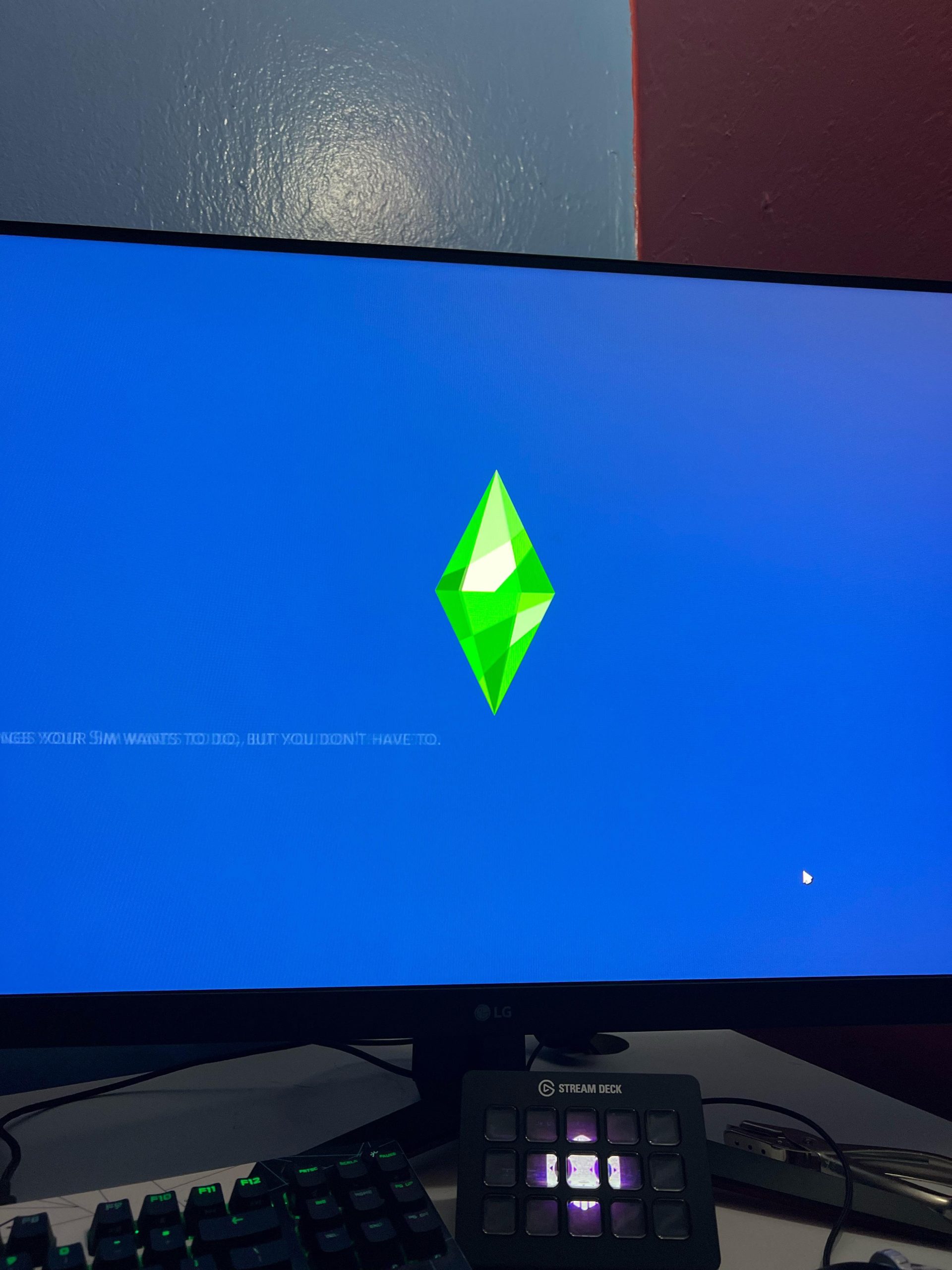
The Sims 4 game often fails to load due to outdated game files, conflicting mods/CC, or insufficient system resources.
It’s incredibly frustrating, right? You’re all set for a chill evening, ready to dive into your Sims world, but then… nothing. The game just won’t start, and you’re left wondering, “why wont my sims 4 game load?” This issue is pretty common, and thankfully, there are several things you can try to get back into the game.
Many players face this problem, usually it points to simple solutions. Don’t worry, it isn’t always a big technical problem. This article will guide you through the typical culprits and how to address them. Let’s get your Sims back on track.

Why Won’t My Sims 4 Game Load?
It’s super frustrating when you’re all ready to play The Sims 4, and the game just… refuses to start! You click the icon, maybe you see a loading screen for a split second, and then, nothing. Or worse, the game tries to load but gets stuck forever. Why does this happen? There are actually lots of reasons why your Sims 4 game might not want to cooperate. Let’s take a look at some of the most common problems and what you can do about them.
Conflicting Mods and Custom Content
Mods and custom content (CC) can make your Sims 4 game way more fun. They allow you to add cool new clothes, furniture, and even change how the game works. However, they can also cause a lot of problems if they are not working well together or are outdated. Sometimes, a new game update can make some mods or CC not work correctly.
Outdated Mods
If you have lots of mods, it can be tricky to keep track of them. Here’s what can happen if your mods are old:
- The game might not load.
- The game might crash.
- The game might get stuck on the loading screen.
- Your Sims could start acting really strange.
To fix this, you need to check if your mods are up to date. The mod creator usually has a page where you can see if there are new versions. You need to visit the original place you downloaded them from and see if there is an updated version. If there is, remove the old mod from the Mods folder and replace it with the new version.
Broken or Conflicting CC
Just like mods, custom content can also be the root of your game loading problem. Sometimes, CC files can be made in a way that it conflicts with other game files. It’s important to keep an eye on them as broken CC can also prevent the game from loading properly. Here’s how you can test if your CC is the issue:
- Move your entire Mods folder to the Desktop or any other safe location.
- Try to load the game again. If it loads, then your CC is the problem.
- Start putting your CC back in the folder piece by piece. Open your game each time.
- When the game fails to load, you know that the CC you just added is broken.
Once you have found the broken CC, get rid of it. You can usually find a similar piece of CC that is made properly if you liked it.
Game File Issues
Sometimes, the Sims 4 game itself can have a problem that prevents it from loading. Something may have corrupted or the files are misplaced from game folders. It may be caused by a bad update or any other random error.
Corrupted Game Files
Game files can become broken in a variety of ways. Sometimes it may happen by something that is completely not your fault. When these happen, you may face problems like
- The game loading but crashing right after.
- The game not loading at all.
- Gameplay has strange errors.
Luckily, you can easily fix this using the “Repair” function in the game launcher. Here’s how:
- Open the game launcher, like Origin or the EA app.
- Find The Sims 4 game in the list of your games.
- Look for an option to “Repair” the game.
- Click on the repair option. The game will check for broken files and replace them.
This usually solves most issues with corrupted files.
Missing Game Files
Occasionally, game files can accidentally be deleted or moved. When this happens, the game will not work correctly as the parts of the game can not be found. Some signs of missing game files include:
- Errors with specific game features not showing.
- Game not launching.
- Missing textures or graphics.
The easiest way to fix missing game files is by using the “Repair” feature mentioned above, just like with corrupted files. If repairing does not work, try uninstalling and then re-installing the game. This will ensure all game files are correctly placed in the appropriate folder and that none are missing.
Graphics Card Problems
Your computer’s graphics card is what shows the pretty pictures and graphics when you play games. If it’s not working well, your game might not load or have lots of issues. The Sims 4 has specific requirements for graphics card to run smoothly. If yours does not meet the requirements, then there is a higher chance that your game will have problems.
Outdated Graphics Drivers
Graphics drivers are like a translator between your graphics card and your computer. When you don’t update them, they may be outdated and cause problems with the game not loading. To update your graphics driver:
- Find the name of your graphics card (you can do this in your computer’s settings).
- Go to the website of the company that made your graphics card (like NVIDIA or AMD).
- Download and install the newest drivers for your graphics card.
After updating, try starting the game again.
Graphics Card Not Meeting Requirements
Sometimes, your graphics card may simply not be powerful enough to run the game properly. The Sims 4 has minimum and recommended requirements that your computer needs to meet. If yours does not meet the minimum requirements, your game may not work correctly. Here’s how to check:
- Check the Sims 4 website or the back of the game box for the system requirements.
- Find out the name of your computer’s graphics card (again, you can find this in your computer settings).
- Compare your graphics card to the minimum and recommended requirements for the game.
If your graphics card does not meet the minimum requirements, there is nothing you can do to run the game properly. You will need to consider upgrading your computer.
Game Launcher Issues
The game launcher (like the EA app or Origin) is the program that starts your game. If there are problems with the launcher itself, this can also prevent your game from loading. Issues in the launcher itself can cause problems like:
- Game not showing in the library
- Game not launching, even when pressing play
- Launcher may be glitching.
Launcher Needs Updating
The game launcher program sometimes needs to be updated to fix bugs and to work correctly. If you don’t have the latest version, it might cause issues. If you haven’t updated your launcher in a while, follow these simple steps:
- Start the game launcher.
- Look for an option to check for updates, usually in settings or preferences.
- Install any updates if they are available.
After updating, close the launcher and try opening it again to see if your game will load correctly.
Launcher is Glitching
Sometimes, the launcher program may have a bug that will stop it from launching. This may cause several issues like the game not loading, or the launcher not opening at all. To fix this:
- Close the launcher completely, including from the system tray (that’s usually on the bottom right of your screen).
- Open the launcher again to see if it works now.
- If it doesn’t, restart your computer and try again.
If the launcher is still acting up, there could be other problems you should consider.
Background Programs
Your computer has programs that are running in the background while you are playing the game. These background programs can sometimes cause problems for your game. Some may compete with the game, thus preventing it from opening, such as:
- Anti-virus programs.
- Other running games or applications.
- Resource-heavy programs
Closing Background Applications
To fix this, you need to turn off some of the programs that might be causing the problem. Here’s how:
- On Windows, press “Ctrl,” “Shift,” and “Esc” at the same time to open the Task Manager. On Mac, you can find it in the utilities folder in your application folder.
- Look at the list of programs that are running.
- Close any programs you do not need while playing the game, especially ones that use a lot of your computer’s resources.
- Start the game again to see if the problem is fixed.
Anti-Virus Issues
Sometimes, your antivirus software may mistakenly detect that the game is a threat. When it does, it may stop the game from opening or running. To fix this:
- Temporarily turn off your antivirus software.
- Try opening the game again.
- If the game loads, you should add an exception to the game in your antivirus software to prevent problems again in the future.
Computer Issues
Sometimes, the problem isn’t with the game itself but with your computer. Old or slow computers can struggle to run the game smoothly. It’s important to have enough space in the hard drive, as it is important for the game to function.
Not Enough Disk Space
If your computer’s hard drive is almost full, it can cause problems with game loading. Your computer needs free space to run your game correctly. If you do not have enough, it may prevent it from loading. Here’s how to check:
- Open your computer’s settings and find the storage section.
- See how much free space you have on your hard drive.
- If it’s low, delete any files you don’t need to free up space.
The Sims 4 needs a good amount of free space to work well. Once you make room, try the game again.
Overheating
When your computer gets too hot, it can cause problems with games. Overheating can be a sign of underlying problems with hardware. When your computer overheats, your game may have problems like:
- Game not loading or launching.
- Sudden crashing
- Game lagging.
Here’s how you can help prevent your computer from overheating:
- Make sure your computer is in a well-ventilated area.
- Make sure the fans are not blocked by dust.
- Don’t use your computer in direct sunlight.
- If you are using a laptop, you may need to get a cooling pad.
If your computer continues to overheat, even after following these steps, it might be time to get a professional to look at it.
Operating System Conflicts
The operating system (like Windows or macOS) is the main software that runs your computer. Sometimes, an old or unsupported version of operating system can cause problems for your game. Also, outdated drivers can cause game loading issues. Here is what you can do:
Outdated Operating System
If you are using an old version of your operating system, this can cause conflicts with your game. The Sims 4 needs a compatible operating system to work correctly. It is good practice to keep your computer up to date with the latest version of the operating system to resolve any software compatibility issues.
- Go to your computer’s settings.
- Find the option to check for updates.
- Install all available operating system updates.
After updating, restart your computer and try running the game.
Operating System Drivers
Just like graphics card, your operating system also uses drivers to interact with your hardware. These drivers also need to be up-to-date in order for everything to work well. You can update your drivers by:
- Go to the device manager in your computer settings.
- Update all your hardware drivers.
Make sure you restart your computer after installing all the updates to check if everything is running smoothly now.
Other Possible Reasons
Sometimes, the reason the game is not loading may not always be clear. Here are other reasons why your game may have issues:
Internet Connection Issues
While Sims 4 is mainly an offline game, there are some instances where it may need an internet connection. If you are connected to internet, but it’s unstable, it can cause issues. Check that you have a stable connection before launching the game. Some times turning off the router and turning it back again may solve the issues.
Administrator Privileges
Sometimes the game or the launcher needs extra permissions to work correctly. Make sure you are running both as administrator to avoid any issues. You can do this by:
- Right-click on the game launcher icon.
- Select “Run as Administrator.”
- Do the same for the game icon.
This could help with any permissions related issues.
Trying to figure out why your Sims 4 game won’t load can be a real test of patience! But by checking each of these potential issues, from outdated mods to computer problems, you will likely find the solution that gets your game working again. Remember to always keep your game, mods, and computer updated. This can prevent a lot of headaches in the future. Happy Simming!
The ONLY FIX for EA app & Sims 4 NOT launching/loading games (100% WORKS)
Final Thoughts
Various factors like outdated mods, corrupted game files, or insufficient system resources frequently cause issues preventing the game from starting. These common culprits must be addressed to solve the problem.
To troubleshoot, begin by removing mods and repairing the game through Origin or EA app. Next, update your graphics card drivers. Addressing these steps should help.
Ultimately, if your game refuses to load, it’s essential to methodically test these areas to resolve ‘why wont my sims 4 game load’.

