
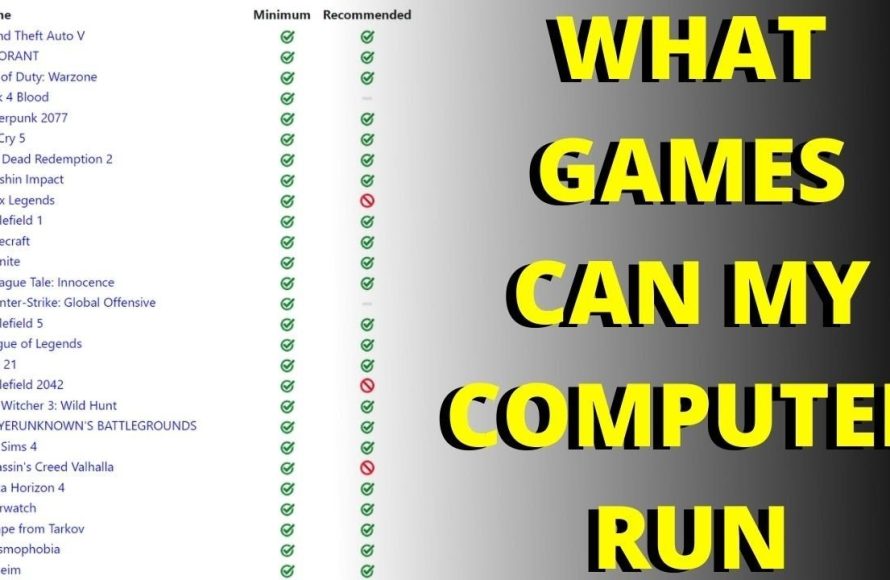
Whether your PC will run a game depends on if your computer’s hardware meets or exceeds the game’s minimum and recommended system requirements.
Ever been excited for a new game, only to wonder, “will my pc run game?” It’s a common question for many gamers. We’ve all been there, eagerly anticipating a release but unsure if our machine can handle it.
Checking system specs is crucial. Game developers publish the minimum and recommended specs to guide you. Knowing these can save you frustration later on.

Will My PC Run That Game? Understanding Game Requirements
So, you’ve got your eye on a brand new game, and you’re super excited to play it. But a little voice in the back of your head is whispering, “Will my computer actually run this thing?” That’s a very important question! Buying a game that your PC can’t handle is like trying to fit a giant puzzle piece into a tiny slot – it just won’t work, and you’ll be left frustrated. This article will help you figure out if your computer is up to the task before you spend any money.
Why Game Requirements Matter
Game developers work hard to create amazing game worlds and experiences. These games often require a certain level of processing power, graphics capability, and memory to run smoothly. Think of it like this: a car needs a certain amount of fuel to travel a certain distance. Similarly, a game needs specific hardware to run correctly. If your computer doesn’t meet these requirements, the game might run slowly (lag), freeze up, or not even start at all.
Minimum vs. Recommended Requirements
When you look at a game’s specifications, you’ll usually see two sets of requirements: minimum and recommended. It’s like a restaurant menu listing “basic needs” and “chef’s suggestion”. Let’s break down what those terms mean:
- Minimum Requirements: This is the absolute lowest your computer can be and still have a chance of running the game. However, you can’t expect the best experience here. You might encounter choppy graphics, low frame rates, and other performance problems. It’s like driving a car with almost no fuel – you’ll get there but it won’t be a smooth ride.
- Recommended Requirements: This is what the game developers say your computer needs to have for a good experience. This typically means smoother gameplay, higher graphics settings, and better overall enjoyment. This is like driving a car with full tank of fuel, you’ll enjoy the ride to your destination.
It’s always a good idea to aim for at least the recommended requirements for a better experience. Trying to run a game on below minimum settings is usually not enjoyable and can lead to a lot of frustration.
Key Hardware Components to Check
Okay, let’s get down to the nitty-gritty. What parts of your computer actually matter when it comes to gaming? Here’s a breakdown of the main components:
Processor (CPU)
The CPU is the “brain” of your computer. It handles all the calculations and instructions needed to run programs, including games. The speed of your CPU, which is often measured in GHz, is very important for a good gaming experience. Different games have different requirements for CPU power.
What to Look For:
- Brand: Intel (like Core i5, i7, i9) or AMD (like Ryzen 5, Ryzen 7, Ryzen 9) are the most common brands.
- Model: The specific model number matters. For example, an Intel Core i5-8400 is much older and less powerful than an Intel Core i5-13600K.
- Clock Speed (GHz): Higher GHz usually means faster processing, but it’s not the only factor.
- Cores and Threads: Some processors have multiple cores that can handle multiple tasks at once (and also threads that help the core to be even more efficient). More cores and threads typically mean better performance, especially in modern games.
Graphics Card (GPU)
The GPU is the part of your computer responsible for rendering images, animations, and all the visual details you see on the screen. It’s very important for gaming and handling all the 3D graphic elements of a game, such as character model, texture, and also special effects. A powerful graphics card can make a huge difference in how a game looks and runs.
What to Look For:
- Brand: NVIDIA (like GeForce RTX or GTX) and AMD (like Radeon RX) are the two major players in the GPU market.
- Model: Again, the specific model is important. For example, an NVIDIA GeForce GTX 1060 is much older than an RTX 3060 and cannot perform as well.
- Video Memory (VRAM): This is the amount of memory your GPU has. More VRAM is better, especially for higher resolutions and texture quality.
Random Access Memory (RAM)
RAM is your computer’s short-term memory. It stores data that your CPU needs to access quickly, including data for the game you’re playing. Having enough RAM is important for smooth gameplay and avoiding stuttering, and ensures the computer does not slow down. If your PC does not have enough RAM, you’ll be using your hard drive or SSD as temporary memory, which is very slow and will cause a very noticeable slowdown.
What to Look For:
- Amount: 8GB is the minimum for many modern games, but 16GB or 32GB is usually recommended for a smoother experience and future-proofing.
- Speed: RAM speed, measured in MHz, also matters, but it’s usually less critical than the amount of RAM.
Storage
Storage is where your computer keeps all of your files permanently, including game files. While the type and speed of storage doesn’t drastically affect the game’s performance once you have loaded it, it still does play a role in loading times and game installation.
What to Look For:
- Type: An Solid-State Drive (SSD) is much faster than a traditional Hard Disk Drive (HDD), resulting in quicker load times. Nowadays a lot of games require you to have an SSD to even play.
- Available Space: Make sure you have enough space to download and install the game. Some games can be quite large in file size.
Operating System
The operating system (OS) is the software that manages all of your computer’s hardware. Most modern games are designed for Windows, although some are also available on macOS or Linux. It’s very important to have the correct version of the OS and also have it updated, to avoid any compatibility issues.
What to Look For:
- Version: Games list their required OS version (e.g., Windows 10 64-bit, Windows 11). Make sure your OS is compatible.
- 64-bit vs. 32-bit: Most modern games require a 64-bit OS.
How to Find Your PC Specs
Now that you know what to look for, let’s see how to find your computer’s specifications. Here are a few easy ways:
Using the System Information Tool (Windows)
This is a quick and easy way to find most of your PC’s basic information.
- Press the Windows key, type “System Information,” and press Enter.
- A window will open, and you can find details about your processor, RAM, and operating system.
Using DirectX Diagnostic Tool (Windows)
This tool provides more in-depth information, especially about your graphics card.
- Press the Windows key, type “dxdiag,” and press Enter.
- In the DirectX Diagnostic Tool window, click on the “Display” tab to see your graphics card information.
Checking System Settings (Mac)
For Mac users, the process is a little different.
- Click the Apple menu in the top-left corner of your screen and select “About This Mac”.
- You’ll find information about your processor, RAM, and macOS version.
- To find your GPU, click “System Report” and then select “Graphics/Displays”.
Third-Party Software
There are also programs you can use that will automatically detect all of your specifications. Two of the most popular are:
- CPU-Z (for CPU and RAM info)
- GPU-Z (for GPU info)
These tools can provide very specific information about your components, which can be helpful when comparing to game requirements.
Where to Find Game Requirements
Once you know your PC’s specs, you need to find the game requirements. Here are a few places you can look:
Steam
If you are looking to buy a game on Steam, go to the game’s page and look for the “System Requirements” section. It’s usually located towards the bottom of the page, below all of the game’s info.
Epic Games Store
Similar to Steam, you can find the game’s requirements on the game’s page, usually somewhere at the bottom of the page below the screenshots or trailer.
Game’s Official Website
You can also often find system requirements on the game’s official website. Simply go to the game’s website and see if they provide system requirement on their game page.
Game Box (Physical Copy)
If you buy a physical copy of the game, the requirements will usually be printed on the back of the box.
Comparing Your Specs to Game Requirements
Now comes the most important part: comparing your system’s specifications to the game requirements. Here’s how to approach it:
Step-by-Step Comparison:
- CPU: Check if your CPU model is equal to or better than what the game requires. If the game specifies a specific generation of CPU, then make sure your CPU matches the generation as well. For example, make sure your CPU is at least an 8th gen intel processor, if game specifies 8th gen or higher intel processor.
- GPU: Compare your GPU model and VRAM to what the game requires. Make sure that your card is at least the minimum requirement.
- RAM: Ensure you have at least the minimum amount of RAM specified. Again, it is recommended to have a bit more than the minimum required.
- Storage: See that you have enough free space to install the game, and also consider the type of storage required. Some modern games require the use of SSD and won’t work on traditional HDD.
- OS: Make sure your OS version is compatible with the game.
Using Websites and Tools:
There are also many websites that can help you check if you can run a particular game. Some popular options are:
- Can You RUN It
- PCGameBenchmark
These sites will automatically detect your system’s specs and compare them to the game’s requirements. This is the easiest way to do a quick comparison if you are not sure about your specifications or how to compare.
What if Your PC Doesn’t Meet the Requirements?
What happens if your PC doesn’t quite measure up? Here are a few things you can consider:
Adjusting Game Settings
Many games allow you to adjust graphics settings like resolution, texture quality, and special effects. By turning these down, you can reduce the strain on your PC and improve performance. This might not give you the best visuals, but it can make the game playable.
Upgrading Your PC
Upgrading parts of your PC can make a huge difference. Here are a few common areas you might upgrade:
- Graphics Card: Upgrading your GPU is one of the best ways to improve gaming performance.
- RAM: Adding more RAM can prevent stuttering and improve performance, especially in memory-intensive games.
- SSD: Upgrading to an SSD can dramatically improve load times, and some modern game even require it.
- CPU: Upgrading your CPU will help overall performance, especially if your current CPU is very old.
Before upgrading, be sure that the new component you purchase is compatible with the rest of your system.
Cloud Gaming Services
Cloud gaming services (like GeForce NOW or Xbox Game Pass Cloud) let you stream games from powerful servers. This means you can play games even if your own PC is not that powerful. It’s like using a remote computer for gaming. However, good internet connection is required for cloud gaming, since your game will be streamed through internet.
Accepting Lower Performance
If you are on a tight budget and are unable to upgrade your hardware, or are not able to use a cloud gaming service, then the final option would be playing the game on the lowest settings, and accepting the lower performance. You’ll not have the best performance, but it may be playable enough to enjoy the game.
Understanding Different Types of Games
The requirements of games can vary dramatically depending on their style and graphics.
Indie Games
Indie games are usually simpler in their design and have lower system requirements, which means they can run on a wider range of hardware. They might use pixel art or have simpler graphics, which makes them easier on the computer.
AAA Games
AAA (or Triple-A) games are usually high-budget games with cutting-edge graphics, and therefore, these games usually require very powerful hardware to run smoothly. They often have complex physics and detailed worlds which require a very powerful computer to process.
Esports Games
Esports games are usually optimized for competitive play and often have lower minimum requirements. They are designed to run smoothly for competitive players.
Understanding the type of game you are playing can help you better gauge if your PC can handle it.
So, that’s it! By checking your PC’s specifications and comparing them to a game’s requirements, you can make informed decisions about what you can play. This can save you time, money and frustration. Happy gaming!
How To Find Out If Your PC Can Run A Specific Game [Simple]
Final Thoughts
Ultimately, checking system requirements against your PC’s specs determines game compatibility. You must verify the minimum and recommended specifications listed by the developers. This comparison clarifies if your machine can handle the game adequately.
Therefore, carefully examining those details is crucial. This method provides the answer to the crucial question: ‘will my pc run game’? If you meet the requirements, you are good to go.

