
Yes, Steam will remember your game data, such as saves and settings, on another PC if the game supports Steam Cloud.
Ever wondered if your precious game progress will follow you when you switch computers? It’s a common question for gamers who use multiple PCs. Many players ask, “will steam on another pc remember my data for games?” The good news is that Steam has a built-in feature to handle this.
Steam Cloud saves your game data on their servers, allowing you to pick up where you left off on a different machine. This feature works automatically, so you don’t need to do any manual transfers. It ensures a seamless gaming experience, no matter which computer you use.

Will Steam on Another PC Remember My Data for Games?
Ever wondered if your game progress magically follows you when you switch computers? You’re not alone! Many gamers ask: “If I use Steam on a different PC, will all my saved games, settings, and achievements still be there?” The good news is, for the most part, yes! Steam has built-in features to help keep your game data safe and accessible across different devices. Let’s dive into how it works and what you can expect.
Steam Cloud: Your Game Data’s Best Friend
The secret sauce behind Steam’s data syncing is called Steam Cloud. Think of it as a special online storage space just for your games. When you play a game that supports Steam Cloud (and most do!), it automatically saves important stuff like your game saves, custom settings, and even your controller configurations to this cloud space. Then, when you log in to Steam on another PC and play that same game, it downloads this data, so you can pick up right where you left off.
How to Check If a Game Uses Steam Cloud
It’s pretty easy to see if a game uses Steam Cloud. Here’s how:
- On the Steam Website: Go to a game’s page in the Steam store. Look for a small “Steam Cloud” icon, which looks like a cloud with an arrow, on the right side, under the game’s name and other details. If you see it, the game supports cloud saves.
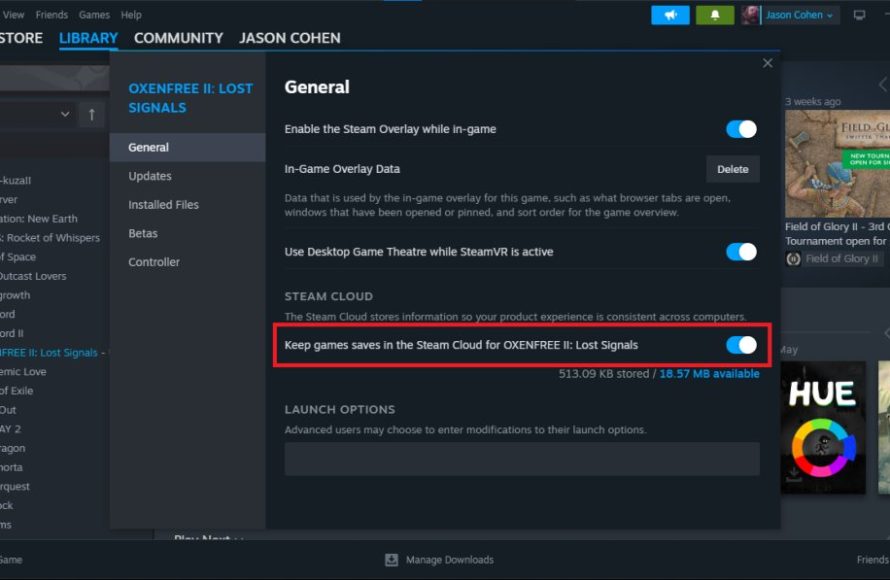
- In the Steam Client: In your Steam library, find the game, right-click it, and choose “Properties”. Click the “General” tab and you’ll see a checkbox for “Keep game saves in the Steam Cloud for [game name]”. Make sure this box is checked. This setting should be enabled by default for games supporting the cloud.
What kind of data Steam Cloud saves?
Steam Cloud is pretty smart and usually saves the following types of data:
- Game Saves: This is the most important one! Your progress in single-player games, like where you are in the story, your inventory, and character stats, are all saved in the cloud.
- Game Settings: How you configured the game’s graphics, sound, controls, and other options are often saved. This helps you get the exact experience you want on different computers.
- Controller Configurations: If you use a controller, your button mappings and any special setups should also transfer.
- Achievements: Achievements that you’ve earned in a game are linked to your Steam account, not just a single computer. So, you’ll always have a record of your game accomplishments.
The Exceptions: When Steam Cloud Might Not Save Your Data
Even though Steam Cloud is great, it’s not perfect. There are some cases where your game data might not transfer automatically:
Games Without Steam Cloud Support
Not every game on Steam uses Steam Cloud. Some older games, or games from smaller developers might not include this feature. If a game does not use Steam Cloud, you will have to transfer your saved games manually. Look for game save locations in document folder in Windows explorer. For example, if you’re trying to play The Elder Scrolls V: Skyrim, saved files are located in the “Documents\My Games\Skyrim\Saves” folder.
How to Manually Transfer Save Files:
- Find the save file location on your old PC.
- Copy the save files to a USB drive or a cloud storage service like Google Drive or OneDrive.
- Copy the save files from the USB drive or cloud storage to the same folder on your new PC.
Conflicts and Sync Issues
Sometimes, Steam Cloud might have problems syncing if you switch between computers quickly or if your internet connection is unstable. This can cause conflicts, and you may see a warning that it is unable to sync game data. Here’s what you can do:
- Restart Steam: Sometimes, simply restarting Steam on both PCs can resolve the problem.
- Check Your Internet Connection: Make sure both computers have a stable internet connection.
- Manually Resolve Conflicts: Steam may give you an option to choose which data to keep (local or cloud). If you’re unsure, pick the more recent save file, which will be either on your computer or in the cloud.
Local Game Saves:
Some games store their saves locally even if they use Steam Cloud. This is often because the developers have chosen to keep certain types of data, such as profile-specific or level data separate. In such cases, you’ll have to look for the specific location in your computer to get the save data. Typically, this data is found under “Documents” or “App Data” folder. For example, Minecraft keeps its save data in its folder. You should look for these files on your first computer and copy them to the correct location on your second computer.
Different Game Versions
If the game version is different between the two PC, you might face issues with your save files. Some games do not accept save files generated on different version. Ensure that the games are running the same version on both PCs to avoid potential conflicts. If they are not, you might have to perform update to same version to load your save game data.
Steam Settings and Preferences
Besides game data, Steam also saves your personal settings, and preferences like your preferred download region, interface language, and friend lists are linked to your Steam account. These settings will automatically appear when you log into Steam on a new PC. This helps create a consistent Steam experience no matter where you’re playing.
Steam Guard: Protecting Your Account
When logging in to a new device, you’ll need to verify using Steam Guard. This is an extra layer of security to protect your account from unauthorized access. Steam Guard will send you a code to your email or mobile phone. After entering this code, the Steam on your new device will recognize that the account belongs to you. This ensures that only you can access your games and data.
Practical Examples: Real-World Scenarios
Let’s look at a few examples to show you how Steam data transfer works in real life.
Scenario 1: Playing at a Friend’s House
Imagine you’ve been playing a role-playing game at home and you’re about 10 hours into the game. You go to a friend’s house. When you log into your Steam account on their computer and start the game, your previous save file and progress should be ready to play. This way you can continue from the same point where you left off. All your settings will also transfer so you have familiar controls, video settings and audio settings.
Scenario 2: Switching Between a Desktop and a Laptop
Let’s say you have a powerful gaming desktop at home, but you also have a laptop for travel. You start a game on your desktop, do some quests, and save the game. Now you close the game and take your laptop on a trip. When you log into Steam on your laptop and start the same game, your saved game from your desktop will be there, ready for you to continue your adventure. It’s important that cloud synchronization completes before you close the game and Steam on first PC for seamless experience on the second PC.
Scenario 3: Sharing a Steam Library with Family
If you use Steam family sharing, where family members play game from your game library, the save file will belong to their account and not yours. This way each person’s game data is kept separate. So, everyone can play the same games without affecting the save files or progress of another user. In this way each member of family gets their own personal gaming experience.
Tips for a Smooth Transition
To ensure that your game data transfers smoothly between PCs, follow these helpful tips:
- Always Exit Games Properly: Make sure to save your game and exit the game correctly before you close it. This will allow Steam Cloud to upload the data without issues.
- Check Internet Connection Before Playing: Before starting a game on a new PC, ensure you have a stable internet connection to allow cloud download of data.
- Keep Steam Updated: Always use the latest version of the Steam client. Updates often fix bugs and improve cloud sync performance.
- Check for conflicts: Make sure to resolve sync issues with Steam Cloud before playing your games. If there is any unresolved conflict, you might lose your save data.
In short, Steam makes it really easy to take your games and your progress with you wherever you go. Steam Cloud remembers your data for games that support this feature and keeps your settings synced. Even when there are issues, there are work arounds to avoid loss of any data. With just a little preparation, you can seamlessly enjoy your game library no matter where you’re playing.
How To Locate Steam Games Already Installed That You Have Backed Up No Download Needed
Final Thoughts
Steam generally remembers game data through cloud saves. Many games use this feature, syncing progress across different PCs. You must ensure cloud saves are enabled in Steam settings and for specific games, otherwise you may have to manually move saves.
Therefore, will steam on another pc remember my data for games? It mostly will, depending on the game supporting cloud saves. If a game lacks cloud save support, you’ll need to transfer save files manually to continue progress on another machine.

