
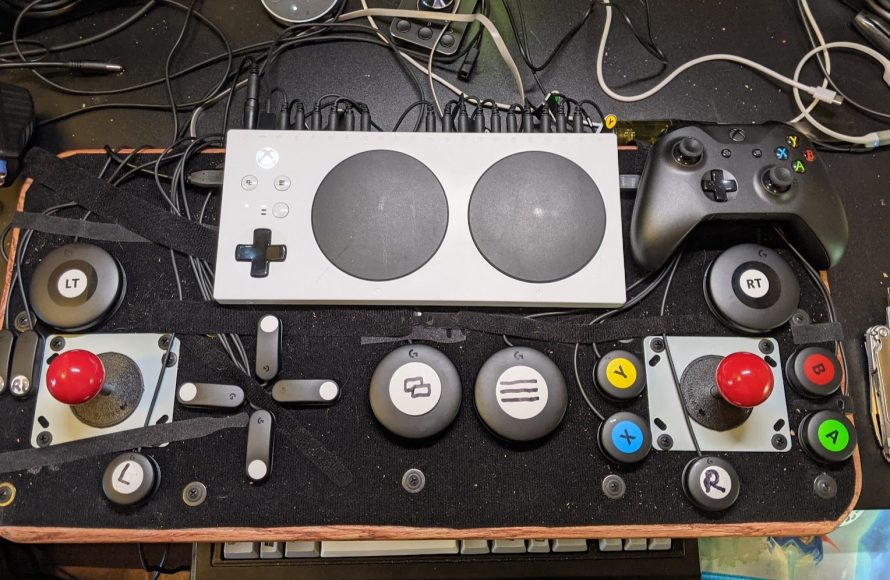
The Xbox adaptive controller settings allow players to customize button inputs, joystick directions, and create profiles to tailor the experience for individual accessibility needs.
Gaming should be fun for everyone, right? It’s exciting when technology makes it possible. The Xbox adaptive controller is a fantastic tool for that, opening up gaming to a wider audience. Understanding the different Xbox adaptive controller settings is important to make full use of its capabilities. These options can significantly change how someone interacts with their games. You can personalize button assignments and adjust controls for comfort. It’s all about crafting a setup that suits personal requirements.

Xbox Adaptive Controller Settings: A Deep Dive
The Xbox Adaptive Controller is a super cool tool that lets lots of different people play video games. It’s not like a regular controller; it’s designed to be used with many different buttons, switches, and joysticks. This means that folks with disabilities can play games just like everyone else! But to make the most of this special controller, you need to know how to adjust its settings. This article will walk you through everything you need to know about the Xbox Adaptive Controller settings so you can have the best gaming experience.
Understanding the Basics of the Xbox Adaptive Controller
Before we jump into the settings, let’s quickly talk about what makes the Xbox Adaptive Controller so unique. Imagine a controller that’s like a hub, a central spot where you can plug in all sorts of different things. That’s basically what it is. You can connect things like big buttons, foot pedals, and special joysticks. This means you aren’t stuck with a single way to play.
The controller itself has:
- 19 3.5mm ports: These ports are like little doors where you can plug in different kinds of switches and buttons.
- Two USB ports: These ports let you connect regular joysticks and other controller pieces.
- Large Buttons: On the face of the controller, there are two big programmable buttons, which you can assign to functions.
Because of these cool features, you can set up the controller to fit your exact needs and way of playing.
Setting up your Controller: The Xbox Accessories App
To change how the Adaptive Controller works, you need a special app called the Xbox Accessories app. You can find this app on your Xbox console or on a Windows 10/11 computer. This app is your control center for personalizing the controller.
Downloading and Opening the App
First, make sure you have the app. If not, you can find it on the Microsoft Store. After you’ve installed it, open the app. You should see your Xbox Adaptive Controller listed there. If you don’t see it, make sure the controller is plugged into your console or computer and turned on.
Navigating the App
The app is pretty easy to use. You will see an image of the Xbox Adaptive Controller on the screen, with all of the ports displayed. When you click on a port, you can customize what that port does. The app also lets you create different profiles, so you can switch between settings for different games or different players.
Customizing Button Mappings
One of the most important things you can do is change what each button or switch does. This is called button mapping. The Xbox Accessories app lets you remap any of the 19 3.5mm ports or the two large buttons on the controller. Let’s look at how to do that:
Selecting a Port to Remap
Click on the port you want to change. A list of options will appear. These options represent all the actions the Xbox buttons do, like A, B, X, Y, the D-pad, triggers, and bumpers. You can also assign it to ‘unmapped’ if you don’t need a function on that port.
Choosing an Action
Choose the action you want to connect to that port. For example, you might want a big button to act as the ‘A’ button. You would select ‘A’ from the list. Now, when you push the big button, the game will read it like you pressed the ‘A’ button.
Advanced Button Mapping Techniques
While remapping buttons sounds simple, there are several advanced techniques that allow for more complex setups. For instance, some games have a lot of actions. You can make things easier by using some more advanced setting combinations. Let’s explore these options:
Using Shift Buttons
Just like on a computer keyboard, you can make one button act as a ‘shift’ button. When you hold this shift button, another button can then have a different function. For example, if you have a button assigned to ‘A’ and you make a bumper a ‘shift’ button, then when you hold the bumper and press the A button, it could now act like ‘B’. This can really help when playing games with complex controls.
Toggle Buttons
Some actions, like running, might need to be constantly held down. Instead of holding a button the whole time, you can set a button as a ‘toggle’. Press it once to start the action and press it again to stop it. This can help reduce fatigue and help you play more comfortably.
Creating Custom Profiles
Not all games require the same button mapping and setup. That’s why it’s helpful to create custom profiles. Profiles are like saved settings that you can switch between. Think of it like having different controllers for different games, but all in one device!
Setting Up a New Profile
In the Xbox Accessories app, you can make a new profile and give it a name, like “Racing Game” or “Fighting Game”. Then, you can set up the button mappings for that particular game. After you have saved your profile, you can switch to it at any time.
Switching Between Profiles
When you are ready to change your controller setting, go back to the app. In the profile section, just click on a different profile you have created to switch to that saved setting. This is very useful when you are playing a variety of games.
Adjusting the Analog Sticks
While you can plug in your own analog stick devices to the controller, it also has the ability to adjust how these sticks respond to your movements. This is done on the devices you have plugged into the USB ports or through the stick ports of your external device connected. Let’s explore these options:
Adjusting Stick Sensitivity
Stick sensitivity is about how fast the in-game actions respond to how much you move your analog sticks. For some games, you might want more sensitive sticks, and for others, you might need less sensitive ones. Using the accessories app, you can adjust this. By lowering the sensitivity, you may have more control of fine movements. While increasing sensitivity will increase the range of movement based on a smaller movement of the stick.
Configuring Stick curves
You can also change the way the analog sticks work using something called a stick curve. You can choose between different curve settings that effect how the in-game action responds to your movements of the stick. This allows you to fine tune the response to your play style or the specific game you are playing. There are many curve presets available to experiment with, each having unique effect on gameplay.
Troubleshooting Common Problems
Sometimes, you might run into problems with your Adaptive Controller. Don’t worry; there are a few things you can try to fix them.
Controller Not Connecting
If your controller doesn’t connect to the Xbox or computer, first make sure that it is plugged in correctly and the power is turned on. Also check if the batteries are properly charged. If it is still not working, try unplugging it, waiting 30 seconds, and then plugging it back in. Also, make sure your controller has the latest firmware updates. The Xbox Accessories App will show this information, and will give the option to do the update. Make sure you have the latest updates on the computer or Xbox you are using.
Buttons Not Responding
If buttons or switches aren’t working, double-check that the wires are plugged in tightly. You can also try assigning the button to a different action to check whether the issue is with the button or the port. If the button still does not work, try another button, to check whether the first button is defective.
App Issues
If the app is not working correctly, make sure you have the latest version installed. Also try restarting the app or restarting your console or computer. Sometimes closing the program and restarting helps.
Tips and Tricks for Optimal Setup
Here are some extra tips to help you get the most from your Xbox Adaptive Controller.
Experiment with Different Setups
Don’t be afraid to try different combinations of buttons and switches. You might be surprised at how a small change can improve your gameplay.
Start Simple
If you are new to the controller, start with just a few simple changes and then add more complexity as you get more comfortable. Don’t try to change all settings at once.
Community Resources
Lots of people use the Xbox Adaptive Controller. There are many online communities and resources where you can find ideas and help. Check out forums and YouTube channels dedicated to the adaptive controller for new ideas.
The Xbox Adaptive Controller is a really great way to play video games no matter how your body works. Taking the time to understand the settings allows you to create a playing experience that is tailored to you. Now, go have some fun playing video games!
Set up the Xbox Adaptive Controller on Xbox One
Final Thoughts
The Xbox adaptive controller settings offer a highly customizable gaming experience. Players can easily remap buttons and adjust inputs. These options make gaming accessible to a wider audience.
This flexibility is key for gamers with various needs. The controller’s design promotes inclusive gameplay. With proper setup, many can enjoy their favorite games.
Effective use of Xbox adaptive controller settings is simple and powerful. These settings enable a personalized and enjoyable way to play games.

