
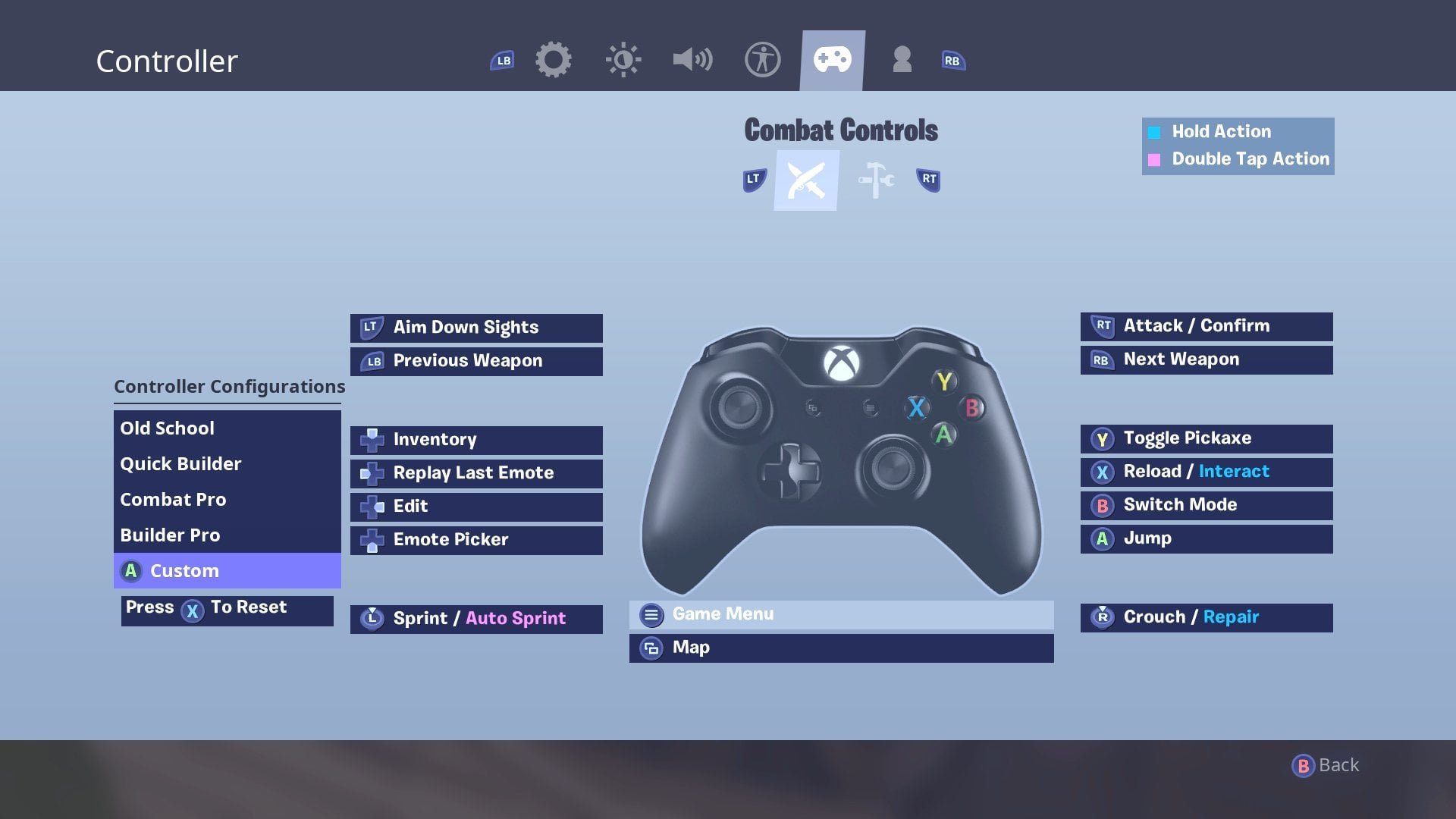
Xbox custom controller configurations allow you to remap buttons, adjust stick sensitivity, and modify trigger dead zones for a personalized gaming experience.
Want a better edge in your favorite Xbox games? Fine-tuning how your controller responds is key to achieving this goal. Xbox custom controller configurations offer a wide range of options to make your gameplay more comfortable and competitive. This can include remapping buttons to suit your style.
You can easily adjust the sensitivity of your thumbsticks for greater precision. Another modification is tweaking trigger dead zones, enabling faster in-game reactions. These personalized settings can really improve your gaming!

Xbox Custom Controller Configurations
Let’s talk about making your Xbox controller truly yours. We’re not just talking about a different color shell (though that’s cool too!). We’re diving deep into the world of Xbox custom controller configurations. This means changing how your buttons work, where they’re located, and even how sensitive they are. This can greatly improve your gameplay, making it more comfortable and fun. Whether you’re a casual gamer or aiming to be a pro, understanding these options will give you a significant edge. It’s about creating a controller that fits your hands, your play style, and your needs perfectly. Think of it like getting a tailored suit – it just fits better.
Why Customize Your Xbox Controller?
Why would you even bother tweaking your controller? Well, there are a bunch of reasons. It’s not just about looking cool; it’s about playing better and having a more enjoyable experience.
Improved Comfort and Ergonomics
Hand Size Matters: Not everyone’s hands are the same size. Some players might find the standard button placement a bit awkward. Customization can help move things around to be more natural for your grip.
Less Strain, More Play: Playing for hours can sometimes lead to hand cramps or fatigue. Customizing button layouts can reduce the amount of stretching and awkward movements your fingers have to make, which lets you play longer without discomfort.
Enhanced Gameplay Performance
Faster Reactions: Imagine being able to press the ‘jump’ button with your index finger instead of having to move your thumb off the stick. Re-mapping buttons means quicker access to important actions, which translates to faster in-game reactions and better performance.
Personalized Control Schemes: Some games really benefit from a specific control setup. If you are a big fan of shooters, you might prefer to have the crouch button on the back of the controller. Customization lets you mold the controller to fit different types of gameplay for different games.
Competitive Edge: In competitive gaming, every fraction of a second matters. Having a controller perfectly set up for you can be the difference between winning and losing.
Accessibility Options
Playing with Unique Needs: Not every gamer has the same abilities. Customization options can be a game changer for people with mobility limitations, allowing them to play using different control schemes and button layouts.
Adaptable Gaming: If you have a physical limitation that makes using a standard controller difficult, custom configurations can make Xbox gaming accessible. It is designed so everyone can play without any limitations.
Types of Xbox Controller Customization
There are different ways to go about changing your controller setup. Some customizations are software-based and easily adjusted in the Xbox settings. Others require physical modifications to the controller. Let’s take a closer look at each.
Software-Based Customization: Button Mapping and More
Software-based customization refers to options that don’t require you to physically alter your controller. You can change these settings using the Xbox system menu or the Xbox Accessories app.
Button Re-mapping: This is the core of software customization. You can change what each button does. For instance, you can switch the B button with the A button, making the ‘jump’ button the B button. It’s super handy for creating a control scheme that fits your exact needs.
How to do it:
1. Go to your Xbox settings.
2. Find the “Accessibility” section.
3. Select “Controller”.
4. Choose “Button Mapping” and customize as you wish.
Stick Sensitivity Adjustments: Sometimes the default stick sensitivity isn’t quite right. You might want more sensitivity for quick turns or less for precise movements. You can tweak this in the settings to find what works best for you.
Vibration Settings: Some gamers love the rumble feature, while others find it distracting. You can adjust the intensity or turn it off altogether in the settings.
Custom Vibration Profiles: Some controllers allow custom profiles for vibrations, so you can control how hard it rumbles and what each part of the controller vibrates to.
Profile Saving: The best part? You can create multiple custom profiles for different games or even for different people in your household. You can easily switch between them without redoing the setup every time.
Hardware-Based Customization: Adding Paddles and Grips
Hardware customization involves physical changes to your controller. This can range from adding custom parts to modifying the controller’s physical structure.
Adding Rear Paddles: Many high-end controllers come with rear paddles. These extra buttons allow you to perform actions without moving your thumbs from the analog sticks. Imagine jumping, crouching, or changing weapons without taking your finger off the movement controls.
Changing Thumbsticks: Different thumbsticks have different heights, shapes, and textures. Some gamers prefer concave sticks, while others like convex ones. Experimenting with different sticks can make a big difference in your control and accuracy.
Custom Grips: For added comfort and grip, you can install custom grips on your controller. These come in various materials and patterns, which improve your overall hold and reduce slips.
Trigger Stops: These reduce the travel distance of your triggers, making firing weapons in shooters much faster. You can activate them for rapid firing or deactivate for more precise control.
Custom Controller Shells and Buttons: This customization is purely aesthetic, but you can change the color and design of your controller shells and buttons. This helps make your controller visually unique.
Benefits of Different Controller Configurations
Different game genres benefit from different controller layouts. Here is a look at how some common customizations can help you with different game types.
First-Person Shooters (FPS)
Rear Paddles for Jump and Crouch: Assigning jump and crouch to rear paddles allows you to keep your thumb on the right stick, giving you greater control over your aiming and movement while performing actions.
Higher Stick Sensitivity: This allows you to turn quickly and react faster to enemies coming from different directions.
Hair Triggers: Reducing the travel distance of triggers means that you can shoot quicker, which can give you a vital advantage in combat.
Role-Playing Games (RPGs)
Button Mapping for Inventory: Assigning inventory access to an easily accessible button makes managing your items much faster.
Comfort Grips: Many RPGs involve longer play sessions. Adding comfort grips helps prevent hand fatigue, making those long quests easier to tackle.
Lower Sensitivity on Sticks: In certain games, it helps with exploration. Having a lower sensitivity gives you more precise control.
Racing Games
Trigger Sensitivity Adjustment: You need precise throttle and brake controls in racing games. Adjusting trigger sensitivity ensures you have fine-tuned controls, resulting in smoother acceleration and braking.
Precise Analog Sticks: Using precise thumbsticks makes steering more accurate for sharp turns and hairpin curves.
Vibration Feedback: Proper vibration control will help you feel when you are losing grip, which allows you to correct yourself and avoid crashes.
Sports Games
Button Mapping for Specific Actions: For sports games, mapping buttons to specific actions (like passing, shooting, and tackling) can provide a considerable advantage.
Faster Buttons: Assigning your most used actions to quicker buttons allows for a better performance.
Custom Grips for Better Control: Many sports games involve repetitive button presses and quick movements. Better grips help prevent your hands from slipping, allowing for better control over long game sessions.
How to Choose the Right Custom Configuration
With so many choices, knowing where to start can be tough. The most crucial thing to do is to find what fits your specific needs and your type of gameplay.
Understand Your Play Style
Identify Your Needs: Before changing settings, think about the games you play and what feels uncomfortable with the default controls. Do you often struggle to access the inventory? Do you have trouble jumping and aiming at the same time?
Experiment with Different Settings: Try out different customizations, one at a time. Change your button layout, then try it out in a few games. This allows you to slowly change your settings, and decide if that setting helps you.
Ask for Advice: Join online communities or talk to other players who have customized their controllers. They can provide recommendations and help you figure out what changes to make.
Take Your Time: It can take some time to get comfortable with new settings. It is recommended to be patient and give yourself time to adjust to the new controls.
Start Simple and Build Up
Begin with Button Mapping: If you are new to customization, start by changing one or two buttons. This is the easiest way to understand how the changes work and will allow you to slowly adapt to the changes.
Move to Sensitivity Adjustments: Once you are used to your new button layout, you can start to tweak stick and trigger sensitivity. This will be a good next step.
Consider Physical Add-ons: After you get used to the software changes, consider hardware add-ons. Begin with custom grips, then move to rear paddles.
Consider the Costs
Budget: Custom controllers can be expensive, especially those with physical modifications. If you are working within a budget, software-based customization is a good place to start.
Warranty: Keep in mind that opening your controller to make physical changes can void the warranty.
Professional Modification: If you want to make significant changes, consider having your controller modified professionally. This will ensure the modifications are made correctly.
Advanced Customization Techniques
Once you have the basics, it’s time to look into more advanced settings. These can further fine-tune your gameplay and give you a competitive edge.
Custom Controller Profiles
Game-Specific Profiles: Create profiles designed for specific games. You can switch profiles when you switch games.
Player-Specific Profiles: If multiple people use the same console, have each person save their own unique profile.
Backup and Share: Some customization software allows you to back up your profiles, so you can transfer them to a different console or share them with friends.
Using Third-Party Software
Advanced Controller Editors: Several third-party software options allow for even greater customization. These programs provide access to hidden settings and options you won’t find on the console.
Macros: Some software lets you record and assign sequences of buttons to a single button. This can be handy for complex actions.
Practice Makes Perfect
Consistent Practice: No matter what settings you decide on, it takes time to adjust to any changes you make. It takes time and repetition to build muscle memory.
Regularly Evaluate: Check if your settings still feel right for you. Over time, you might want to make a few changes to further enhance your comfort.
Customizing your Xbox controller isn’t just about making it look cool, it’s about making it function perfectly for you. It gives you the ability to tailor your gaming experience to your needs, whether you’re a casual player or a pro. Experiment with different configurations, take your time, and enjoy the process of creating a controller that is truly yours. It’s about making gaming more comfortable, more responsive, and more enjoyable for everyone.
How To Customise Your Xbox Controller 🎮
Final Thoughts
Ultimately, personalized gaming experiences come down to preference. Players can improve their gameplay significantly with adjusted button mappings and stick sensitivities. These changes often contribute to more comfortable and effective control schemes.
Experimenting with different setups lets you find what is most suitable for you. Xbox custom controller configurations provides the key to a tailored experience. Players should explore options to see the performance gains possible.

