
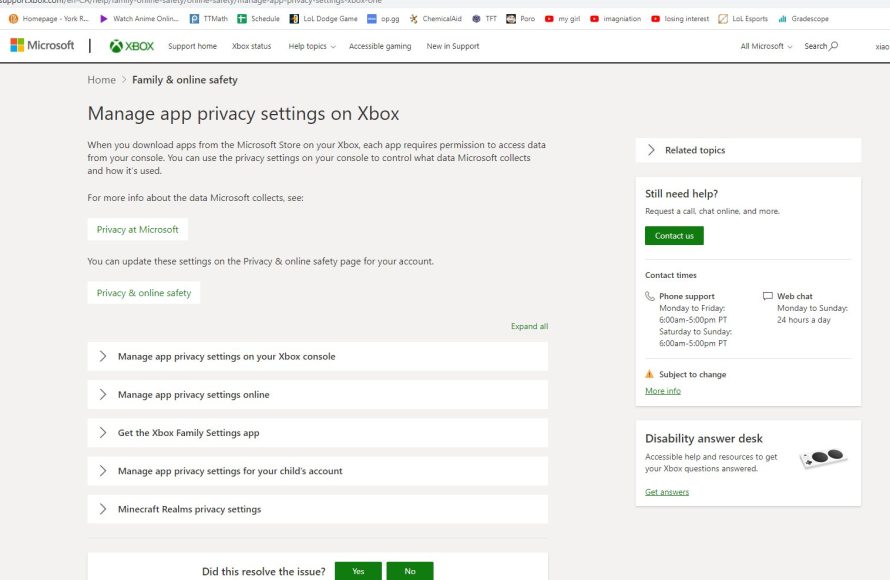
Xbox online safety resources provide tools and settings to manage your family’s gaming experience, allowing you to control communication, content access, and screen time.
Navigating the online world of Xbox can be exciting, but it’s important to do it safely. We all want a secure and enjoyable experience for everyone. Knowing what tools are available to protect yourself and your family is crucial.
Understanding Xbox online safety resources empowers parents to create appropriate boundaries. These resources offer a variety of features that help manage who your children interact with and what they can see and play.

Xbox Online Safety Resources
Playing games online with friends and other gamers can be super fun! But just like any place where people connect, it’s important to stay safe. Xbox understands this, and they’ve created a bunch of tools and resources to help everyone have a great and secure gaming experience. Let’s dive into what these resources are and how they can help you, your family, and your friends stay safe while enjoying Xbox.
Understanding Xbox’s Commitment to Safety
Xbox isn’t just about gaming; it’s also about creating a positive and safe community. They have a clear commitment to protect all players, especially younger ones. They know that online safety is a team effort, so they provide tools and information for everyone – kids, teens, and adults. This means you have support not only from Xbox but also from your parents or guardians who help guide you.
The Xbox Community Standards
Think of the Xbox Community Standards as the rules of the game. These rules are there to make sure everyone is treated fairly and with respect. They cover things like:
- No Bullying or Harassment: Being mean or hurtful to others is a big no-no.
- No Cheating: Playing fair is always the best way to have fun.
- No Inappropriate Content: Keeping the content suitable for everyone, especially younger players.
- Respect Others: Everyone deserves to be treated with kindness.
It’s a good idea to take some time to read the Xbox Community Standards, so you know what’s expected of you and what you can expect from others. If you see someone breaking these rules, you can report them to Xbox.
Family Settings and Parental Controls
Xbox provides powerful tools for parents and guardians to manage their family’s gaming experience. These tools, often called parental controls, help adults create a safe and appropriate gaming environment for their children. These settings can be accessed on your Xbox console, through the Xbox Family Settings app (which is free) on your phone, or through the Microsoft website.
Content Restrictions
One of the most useful features is the ability to restrict content. Parents can set age limits for games and apps. This means kids can only play games that are suitable for their age group. You can do the following:
- Game Age Ratings: Set limits based on the official ratings of games (like E for Everyone, T for Teen, and M for Mature).
- App Restrictions: Decide which apps your child can use on their Xbox.
This helps ensure that kids are not exposed to games or content that might be too violent, scary, or otherwise inappropriate for them.
Screen Time Management
It’s easy to lose track of time when you’re having fun, and kids are no exception. The screen time management tool lets you set daily or weekly limits on how long your child can play. Here’s how it works:
- Daily Time Limits: Set specific times of the day for gameplay (for example, one hour after school).
- Weekly Time Limits: Set a total number of hours for the entire week.
- Schedule Times: Control when your child can use the Xbox, such as bedtimes or homework time.
Once the time is up, the Xbox will gently let them know it’s time for a break. This feature encourages healthy gaming habits and ensures that gaming doesn’t interfere with other important activities.
Communication and Multiplayer Settings
Xbox also gives parents the ability to control how their kids communicate and play with others online. This includes:
- Who Can Talk to Your Child: You can limit who your child can communicate with online (friends only, no one, or everyone).
- Who Can Play Multiplayer Games: Control who your child can play online games with. This can be set to only friends or block all multiplayer options.
- Content Filtering: Filter out text and voice chat that might contain offensive language.
By setting these limits, you can reduce the risk of your child encountering mean or inappropriate content or people online. This helps create a more positive gaming experience.
Spending and Purchasing Controls
To avoid any unexpected bills, parents can also set spending controls. These tools allow you to:
- Limit Purchases: Set how much a child can spend on games, apps, and add-ons from the Xbox store.
- Require Approval: Get an alert and need to approve all purchases before they go through.
This is a great way to ensure that no accidental purchases happen and to help kids learn about budgeting and spending habits, even when playing games. This feature gives parents total control over the digital wallet linked to a child’s account.
Reporting and Blocking Tools
Even with all the safety features, sometimes you might encounter a player who is not following the Community Standards. When this happens, it’s important to know how to report them and block them. Xbox makes it easy to do both.
Reporting Players
If you experience bullying, harassment, cheating, or any other behavior that violates the Community Standards, you can report that player. Here’s how:
- Go to the Player’s Profile: Find the profile of the person who you need to report. You can usually find this in the game or from your friend’s list.
- Select ‘Report’: You’ll usually see the report button or report menu option on their profile.
- Choose the Reason: Select the category that best fits the issue, like “harassment,” “cheating,” or “inappropriate content”.
- Add Details (Optional): You can also provide additional details or comments to support your report.
Once you submit a report, the Xbox Safety Team will look into the matter and take action if the player is found to have violated the Community Standards. Keep in mind that reporting someone doesn’t guarantee they’ll be punished. The team reviews each report carefully, and if they find the player has done something wrong they will deal with them properly. You are helping keep the community safe by reporting others.
Blocking Players
If someone is making you feel uncomfortable or you don’t want to interact with them online, you can block them. Blocking a player will:
- Prevent Them From Contacting You: Blocked players can’t send you messages, game invites, or friend requests.
- Block Communication In Games: You won’t hear them or see their messages if you are playing a game with online chat functionality.
- Remove them from Your Friends List: Blocking a player also removes them from your list of friends.
Blocking someone is a quick and easy way to limit or avoid contact with them online. To block a player:
- Go to the Player’s Profile: Find the profile of the person you want to block.
- Select ‘Block’: You will find a block option on their profile, usually near the ‘report’ option.
Once you have blocked a player, they won’t be able to contact you or interfere with your gaming experience. If you want to unblock someone later, you can do so in your Xbox settings.
Xbox Enforcement Actions
Xbox has an enforcement team that works hard to keep the community a safe and friendly space for everyone. They will take action against players who violate the Community Standards. There are different types of actions the team can take when there is a violation of these standards. Here is what to expect.
Temporary Suspensions
For minor violations, Xbox may issue a temporary suspension. This means the player will not be able to use certain features of Xbox services for a specific period of time. For example, they may not be able to communicate online, play multiplayer games, or access certain apps.
Permanent Bans
For more serious or repeated violations, Xbox may issue a permanent ban. This means the player will no longer be able to use Xbox services and will have their account revoked. This is the most extreme form of punishment and is reserved for players who have repeatedly or severely violated the Community Standards.
Communication Bans
Xbox may issue a communication ban when a player has used inappropriate language or engaged in other forms of harmful communication. This means the player won’t be able to send messages or use voice chat online for a set amount of time. They will still be able to play games, but they will not be able to communicate with others using Xbox services.
Players who have received enforcement action will be notified by Xbox and will be provided with information about the reason for the action and the duration of the ban or suspension. The enforcement team aims to keep the community fair and safe by implementing these rules.
Tips for Staying Safe on Xbox
Besides using the tools and features Xbox offers, there are some things you can do yourself to stay safe online. Here are some tips to remember while gaming:
Be Careful Who You Talk To
- Only Accept Friend Requests From People You Know: Be careful about accepting friend requests from people you don’t know. It’s a lot safer to stick with friends and classmates.
- Be Wary of Sharing Personal Information: Don’t share personal information, like your address, full name, or school with strangers online.
- Be Aware of Phishing and Scams: Be aware of strangers that might try to get your personal information or use your Xbox account without your permission.
Keep Your Account Safe
- Don’t Share Your Password: Always keep your password safe and don’t share it with anyone, even your friends.
- Use a Strong Password: Make sure your password is strong. A strong password has a mix of upper and lowercase letters, numbers, and symbols.
- Change Your Password Regularly: Change your password every few months. This will protect your account against unauthorized access.
Be a Good Player
- Be Respectful to Others: Treat everyone with respect and kindness, just as you would want them to treat you.
- Don’t Bully or Harass Others: Bullying is never okay. If you see it, don’t engage in it, but report it.
- Have Fun and Be Responsible: Have a good time, but be smart and responsible while you’re online.
Additional Support and Resources
If you are ever in a situation where you need more help, here are a few additional resources available to you.
Xbox Support Website
The Xbox support website is a fantastic place to get answers to any questions you may have about safety, settings, or other Xbox-related topics. The website has a huge database of articles and troubleshooting guides. You can visit support.xbox.com to find out more information, or learn to setup settings and tools.
Xbox Family Settings App
The Xbox Family Settings App is available for download for free on Android and iOS devices. This is the easiest and most convenient way to manage family settings on the go. Parents can manage child accounts, adjust screen time, communication settings, and purchasing controls from their phone.
Mental Health Resources
If you ever need someone to talk to about bullying, stress, or any other difficult issue, there are many mental health resources available. Organizations like the Child Mind Institute or the Trevor Project offer support and guidance to people of all ages. Your safety and mental well-being is just as important as playing the games you love. Don’t be afraid to reach out if you need help.
Online gaming can be a great way to have fun and connect with friends, but it’s important to be aware of the potential dangers and take steps to stay safe. By using the resources and tools provided by Xbox and following some simple safety tips, everyone can have a positive and secure gaming experience. Remember, online safety is a team effort, so let’s all do our part to make the gaming community a fun and respectful place for everyone.
How to Set Up Parental Controls on Xbox: A Step-by-Step Guide
Final Thoughts
Effectively utilize parental controls and communication settings to create a safe gaming environment for everyone. Parents should explore the many tools available to manage their children’s online interactions and spending. These resources allow for a tailored and protective gaming experience.
Remember, prioritizing safe online play is important. Use Xbox online safety resources, such as family settings and reporting features, to protect yourself and your family. These are vital for healthy online engagement.

