
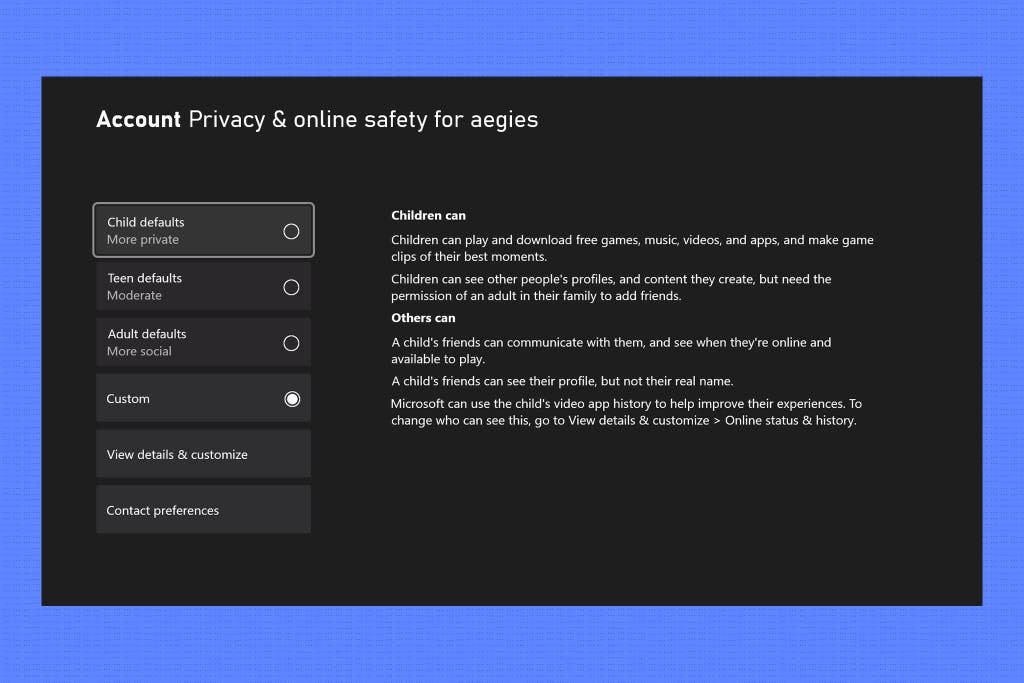
Xbox privacy settings allow you to control who can see your online activity, communicate with you, and access your game content.
Want to play online without everyone seeing your every move? Then you need to understand your Xbox privacy settings. They provide control over your gaming experience, letting you choose who interacts with you.
These settings determine who can see your profile, send you messages, or view your game clips. You can adjust them to suit your comfort level and protect your information while enjoying the Xbox platform.

Understanding Your Xbox Privacy Settings
Hey there, fellow gamers! Let’s talk about something super important: your privacy on Xbox. It’s like having a secret clubhouse, and you get to decide who sees what, who can play with you, and what information you share. Think of your Xbox privacy settings as the rules for your digital playground. We’ll break it all down so you feel like an expert!
Why Are Xbox Privacy Settings Important?
Imagine you’re playing your favorite game, and suddenly, a bunch of people you don’t know start sending you messages. Or maybe you don’t want your younger sibling to see which games you’re playing. That’s where privacy settings come to the rescue. They let you control who can interact with you, view your profile, and see what you’re up to. It’s all about keeping your gaming experience safe, fun, and just the way you like it.
Finding Your Xbox Privacy Settings
Okay, let’s get to where the magic happens. You can find your privacy settings in two main places: on your Xbox console and online through your Microsoft account.
On Your Xbox Console:
Grab your controller and follow these simple steps:
- Press the Xbox button to open the guide.
- Go to “Profile & system” (it’s the picture of your gamerpic).
- Select “Settings”.
- Go to “Account” and then “Privacy & online safety”.
- You’ll see two main sections: “Xbox privacy” and “Xbox Live privacy”. These are where you’ll make your privacy choices.
Online Through Your Microsoft Account:
If you prefer using your computer or phone, you can adjust these settings online:
- Go to the Microsoft account website (account.microsoft.com) and sign in.
- Click on “Privacy” at the top of the page.
- Choose “Xbox privacy”. This will take you to where you can manage all your Xbox privacy details.
Exploring Xbox Privacy Options
Now that you know how to get there, let’s dig into the different settings. You’ll see a bunch of options, and each one controls a specific part of your Xbox experience. We’ll go through the most important ones.
Who Can See Your Profile?
This setting decides who can see your profile, which includes your gamertag, bio, achievements, and the games you play. You can choose between:
- Everyone: Anyone on Xbox can see your profile.
- Friends: Only people on your friends list can see your profile.
- Block: Nobody can see your profile.
- Custom: You get to choose specific people who can see your information.
It’s like choosing who gets invited to your party! If you want to keep things more private, set it to “Friends” or “Custom.”
Who Can See Your Activity?
This setting covers things like which games you’re playing, what you’ve been streaming, and what you’ve recently shared. The choices are similar:
- Everyone: Anyone can see what you’re doing on Xbox.
- Friends: Only your friends can see your activity.
- Block: No one can see your activity.
- Custom: Choose specific people to see your activity.
If you want to keep a lower profile, setting this to “Friends” or “Custom” is a smart move.
Who Can Communicate With You?
This is a really important section. You can control who can send you messages, invites to games, and voice chat with you. Here’s what you can pick from:
- Everyone: Anyone can send you messages and chat.
- Friends: Only your friends can communicate with you.
- Block: No one can communicate with you, which is generally a good option if you’re experiencing harassment.
- Custom: You can choose specific communication settings for individual people.
Think carefully about this one. If you’re playing online with people you don’t know, it’s often safer to stick to “Friends” or “Custom.” You can always add someone to your friends list if you want to communicate more freely.
Who Can See Your Content?
This setting controls who can view the game clips and screenshots you create. The options look familiar:
- Everyone: Anyone can view your captures.
- Friends: Only your friends can view your captures.
- Block: No one can see your captures.
- Custom: Select specific people who can see your captures.
If you like to share your best gaming moments, think about who you want to see them. “Friends” is a good middle ground.
Allowing Multiplayer Games
This setting determines if you can play online multiplayer games with people you aren’t friends with. This is important for playing with new people.
- Allow: You can play with everyone.
- Block: You can only play with people on your friends list.
If you enjoy the social aspect of online gaming, keeping this set to “Allow” is generally recommended. If you prefer to play only with your friends, you can set this to block.
Share Game Activity
This setting controls if your game activity gets shared outside of the Xbox environment (e.g., to other apps or services linked to your Xbox account). Sharing settings can include:
- Allow: Sharing with other platforms is permitted.
- Block: No data is shared outside of Xbox.
Think about how much of your gaming activity you want to share beyond Xbox. Blocking helps keep your gaming activity within the Xbox environment.
Data Collection
Microsoft collects some data about how you use your Xbox to help them improve their products. In the privacy settings, you can adjust what data is collected. The available options include:
- Allow: Microsoft can collect certain data to make Xbox experience better.
- Block: No data about your Xbox experience is shared with Microsoft.
The amount of data collected is minimal and will never include information that identifies you, but if you don’t feel comfortable sharing any information, you can block this feature entirely.
Family Settings and Parental Controls
If you’re a parent or guardian, or if you have younger siblings using the Xbox, you should also check out the family settings and parental controls. These features are incredibly helpful for managing what younger users can do on the console and ensuring their safety online. You can set things like screen time limits, game ratings restrictions, and spending limits.
You can also monitor the gaming activities and communication of your children.
To access these parental controls, follow similar steps to finding your privacy settings, but select “Family settings” after choosing settings from the profile section. Here, you can create child accounts and customize settings to fit your family’s needs.
Content Restrictions
Within family settings, you can set restrictions on the age rating of games and apps that your children can play. This ensures that they are not exposed to content that is not appropriate for their age.
Spending Limits
If your child has access to purchasing games and content, you can set spending limits to prevent unexpected charges. This gives you control over how much money they can spend on the Microsoft store.
Screen Time Management
Parents can set limits on the amount of time their children spend playing games or using the Xbox. This allows you to maintain a healthy balance between gaming and other activities.
Communication Management
Within family settings, you can control with whom your children are allowed to communicate. This can help to prevent them from contacting strangers and to limit their communications to approved individuals.
Activity Reporting
Parents can use activity reporting features to keep track of the games their children are playing and the time they spend on each game. This gives parents insight into the gaming habits of their children and allows them to ensure a balanced gaming schedule.
Tips for Keeping Your Xbox Account Secure
Setting up your privacy settings is a great start, but there are a few other things you can do to keep your Xbox account safe:
- Use a strong password: Make it a mix of letters, numbers, and symbols, and don’t reuse it for other accounts.
- Enable two-step verification: This adds an extra layer of security. When you sign in from a new device, you’ll need a code from your phone or email, so no one can get into your account without it.
- Be careful with friend requests: Don’t accept friend requests from people you don’t know.
- Report inappropriate behavior: If someone is being mean or making you uncomfortable, use the report feature on Xbox.
- Keep an eye on your privacy settings: It’s a good idea to check your privacy settings regularly and make sure they’re still set how you want.
Understanding How Your Settings Impact Gameplay
It’s important to know that your privacy settings can actually impact the way you play games. For instance, if you block all communication from people you are not friends with, you won’t be able to hear or talk to your teammates in games. Similarly, if your privacy settings are too restrictive, it may be difficult for friends to find you or see when you are online.
You will need to find a balance that works for you and your gameplay needs. If you are having difficulty playing with people, try to check your privacy settings to see if a setting may be too restrictive.
Remember, your settings are not permanent. You can change them at any time. Try experimenting with different configurations until you find the perfect balance of privacy and gameplay.
Privacy and Online Safety for Younger Gamers
Younger gamers might need some extra guidance when it comes to their privacy and online safety. Parents need to be extra careful to ensure their children are only playing games that are age-appropriate and aren’t interacting with people they don’t know. Some tips for younger gamers include:
- Stick to playing with people you know in real life.
- Don’t share your real name, age, or location with anyone.
- Never agree to meet anyone you met online.
- Tell a trusted adult if anyone makes you feel uncomfortable.
- Always keep your conversations friendly and appropriate.
When kids are gaming, it is essential that they are having fun while staying safe. The best way to ensure their online safety is to be actively involved, monitor their gaming activity, and help them understand the basics of online privacy.
Privacy Settings and Specific Games
Sometimes, individual games have their own privacy settings on top of your console-level settings. These settings can impact who sees your game activity and who can communicate with you inside of the game itself. For example, some games may allow you to mute specific players, block certain players from joining your games, or adjust the visibility of your profile. These settings are generally found within the game’s own options menu.
It’s always a good idea to check the privacy settings of each game you play, especially if you’re playing online multiplayer. Game developers often include additional options that give you more control over your in-game experience.
You’ve reached the end of our journey through the world of Xbox privacy settings. You should now feel confident in your understanding of how they work, why they are important, and how to keep yourself safe online. Remember, your gaming experience is yours to control! Take some time to customize your settings and ensure that they fit your unique gaming needs.
Xbox Series X/S: How to Change Xbox Privacy Default Settings Tutorial! (Privacy & Online Safety)
Final Thoughts
In essence, managing your Xbox privacy settings is essential for a secure and enjoyable gaming experience. These settings allow you to control who can see your activity, communicate with you, and access your content. Take some time to personalize your preferences. This ensures your gameplay stays how you want it to be.
Adjusting your Xbox privacy settings puts you in charge of your digital footprint. Consider the different options and pick the ones that best fit your comfort level. Make sure to review them periodically as your needs or the service changes.

