
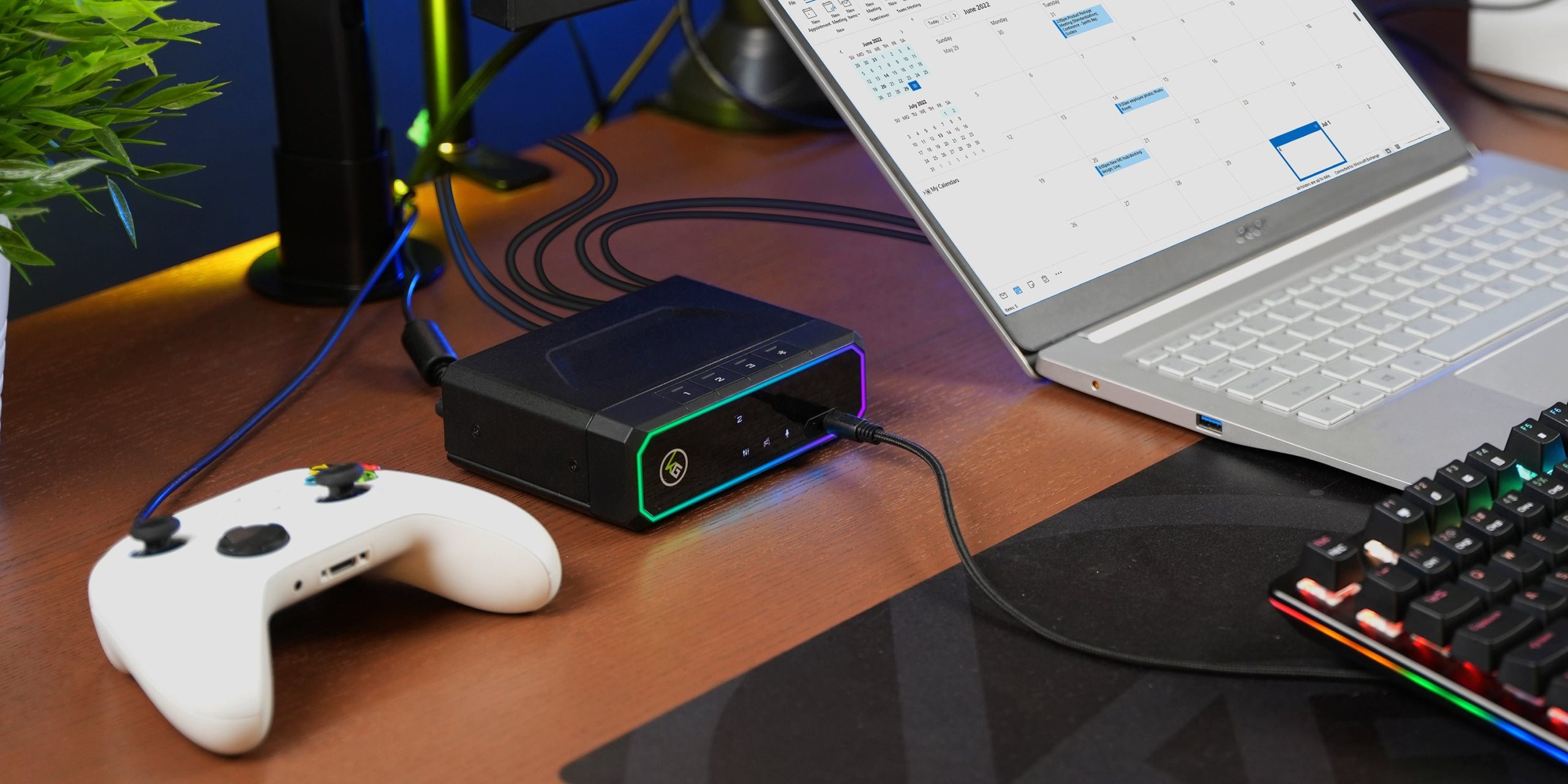
Xbox productivity for gamers comes from using its built-in features to manage tasks, connect with teammates for collaborations, and even set time limits on gameplay to ensure a balance.
Ever thought your Xbox could do more than just gaming? Turns out, this powerful console offers tools for gamers to become productive. We often forget its potential outside the gaming world.
Many useful functions, like communication platforms and organizational options, remain unexplored. Let’s delve into ways to use the console to achieve real-world goals. You might be surprised how effective Xbox productivity for gamers can be.

Xbox Productivity for Gamers: More Than Just Play
Hey there, fellow gamers! We all love diving into epic worlds and conquering challenging levels, but did you know your Xbox can be a secret weapon for getting things done too? That’s right! It’s not all just about gaming; your trusty console can actually help you be more productive. It’s like having a cool, multi-tasking superhero hidden in your living room. Let’s explore how we can make your Xbox work harder for you, and not just for your high scores.
Beyond the Game: Xbox’s Hidden Talents
Most people think of the Xbox as a pure gaming machine, and they aren’t wrong, it excels at that! But underneath that awesome gaming exterior lies a surprisingly capable system that can help you with tasks that have nothing to do with leveling up. Think of it like having a mini-computer right there beside your TV. So, what exactly can you do with it?
Media Consumption and Creation
Let’s start with the basics. Your Xbox is a fantastic media hub. It can do way more than just play games. Here’s a breakdown:
- Streaming Services: You can watch all your favorite shows and movies through apps like Netflix, Hulu, Disney+, and many more. It’s a great way to relax after a long day of school or work. Forget needing a separate device; your Xbox has you covered.
- Music Streaming: Need some tunes to get you through your homework or a chore list? Apps like Spotify and Apple Music are available right on your console. Blast your favorite playlist and get things done with a beat.
- YouTube and Twitch: Learn new things, watch tutorials, or enjoy live streams on YouTube. Maybe you want to learn how to build a new item in Minecraft or how to beat a difficult boss in a game. Plus, watching gaming streams on Twitch can be fun, relaxing and keep you in the gaming loop when you’re not playing.
- Screen Sharing: If you have a Windows PC, you can even use the Xbox app to share your PC screen on your TV. Great for showing off your school projects or a family photo slideshow!
Using Microsoft Apps for Productivity
The Xbox isn’t limited to just entertainment apps. It also connects with Microsoft’s ecosystem, making it easier to get work done. This is something many players might not realize. Here are some ways you can use it:
- Microsoft Edge Browser: That’s right, your Xbox has a web browser! You can surf the internet, check emails, and even do some basic document editing using online tools like Google Docs. The Edge browser might not be ideal for detailed work but it is perfect for basic browsing and research.
- Microsoft OneDrive: This cloud storage service lets you access your files from anywhere, including your Xbox. This means you can work on a presentation on your computer, and then quickly view it on the TV through your Xbox. This makes collaboration easy, or just moving files from one device to another.
The Power of Voice Commands
The Xbox’s voice recognition is surprisingly helpful. You can use voice commands to control your apps and system features without needing to fiddle with your controller. Here’s how it can boost your productivity:
- Launch Apps Quickly: Instead of scrolling through menus, just say “Xbox, open Netflix” and the app will launch right away.
- Search the Web: You can dictate your search queries to the Edge browser, saving you some time typing with a controller.
- Play, Pause, and Navigate: Use your voice to pause videos, skip tracks, or move through the Xbox menu.
Xbox for Learning: Expanding Your Knowledge
Beyond entertainment and basic productivity tasks, your Xbox can be a tool for learning. Let’s look at a few ways:
- Educational Apps: Some apps offer courses and tutorials on various subjects. You might find coding tutorials, language learning resources, or even creative software lessons available for download.
- Interactive Learning Games: Many games are designed with educational elements. These can be great ways for younger gamers to learn while having fun.
- Online Research: Use the Edge browser to research school assignments or learn about things you are curious about.
Setting Up Your Xbox for Success
Now that we know the Xbox is more than just a gaming console, let’s discuss how to set it up for maximum productivity. A little bit of preparation can make a big difference. Consider these tips:
Customizing Your Dashboard
Your Xbox dashboard is your home base. You can customize it to make accessing your productive apps easier:
- Pin Your Favorite Apps: Pin the apps you use most often, such as Netflix, Spotify, Microsoft Edge, and YouTube, to your home screen. This will save you time scrolling through menus.
- Arrange Your Tiles: Organize your dashboard tiles so the most important apps are at the top, and in an order that makes sense to you. This makes accessing your apps quick and easy.
Optimizing Display Settings
Working on a TV screen for extended periods of time can be a challenge. Changing the display settings can help make it more comfortable for reading and basic tasks:
- Adjust Brightness and Contrast: Make sure your screen is at a comfortable level, so you don’t strain your eyes. Experiment with brightness and contrast to find what works best for you.
- Text Size and Font: Most TVs allow you to change the text size. Make sure the text is large enough for easy reading.
- Use Dark Mode: If your TV and Xbox support a dark mode or dark theme, it can be easier on the eyes, especially in low-light conditions. This helps reduce glare and eye strain.
Using a Keyboard and Mouse
While you can use the controller to navigate the Xbox, using a keyboard and mouse makes many tasks much easier:
- Faster Typing: Typing with a controller is very slow, but with a keyboard you can quickly enter website addresses, search terms, or write notes.
- More Precise Navigation: A mouse allows you to accurately point, click and select items in the apps. This is especially helpful when working within web browsers.
- Plug and Play: Most standard USB keyboards and mice will work right away with your Xbox. You can find affordable wired and wireless options.
Creating Routines and Using Reminders
To make the most of your productive time on your Xbox, it can help to use reminders and create regular routines:
- Set Timers and Alarms: Use your phone or smart watch to set timers for focused work sessions, and alarms as reminders for scheduled breaks.
- Create a Productivity Schedule: Plan your days and allocate times for specific tasks and break times to prevent burning out. You can use the Microsoft Calendar app to set reminders.
- Stay Organized: Using the web browser on your Xbox you can access apps to stay organized like Todoist or Microsoft to-do to keep track of your tasks.
Practical Applications of Xbox Productivity
Let’s look at some concrete examples of how you could use your Xbox to be more productive in your everyday life.
Student Life and Homework
Your Xbox can be a big help for students:
- Research Projects: Use the Edge browser to look up information and find resources for papers and presentations.
- Document Review: Read and review documents from your OneDrive. You can even get a friend involved to help with proofreading.
- Listen to Music while Studying: Play your favorite music or podcast in the background to make studying more enjoyable.
Working from Home
If you work from home, or sometimes need to work outside of the office, your Xbox can help you with these tasks:
- Quick Document Editing: Use web-based apps like Google Docs to edit files, or view work documents from your Microsoft OneDrive.
- Check Emails: Use the Edge browser to access your emails and respond to any important messages.
- Join Online Meetings: While you may not be able to join complex meetings, you can still use the browser to keep track of meeting notes and agendas.
Family and Home Management
Your Xbox can also be very helpful for managing your household tasks:
- Meal Planning: Use the web browser to look up recipes or create grocery lists. You can use an online note taking app to keep track of things.
- Organizing Photos and Documents: Use Microsoft OneDrive to access all of your household’s documents and photos.
- Set up Family Reminders: Use the Calendar app or other online options to set up reminders for important events or tasks.
Troubleshooting Common Issues
Sometimes things don’t go perfectly. Let’s look at some common problems you might face when using your Xbox for productivity and how to solve them:
Slow Internet Speed
A slow internet connection can be very frustrating. Here are some things you can do to try and fix the problem:
- Restart Your Router: Sometimes simply turning your router off and back on can solve a lot of issues.
- Move Your Xbox Closer: If you’re using Wi-Fi, moving the Xbox closer to the router could improve the connection.
- Use a Wired Connection: If possible, try connecting the Xbox directly to your router using an Ethernet cable for a more stable and faster connection.
App Crashing
Sometimes apps can freeze or stop working unexpectedly. Here’s how to try and fix it:
- Restart the App: Close the app completely and then relaunch it.
- Restart Your Xbox: Sometimes restarting the entire console can fix temporary issues.
- Check for Updates: Ensure both your apps and the Xbox operating system are up to date.
Keyboard and Mouse Issues
Sometimes your keyboard and mouse might not work properly. Here are some troubleshooting steps:
- Check the Connection: Make sure your keyboard and mouse are properly connected to the Xbox. If using wireless, make sure the batteries are not low.
- Try a Different Port: Try connecting the keyboard or mouse to a different USB port on the console.
- Restart the Xbox: Restarting the Xbox can sometimes fix issues with peripherals.
Voice Recognition Not Working
Sometimes the voice commands may not work properly. Try the following to solve issues:
- Check Microphone Connection: Make sure the microphone is connected and working.
- Speak Clearly: Try speaking clearly and directly towards the microphone.
- Check for Updates: Make sure your Xbox software is up to date.
Using your Xbox for productivity can be a game-changer. With the right setup and mindset, you can turn your console into a versatile tool that helps you get things done. Don’t limit yourself to just gaming. Try using the other features and see how it can help your day go a little smoother.
Turning my Xbox Series S into a Gaming PC! 😱
Final Thoughts
To sum up, Xbox offers more than just gaming. You can use it for browsing the web, managing files, and even connecting with colleagues. Gamers can absolutely get some serious work done, utilizing the console’s features. Xbox productivity for gamers proves this point.
It’s a capable device for daily tasks, therefore, do explore all its helpful applications beyond games. You’ll find that Xbox has a place in your productive schedule as well.

