
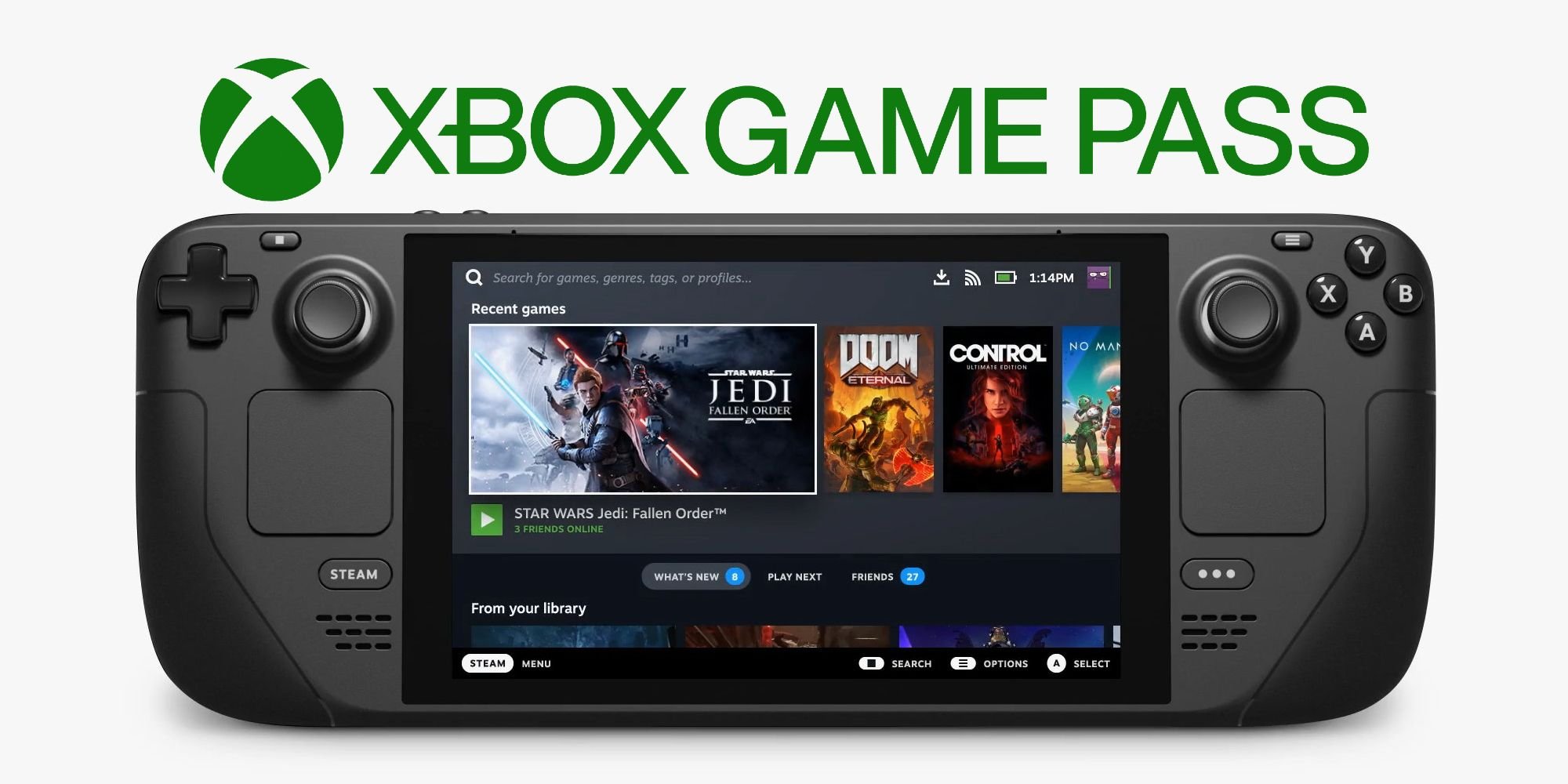
You cannot directly play your Xbox games on Steam Deck through native Xbox software. However, you can play them via cloud gaming with Xbox Game Pass Ultimate.
The question on many gamers’ minds is: can i play my xbox games on steam deck? It’s a valid concern, considering both are popular gaming platforms. While the Steam Deck is a powerhouse for PC games, it doesn’t directly support Xbox games out of the box.
Fortunately, there’s a workaround using Xbox Game Pass Ultimate. This allows you to stream many Xbox titles to your Steam Deck, offering a good option for playing your favorite Xbox games.

Can I Play My Xbox Games on Steam Deck?
So, you’ve got a shiny new Steam Deck and a library of awesome Xbox games. It’s natural to wonder, “Can I bring my Xbox adventures to this cool handheld?” The answer, like many things in tech, is a bit of a mix of “yes,” “no,” and “sort of.” Let’s dive deep and figure out how you can – or can’t – get your Xbox games playing on your Steam Deck.
Understanding the Differences: Xbox vs. Steam Deck
Before we get into the nitty-gritty, it’s important to understand that Xbox and Steam Deck are different platforms. Think of it like this: Xbox is like a specific video game console, while Steam Deck is more like a mini-computer made for games. They use different systems, so they don’t naturally play each other’s games.
The Xbox Ecosystem
- Xbox games are designed for the Xbox console and Windows PCs.
- You buy games from the Microsoft Store (for Windows) or the Xbox Store (for consoles).
- These games usually use the Xbox operating system (OS).
The Steam Deck Ecosystem
- Steam Deck runs on SteamOS, a type of Linux.
- Games come from the Steam store.
- It’s designed to play games compatible with its system.
Because of these differences, you can’t just pop an Xbox game disc into your Steam Deck and expect it to work. The Steam Deck doesn’t have a disc drive anyway! However, there are ways to play some of your Xbox games on your Steam Deck. Let’s look at how.
Xbox Game Pass and Cloud Gaming on Steam Deck
The best and most official way to play Xbox games on your Steam Deck is through Xbox Cloud Gaming (formerly Project xCloud). This is part of the Xbox Game Pass Ultimate subscription. Instead of your Steam Deck directly running the game, it streams the game from powerful Microsoft servers. It’s like watching a live video of the game while you play. It is also known as xCloud.
What You Need for Xbox Cloud Gaming
- An Xbox Game Pass Ultimate subscription
- A stable internet connection
- A web browser (like Google Chrome or Microsoft Edge) installed on your Steam Deck
How to Set Up Xbox Cloud Gaming on Steam Deck
- Install a Web Browser: If you haven’t already, install either Google Chrome or Microsoft Edge from the Steam Deck’s “Discover” store (it’s like the app store).
- Open Your Web Browser: Open the installed browser from your Steam Deck’s menu.
- Go to the Xbox Cloud Gaming Website: Type in “xbox.com/play” in the browser’s address bar.
- Sign In: Use your Microsoft account to sign in. Make sure it’s the one linked to your Xbox Game Pass Ultimate.
- Start Playing: Find the game you want to play and click “Play.”
Pros and Cons of Xbox Cloud Gaming
Pros:
- You don’t need to download or install any games.
- Play some of the best xbox games on Steam Deck.
- You can play many Xbox Game Pass games without using up storage space.
- It’s relatively easy to set up.
Cons:
- You need a good internet connection. Lag and disconnects can happen.
- It relies entirely on streaming; you can’t play offline.
- Not every Xbox game is available for cloud streaming.
- The visual quality might not always be perfect.
Using Xbox Cloud Gaming is the most straightforward and supported method to play some Xbox games on Steam Deck, but it’s not without its limitations. It’s important to consider if your internet can handle cloud gaming.
Installing Windows on Your Steam Deck
Another, more complicated, method is installing Windows on your Steam Deck. This allows you to potentially play Xbox games bought from the Microsoft Store for Windows. This method takes more work and is not as simple as cloud gaming, but it gives you more flexibility.
Why Install Windows?
- Directly run Windows games from the Microsoft Store.
- More compatibility with other PC games and applications.
- The ability to use programs and apps not available on SteamOS.
Challenges of Installing Windows
- It’s technical: you need some computer knowledge to do it correctly.
- You might lose some SteamOS features.
- Windows may not run as smoothly as SteamOS on the Steam Deck.
- It takes up your valuable storage space.
- Driver issues can sometimes arise, requiring additional troubleshooting.
Steps to Install Windows (General Overview)
Important Note: Before starting this process, research thoroughly. Incorrect installation could damage your Steam Deck. Always back up your data if possible. This is a complex process and not recommended for beginners.
- Create a Windows Installation Media: This involves using a USB drive and a computer to prepare the installer.
- Prepare Your Steam Deck: You need to change some boot settings and settings in the BIOS.
- Boot from the USB Drive: Use the prepared USB drive to start the Windows installation process.
- Install Windows: Follow the on-screen prompts, this is similar to installing Windows on a regular computer.
- Install Drivers: Once installed, you’ll need to find and install all the necessary drivers for the Steam Deck hardware to function properly.
Installing Windows is a powerful but risky option for playing Xbox PC games on your Steam Deck. It requires tech skills, can make your Steam Deck run less smoothly, and can cause issues. Make sure to research well before attempting this option.
Xbox Play Anywhere Titles
Some Xbox games are part of the “Xbox Play Anywhere” program. This means if you own the digital game on Xbox or the Windows Store, you can play it on the other system without buying it again. If you install Windows on your Steam Deck, you may be able to play these specific Xbox games. These games do not work via cloud, they will only work when installed on windows, this would include Forza, Halo, Gears of War and few other titles.
What are Xbox Play Anywhere Games?
- These are titles that offer a digital license for both Xbox and Windows.
- If you buy the digital game on one platform, you can download and play it on the other.
- It does not work with physical copies of Xbox games.
How to Play Xbox Play Anywhere Titles
- Install Windows: As explained earlier, you will need to install Windows on your Steam Deck.
- Install the Xbox app: This can be downloaded from the Microsoft Store within Windows.
- Sign In: Sign in using the Microsoft account linked to your Xbox purchases.
- Download and Play: Find your Xbox Play Anywhere titles within the Xbox App. Download and play.
The benefit here is you don’t have to buy the game twice, if you already own the digital copy. Note that only certain games are part of the Xbox Play Anywhere program.
Emulation and Its Limitations
Emulation is another method, but it’s complicated and often has legal grey areas. Emulation involves software that imitates the hardware and software of another device. In our context, that would mean trying to run an Xbox emulator on the Steam Deck. Xbox emulation on other systems, including the Steam Deck, is not well-developed. It has major limitations.
What is Emulation?
- Emulation tries to make a device act like a different device.
- In gaming, this often means getting games from one console to run on another.
Limitations of Xbox Emulation
- Xbox emulation is not very good. It is still a work in progress.
- Many games do not work at all or have bugs.
- It is very demanding on the hardware, so games might run very slowly or not at all.
- Finding the right emulator software is challenging and often not legal.
Because of the difficulty and performance issues, using emulators to play Xbox games on your Steam Deck isn’t recommended, especially for most users. There is very minimal success with very old Xbox games only.
Which Method is Best for You?
The “best” way to play Xbox games on your Steam Deck depends on your goals, tech skills, and internet access. Here is a simple summary to help you choose:
| Method | Skill Level | Pros | Cons |
|---|---|---|---|
| Xbox Cloud Gaming | Beginner | Easy to setup, don’t need to download the games | Needs a stable internet, relies on streaming, not all games are available |
| Installing Windows | Advanced | More control, can install all games from Microsoft Store on windows | Technical, may lose SteamOS features, takes up space |
| Xbox Play Anywhere Titles with Windows | Advanced | Play titles you already own | Needs Windows, Only works for select games |
| Emulation | Very Advanced | Potential for older titles, not reliable | Extremely difficult, performance issues, questionable legality |
For most people, especially those new to the Steam Deck, the best choice is Xbox Cloud Gaming through a web browser. It’s easy to use and lets you play a large library of games without any complicated technical stuff. For those who like a challenge, installing Windows is an option, but it needs a lot of knowledge and may not be the most reliable choice. Emulation should be avoided if you just want to play Xbox games. It’s complicated and has bad performance issues.
So, can you play Xbox games on your Steam Deck? Yes, through cloud gaming and potentially by installing Windows. While direct play isn’t possible, there are enough options for you to try out. Choose the path that best fits you and get ready to game!
Play Xbox On Steam Deck EASILY!
Final Thoughts
So, can i play my xbox games on steam deck? The short answer is no, not directly. Xbox games require the Xbox ecosystem. You can use Xbox cloud gaming, which is a completely separate service.
You must have an Xbox Game Pass Ultimate subscription. Cloud gaming allows you to play certain games via the internet. Keep in mind that requires strong internet connection.
Therefore, playing directly, from disc or downloaded to a local storage on the Steam Deck is not possible. Using Xbox Cloud Gaming is the method that works.

