
Yes, you can transfer your Quest 2 games to your Quest 3.
Upgrading to the Quest 3 is exciting, but a common question arises: can i transfer my quest 2 games to quest 3? Thankfully, the process is generally straightforward. Meta designed the system to allow you to access your previously purchased games.
You won’t lose your game library. All your games purchased through the Meta account are accessible on the new headset. Simply log into the Quest 3 with the same account you used on your Quest 2.

Can I Transfer My Quest 2 Games to Quest 3?
So, you’re getting ready to jump into the awesome world of the Meta Quest 3! That’s fantastic! One of the first things on your mind is likely, “Will all my cool Quest 2 games come with me?” The short answer is generally yes, but let’s dive into all the details so you know exactly what to expect when you power up that new headset. Let’s talk about how game transfers work, what you need to think about, and if there are any games that might not make the move.
Understanding Game Compatibility Between Quest 2 and Quest 3
Think of it like this: the Quest 2 and the Quest 3 are like cousins in the same family. They both play the same kinds of games, those cool VR games you love, but the Quest 3 is a bit newer, faster and more powerful. Most games made for the Quest 2 will work just fine on the Quest 3 because they are made within the Meta ecosystem. Meta wants to ensure that you can enjoy your game library on their new system. This is good for both you (because you don’t need to buy games again) and for developers(they don’t need to make separate versions for both headset). The game library is shared between both headsets.
How Game Purchases Are Linked
The way it works is that all of your games are connected to your Meta account. When you buy a game on your Quest 2, it’s not stored only on the headset itself. Instead, it is registered on your Meta account, just like when you buy a digital game on other platforms such as Playstation or Xbox. You also have a library in your account just like on other platforms. This account acts like a key that unlocks your games on any Meta device. When you get your Quest 3, you simply log in to the same account, and your games will be waiting for you.
This means you don’t need to repurchase games. Imagine you have a collection of awesome toys. If you buy a new toy box, you don’t have to leave the old toys behind and buy new ones! You simply take your toys and put them in the new box, this is the exact same thing with Quest 2 and Quest 3. Your games are in your account so you can take them with you.
- Your games are tied to your Meta account, not your headset.
- Login with the same Meta account on your new Quest 3 to access your library.
- No extra steps are required to transfer games.
The Process of Accessing Your Games on Quest 3
Moving your games to your new Quest 3 is a breeze. It’s really quite simple, and you don’t need to be a tech genius. Here’s how you do it:
- Set Up Your Quest 3: First things first, get your new Quest 3 out of the box and go through the setup process. Make sure your headset is connected to the internet and is charged.
- Log in to Your Meta Account: When prompted, use the same email and password that you used for your Quest 2 account to log into your Meta account. This is essential, as this account holds all your game licenses.
- Go to Your Library: After logging in, you will see a menu on the screen with different options. You should see one that says “Library.” Click on the library option.
- Find Your Games: In your library, you will find all the games that you have already purchased.
- Install Your Games: Select each game you want to play and click the “Install” option. The games will begin to download onto your Quest 3. The speed depends on your internet connection.
- Start Playing: Once the download is complete, it is ready for you to start playing! Enjoy your favorite games on a brand new device.
That’s it! No complicated moving of files or special steps needed. Meta made it easy to switch between their devices. They are the same family.
Potential Issues and What to Do About Them
While the transfer of your games is typically smooth, there are a few things that can sometimes come up. Here are a few scenarios to consider and what you can do:
Games Not Appearing in Your Library
If you log into your Quest 3 and your games aren’t there, don’t panic! First, make sure you are logged into the correct Meta account. It’s a very common mistake to have multiple Meta accounts (especially if you used different methods to sign up). Double-check the email address you used. If you are sure that you are using the correct account and your games are still not appearing, then there might be some problem with the servers. Sometimes server issues prevent games from showing up right away. Be patient and try again after some time. If this issue is still happening, it’s a good idea to contact Meta support. They can help you figure out what the problem is and make sure your games show up.
- Double-check your Meta account: Ensure you’re using the same email and password.
- Wait and try again: Server issues sometimes cause temporary hiccups.
- Contact Meta Support: If the problem continues, reach out to their help team for assistance.
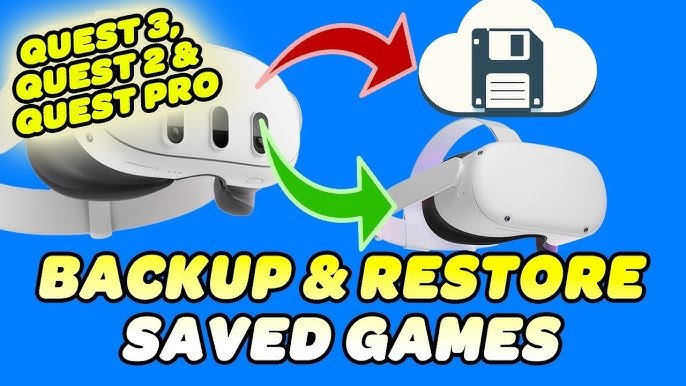
Game Save Data and Progress
One important thing to keep in mind is game save data and progress. While your games themselves transfer over easily, your game saves might not always come along. This is because game progress can be stored in different places. Some games store saves on the cloud so that you can pick up right where you left off on any of your devices. Some games save data locally on the device. Here’s what that means for you:
- Cloud saves: Games that use cloud saves will automatically transfer your progress with you to your Quest 3. You will be able to continue where you left off.
- Local saves: If a game saves data locally, you might have to start your game from the beginning. This can be a bit annoying if you’ve spent a lot of time on a game.
It’s a good idea to check the game’s information or look online to see if it uses cloud saves. If a game uses local saves, you can’t transfer your progress to a different device and you might need to begin again. This is not something that Meta has control over, it is something that each game developer chooses. If it is an important game for you, you can contact the developer and ask them to implement cloud saves in the future.
Games That Might Not Work
Even though most games will work fine, there are a few situations where a game might not transfer to your Quest 3. This is very rare. However, you should know some of the reasons why this might happen. Here are a couple of possibilities:
- Very Old Games: Very old games from the original Quest device might not be compatible with the newer Quest 3. These are really old games and it is unlikely you have them.
- Games With Compatibility Issues: Sometimes, rarely, a game could be made in such a way that it does not work well on the Quest 3. This is unusual, but it is possible. If you find that one game doesn’t work, the best thing to do is contact the game’s developer or Meta support for help.
The vast majority of your games, though, will make the jump over to the Quest 3 without any issues. You probably don’t have to worry about it too much, but it’s good to be aware of these very rare potential issues.
Maximizing Your Gaming Experience on the Quest 3
Now that you know how to bring your games over, let’s talk about making the most of them on your Quest 3. The Quest 3 has some improvements that will make your games even better:
Improved Graphics and Performance
The Quest 3 has a much more powerful processor than the Quest 2. This means that games can run faster, look smoother, and more visually appealing on your Quest 3. You may be surprised how much better your current games can look on the Quest 3. Colors will look more vibrant, details are sharper, and overall the game will feel like it is running much better.
Mixed Reality Experiences
The Quest 3 is the first Meta headset that really focuses on mixed reality. This means it can let you see what is around you while you’re playing a game. Instead of being completely inside the game, your real world will be mixed into the virtual world and you will see that on the screen. It makes a new type of game experience and it is very fun. You will see more of these kinds of experiences coming to the Quest 3. This is a new and fun thing that you will not have experienced on the Quest 2.
Better Controllers
The Quest 3 also comes with updated controllers, that are more comfortable in your hands. These controllers also have better technology and tracking so that they respond to your hand movements faster and more accurately. It will make controlling your games feel more smooth and fun.
New Games and Experiences
The Meta Quest 3 has a lot of exciting new games and experiences that are built to take advantage of the new hardware. While it is nice that your current game library is coming with you, this new system opens the door for a lot of new possibilities. Keep your eye on the Meta store for what is new. You will find a lot of new and cool VR experiences.
Tips for a Smooth Transition
Here are some tips to make sure the transfer to your new headset goes without a hitch:
- Check Your Wi-Fi: Make sure you have a good Wi-Fi connection when you’re installing your games. Slow internet can make the download take a long time and maybe even cause errors.
- Fully Charge Both Headsets: Make sure both your Quest 2 and Quest 3 are fully charged before moving any games. A sudden power loss can cause errors during the transfer process.
- Update Your Headset Software: Ensure both your old Quest 2 and new Quest 3 have the latest software updates installed. Updates often fix bugs and help everything run smoothly. You can do this in the settings menu.
- Manage Storage Space: Keep an eye on your Quest 3 storage space. Some games can be quite large, and you don’t want to run out of room when downloading your games. You can uninstall games that you are not using.
By following these easy tips, you’ll have a smooth transition to your new Meta Quest 3, and you can start enjoying your existing library of games without issue.
So, you now have a clear understanding on how to bring over your Quest 2 games to the new Quest 3. It’s good to know that most games will work perfectly, and the process of getting them is very simple. You simply have to log in and you’re done. The Meta Quest 3 opens the door to a lot of cool new experiences in the future. You should take a chance and see all the new things that are coming. Have fun gaming!
Do ALL Quest 2 Games WORK on Quest 3? 128 or 512?
Final Thoughts
Yes, you can transfer your Quest 2 games to Quest 3. This process involves using the same Meta account on both devices. Your purchased games will be available in your library, ready for download on your new headset.
The games will be must present in your account. Simply download them; it’s quite straightforward. The ability to transfer makes upgrading easier, keeping all your favorite content. ‘can i transfer my quest 2 games to quest 3’ is a frequent question, and the answer is a definite yes.

