
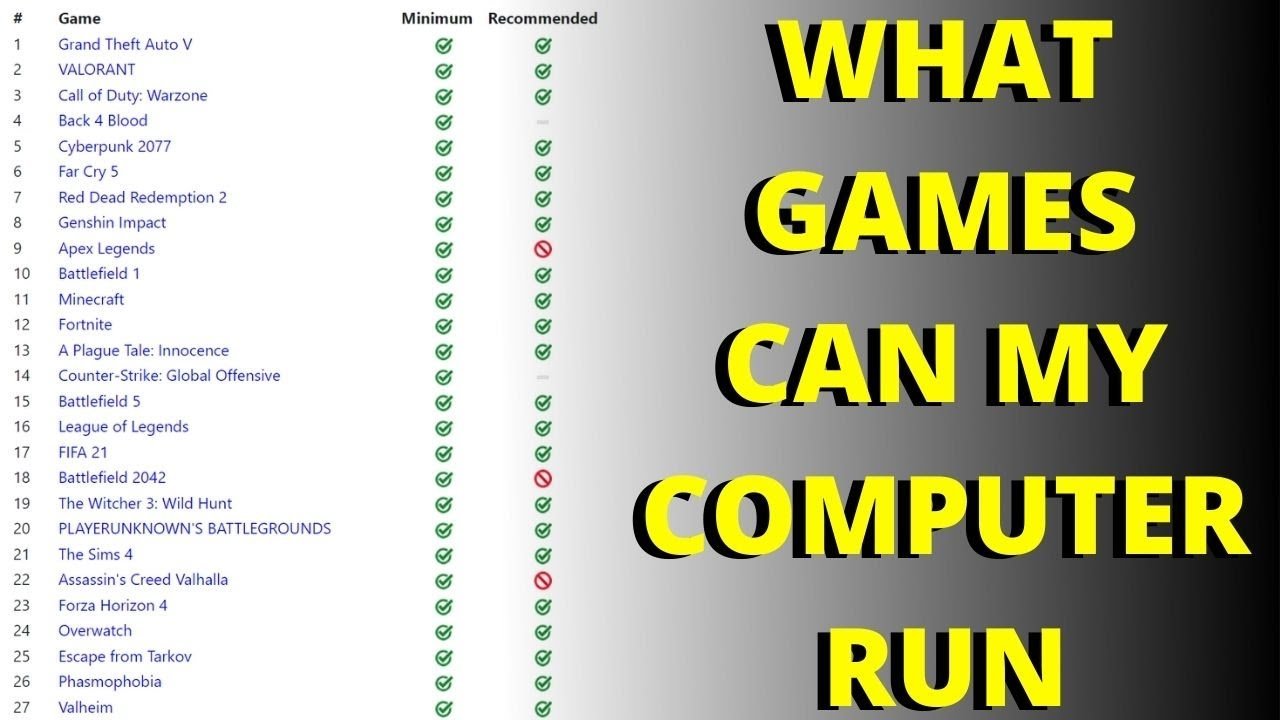
To determine if your PC can run a game, compare the game’s minimum and recommended system requirements against your PC’s specifications like CPU, GPU, RAM, and operating system.
Ever stared longingly at a new game, wondering can my pc run game? It’s a common question for every PC gamer. The excitement of a fresh title quickly turns to frustration if your hardware isn’t up to the challenge.
Don’t worry; figuring this out isn’t complex. You can easily check your system specs and compare them to the game’s needs. This way, you’ll know before you buy, ensuring a smooth gaming experience.

Can My PC Run Game? Understanding System Requirements
So, you’ve got your eye on a shiny new video game, but before you click that “buy” button, a nagging question pops up: “Can my PC actually run this thing?” It’s a totally common worry! No one wants to spend their hard-earned money on a game only to find it’s a slideshow of choppy graphics or, worse, completely unplayable. Luckily, figuring out if your computer is up to the challenge isn’t as hard as you might think. This guide will walk you through everything you need to know about checking your system requirements and making sure you have a smooth gaming experience. We’ll explain what all those computer specs mean, where to find them, and how to compare them to what the game needs.
What Are System Requirements?
Every game needs a certain amount of “power” from your computer to run correctly. These needs are called “system requirements.” Think of it like this: a car needs gas and oil to run. A computer game needs certain parts of your computer to work too. These parts mostly involve your computer’s processing ability, its memory, its graphics power, and its storage space.
Minimum vs. Recommended System Requirements
You will often see two types of system requirements listed for a game:
- Minimum Requirements: These are the absolute least powerful computer parts you need for the game to run at all. Think of it like the bare minimum to drive the car but don’t expect to win any races. If your computer only meets the minimum requirements, the game might be playable, but it might have very low graphic settings, low frame rates (that means it will look choppy), and might even crash from time to time.
- Recommended Requirements: These are the computer parts the game developers think will give you a good, smooth, enjoyable experience with good graphics, fast frame rates, and fewer crashes. If your computer meets or exceeds the recommended requirements, you are in for a good time. Think of it as having a car that can go fast and handle really well.
Aim for at least meeting the recommended specs if you want the game to look nice and play smoothly.
Key System Components Explained
Let’s go over the main parts of your computer that really matter when running games.
Operating System (OS)
This is like the foundation of your whole computer. It’s the software that manages all the other hardware and software. Common operating systems are Windows, MacOS, and Linux. Most games are made for Windows. When you look at system requirements, make sure your PC has the right version and bit number of the OS to avoid problems.
- Windows: Check the version (e.g., Windows 10, Windows 11) and the bit number (e.g., 64-bit).
- MacOS: Check the version (e.g., macOS 10.15 Catalina, macOS 12 Monterey)
Processor (CPU)
The CPU is the “brain” of your computer. It does all the hard math that makes the game run. It takes care of everything the game requires and it’s a big factor for performance. Faster processors will handle games a lot more effectively. You’ll often see CPU specs given as:
- Name: Usually an Intel Core i5, i7, or i9, or an AMD Ryzen 5, 7, or 9, or similar for other chip makers.
- Number of Cores: How many “brains” are working together. The more cores, the better the performance.
- Speed (Clock Speed): Measured in GHz (gigahertz), which shows how fast each core can work. Higher GHz usually means a faster processor.
When looking at specs, remember that a faster i5 CPU might perform better than a slower i7 CPU. Check the exact model number to make sure. Some less demanding games can run ok even on lower-end CPUs but you’ll definitely see a benefit if you have a better CPU.
Memory (RAM)
RAM is where your computer keeps the game data that it is actively using right now. Think of it as the computer’s short-term memory. The more RAM you have, the more smoothly the game will run and the less stuttering or freezes. It will be shown in Gigabytes (GB). 8 GB of RAM is a minimum requirement for most games nowadays. Recommended RAM is normally at least 16 GB.
Graphics Card (GPU)
The GPU is like the artistic muscle of your computer, responsible for rendering the visuals you see on screen. It’s what makes the characters move, the environments look beautiful, and the explosions go BOOM!. A better graphics card means better visuals at higher resolutions and smoother framerates. Like CPUs, GPUs come in different models.
- Nvidia GeForce: Series like RTX 3060, 3070, 4060, or 4080, among others.
- AMD Radeon: Series like RX 6600, 6700, 7800, among others.
Make sure you don’t look just at the series number, because within each series there are different models. A 4070 is much more powerful than a 4050. Also, the generation matters a lot. A 4070 will perform much better than a 3070. You should look up benchmark videos on Youtube to get a better idea of how a specific GPU works before buying a game or computer part.
Storage Space
This is how much room the game needs on your computer’s hard drive or SSD (solid-state drive). Hard drives are slower while SSDs are faster. A game will benefit a lot from having its files stored on an SSD, so if you have one it is recommended to install your game there. You’ll see storage space given in GB (gigabytes). Also, you can’t just have the exact amount of space the game requires. A game might need 50GB of storage, but if your hard drive only has 52 GB of space, your computer may have some trouble running the game. So you have to take into account the space needed by your OS (operating system), other programs, drivers, and other files.
DirectX Version
DirectX is a set of programming tools that games use to interact with your computer’s hardware, especially the graphics card. It’s a very important part of modern gaming. Games often need a specific version of DirectX. Make sure you have the right version installed for your game to avoid issues. Most games these days require at least DirectX 11 and lots of them require DirectX 12.
Note: Operating systems come with versions of DirectX already installed, but it is possible to install new versions if the older version doesn’t suit a particular game. You can verify your DX version using the “dxdiag” command through the windows search tool.
Finding Your PC Specs
Now that you know what to look for, let’s find out what your computer is packing. There are a few easy ways to do this:
Using the System Information Tool
- Type “System Information” in the Windows search bar.
- Open the System Information app.
- Look for these key details:
- OS Name: Tells you your operating system (like Windows 10 or 11).
- Processor: Shows your CPU’s name, cores, and speed.
- Installed Physical Memory (RAM): Tells you how much RAM you have.
Checking Your Graphics Card
- Type “Device Manager” in the Windows search bar.
- Open Device Manager.
- Click on “Display adapters.”
- You’ll see the name of your graphics card.
You can right-click on the name of your graphics card and select “properties”. Then click on the “Driver” tab. You will be able to see the version number of the drivers that are installed on your system. It is a good idea to update your GPU drivers to the latest version to make sure your PC is running optimally when playing games. Usually the latest drivers offer performance and bug fixes for the latest games. You can download the drivers from Nvidia’s website if you have an Nvidia graphics card, or from AMD’s website if you have an AMD graphics card.
Checking Storage Space
- Open File Explorer (the folder icon on your taskbar).
- Click on “This PC.”
- You’ll see your hard drives and SSDs listed, along with how much space is free.
Using “dxdiag”
- Type “dxdiag” in the Windows search bar and press Enter.
- The DirectX Diagnostic Tool will open.
- Check the “System” tab for your OS, CPU, and RAM.
- Check the “Display” tab for your graphics card and DirectX version.
This tool offers more detailed information about your PC.
Where to Find Game System Requirements
Game developers always tell you the minimum and recommended system requirements for their games. Here’s where you can usually find them:
- Steam: On the game’s store page, look for a section labeled “System Requirements.”
- Epic Games Store: Also on the game’s store page, usually found under the game’s description.
- GOG (Good Old Games): Found on the game’s page, in a section specifically for system specifications.
- Physical Game Boxes: If you buy a game in a box, the system requirements are printed on the back.
- Game Website: Usually on the game’s official website. Look for a “System Requirements” page, or look under the “Specs” or “Technical” tab.
Comparing Your Specs to the Game Requirements
Now for the big moment: comparing your computer’s specs to what the game needs.
Step-by-Step
- Write down or copy-paste the system requirements from the game.
- Write down or copy-paste your computer’s specs, as you found earlier.
- Go line by line:
- Operating System: Does the game require Windows 10 64-bit and you have that? Check yes/no.
- Processor: Is your CPU equal to or better than the recommended CPU listed? If you are comparing an Intel Core i5 CPU with a Ryzen CPU, look up the benchmarks of each to see which one is more powerful.
- Memory (RAM): Do you have enough RAM to meet or exceed the recommended amount?
- Graphics Card: Is your GPU equal to or better than the one listed in the recommended requirements? It’s important to look at the specific GPU model and do some research online if your model is different from the one in the listed specs.
- Storage Space: Do you have enough free space on your hard drive or SSD? Make sure to consider the space needed by other files.
- DirectX: Check the DirectX version required by the game, and make sure your version is equal or higher.
- Make a list of which requirements you meet and which you don’t.
What To Do if Your PC Doesn’t Quite Measure Up?
Don’t worry if your PC doesn’t meet all the recommended specs. Here are some options:
Adjusting Game Settings
Even if your computer doesn’t meet the ideal requirements, you can often make the game playable by adjusting the graphics settings.
- Lower the Resolution: Drop the game’s resolution to 720p or 1080p if the game is set at a higher one. Lower resolution means less work for your graphics card, which can help with stuttering and improve your frame rates.
- Turn Down Graphics Settings: Set things like texture quality, shadow detail, and anti-aliasing to lower levels. These settings can take a big toll on your computer, especially your GPU.
- Turn off optional settings: Some games have optional settings that are very demanding. Turning them off will often give you a boost in performance.
Upgrading PC Components
If your computer is close to the requirements but you really want to play the game with good graphics, you might consider upgrading a component. The most common upgrades that affect gaming performance are RAM, GPU and SSD. Upgrading the CPU is usually more complex and requires a change in your motherboard which makes it more expensive. Before upgrading any component make sure you do a proper research about it.
Using Game Optimization Software
Some tools, like the NVIDIA GeForce Experience, can often help optimize your game settings based on your PC’s capabilities. They can help you achieve a balance between visuals and performance by automatically detecting the optimal settings.
Playing on a Console
If your PC simply isn’t powerful enough, playing a game on a console is a possibility, especially if the game is also available on console. This can be an alternative option if you don’t plan to upgrade your PC, or if you want to wait for a while before buying new PC parts.
Things to Keep in Mind
- Game Patches: Sometimes game developers release patches that can improve performance. Keep your games updated.
- Driver Updates: Make sure your graphics drivers are up to date. New drivers often improve performance for newer games.
- Background Apps: Close programs and applications running in the background while gaming, as they take away from your PC’s performance.
- System Temperature: Make sure your computer is not overheating, this may result in performance issues. Clean the dust from your PC and make sure all fans are working.
- Laptop Differences: If you have a gaming laptop, keep in mind that even if they have the same components as a desktop PC they might have lower performance. This is because laptops are usually more limited due to cooling capacity.
A Few Last Words
Figuring out if your PC can run a game doesn’t have to be a huge challenge. By understanding the basic components, knowing how to check your own system specs, and comparing them to the game’s requirements, you can confidently buy games and enjoy a fun experience. Remember to check the minimum and recommended specs and try to aim for the recommended specs for the best gaming experience. If things don’t look good from the start, you can always try lowering your graphics settings or upgrading a component.
Check which games are compatible with your pc Can my PC run it What games can I play on my computer
Final Thoughts
In short, checking game requirements is vital. Compare your PC’s specs against them closely. This crucial step helps avoid frustrating game launch failures.
You must pay attention to both minimum and recommended hardware. Knowing your system enables better gaming choices. Therefore, you can quickly figure out: can my pc run game? This process saves time and money.

