
No, you cannot directly game share Xbox Game Pass on PC like you can on Xbox consoles using the Home Xbox setting.
Figuring out how to share games is a common question for gamers. Specifically, can you game share xbox game pass on pc? It’s understandable to wonder if the same sharing rules apply across both console and PC platforms, as it would benefit a lot of gamers.
Unfortunately, the process isn’t as straightforward as with Xbox consoles. The PC ecosystem handles licenses and user accounts differently, which presents some limitations.

Can You Game Share Xbox Game Pass on PC?
Okay, let’s dive into this super important question! Many of us have friends or family who also love to game on PC, and we all want to share the fun (and save some money!). The big question is: can you share your Xbox Game Pass subscription on PC? The answer, like many things, is a bit more interesting than just a simple ‘yes’ or ‘no’. It depends on the type of Game Pass subscription you have and how you set things up. So, grab your controllers, and let’s explore how to share those awesome games!
Understanding Xbox Game Pass and its Versions
First, we need to understand that there isn’t just one version of Xbox Game Pass. There are a few different types and this is important when we talk about game sharing. Think of it like different flavors of ice cream – all good, but a little different. Here are the main types you’ll come across:
Xbox Game Pass for Console
This is pretty straightforward. This subscription gives you access to a library of games you can play on your Xbox console. It doesn’t let you play these games on your PC, and it doesn’t let you share the library with others on PC either. It’s strictly for console gamers.
Xbox Game Pass for PC
This subscription is specifically for playing games on your computer. You get access to a bunch of different games you can download and enjoy on your Windows PC. Again, this version is strictly for PCs and you cannot use it on Xbox consoles, and can’t share it with others on console or PC directly via the family account like the Xbox console Game pass does. We will explore what you can do shortly.
Xbox Game Pass Ultimate
This is the big one! Xbox Game Pass Ultimate is a combination of both the console and PC versions of the Game Pass, plus it includes other perks such as Xbox Live Gold (which is needed for playing online multiplayer on consoles) and cloud gaming on mobile and PC. This is the subscription that usually makes the most sense for most gamers if you own both a PC and Xbox console. It gives you the flexibility to play games where ever you want to.
The Core Concept: Account Sharing
Now, before we get into the specifics about game sharing, it’s important to understand the concept of account sharing. It’s not really about ‘sharing’ the subscription itself, but rather about having one account that’s able to play the games on multiple machines. It’s like having one library card that can be used by more than one person, as long as it’s used according to the rules set by the library.
How Game Sharing Works with Xbox Game Pass Ultimate on PC
The good news is that game sharing with Game Pass Ultimate is possible on PC, but not in the way you might expect it works on the Xbox console via the “home Xbox” setting. Here’s how it works, along with some important considerations.
The Key: Microsoft Store and Account Logins
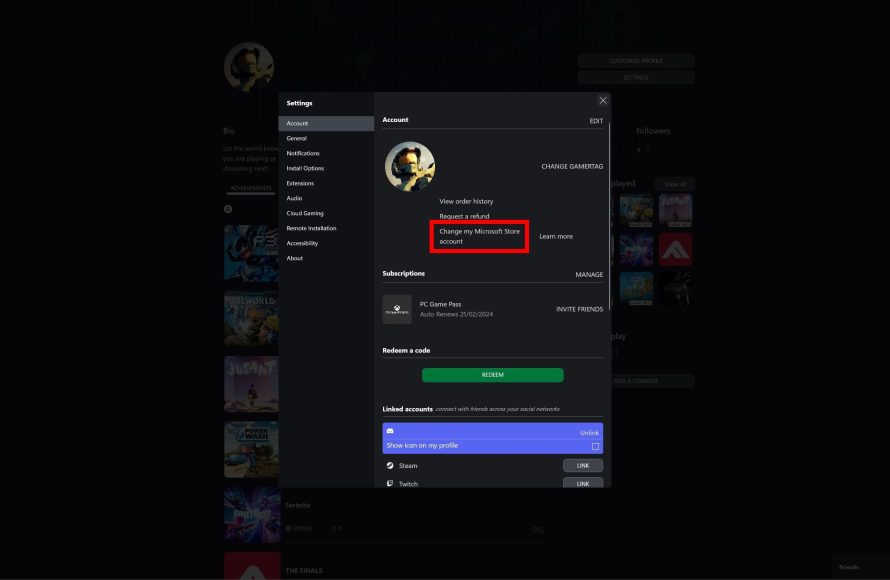
Game sharing on PC with Xbox Game Pass Ultimate is closely tied to your Microsoft account. The person who purchased Game Pass Ultimate needs to be logged into the Microsoft Store with their account on the computer where they want to share their games. The Microsoft Store account needs to be the same one that owns the Game Pass subscription.
The Second Step: Signing in to the Xbox app
Now, this is where it gets slightly different. After the game owner signs in to the Microsoft store, then they need to sign into the Xbox application with their own microsoft account. This allows the Xbox application to recognize that it’s a genuine account with Game Pass enabled. After this the owner’s games will be available to install on their profile in the Xbox application.
Adding another Account
The other person who wants to play the games needs to also log into the computer with their own local profile in the operating system. They need to install the Xbox application from the Microsoft store, or log in to an existing Xbox application with their own account, and they will need to sign in with their own Microsoft account. Crucially, they do NOT need to buy their own subscription! After all the steps are completed the other user can launch the games without any problems.
Important Limitation: Simultaneous Play
Now, here is a limitation: While you can share Game Pass games this way, you cannot play the same game at the same time on different accounts. This is because the games are attached to the Game Pass subscription which is attached to one single Microsoft account. When two people try to launch the same game on different accounts, an error will occur on one of the computer accounts, and they will be asked to log in with the main account, or purchase their own game.
Game Sharing Scenarios Explained
Let’s illustrate this with a couple of common scenarios:
Scenario 1: You and a Family Member
- You have Game Pass Ultimate and want to let your sibling play some games on their Windows PC.
- You log into the Microsoft Store on their PC using your account (the one with the subscription).
- You sign into the Xbox application with your account.
- Your sibling logs into their Windows user profile, installs the Xbox application, logs into the Xbox application using their own account, and starts installing any games they want to try.
- You and your sibling can’t play the same game at the same time on different computers, but if you have multiple computers and do not try to use the same game at the same time it works great.
Scenario 2: You and a Friend
- You want your friend to play games from your Game Pass Ultimate subscription.
- Your friend signs into their own Windows account, installs the Xbox application, then you sign into the Microsoft Store on their PC with your Microsoft account and log into the Xbox application with your Microsoft account..
- Your friend logs in to the Xbox application with their own account.
- They can install games that you have access to.
- Just remember, you and your friend can’t play the same game at the same time.
What Doesn’t Work and Common Pitfalls
It’s also good to understand what won’t work when it comes to Game Pass sharing on PC, and what mistakes can cause issues:
Using Different Xbox and Microsoft Accounts on the Same PC
You might think that it’s enough to just log in with your Xbox account to the Xbox application on the second computer. This is not the case. The Microsoft store account MUST be the one that owns the Game Pass subscription. The second user will need to sign into their Xbox application using their own Microsoft account.
Thinking Game Pass Ultimate Can Be Shared Like Xbox
The “home Xbox” feature does not work on PC. You can’t set a “home PC” where anyone on that PC can access your games. It is required to sign in to both the Microsoft Store and Xbox application with the same account that owns the subscription, for each separate computer. Then the other users on those computers will be able to log in to the Xbox application with their own Microsoft accounts and have access to the game library.
Trying to Play Simultaneously on the Same Game
If you and someone else on a different computer try to play the same game at the same time with different Microsoft accounts it simply won’t work. The Xbox application will see that only one account owns the subscription, so both will not be able to launch the same game at the same time.
Sharing the Account Details Directly
It might seem like a simple idea to share your username and password for the Game Pass account with someone else, but this is not recommended. If the main account that owns the subscription is logged into more than 1 computer, there will be issues.
Tips for a Smooth Game Sharing Experience
To make sure you have a good experience when game sharing, here are a few tips:
- Make sure to have a good internet connection: Downloading games can take a lot of bandwidth. If you have a slow connection, it will take a long time to download the games.
- Always log in with the correct Microsoft account: Remember which account has the Game Pass, and use that for the Microsoft Store, as well as the Xbox application. Then the other user will use their own Microsoft account in the Xbox application on their own computer.
- Be Patient: When sharing games on PC, especially if it’s on new computers, it can take a few minutes for the Xbox application to load the game library and for the second account to access the game library.
- Communicate: If you’re sharing with friends or family, let them know the rules, like that you can’t play the same game at the same time.
- Keep your software up to date: Make sure Windows, the Xbox application and the game itself is always up to date.
Alternative Game Sharing Methods
Besides the method we discussed, there are other ways you can think about sharing game experiences with others on PC:
Family Sharing on Steam
If you and your family or friends use Steam, you can look into their family sharing options. This lets you share most of your Steam game library with others. The account that owns the game will still need to be logged into the computer, but it works a little differently from Xbox Game Pass, with less limitations.
Gifting Games
Another way to share is to simply gift games to your friends or family, or even give them codes. If you find a game you think they’d love, you can buy it for them. This method doesn’t use a game sharing feature, but it gives them access to the specific game you gifted.
So, can you game share Xbox Game Pass on PC? Yes, you can, especially with Xbox Game Pass Ultimate. You just have to understand it is not the same way as it works on Xbox consoles. The key is using the correct Microsoft account to log into the Microsoft store and the Xbox application on each computer, and then the other user on the other computers will log in to the Xbox application with their own accounts. Keep in mind that you can’t play the same game simultaneously on different Microsoft accounts, but for playing different games it works great. By understanding these steps and limitations, you can make the most of your Game Pass subscription and enjoy the world of gaming with friends and family on different computers.
How to Game Share Game Pass on Microsoft Store Windows 10 and 11
Final Thoughts
You can’t directly game share Xbox Game Pass on PC like you do on consoles. Microsoft designed it so that each account needs its own subscription for PC use. This means no simple “home console” sharing option exists for the PC platform.
While console sharing is possible with designated accounts, the same mechanism isn’t applicable to Windows. Sharing a single subscription across multiple PCs will not work. Ultimately, each PC gamer needs their own Game Pass subscription to access the service. Therefore, the answer to the question ‘can you game share xbox game pass on pc’ is no.

