
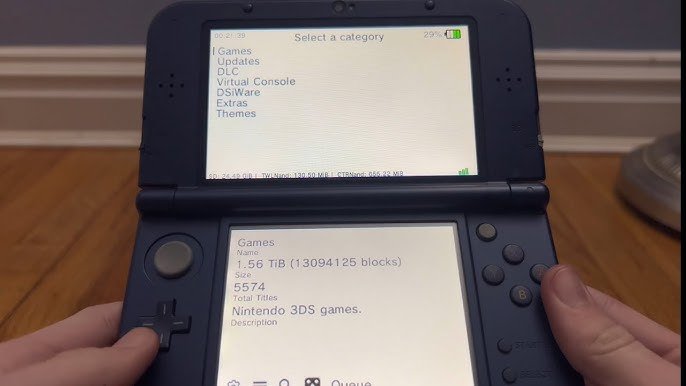
No, you cannot directly install hshop games to Citra. Hshop games are designed for 3DS consoles, and Citra is a 3DS emulator for PC. You need to obtain games in a format that Citra can recognize.
Thinking about playing your favorite 3DS games on your computer? It’s a common question, can you install hshop games to citra? While the hshop makes obtaining 3DS games easy, it’s not a direct path to Citra compatibility. This is because hshop delivers games in a format designed for the 3DS hardware, and Citra, being an emulator, has specific requirements. We’ll explore the necessary steps to get your games running on Citra, even without direct installation from hshop.

Can You Install hShop Games to Citra?
So, you’re curious about playing your favorite 3DS games on your computer using Citra, and you’ve heard about hShop. That’s fantastic! Let’s break down exactly what’s going on, how you can potentially get your games over to Citra, and some important things to keep in mind.
Understanding the Basics: Citra and hShop
Before we jump into the nitty-gritty, let’s make sure we all know what we’re talking about. Citra is a really cool program called an emulator. Think of it like a special computer inside your computer that pretends to be a Nintendo 3DS. This lets you play 3DS games on your computer screen, often with better graphics than the original console. hShop, on the other hand, is a place where you can find 3DS games that other players have shared. It’s like a big library for 3DS games. The key thing here is that hShop isn’t directly connected to Citra; you don’t install games directly into the emulator.
The Difference Between Downloading and Installing
It’s super important to understand the difference between downloading a game and installing it for use in Citra. When you get a game file from hShop (or anywhere else), you’re downloading it to your computer. Think of it like downloading a picture or a song. It’s just a file on your hard drive. To use this game in Citra, you need to tell the emulator where to find it. You are not “installing” the game directly into Citra like you would install an app on your phone. Instead, Citra reads the game file to allow you to play it on your computer.
How to Get Games from hShop Ready for Citra
Now, let’s get down to the steps to make this happen. Remember, it’s a two-part process: getting the game and then loading it into Citra. Here’s how you do it:
- Finding a Game on hShop: hShop usually offers games in a specific file type (.cia). This is a type of file that the 3DS uses. You will download this file type when you get your games.
- Downloading the Game: Once you’ve found the game you want, download it to your computer. Choose a place where you can easily find it later, like a folder called “3DS Games”.
- Locating Your Downloaded Game: Make sure you know where you saved the game file! Sometimes, our computers can put files in unexpected places, so having a designated folder is helpful.
- Understanding .cia files: .cia files are not directly readable by Citra. They are intended for a 3DS system and require a specific process for use within Citra.
- Converting .cia to a Usable Format for Citra:
This is where things get a little more technical, but we will explain each step as clearly as we can. Citra doesn’t directly read .cia files. You need to extract the contents of the .cia file to get a format that Citra can use. The most common method is to use a program that can extract the files from a .cia archive.
Here’s a simplified example of how this extraction process often works:
- Get the Right Software: You will need a tool capable of processing .cia files. A popular tool that is available is called “batch cia decryptor”. You will need to find this tool and download it from a trusted source.
- Extracting the files: Using the batch CIA decryptor program, select your .cia file. The program will then extract the necessary files to a folder that you specify.
- Understanding the extracted files: Within this new folder you will see many individual files. The most important for Citra will be the main executable files for the game which ends in the format .3ds.
Loading Extracted Games Into Citra
Now that you have the game file in a format Citra can read, it’s time to get it into the emulator. This process isn’t “installing” it, but rather pointing Citra to the location of the game files.
- Open Citra: Launch the Citra emulator program.
- Go to “File”: In the top menu of Citra, click on “File”.
- Select “Load File”: Click on the “Load File” option in the drop down menu.
- Find Your Game: Use the file explorer that pops up to find the folder where you saved the game files you extracted earlier. Select the .3ds file for your game.
- Play Your Game: Citra should now load the game, and you can start playing!
Important Considerations About hShop and Game Files
It is very important to understand some critical points when using hShop and game files with Citra. Here are some things you need to keep in mind:
Legality and Copyright
This is a very important point! Downloading games from hShop can be a legal grey area. It can involve downloading and distributing copyrighted material. This is something that you should be aware of. It’s usually safer to only play games that you personally own. If you have a physical copy of the game, there are other methods to extract that data for use with Citra.
The Quality of hShop Downloads
Not every file on hShop is the same. Sometimes, game files might have problems or be incomplete. This can cause your game to not run well or not run at all. Some files might not be compatible with certain versions of Citra. Always check the feedback on the download from the hShop to see if other users are experiencing issues with the game you are considering downloading.
Safe Downloading Practices
It’s super important to be careful when downloading files from the internet. Here are some safety tips:
- Use Trusted Sources: Only download games from places that other people trust and have used without problems.
- Be Careful with Links: Don’t click on links that look suspicious or come from places you don’t know.
- Use Antivirus Software: Make sure your computer has an antivirus program and that it’s up to date. This helps keep you safe from dangerous files.
- Be Cautious: If a website looks weird or asks for too much information, it’s best to avoid it.
Citra Updates and Compatibility
Citra is always getting better! New updates can fix bugs and improve how games run. However, sometimes new updates can cause some older games to not work correctly. It’s a good idea to keep Citra updated but be aware that some games might not work well after a major update. Always check the Citra website and forums for information about changes and game compatibility.
Troubleshooting Common Problems
Sometimes things don’t go smoothly, and that’s okay. Here are some common problems and how you might fix them:
- Game Won’t Start:
If your game won’t start, the first thing to do is to make sure that your extracted game files are in the .3ds format. Double check that you selected the correct format when extracting. If the problem persists, try updating Citra. Another common problem is that a certain game might not be compatible with Citra. If this is the case, you won’t be able to play the game until an update for Citra is available. You should look online on the Citra forums for additional information on why certain games do not play.
- Lag or Slow Performance:
Sometimes games can run slowly. This usually happens because your computer might not be powerful enough to run the game smoothly. Try changing the graphics settings in Citra to lower levels to see if that improves the performance. You can also close other programs running on your computer while using Citra. This will help to give the system the most resources possible to run your games.
- Game Crashes:
If your game crashes, it can be caused by a variety of reasons. It could be due to compatibility issues, problems with the extracted game files, or issues with the Citra emulator program. Try to download the game from a different source on hShop to see if the problem still occurs. Make sure your version of Citra is up to date. You can also review Citra settings. Also, look at forums for Citra for more specific help.
Alternative Methods to Get Games for Citra
If you are still unsure about using hShop, there are other ways to get games to play on Citra. Here are some alternative options:
- Dump Your Own Games:
If you own a physical copy of a 3DS game, you can use special tools to copy the game data from your game cartridge to your computer. This is a perfectly legal way to get your games to play on Citra.
- Legitimate Digital Game Copies:
If you have purchased a game digitally on the Nintendo eShop, you may be able to extract game data using your 3DS console. Make sure you are familiar with the legal rights of your game before extraction.
Using hShop to acquire games for Citra can be a complex topic. It combines downloading files, extracting them, and getting an emulator to recognize those game files. With some patience and care, you can get your favorite games working on your computer. Just remember to be safe and respect game creators and copyright laws, and you will be good to go!
This is the BEST 3DS Homebrew Software! HShop Tutorial
Final Thoughts
Ultimately, you cannot directly install hshop games to Citra. The process involves obtaining game files separately and then loading them into the emulator. Citra requires game files in specific formats, not the ones directly available from hshop.
This crucial step demands understanding file conversions and proper loading techniques. While hshop is a great source for 3DS games, it is not inherently compatible with Citra.
Therefore, to reiterate, can you install hshop games to citra? Not directly. You must use an intermediary step to transfer the game files.

