
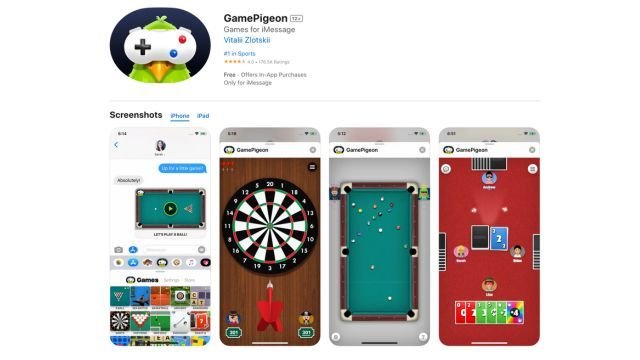
Unfortunately, you cannot directly play Game Pigeon on Mac.
Wondering if you can play Game Pigeon on Mac? Many people enjoy the iMessage game collection, but it’s not available as a standalone app for macOS. This means you won’t find it in the App Store for your computer.
To access Game Pigeon, you will need an iOS device. You can play with friends on their phones even if you use a different operating system. Hopefully, this clarifies the platform availability of Game Pigeon.

Can You Play Game Pigeon on Mac?
Okay, let’s get right to it. You love playing Game Pigeon on your iPhone or iPad, right? Those fun little games you can challenge your friends to in iMessage are super addictive. But what about your Mac? Can you get in on the action there too? The short answer is: it’s complicated, but mostly no, not directly. Game Pigeon is designed to work within the iMessage app on Apple’s mobile devices, not on macOS. But don’t lose hope just yet! While you can’t download a standalone Game Pigeon app for your Mac, there are some workarounds we can explore to potentially enjoy these games on your computer. Let’s dive deeper into what this all means.
Understanding Game Pigeon’s Ecosystem
To understand why it’s tricky to play Game Pigeon on a Mac, let’s first look at how the app works. Game Pigeon isn’t just a simple app you download from the App Store. It is an extension that integrates directly into the iMessage system. Think of it like a small program that lives inside your Messages app on your iPhone or iPad. This tight integration is part of why it’s so smooth and easy to use on mobile.
Why Game Pigeon Doesn’t Officially Work on macOS
The fundamental reason Game Pigeon doesn’t work on Macs is that the macOS version of Messages does not support iMessage extensions in the same way the iOS and iPadOS versions do. When you open Messages on your Mac, you can send and receive text messages, pictures, and videos just like on your other Apple devices. However, Apple designed the macOS Messages app to function differently and without the extensive support for iMessage apps like Game Pigeon. The system architecture and framework on a Mac are simply not compatible with how Game Pigeon was created. Therefore, you’re missing that piece of functionality.
Here is an analogy: Think of it like a special kind of Lego brick designed to fit only on one type of Lego baseplate. Game Pigeon is that special brick and iPhones and iPads have the right baseplate, but your Mac doesn’t. It just won’t connect.
Exploring Potential Workarounds
Okay, so we can’t just download Game Pigeon onto our Macs. But where there’s a will, there’s often a way! Let’s investigate some possible methods to potentially play Game Pigeon or at least get a similar experience on your Mac. None of these are perfect solutions, but they offer some hope for gamers eager to play on a bigger screen.
Using Screen Mirroring or AirPlay
One method many consider is using screen mirroring or AirPlay. This is where you display the screen of your iPhone or iPad directly on your Mac. While this doesn’t technically allow you to run Game Pigeon on your Mac, it does let you play the game while seeing it on your Mac’s larger display.
How it works: Your Mac acts like a secondary monitor. Whatever is shown on your iPhone or iPad is mirrored on your Mac’s screen.
Benefits: You get a bigger view of the game, which some find more enjoyable.
Drawbacks: You still need to control the game using your iPhone or iPad. You’re essentially using your Mac as a projector.
Here’s how to usually set this up:
1. Make sure both your iPhone/iPad and Mac are on the same Wi-Fi network.
2. On your iPhone or iPad, swipe down from the top-right corner (or up from the bottom on older devices) to open Control Center.
3. Tap “Screen Mirroring” or “AirPlay.”
4. Select your Mac from the list of available devices.
Now, whatever you see on your iPhone or iPad’s screen is mirrored onto your Mac. This might not be ideal because you’re still playing on your mobile device. But at least the game will display on a bigger screen.
The Idea of Using iOS Emulators (And Why It’s Not Ideal)
Another path some gamers wonder about involves using iOS emulators. An emulator tries to replicate the software environment of a specific operating system on another device. In this case, you’d try to run an iOS emulator on your Mac, which could then theoretically allow you to access and play Game Pigeon.
The Challenge: While there are some iOS emulators out there, they can be unreliable, unstable, and frequently require technical know-how. Many aren’t designed for regular users and aren’t free.
Why it’s not recommended:
Complex setup: Emulators can be complicated to set up.
Stability issues: They often experience glitches, crashes, and poor performance.
Security risks: Some emulators might contain malware or viruses.
Not always functional: Some emulators may not fully support iMessage apps.
Legality Concerns: The legality of using certain emulators can be questionable.
Because of all these issues, using an emulator is generally not the best method for playing Game Pigeon on your Mac. It’s often more trouble than it’s worth and might even risk the security of your computer.
The Possibility of Remote Desktop Apps
Remote desktop applications can also provide a way to access your iPhone or iPad from your Mac. These applications allow you to remotely control your mobile device from your computer. While this might sound similar to screen mirroring, remote desktop apps often offer more control.
How it works: You install a remote desktop app on both your Mac and your iPhone/iPad. Then, you connect your Mac to your mobile device, allowing you to view the screen and interact with the device using your Mac’s keyboard and mouse.
Potential Benefits:
You have more control over your mobile device from your Mac, including navigation and app usage.
You can potentially play games with slightly more precision than you might achieve via simple screen mirroring.
Drawbacks:
These apps can sometimes be a bit laggy, which is not ideal for fast-paced games.
You’re still technically playing on your iPhone or iPad, just controlling it through your Mac.
Some apps require paid subscriptions.
Popular remote desktop applications include TeamViewer and AnyDesk. However, remember that even with these tools, you’re not running Game Pigeon on your Mac but are accessing it remotely through another device.
A Deeper Look at Screen Mirroring: More Detailed Guide
Screen mirroring can be a bit more nuanced than simply turning it on, so let’s explore the process in more detail and consider some troubleshooting tips.
Setting Up Screen Mirroring
1. Ensure Compatibility: First, make sure your Mac and your iPhone or iPad are compatible with AirPlay. Most recent Apple devices support this feature.
2. Same Wi-Fi: As mentioned earlier, they need to be on the same Wi-Fi network for screen mirroring to work. This allows the devices to “see” each other.
3. Open Control Center: On your iPhone or iPad, swipe down from the top-right corner (or swipe up from the bottom edge for older models).
4. Tap “Screen Mirroring”: Look for the “Screen Mirroring” icon (it looks like a rectangle with a triangle at the bottom) or “AirPlay” and tap it.
5. Select Your Mac: Your Mac should appear in the list of devices available for mirroring. Tap your Mac to connect.
6. Enter AirPlay Code (If Required): Sometimes, if it’s your first time connecting, your Mac will display a code you need to enter on your iPhone or iPad. This is a security measure.
7. Start Playing: Your mobile device’s screen will now be mirrored on your Mac. Launch your Messages app and start playing Game Pigeon.
Troubleshooting Common Screen Mirroring Issues
Devices Not Showing Up:
Make sure both devices are on the same Wi-Fi network.
Restart both your Mac and your iPhone/iPad.
Ensure your devices have the latest software updates.
Make sure AirPlay settings are enabled on your Mac.
Choppy or Lagging Mirroring:
Check your Wi-Fi connection. A poor connection can cause mirroring to be slow and laggy.
Close other apps running in the background on both devices.
Move closer to your Wi-Fi router.
AirPlay Keeps Disconnecting:
Update your devices’ software.
Restart the devices.
Check your network settings.
Following these steps should help you establish a solid screen mirroring connection between your Mac and your mobile device, allowing you to play Game Pigeon on a larger screen. While it’s not the perfect solution for everyone, it’s certainly a good option to explore.
What About the Future?
It’s natural to wonder if Apple might change things in the future. Will Game Pigeon ever get direct support on macOS? At this time, there is no official word from Apple or the developers of Game Pigeon about direct support for Macs. It’s also worth noting that if iMessage apps came to macOS, it might not be a simple switch to flip. It could require a lot of re-engineering on the developer’s side, which can take time and resources.
Speculation and Possibilities
Here are a few speculations and possibilities that could one day become reality:
Future macOS Updates: Apple could decide to include support for iMessage apps in a future macOS update. This could mean Game Pigeon and other iMessage apps become playable on Macs.
Developer Updates: Game Pigeon developers could create a separate version that’s designed to run on macOS. This is less likely because of the system changes needed.
Web-Based Version: While unlikely, it is possible a web-based version of Game Pigeon could be developed in the future. It is unlikely because of the complexity of the project and the way iMessage works.
Third Party App: While it has very low chances, one day, third-party developers may come up with an app that will allow playing Game Pigeon on a Mac, but it is not an easy task to achieve.
It’s important to remember that all of these are simply possibilities. There is no official announcement of any of these, so we’ll have to stay tuned for any future news from Apple or the Game Pigeon developers.
Alternatives and Similar Games for Your Mac
While we might not be able to play Game Pigeon directly, there are still plenty of fun games to enjoy on your Mac! Let’s explore some alternatives that can offer a similar social, competitive, or fun experience.
Online Multiplayer Games
There are countless online multiplayer games that you can play on your Mac with friends and family. Here’s a glimpse into some genres you can explore:
Casual Games:
Among Us: An engaging social deduction game where you have to figure out who the imposters are.
Jackbox Party Packs: A collection of fun party games that you play with others using your phone or tablet as a controller.
Skribbl.io: A free online drawing game where you take turns guessing what others are drawing.
Puzzle Games:
Portal 2: A fantastic co-op puzzle game that requires communication and teamwork.
Codenames: A word association game where you team up to find the secret agents.
Strategy Games:
Civilization VI: Build an empire and lead your civilization through history in this grand strategy game.
Stellaris: A complex space strategy game where you build and manage an intergalactic civilization.
Single-Player Mac Games
If you enjoy the puzzle, logic, and turn-based aspects of some Game Pigeon titles, you can find many great single-player games for your Mac:
Puzzle Games:
The Witness: A beautiful puzzle game set on an open world island.
Baba Is You: A unique puzzle game where you can change the rules of the game itself.
Monument Valley: An exploration puzzle game with beautiful, Escher-inspired designs.
Strategy/Simulation Games:
Cities: Skylines: Build and manage your own city, and watch it grow and evolve.
Stardew Valley: A relaxing farming simulation game where you can build your own farm and interact with the town’s residents.
Minecraft: A sandbox game that offers endless possibilities for building and creativity.
Exploring these options can give you your gaming fix on your Mac, even if they are not directly Game Pigeon games.
So, while playing Game Pigeon directly on a Mac isn’t currently possible, there are multiple ways to still engage with similar games. You can explore online multiplayer games, indulge in single-player adventures, or you can mirror your phone or tablet screen to your computer, and enjoy these entertaining games on a bigger screen. The tech world is always changing, so maybe there will be future solutions, but for now, you have some good options.
How to get infinite screen time on any ios #iphone #ios16 #gaming #videogames #usa #uk #india #lol
Final Thoughts
Unfortunately, you cannot directly play Game Pigeon on Mac. It’s an iMessage app designed for iOS devices. To experience the games, you would need an iPhone or iPad.
Game Pigeon requires iMessage functionality; Macs do not have this integrated the same way. Therefore, the direct answer to “can you play game pigeon on mac” is no. This app’s architecture specifically limits it to mobile Apple products. You might find some similar game experiences on Mac app store, but not this exact experience.

