
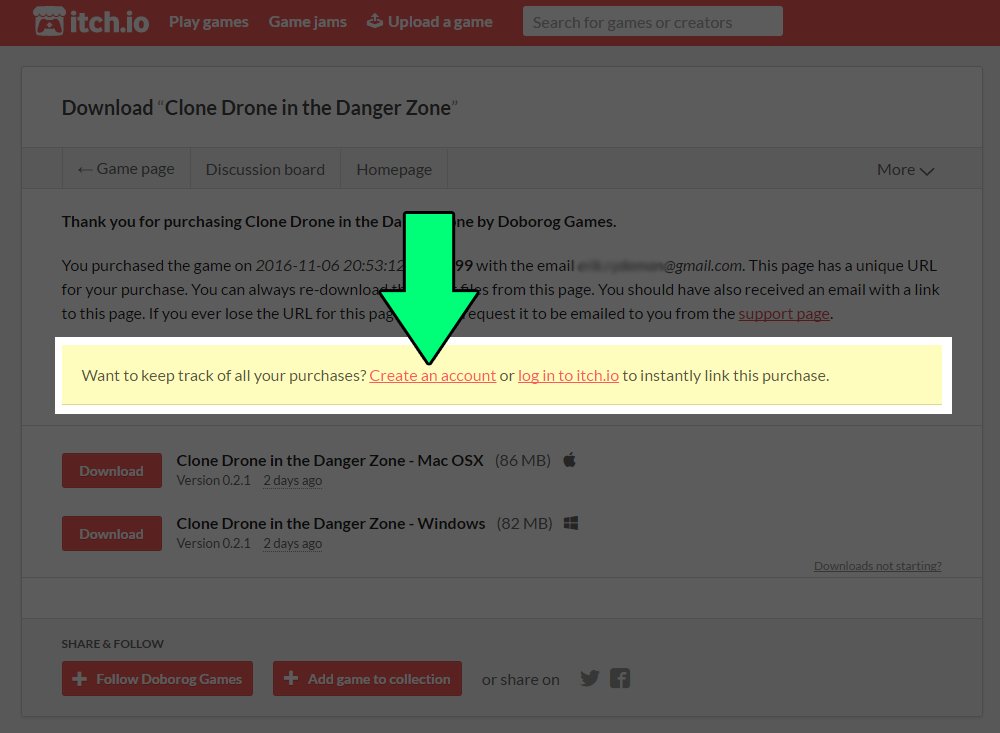
Yes, you can play some itch.io games on a Chromebook, primarily those that are browser-based. However, you won’t be able to play games that require a Windows or Mac installation.
So, you’re wondering can you play itch.io games on chromebook? It’s a common question for Chromebook users who love indie games. Many titles on itch.io work directly in your browser window. This means you can dive into a variety of experiences without installing anything.
However, some awesome games on itch.io need to be downloaded and ran using Windows or macOS, and therefore not supported. This can restrict your selection to the more browser compatible titles. Don’t worry there are still many incredible games playable on your device!

Can You Play Itchio Games on Chromebook? Let’s Dive In!
So, you’ve got a Chromebook and you’re itching to play some awesome games from itch.io? That’s a great question! Chromebooks are super cool for schoolwork and browsing the internet, but can they handle the fun world of itch.io games? The answer is a bit like a puzzle, with different pieces that fit together. Let’s explore how you can get your game on with your Chromebook!
Understanding Chromebook Limitations
First things first, let’s talk about what makes a Chromebook a Chromebook. Unlike your regular Windows or Mac computer, Chromebooks run on Chrome OS. This operating system is based on the Chrome browser, meaning it’s very focused on doing things online. Most of the apps and games you use on a Chromebook are either web-based (run in the browser) or Android apps (from the Google Play Store). This is a key point when thinking about itch.io games. Most itch.io games are designed for Windows, Mac, or Linux computers.
The Challenge of Native Applications
A “native application” is a program that’s designed to run directly on a specific type of computer, like Windows or Mac. The games that are on itch.io and made for Windows, Mac or Linux, are often in this “native application” format. Chromebooks do not run these kinds of files directly. It’s like trying to fit a square peg into a round hole. This is where a little bit of tech knowledge can come in handy and make things possible.
Types of Itch.io Games and Chromebook Compatibility
Not all itch.io games are the same! Some are easier to play on a Chromebook than others. Let’s break down the different types:
Web-Based Games: The Easiest Route
These are the easiest to play. Web-based games run right in your browser, just like a website. If a game on itch.io is a web game (often uses HTML5, JavaScript, or WebGL), you can play it right away on your Chromebook. You just click the play button on the itch.io page, and the game loads in a new tab. No extra steps are needed! These games are made to run on many different devices that have a web browser. This is like having a game that can travel and visit any computer!
- How to identify them: Look for the “Run in browser” or similar option on the game page.
- Pros: Simple, quick, and no downloads needed.
- Cons: Might not be as complex or have as many features as other types of games.
Android Games: A Great Alternative
If the game is an Android app, you can likely play it on your Chromebook too! Many Chromebooks now support Android apps from the Google Play Store. If the itch.io game is offered as an Android APK file, you can download and install it on your Chromebook like any other Android app. These work well because Android OS is much closer to Chrome OS, making it easy for the Chromebook to run Android applications.
- How to identify them: Look for a “Download for Android” or a .apk file option.
- Pros: Usually offer more complexity and features than web games.
- Cons: Might require some extra storage space on your Chromebook.
Windows, Mac, and Linux Games: The Tricky Ones
These are the games that can be challenging to get working directly on a Chromebook. These games are often “native applications” which Chromebooks are not built to run directly. They are compiled as executable files for specific operating systems, and these formats are not directly compatible with Chrome OS. This is where other solutions or alternatives come in.
Games that are only available as .exe (Windows), .dmg (Mac), or Linux files will not work directly on a standard Chromebook. However, this doesn’t mean you’re totally out of luck! There are options, but they might need a bit more technical skill and some extra effort.
- How to identify them: Look for .exe, .dmg, or Linux file formats as download options.
- Pros: Typically, the most feature-rich and complex games.
- Cons: Generally, the most difficult to play on a Chromebook directly.
Exploring Cloud Gaming Options
What if you still want to play those Windows, Mac, or Linux games? Here’s where cloud gaming comes to the rescue! Cloud gaming is like having a powerful gaming computer that lives in the cloud (on the internet) and streams the game to your Chromebook. This is very beneficial, because your Chromebook is doing very little heavy lifting because a server in a data center is performing all the heavy lifting. Think of it as watching a video, but instead of watching, you are playing!
There are several cloud gaming services available that you can use on your Chromebook:
GeForce Now
GeForce Now is a cloud gaming service from Nvidia. It lets you play PC games from your own game libraries on your Chromebook. So you would buy games on PC platforms and then stream them to your Chromebook using GeForce Now. You need a good internet connection to have smooth gaming, but it can give you access to a wide range of Windows games without needing a powerful local machine.
Xbox Cloud Gaming
Xbox Cloud Gaming is Microsoft’s cloud gaming service. This service allows you to play a variety of Xbox games on your Chromebook using your web browser. As long as you have a subscription and a reliable internet connection, you can stream games and play.
Other Cloud Gaming Options
There are other cloud gaming platforms as well, such as Google Stadia (though Google has shut down Stadia, some other services exist) that may be suitable, it is worth researching the options.
Things to Remember about Cloud Gaming:
- Internet Connection: Cloud gaming requires a strong and stable internet connection to work correctly.
- Subscription Fees: Most cloud gaming services have a subscription fee.
- Game Libraries: You may need to own the games you want to play on cloud gaming platforms.
Using Linux on Chromebook: A More Advanced Option
For the more technically minded gamers, there is another option! You can enable Linux on your Chromebook (available on some newer Chromebook models). Linux can run many games that aren’t made for Chrome OS. Linux apps can often be installed and used by accessing the Terminal, which is similar to using a computer’s command line.
How to Enable Linux on Your Chromebook
The process can be a little tricky, but here’s a simplified overview:
- Go to your Chromebook’s Settings.
- Find the “Linux (Beta)” section.
- Click “Turn On” and follow the instructions.
Once Linux is set up, you can try installing and playing some Windows, Mac, or Linux itch.io games using compatibility layers like Wine (explained below).
Wine: The Compatibility Layer
Wine is a program that allows you to run Windows programs on Linux and therefore a Chromebook with linux. It’s not a perfect solution, and it can be a bit complex to set up, but Wine is helpful if you know you want to run a specific windows game on your Chromebook with Linux enabled. You might need to spend time researching the specific game and its compatibility with Wine. You can also search for tutorials online that explain how to set it up for the game in question.
Things to Keep in Mind About Using Linux and Wine:
- Advanced Option: This requires more technical knowledge and is not for beginners.
- Not All Games Work: Compatibility isn’t always guaranteed with Wine, and there may be graphical or performance issues.
- Potentially More Complex: You need to be comfortable with a computer’s command line and how to use linux.
Tips for Finding Compatible Games on Itch.io
Okay, so you know that some itch.io games work better on a Chromebook than others. But how do you find those games? It’s actually quite easy once you know what to look for!
- Use Filters: On the itch.io website, use the filters on the left side of the page. You can filter by operating system to look for “Android” or “HTML5” games.
- Read Game Descriptions: Before downloading a game, carefully read the description. It usually says what platforms the game is available for.
- Search for Web Games: Use search terms like “HTML5 games” or “web games” directly on the itch.io search bar.
- Check Game Forums: Look for forums or comments sections on the game page. Other users might mention whether they’ve been able to play the game on a Chromebook.
Troubleshooting Common Issues
Sometimes, even when you try to follow all the steps, things don’t always go as planned. Here are some common issues you might face and how to fix them:
- Game Won’t Load: If a web game doesn’t load, try refreshing the page or using a different browser. Also make sure your internet connection is working.
- Android Game Not Installing: If an Android game doesn’t install, ensure your Chromebook supports Android apps and that you have enough storage space.
- Game is Lagging or Choppy: This is usually because of a bad internet connection (with cloud gaming), or the game is demanding for your chromebook’s hardware.
A Quick Summary Table
Let’s wrap it up with a handy table that summarizes everything we’ve talked about.
| Game Type | Chromebook Compatibility | Pros | Cons | How to Play |
|---|---|---|---|---|
| Web-Based (HTML5) | Great | Easy to play, no downloads needed | May not be as complex | Play directly in browser |
| Android Games | Good | More complex, feature-rich games | Requires download, might not support all Chromebooks | Install from the Google Play Store or sideload apk |
| Windows, Mac, Linux Games | Challenging | Usually very complex and feature-rich | Requires cloud gaming or Linux with Wine setup, potential for technical difficulties | Through cloud gaming services or with Linux and Wine compatibility layers |
So, can you play itch.io games on a Chromebook? The answer is yes, with a few important notes. Web games and Android games are the easiest to run. Cloud gaming and Linux with Wine are possibilities for other types of games, but they require more work and have potential problems. By understanding these concepts and tips, you can go explore the diverse world of itch.io games on your Chromebook. Happy gaming!
How to install the itch.io app on a Chromebook
Final Thoughts
In short, playing itch.io games on a Chromebook depends largely on the game. Browser-based titles work perfectly. However, many downloadable games require Windows, Mac, or Linux; these won’t directly run.
You can often explore alternatives like Android apps if available for a specific game. Also, some cloud gaming solutions might allow you to access certain PC games on your Chromebook. Ultimately, can you play itch.io games on chromebook? Yes, selectively!

