
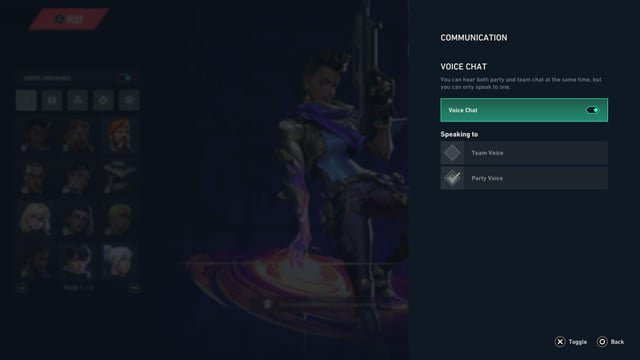
If you can’t hear game chat on your PS5, check your audio output settings, your headset connection, and make sure your microphone isn’t muted in the game or console settings.
Is your PlayStation 5 suddenly silent during online matches? It’s incredibly frustrating when you can’t hear your teammates, making coordinated gameplay impossible. The issue of “cant hear game chat ps5” is surprisingly common, but luckily, it’s often a quick fix. We will walk you through some straightforward steps to troubleshoot this issue. This guide aims to get you back in the game, talking with your friends, in no time.

Can’t Hear Game Chat on PS5? Let’s Fix That!
So, you’re geared up for a gaming session on your PS5, ready to strategize with your buddies or trash-talk your rivals, but… silence. You can hear the game, but not your friends. It’s like being at a party where you can see everyone having a blast but can’t hear a word they’re saying. Super frustrating, right? Don’t worry, you’re not alone. This is a pretty common problem, and luckily, there are lots of things we can check to get that game chat working again. Let’s dive in and figure out what’s causing the issue.
Understanding the Basics of PS5 Game Chat
Before we start troubleshooting, let’s go over how game chat on the PS5 is supposed to work. It’s not as simple as just plugging in a headset and yelling into the microphone. There are several different pieces that all need to work together. Think of it like a chain – if one link is broken, the whole thing falls apart. These pieces are:
- Your Headset or Microphone: This is the most obvious part. You need a working microphone to talk and a working headset or headphones to hear. It can be a wired headset that you plug directly into your controller, a wireless headset that connects via Bluetooth or a USB dongle, or even the built-in mic in the controller itself.
- The Controller: The controller is often the middleman. It takes the audio from your microphone and sends it to the PS5. It also receives the audio from the PS5 and sends it to your headset.
- Your PS5 Settings: The PS5’s audio settings control how game chat is routed. You could accidentally have the wrong input selected or have the chat volume turned all the way down.
- The Game’s Audio Settings: Some games have their own audio settings that can affect voice chat.
- PlayStation Network: PSN manages the voice chat. If there is an issue on PlayStation’s end, you might have problems.
Now that we understand the parts involved, let’s start diagnosing our problem.
First Steps: Basic Checks for No Game Chat on PS5
Let’s start with the quick and easy fixes. You’d be surprised how often the problem is something simple. These checks will help you catch common mistakes:
Check Your Headset or Microphone
- Is it plugged in properly?: If you are using a wired headset, make sure it is firmly plugged into the controller. Try unplugging it and plugging it back in. If you’re using a wireless one, ensure it is charged and paired correctly with the PS5.
- Test with other devices: Try your headset with another device like a phone or computer. This will tell you if the headset or microphone has a problem.
- Examine for damage: Check for frayed wires on wired headsets or damage to wireless headsets. If it looks broken, that’s likely your issue.
Examine Your Controller
- Controller audio settings: The controller has its own audio settings you can change. Press the PlayStation button to open the control center. Go to Sound, then check your microphone input and volume level. Make sure the microphone isn’t muted and its volume isn’t too low.
- Try another controller: If you have another PS5 controller, try using that. It will help you determine if the issue is with the controller you were originally using.
Look at PS5 Sound Settings
- Output Device: Go to Settings, then Sound, then Audio Output. Ensure your headset is selected as the Output Device and the Input Device. If it says “Controller Speaker,” you need to select your headset.
- Microphone settings: While you’re there, check your microphone level. Make sure it is not muted and the input level is at a reasonable level. You can test it by speaking and watching the level meter. If it’s flatlined, your PS5 doesn’t hear you.
- Volume levels: Double-check the Output Volume and the microphone volume in the control center (accessible by pressing the PlayStation button). The output should be at a good level, and the microphone should be sensitive enough.
Game-Specific Audio Settings
Sometimes, games have their own audio settings which can affect chat.
- Look in the options menu: Launch the game that has the voice chat issue. Go to the game’s settings, look for the audio tab and see if there are voice chat controls. Some games let you select the microphone input, output, or volume for voice chat.
- Chat channels: Some games have different chat channels (like party chat vs. team chat). Ensure you are in the right channel.
- Check the game’s website or forums: Look for info on audio or voice chat issues in the game’s online community. Other players may have found solutions for the game you are playing.
Advanced Troubleshooting When You Still Can’t Hear Game Chat
If none of those basic checks work, we need to get a bit more technical. Don’t worry, it’s still not too hard. Let’s move on to these next steps.
PS5 Software Updates
- Check for Updates: Outdated system software can sometimes cause issues. Go to Settings, then System, then System Software, and check for system updates. Install any updates available, as these might fix bugs related to audio.
- Restart your PS5: After updating, it’s always a good idea to restart your console. Power it completely off, then turn it back on. This helps to make sure the updates are correctly installed.
Network Issues and Their Effect on Chat
While this problem seems like it’s all about audio, your internet connection can sometimes play a role in online game chat.
- Check your internet connection: Make sure you have a stable internet connection. Try running a speed test on your PS5 (Settings > Network > Connection Status > Test Internet Connection). Packet loss, or high ping could affect voice chat.
- Restart your router: Try unplugging your router, wait 30 seconds, and plug it back in. This can resolve many connectivity issues that may affect voice chat.
- NAT Type: Your NAT Type (Settings > Network > Connection Status > Test Internet Connection > NAT Type) also impacts connection. If your NAT type is Type 3 (Strict), that can sometimes affect online communication. A type 2 or 1 is better.
Headset Specific Issues and Possible Fixes
Sometimes the issue can stem from the headset itself, especially wireless ones.
- Re-pairing your headset: If you are using a wireless headset, try re-pairing it with the PS5. Go to Settings, then Accessories, then Bluetooth Accessories, and look for your headset. Delete it, then put your headset in pairing mode and look for it again on your PS5.
- Firmware Updates: Many wireless headsets get firmware updates. Check your headset’s manufacturer’s website or app for firmware updates, as these can sometimes fix issues with PS5 connectivity.
- Try a different headset: If possible, try a completely different headset to see if the problem persists. This will help you figure out if your original headset has a hardware issue.
PlayStation Network Outages
Sometimes, the problems might not be on your end, but with the PlayStation Network itself.
- Check PSN Status: Go to the PlayStation website or check their social media accounts for updates about the PSN status. If there is a server issue, you may just have to wait for Sony to fix it on their end.
Specific Scenarios and Their Solutions
Sometimes, the issue you have can be caused by a specific reason, so let’s examine a couple of scenarios.
Scenario 1: Hearing Game Audio But Not Voice Chat
If you hear the game sounds perfectly but not your teammates’ voices, this usually points to a specific type of problem. Here’s how to address that:
- Chat Audio Balance: The PS5 has an option to adjust the balance between game audio and chat audio. In the Control Center (press PlayStation button), go to Sound, then check the audio balance slider. If it’s all the way to the game audio side, you won’t hear any voice chat. Center it, or slide it towards chat audio.
- Party Chat Settings: If you are in a party chat (instead of in-game chat), make sure the party chat settings are correct. Sometimes these settings can cause audio to be muted or routed incorrectly. In the party settings, make sure your audio settings are correct.
- Game Settings vs. Party Chat: It’s possible you’re trying to use party chat in a game that has its own chat system, and they’re conflicting. If the game has an in-game chat, make sure you’re not trying to use a PS5 party chat instead. Sometimes the game only allows communication through their in-game chat feature.
Scenario 2: Microphone Not Working
If you can hear your teammates, but they cannot hear you, there might be a problem with the microphone input. Here are the things to look for:
- Mute Button: Check your microphone’s mute button, which could be on the headset itself, the controller, or the inline cable. Make sure it’s not activated.
- Microphone Input: In the PS5 settings (Settings > Sound > Microphone) ensure the correct microphone is selected as input. You might have accidentally selected the wrong input device.
- Mic Sensitivity: Adjust the Microphone Input level in PS5 settings to make sure the microphone isn’t set too low. There is a microphone sensitivity test that can help you adjust this.
- Microphone Boom: If your headset has a boom microphone, make sure it is close enough to your mouth and not in an awkward position. Adjust the position to get good clear audio.
- Check for Hardware Issues: Sometimes a microphone can fail, especially if it has been physically damaged, try using a different microphone to see if it works.
Scenario 3: Only Hearing Some Players, Not All
This is a tricky one, because your audio works but you don’t hear everyone. Here are ways to address this specific issue.
- Individual Player Volume: Sometimes you can adjust individual player’s volume in the party chat. Check for individual player mute or volume controls, which can be found in the Party voice chat settings.
- Game-Specific Bugs: This could be a game-specific issue. Some games have weird chat bugs that only affect a few players. Search the game forums to see if other people are having the same problem.
- NAT Type Conflicts: If you are on a strict NAT, sometimes your internet may not allow connections from other players on different NAT types.
Preventing Game Chat Problems in the Future
Once you’ve solved this issue, you’ll want to keep it from happening again. Here are a few good habits to have.
- Regularly Update Your Software: Keep your PS5 software and headset firmware up to date.
- Take Care of Your Headset: Handle your headsets with care, especially wired ones. Protect the wires and avoid yanking them.
- Check Your Settings Before Each Session: Take a moment to check your settings (input, output, and mute) before you start playing.
- Restart Your Equipment Regularly: Periodically restart your PS5, router, and headset.
Fixing your game chat can be annoying, but it’s definitely possible with a little patience and troubleshooting. By checking all of these different things, you should be back in the game chatting with your friends in no time!
How to Fix Game Chat on PS5 [ Easy FIX ]
Final Thoughts
Troubleshooting ‘cant hear game chat ps5’ requires checking volume levels, audio output settings, and microphone connections. Network issues can sometimes disrupt chat. Ensure your headset is properly connected and selected as the active device.
Updating your controller and console might also fix the issue. Testing with a different headset helps identify hardware problems. If issues persist, contacting PlayStation support provides further assistance.
Ultimately, addressing ‘cant hear game chat ps5’ is a must. Following these steps will help get you back communicating with your teammates quickly.

