
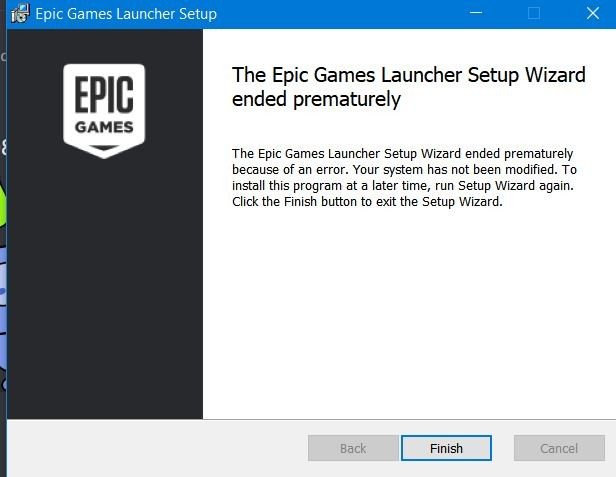
Try running the installer as administrator, disabling antivirus temporarily, ensuring sufficient disk space, and checking for corrupted download files if you can’t install epic games launcher.
Having trouble getting your game on? You’re not alone; many people find they can’t install epic games launcher, encountering frustrating roadblocks when they just want to play. It’s a common issue with various possible culprits, and it doesn’t always mean you’re doing something wrong.
We understand the frustration, and we will explore potential solutions for you. We’ll look at what could cause the problem and offer some easy troubleshooting steps to help you get the launcher up and running so you can finally start gaming.

Why Can’t I Install the Epic Games Launcher?
Okay, so you’re excited to play some awesome games on the Epic Games Store, but the launcher just won’t install. It’s super frustrating, we get it! This can happen for many reasons, and we’re here to help you figure it out. Don’t worry; it’s often something easy to fix. We will go through all the most common reasons and give you steps to try. Let’s get that launcher installed!
Basic Checks Before We Dive Deeper
Before we start tweaking settings, let’s do some simple checks. These might seem obvious, but they are important and you will not lose anything by doing them first. Sometimes, the answer is simpler than you think!
Is Your Computer Connected to the Internet?
Make sure your Wi-Fi is on, or your network cable is plugged in.
Try opening a website to see if your internet is working correctly. The Epic Games Launcher needs a good internet connection to download the necessary files.
If your internet is acting up, try restarting your modem and router. Wait a few minutes, and check again if the internet connection is stable.
Sometimes, a simple restart of your internet equipment will resolve a basic connection issue.
Do You Have Enough Space on Your Hard Drive?
The Epic Games Launcher needs space to download and install. Check how much free space you have.
The installer itself doesn’t need much, but it will download a lot more during the installation. You might need 2-3 GB of free space or even more.
If you are running low on disk space, delete old files, games, videos, or images you don’t need.
Move files to an external drive to free up some space.
Empty your recycle bin after you’ve deleted files to get more space.
Did You Download the Correct Installer?
Make sure you downloaded the installer from the official Epic Games website.
There are a lot of copycat sites out there, and you might have downloaded a bad or old installer.
Check the download link again and compare to make sure you are getting it from the legitimate source.
Delete the old download and download the official copy again to ensure it’s valid.
Common Installation Errors and How to Fix Them
Alright, if the simple checks didn’t work, let’s explore some common errors that can stop the Epic Games Launcher from installing. We’ll go through each one and give you specific solutions to try.
Antivirus Software Interference
Sometimes, your antivirus software can mistakenly think the Epic Games Launcher is harmful. This can prevent it from installing properly.
Temporarily Disable Your Antivirus
Find your antivirus icon in your system tray.
Right-click on it and look for an option to disable it. This is different for each antivirus program, so if you can’t find it, do a web search to see how to temporarily disable your specific antivirus program.
Try installing the Epic Games Launcher again.
Remember to turn your antivirus back on after installation. It’s important to keep your computer protected.
Add an Exception
If temporarily turning off your antivirus works, you should add an exception for the Epic Games Launcher.
This tells your antivirus to leave it alone. You will have to search within your antivirus software settings to find where to add exceptions.
Find the folder where you downloaded the installer, and add it as an exception.
This will prevent your antivirus from blocking the launcher in the future.
Firewall Blocking the Installation
Just like your antivirus, your firewall can block the installation of the Epic Games Launcher. A firewall protects your computer from harmful things on the internet, but sometimes it blocks things it shouldn’t.
Allow Epic Games Launcher through the Firewall
Search for “Windows Defender Firewall” in the Windows search bar, and open the settings.
Click on “Allow an app through the firewall.”
Click “Change settings,” and then click “Allow another app.”
Browse to the location where you saved the installer.
Select it and click “Add”. This will let the launcher install without being blocked.
Also, you might need to look in the list and check both “Private” and “Public” boxes next to the Epic Games Launcher entries, to allow it to connect under any type of network.
Administrator Rights Needed
Sometimes, you need to run the installer with administrator privileges. This is because it needs special permission to make changes to your computer.
Run the Installer as an Administrator
Right-click the installer file you downloaded.
Select “Run as administrator.”
Windows might ask you if you are sure; click “Yes” to allow it to run with admin rights.
This will give the installer the necessary permissions to do its job correctly.
Try installing the launcher again.
Corrupted Installer File
Sometimes, the file you downloaded can get corrupted. This can happen if there was an issue during the download or if the file is incomplete.
Download a New Installer
Delete the installer you downloaded and go back to the Epic Games Store website.
Download a fresh installer from the official page.
Try running this new installer and see if it will install correctly.
Double-check that the source is the Epic Games website.
Outdated Operating System
An outdated operating system can cause problems with many programs, including the Epic Games Launcher. It’s important to keep your computer up to date.
Check for Windows Updates
Type “Windows Update” into the Windows search bar, and open the settings.
Click “Check for updates”.
Download and install any available updates. Your computer might need to restart.
Try installing the launcher again after the update.
Conflicting Software
Sometimes, other software on your computer can conflict with the installation of the Epic Games Launcher. This is less common, but it can happen.
Try a Clean Boot
A “clean boot” starts your computer with only essential programs and services.
Type “msconfig” into the Windows search bar, and open “System Configuration”.
Go to the “Services” tab, check “Hide all Microsoft services” and then click “Disable all”.
Go to the “Startup” tab, click “Open Task Manager”, and disable each listed startup item.
Restart your computer and then try to install the Epic Games Launcher.
If it works, you can slowly re-enable the services and startup programs to see which one caused the problem.
Specific Error Codes
Sometimes, when the installation fails, you may see a specific error code. These codes can give clues about what is going wrong. Here are some common Epic Games Launcher error codes and how to handle them.
Error Code IS-FC01
This error often relates to problems with downloading the installation files.
It can mean your internet connection is unstable or there are issues with the Epic Games servers.
Try restarting your computer, internet modem and router.
Also, try waiting a bit to see if the Epic Games servers are working correctly.
If that doesn’t work, try downloading the installer again with a stable internet connection.
Error Code MSVCP140.dll Missing
This error is often related to missing Visual C++ files which many applications need.
Download the latest Microsoft Visual C++ redistributable packages from the Microsoft website.
Make sure to download both the x86 and x64 versions.
Install these packages and then try running the installer again.
Error Code Unknown Error
This error is kind of a catch-all, which is annoying because it doesn’t specify anything.
First, make sure your computer meets the minimum requirements for the launcher to install.
Then, try all the previous fixes in the previous sections, including administrator privileges, disabling the antivirus and firewall, downloading a new installer, and checking the operating system is updated.
If nothing else works, there might be a bigger problem, and you may need to contact Epic Games Support for more help.
Compatibility Issues
Your computer needs to meet certain minimum requirements for the Epic Games Launcher to work properly. Here’s how to make sure your computer is up to the task.
Minimum System Requirements
Check the Epic Games website for the official minimum system requirements. These can change over time as new versions of the launcher are released.
Generally, you will need a 64-bit Windows operating system, a decent processor, enough RAM, and enough free hard disk space.
Here’s a general idea of what the minimum requirements might look like:
- Operating System: Windows 10 64-bit or Windows 11 64-bit
- Processor: Intel Core i3 or equivalent AMD processor
- RAM: 4 GB of RAM or more
- Hard Drive Space: at least 20 GB of free space
Keep in mind these are only the minimum requirements, and the games themselves may require much more
How to Check Your Computer Specs
Press the Windows key + “R”, type “dxdiag” and press Enter. This will open the DirectX Diagnostic Tool.
You can find your operating system, processor, and RAM information here.
To check your hard drive space, go to “This PC” and look at your C drive for total space and free space available.
Make sure your computer meets at least the minimum requirements. If not, you might need to update hardware or get a more powerful computer.
When to Contact Epic Games Support
If you tried everything we listed and the launcher still won’t install, it might be time to contact Epic Games Support directly.
How to Contact Epic Games Support
Go to the Epic Games website.
Look for a “Support” or “Help” section.
You should be able to submit a ticket describing your problem in details. Explain all the troubleshooting steps you tried, your system specifications, and any error codes you encountered.
They might ask for more information, such as screenshots or specific logs.
Be patient, and they should be able to help you get the launcher installed.
It can be annoying when the Epic Games Launcher just won’t install, but with a little bit of patience and some troubleshooting, you can usually get it working. We hope this article has helped you find a fix.
Epic Games Launcher Installation Error – Easy Fix 2023
Final Thoughts
If you can’t install epic games launcher, carefully check your internet connection and system requirements. Ensure that you are using an administrator account when installing.
Sometimes, security software or conflicting applications may interfere with the installation process. Temporarily disable any security programs to test for this issue.
Therefore, try troubleshooting methods and always ensure the download is directly from the official Epic Games website. Remember, successfully installing is key for accessing the game library.

