
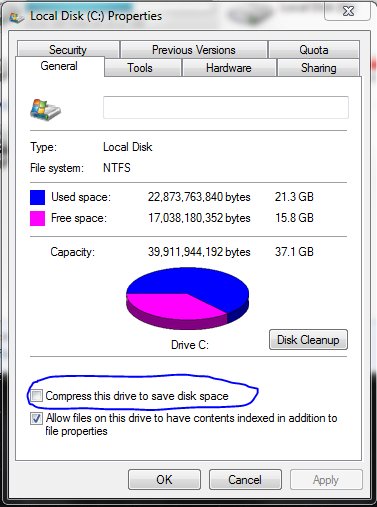
No, disk space does not directly affect game performance, but a nearly full drive can cause fragmentation, slowing down load times.
Ever wondered if that ever-growing library of games on your PC is secretly hindering your frame rates? It’s a common question, does disk space effect game performance? You might think a crowded hard drive directly translates to sluggish gameplay, but the connection is more nuanced.
While having lots of free space doesn’t magically boost FPS, a nearly full drive causes fragmentation. This slows down the reading and writing of game data. It’s more about how your system manages the data, than the total gigabytes used.

Does Disk Space Affect Game Performance?
Okay, so you’re a gamer, and you’ve probably seen that little warning pop up: “Low disk space.” It can be annoying, especially when you’re ready to jump into your favorite game. You might be wondering, “Does having less space on my hard drive actually make my games run slower?” That’s a really good question, and the answer is a bit more complicated than a simple yes or no. Let’s dive in and explore how disk space and game performance are connected. We’ll look at different types of storage, what happens when your drive gets full, and what you can do to keep your games running smoothly.
Understanding Storage and Game Performance
Before we talk about space, let’s quickly look at the different types of storage that your games use. Think of it like this: some storage is fast and some is slower, and the speed affects how quickly your game can load and play.
Hard Disk Drives (HDDs)
HDDs are like the old-fashioned way of storing information. They use spinning disks and a little arm that reads the information. They are generally bigger and cheaper, but they are also slower than other options. This means that if your game is stored on an HDD, it might take a while to load, and you might see some stutters during gameplay, especially if the disk is almost full. When a hard drive gets too full, the read/write arm has a harder time finding the data. This leads to delays in loading the game, texture pop-in issues, and overall slower performance. It is like searching for a specific toy in a messy room – it just takes longer to find what you need.
Solid State Drives (SSDs)
SSDs are the modern way to store your games. They use flash memory, just like the memory sticks you might use. They have no moving parts. This makes them much faster than HDDs. Games on an SSD load a lot quicker, and you will see less lag. An SSD, even when it is nearly full, typically has better performance than a nearly full HDD. It is like having your toys neatly organized in a specific location – it is much quicker to find what you need when you need it. The speed difference is very noticeable, making it a better choice for gaming.
NVMe SSDs
NVMe SSDs are even faster than regular SSDs. They use a special connection to your computer, letting them load games lightning fast. You will often find these types of drives in modern PCs and some game consoles, making them a favorite among gamers wanting peak performance. These drives provide the absolute quickest loading times and minimal in-game stutter. If you can have your games run on an NVMe drive, you will notice a big performance boost. The difference is like a race car compared to a regular car, the NVMe SSD is clearly in a different league.
How Full Is Too Full? The Impact of Low Disk Space
So, we know different storage types have different speeds. But what happens when the storage is almost completely full? Let’s find out how a lack of disk space impacts your game’s performance.
Slow Load Times
If your hard drive is nearing full capacity, it will take much longer for your game to load. This is because your computer has to work harder to find and access the required game files. Think of it like this: imagine your school locker is super full. It takes ages to find your textbook because you’ve stuffed it away in a very tight space. A hard drive that’s nearly full works the same way. The more full it is, the more time it takes to find the game’s files, resulting in extended loading screens.
Stuttering and Lag
Once you’re in the game, low disk space can still cause problems. You might experience stuttering, which means your game freezes for tiny moments, or lag, which means the game slows down. This is because the game needs space on the drive to swap information, just like a desk where you might need some room to work. When it is full, the game struggles to move things around, leading to an interrupted and often frustrating gaming experience.
Texture Pop-In
Have you ever seen objects or textures in a game seem to suddenly appear out of nowhere? That’s texture pop-in. This is especially common when your hard drive is full. It means the game has trouble loading textures quickly enough to keep up with your movements. It is like trying to bake a cake with limited bowls and tools, you will not have all the ingredients together when you need them. In the game world, this causes a visual annoyance and detracts from the gaming experience.
System Instability
In extreme cases, a completely full hard drive can make your entire system unstable. Your computer might freeze, crash, or just run really slow. That’s because the operating system also needs some free space to work correctly. The system needs space to temporarily store information. When there is no space to move around, it’s like a traffic jam, nothing will be smooth or fast. This can interrupt any task on your computer, not just gaming.
Disk Fragmentation: A Hidden Culprit
Another thing that can affect your game performance is disk fragmentation, especially on older hard drives. Think of it like this: imagine that you cut up a piece of paper into tiny pieces, and then throw them into a box. Then when you need to find all the pieces, you will have to search all around to find them. When you add, delete, and change files on your hard drive, they can get scattered around into different places. The game files are not stored contiguously. This is called fragmentation. When this occurs, your computer has to work harder to collect all the pieces, which makes loading and gameplay slower.
Here’s an analogy: if your books are all scattered in different rooms, it will take you longer to get all the books you need to complete your homework compared to having them all in one location. Fragmentation has a similar effect on hard drives, leading to slower performance.
How to Defragment
Fortunately, you can defrag your hard drive to rearrange the files and make it faster. Defragmentation tools reorganize these fragmented pieces so that the computer can quickly access them.
Here’s how defragmentation tools help:
- Consolidates File Pieces: These tools reorganize the scattered pieces of files into contiguous blocks.
- Reduces Seek Time: By placing all of a file’s pieces next to each other, the computer doesn’t have to look all over the drive to find the data.
- Faster Data Access: As a result, your computer can find files faster, leading to improved overall performance.
Note: SSDs don’t need defragmentation because of how they store data, it is a process specifically for HDDs. Defragging an SSD could actually wear it out faster.
Optimizing Your Disk Space for Gaming
Now you know how disk space can impact game performance, let’s look at what you can do to keep your games running great. Here are some tips:
Free Up Space
- Uninstall Unused Games: If you have games you don’t play anymore, get rid of them! This will give you valuable space and stop cluttering up your hard drive.
- Remove Old Files: Look for documents, pictures, and other files you no longer need and delete them.
- Use Disk Cleanup: Use the Disk Cleanup tool on your computer to delete temporary files, old Windows files, and more. This can help you easily regain some space.
Manage Game Installations
- Install Games on Your Fastest Drive: If you have multiple drives, make sure to install your games on your fastest drive, preferably an SSD or NVMe drive.
- Move Games: You can move your games from a slow hard drive to a faster one. Most game launchers let you do this.
Regular Maintenance
- Defragment Your HDD: If you are using an HDD, defragment it regularly to ensure it is working well.
- Monitor Disk Space: Keep an eye on how much space you have left and take action before it is completely full.
Upgrade Your Storage
- Upgrade Your HDD to SSD: If your system is using HDD, consider upgrading to a SSD. This will be a big speed upgrade.
- Add an NVMe SSD: If your motherboard supports it, adding an NVMe SSD can give you maximum performance, especially if you have a lot of games that you want to play smoothly.
The Role of Virtual Memory
Virtual memory, also known as a page file, is another aspect where disk space comes into play. It’s a portion of your hard drive that your computer uses as temporary RAM. When your computer’s regular RAM (the fast memory that your programs use) runs out of space, it moves some of the data onto the virtual memory.
How Virtual Memory Works
- Extends RAM: When your RAM gets full, the system uses part of your hard drive as a “backup” for RAM
- Temporary Storage: It stores information that is not immediately needed but might be needed later.
- Performance Impact: Since your hard drive is much slower than RAM, using virtual memory slows down your computer and can also impact your game performance.
Impact on Gaming
If your RAM is full and your system relies heavily on the page file, your games will struggle. This can lead to stuttering and lag. It will be particularly noticeable in resource-intensive games. It is like using a slow, small table as a desk for a complicated project. It is doable, but it will not be as efficient or as fast.
What to Do
- Increase RAM: The best solution is to add more RAM. If your computer has enough real RAM, it will not need to rely so much on the page file.
- Check Disk Space: Ensure your hard drive has plenty of free space, as the virtual memory file takes up space.
- Configure Page File: In some cases, manually adjusting your page file size can help if you know what you are doing. But if you have enough space, the default settings should be fine.
Other Factors Affecting Game Performance
While disk space plays a crucial role, it is not the only factor that affects game performance. There are some additional things that can impact how smoothly your games run:
Graphics Card
Your graphics card (GPU) is the main part of your computer that handles graphics and game rendering. A weak GPU can lead to low frame rates, stuttering, and poor graphics quality, even if your disk space is good. If your game struggles with graphics, an upgrade to a better GPU can make a significant difference.
Central Processing Unit (CPU)
The CPU is the brain of your computer. It handles game calculations and other tasks. A slow CPU can hold back your games and cause bottlenecks. Ensure you have a good CPU, or consider an upgrade if it is too slow.
Random Access Memory (RAM)
RAM is the computer’s short-term memory. If you don’t have enough RAM, it will impact performance. You should ensure you have enough RAM to support the game you want to play.
Game Settings
The game settings play a big part in the game’s performance. Games let you tweak their graphics settings. If your game is struggling, try lowering the graphics settings like resolution, textures, and shadows.
System Overheating
When the system heats up too much, it will begin to slow down itself to avoid damage. Make sure that your system is kept cool, and that fans are working correctly.
So, does disk space affect game performance? Yes, it absolutely can! While it is not the only factor, having low disk space can lead to slow load times, stuttering, texture pop-in, and even system instability. By understanding how disk space affects your games and following some easy tips, you can keep your games running smoothly. Remember to keep your hard drive clean, use an SSD if possible, and optimize your computer for the best gaming experience. These things will help you get the most out of your games.
Does More RAM Give You More FPS? (Usually)
Final Thoughts
Limited disk space primarily impacts loading times, slowing down game launches and level transitions. A nearly full drive forces your system to work harder locating game files. This can lead to occasional stutters or frame drops during gameplay.
The available disk space does impact game performance. However, its effect is usually not as critical as RAM or GPU performance. Freeing up space can improve the smoothness of your game, particularly for larger titles.

