
Yes, game capture on OBS does consume system resources, including CPU and RAM. The extent of the impact depends on settings and the game being captured.
Ever wondered if running OBS while gaming puts a strain on your computer? Many people ask the question, “does game capture on obs take up resources?” The short answer is yes, it absolutely does.
The process of capturing and encoding video from your game demands processing power, which primarily comes from your CPU and RAM. Understanding how this impact works is key to a smooth experience.
Therefore, optimizing your settings and understanding your hardware limits is crucial for recording or streaming effectively without sacrificing performance.

Does Game Capture on OBS Take Up Resources?
Okay, let’s dive into the real question: does using OBS to record or stream your games suck up all your computer’s power? The short answer is: yes, it does use resources. But, it’s not as simple as that. It’s more like a balancing act. Think of your computer as a team of workers. You’ve got the game running which needs a lot of workers. Then, you add OBS. Now, OBS also needs some workers to do its job, like recording the video, capturing your audio, and sending it all to the internet if you’re streaming. If you’ve got a powerful team (a strong computer), it can handle both jobs well. But if your team is small (not such a powerful computer), it might struggle. So, let’s break down exactly how OBS uses your computer’s resources and how you can make sure it doesn’t slow you down.
Understanding Computer Resources
Before we get into the nitty-gritty of OBS, let’s understand what resources we’re even talking about. Think of it like this: your computer has different kinds of “workers,” each with different jobs.
CPU (Central Processing Unit)
This is the brain of your computer. It does all the calculations, from running the game to encoding your video in OBS. When you are doing too many things simultaneously, like playing a game and also using OBS, your CPU is going to be very busy. OBS uses the CPU to process all the video data, mix audio, and handle any other operations it needs to do. A stronger CPU means OBS will use less resources to do same tasks compared to less powerful CPU.
GPU (Graphics Processing Unit)
The GPU is the artist of your computer. It’s in charge of displaying images on your screen, like the graphics of your game. When you play a game, the GPU is working hard to make everything look good. OBS also uses GPU to capture screen, render scenes, and perform other rendering tasks. The more complex the OBS scene setup with filters, the more work for GPU. However, you can use hardware encoding in OBS, which takes the heavy lifting for video encoding from CPU and give the job to GPU, reducing CPU load and moving it to GPU. This is an essential part to understand when we discuss resources of your computer with OBS.
RAM (Random Access Memory)
RAM is like your computer’s short-term memory. It stores data that your CPU needs to access quickly. Both your game and OBS need RAM to operate efficiently. The more apps and programs that run at same time, the more RAM they use. If you don’t have enough RAM, your computer might become slow and laggy. A computer with 16 GB of RAM will run smooth than the one with 8 GB RAM, given that all other parameters remains the same. So, RAM plays an important role in the game and OBS performance, both.
Storage (Hard Drive or SSD)
This is where your computer stores all your data, including your operating system, games, and recorded videos. When you record a game using OBS, the captured footage gets saved onto your storage device. If your storage is a slow hard drive, it can be a bottleneck and cause issues when you try to record and access the video file simultaneously. An SSD (Solid State Drive) is a faster storage option, which helps improve the recording and overall system performance.
How OBS Uses These Resources
Now that you know what resources are, let’s see how OBS uses each one. Imagine that OBS is a movie director. It has to keep an eye on different aspects simultaneously, like video, audio, and other things in your game. It takes all this information from computer and creates movie (recording or stream) for you.
- Video Capture: OBS needs to grab the video from your game, either using Game Capture method or using Display Capture method, both of which uses resources. The amount of resources used depends on the game you play, the resolution you are capturing and the capture method you are using.
- Audio Capture: OBS also needs to capture the audio, both game audio and audio from microphone. Like video, more audio tracks, means more processing which in turn means more resources are used.
- Scene Composition: OBS allows you to create scenes, which are like different cameras in a movie. You can add overlays, webcams, text, etc. These all take resources to render properly.
- Video Encoding: This is where OBS converts the raw video into a format that can be saved or streamed. This process needs lot of CPU or GPU resources, depending on what you choose. Using GPU encoder, when available is preferred option to offload CPU.
- Streaming: If you’re streaming your gameplay, OBS has to send all this data to a platform like Twitch or YouTube. This uses network resources (bandwidth) and can add to CPU usage.
The more complex your setup in OBS, the more resources it will use. A simple recording with one game and a microphone is much easier on your computer than a complex stream with multiple cameras, overlays, and animations.
Factors Affecting OBS Resource Usage
Several things can impact how much of your computer’s resources OBS needs. Here are some of the key factors:
Game Complexity
Some games are more demanding than others. A graphically intense game will use up a lot of your GPU and CPU, leaving less for OBS. Simpler games will generally use less resources, which leaves more room for OBS to run smoothly. For example, a graphically intense game like Cyberpunk 2077 uses far more resources than simpler game like Minecraft.
Capture Resolution and FPS
The resolution of your recording (e.g., 1080p or 4K) and the frames per second (FPS) you’re capturing directly affects how much work OBS has to do. Higher resolution means more pixels to process, which takes more power. Similarly, higher FPS means the computer has to process more frames every second. You can always choose to record in lower resolution, or lower fps for smoother recording. If your computer is low on resources, then this is highly recommended setting for your recording.
Resolution Choices:
- 720p (1280×720): Lower resolution, uses less resources. Good for less powerful computers.
- 1080p (1920×1080): The standard HD resolution. It’s a good balance between quality and resource usage.
- 1440p (2560×1440): Higher than 1080p, sharper images, but needs more resources.
- 4K (3840×2160): Very high resolution, best image quality, but very resource intensive.
FPS Choices
- 30 FPS: Good for general recording and consumes less resources
- 60 FPS: Standard for smooth gameplay recordings
- 120/144 FPS: Very smooth, but more resource intensive, usually only useful for high refresh rate monitors.
Encoding Settings
OBS lets you pick different encoding settings, which changes the quality of your recording, and also how much of your CPU or GPU it uses. Encoding turns the game video into a file that can be saved or uploaded. Different encoders have different performance requirements. Two common encoders are:
- x264 (CPU Encoder): This uses the CPU to do the encoding, which gives the best quality video, but it is also resource heavy on your CPU. Using this encoder can limit game performance.
- Hardware Encoders (GPU): These use your GPU to handle the encoding, taking the load off of your CPU. This is generally the preferred method as it frees up CPU for other tasks, like running the game. Examples includes Nvidia NVENC (Nvidia GPUs), AMD AMF (AMD GPUs), and Intel Quick Sync (Intel Integrated Graphics).
Scene Complexity
Adding too many things to your OBS scene, like lots of overlays, multiple webcams, or complex animations can significantly increase resource usage. Each of these elements need to be processed and rendered in real time, leading to greater resource usage. Simplify your scenes if your computer is struggling.
Filters and Transitions
Filters and transitions add extra visual effects to your game capture or streams, making them more appealing. However, they need processing power. If your computer isn’t powerful enough, these filters can cause lag. Use filters wisely, and do not use too many of them.
Audio Complexity
Adding multiple audio sources, like multiple microphone or audio inputs, will increase the CPU usage in OBS. More complex audio mixing in OBS with added audio filters, will further increase resources usage.
Optimizing OBS for Performance
If you find that OBS is using up too many of your resources, don’t worry. There are several things you can do to make it run smoother.
Choosing the Right Encoder
As said earlier, if you have a dedicated graphics card, using a hardware encoder will almost always perform better than using x264 (CPU). The performance benefit is significant, especially when using higher quality preset. If you have powerful CPU then using x264 can result in better video quality compared to hardware encoding at similar bit rate. If you have choice, then using the encoder that best suits your hardware is essential for good performance. If you are using a desktop PC with dedicated graphics card, then using the hardware encoder from your GPU brand is highly recommended.
Lowering Resolution and FPS
Reducing the recording or streaming resolution and fps is easiest method to lower resource usage. Start with 720p or 1080p resolution, and use 30 fps or 60 fps depending on your computer’s capability. You can lower them further if your computer is very low on resources. If you are recording, then higher bitrate with lower resolution and FPS might be better option if you are recording gameplay that is not very fast, like a strategy game. In this situation, you are more likely to get more quality output with lower resource usage.
Simplifying Scenes
Cut back on unnecessary elements in your OBS scenes. Removing overlays, text, and other fancy animations will free up resources that OBS needs for capturing and encoding. Try to have minimalist scenes to gain performance. You can also make sure that the sources in OBS are not overlapping each other unnecessarily, if not needed. Also, make sure that your scenes are not too complex, this will also impact performance.
Using Game Capture Mode
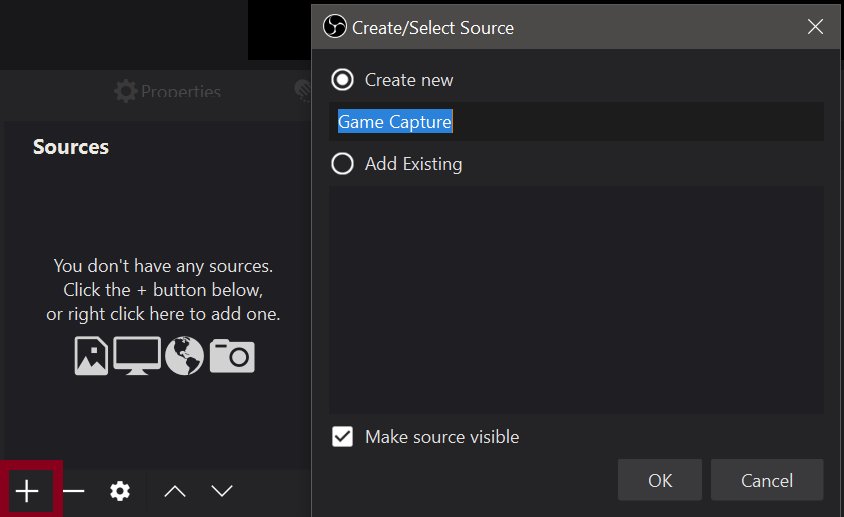
OBS have different modes to capture screen, using Game Capture mode is preferred compared to Display Capture mode. Game capture mode captures only the game, and nothing else, which is less resource intensive. Whereas display capture mode captures your whole screen, which uses more resources. You can select the specific game that you want to capture in OBS Game Capture mode.
Adjusting Bitrate
Bitrate is the amount of data used to record or stream video. Lower bitrate mean less data, and less resource usage. If you are using high bitrate and your computer is struggling, then lowering the bitrate can ease out the system. You can experiment with the values to find what best works for your needs.
Closing Unnecessary Programs
Before you start recording or streaming, close all unnecessary programs on your computer. This will free up RAM and CPU resources for OBS. You should close the applications that you are not using, and can even disable startup applications that runs in the background, to free up even more resources. It is also advisable to close down unnecessary browser tabs for the recording or streaming sessions.
Updating Drivers
Make sure that your computer’s drivers for your graphics card and other components are up to date. Newer drivers often have optimizations that can improve performance. This is especially important for graphics card drivers. Outdated drivers can cause issues with OBS performance and cause crashes. Always use the latest drivers for best performance.
Using OBS Studio in Administrator Mode
Running OBS Studio as an administrator may give it access to more resources on the system, and may improve the overall performance. You can right click on the OBS Studio application and select “Run as administrator”. This may help in situations when OBS needs some additional system resources that it can not access normally.
Optimizing Game Settings
Sometimes, reducing the graphics settings in your game can reduce the load on your computer, which can indirectly help with OBS performance. If your game is taking too much system resources, it can leave very little for OBS to use. When a game is using very high resources, OBS will struggle to capture it properly. So, you can try lowering the settings in the game, if your system is struggling.
Monitoring Your Resources
It’s useful to keep an eye on your computer’s resource usage while you’re recording or streaming. This can help you identify what’s causing problems. You can use system performance monitor or task manager on Windows to check CPU, GPU and RAM usage. It is very helpful to monitor how your system behaves when recording or streaming with OBS. If any of the resources like CPU, GPU or RAM is near 100%, then it can cause performance problems.
So, the answer to the question “does game capture on OBS take up resources?” is a definite yes. But, it’s not a reason to shy away from using OBS. By understanding how it works and optimizing your settings, you can strike a balance between recording high-quality videos and maintaining smooth gameplay. Remember, every computer is different, and finding the right settings might take some experimenting. The key is to be patient and make adjustments until you get the results you want.
How To Record Gameplay On PC With OBS (Best Settings, Resolutions, and MORE)
Final Thoughts
In summary, game capture on OBS does take up resources. The extent of usage depends on settings and game complexity. Higher resolution and frame rates increase the CPU and GPU load. Therefore, adjusting settings becomes essential for optimal recording or streaming.
OBS uses computer processing power to capture and encode video. A powerful PC handles this task easier. You should monitor system performance to prevent frame drops or lag while playing the game, so it depends on your setup if ‘does game capture on obs take up resources’ will cause issues or not.

