
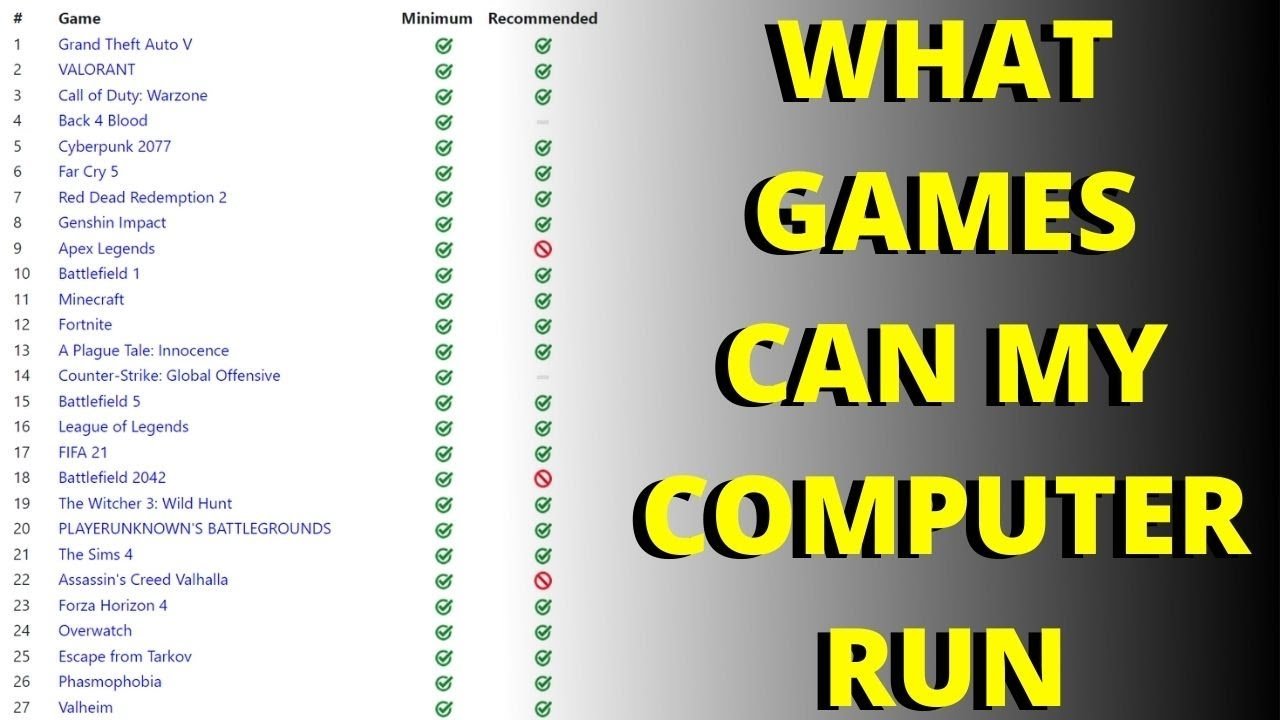
The ability of your pc to run this game depends on whether your system’s specifications meet or exceed the game’s minimum and recommended requirements.
Ever been excited about a new game but then wondered, “does my pc run this game?” It’s a common question for many gamers. Figuring out if your hardware can handle the latest releases can be tricky. We’ll explore how to determine compatibility.
Often the game developers clearly state the required specs. Comparing your PC’s components, like graphics card, RAM and processor against these, provides a quick answer. If you meet minimum specs you can likely run it, but for the best experience you need to meet the recommended.

Does My PC Run This Game? Understanding System Requirements
Ever get super excited about a new game, only to wonder if your computer can actually handle it? It’s a common problem for gamers! Before you spend your hard-earned money, it’s smart to check if your PC is powerful enough. This part of the article is your guide to understanding system requirements, figuring out what your computer has, and matching them up so you can avoid frustrating gameplay and wasted money.
Why System Requirements Matter
Every game has its own set of rules about what kind of computer it needs to run smoothly. These “rules” are called system requirements. These requirements tell you the minimum and recommended hardware your PC needs. Ignoring these requirements can lead to:
- Lagging: The game might run very slowly, making it hard to play.
- Freezing: The game might stop working suddenly.
- Crashes: The game might close on its own, losing your progress.
- Poor graphics: The game might look blurry or have missing details.
- Overall frustration: It won’t be much fun if you’re fighting with your computer more than the game itself.
By understanding and paying attention to system requirements, you can make sure you will have the best gaming experience possible.
Minimum vs. Recommended System Requirements
Game developers usually provide two sets of system requirements:
Minimum Requirements
These are the bare minimum specs your PC needs to even start the game. Think of it as the lowest level. The game might not run perfectly. You might have to play with the settings at their lowest option and still experience some lag. The minimum will give you the basic gameplay, but it may not be very smooth or visually impressive. If you barely meet these requirements, it’s a good idea to see if other people with similar computers have been able to play the game reasonably.
Recommended Requirements
This is the suggested hardware you need to play the game with better graphics settings and smoother gameplay. If you meet or exceed the recommended specs, you will most likely be able to enjoy the game at a good level of performance and detail. If you are planning to buy a game, look to match your PC specs to the recommended ones or above, as this will give you better experience.
Think of it like this: Minimum is just enough to get you through the door. Recommended is where you have a good experience.
Key Components to Check
When you compare your PC to the system requirements, you’ll mainly be looking at these main parts:
Operating System (OS)
This is the software that runs your computer, like Windows or macOS. Games are usually made for specific operating systems, so you need to check that the game is compatible. Usually most games are written for windows.
Processor (CPU)
The processor is your PC’s “brain.” It does most of the calculations that games require. Look for the type of CPU and its speed (measured in GHz). Some common processors are from Intel (like Intel i5, Intel i7) or AMD (like AMD Ryzen 5, AMD Ryzen 7).
The system requirements will usually name a type of processor, for example:
- Intel Core i5-4460 (or equivalent)
- AMD Ryzen 3 1200 (or equivalent)
If the game says ‘or equivalent’, this means that any processor with similar performance can run the game.
Memory (RAM)
RAM is short-term memory that your PC uses to run programs and games. The more RAM you have, the more programs your PC can run smoothly at the same time. Games need a good amount of RAM to hold textures, sounds, and other game elements. RAM is usually measured in gigabytes (GB).
For example:
- 8 GB RAM
- 16 GB RAM
Graphics Card (GPU)
The graphics card is responsible for creating the images you see on your screen. It’s often the most important part for gaming. Check both the type and the amount of dedicated video memory (VRAM) it has. Common brands are NVIDIA (like GeForce RTX or GTX cards) and AMD (like Radeon RX cards).
For example:
- NVIDIA GeForce GTX 1050 (2GB VRAM)
- AMD Radeon RX 570 (4 GB VRAM)
VRAM is very important, as games store their textures on this memory. If you don’t have enough VRAM the game will start lagging and textures may be blurry.
Storage Space
This is how much space the game will take up on your hard drive or solid-state drive (SSD). You need to make sure you have enough free space before you install the game. This space should be on your fastest storage device, so your games loads faster.
DirectX Version
DirectX is a set of technologies that help games communicate with your graphics card. Most games need a specific version of DirectX to run. Windows automatically installs DirectX, so normally it shouldn’t be a problem.
How to Check Your PC Specs
Now that you know what to look for, it’s time to find out what your PC has:
Checking on Windows
- Press the Windows key on your keyboard or click the windows icon on the taskbar.
- Type “System Information” and select the result.
- A window will open that shows you a lot of details about your PC.
- Look for your Operating System under “OS Name”.
- Look for your Processor under “Processor”.
- Look for your RAM under “Installed Physical Memory (RAM)”.
- To find details about your Graphics Card:
- Click on “Components” to expand the list.
- Click on “Display”.
- You’ll find your graphics card name in the details on the right side.
- To see your free Storage Space:
- Open “File Explorer” (the folder icon).
- Click on “This PC”.
- It shows you your local disks and how much free space you have.
Checking on macOS
- Click on the Apple menu (top-left corner).
- Select “About This Mac”.
- You’ll see details about your:
- Operating System: “macOS” followed by the version.
- Processor: Listed next to “Processor” (e.g., “2.3 GHz Quad-Core Intel Core i5”).
- Memory (RAM): Listed next to “Memory” (e.g., “8 GB”).
- To find your Graphics Card:
- Click on “System Report” then select “Graphics/Displays”.
- Your graphics card name will appear on the right side.
- To see your free Storage Space:
- Click on the Apple menu, and then select “About This Mac”.
- Click on the “Storage” tab at the top of the window.
- It shows you the total capacity of your hard drive and how much free space you have.
Comparing Your PC Specs to Game Requirements
Once you know what your PC has, it’s time to compare it to the game’s system requirements. You can usually find these requirements on the game’s website, on the game store page (Steam, Epic Games Store etc), or on game review sites. Match the specifications carefully. If some of your computer’s parts are lower than the minimum requirements, the game will probably have problems.
Here is an example:
Game System Requirements:
| Component | Minimum | Recommended |
|---|---|---|
| OS | Windows 10 64-bit | Windows 10 64-bit |
| Processor | Intel Core i5-4460 | Intel Core i7-7700 |
| Memory (RAM) | 8 GB | 16 GB |
| Graphics Card | NVIDIA GeForce GTX 1050 2GB VRAM | NVIDIA GeForce GTX 1070 8 GB VRAM |
| Storage Space | 50 GB | 50 GB |
Your PC Specs:
| Component | Your PC |
|---|---|
| OS | Windows 10 64-bit |
| Processor | Intel Core i5-6500 |
| Memory (RAM) | 8 GB |
| Graphics Card | NVIDIA GeForce GTX 1060 3 GB VRAM |
| Storage Space | 100 GB free |
Analysis:
- The Operating System matches both the minimum and recommended requirements, so this is good.
- Your Processor (Intel Core i5-6500) is slightly better than the minimum requirements (Intel Core i5-4460). This means that your CPU will handle the game just fine.
- Your RAM is 8 GB, which matches the minimum requirements, but not the recommended. So, your computer may struggle a bit in intense gaming scenes.
- Your Graphics Card (NVIDIA GeForce GTX 1060 3 GB VRAM) is much better than the minimum requirements (NVIDIA GeForce GTX 1050 2GB VRAM). This means that your computer can handle the graphics well.
- You have 100GB of free storage, which is more than the required 50GB, so that’s great.
Conclusion:
Your PC can run this game. You will meet the minimum, but you will not meet the recommended specs completely. You can expect decent gameplay at lower graphic settings, but not perfect gameplay. You can upgrade your RAM to 16 GB for a better gaming experience.
What if My PC Doesn’t Meet the Requirements?
If your computer does not meet the game’s requirements, it doesn’t always mean the game is unplayable. Here are some things you can try:
Lowering Graphics Settings
Most games let you adjust the graphics settings. Try setting everything to the lowest setting. This can significantly improve performance and help make the game playable. Turn off things like shadows, anti-aliasing, and lower resolution. This will reduce the load on your PC and improve the frame rate.
Closing Unnecessary Programs
Close any other applications running in the background, like web browsers, chat programs, or music players. All programs use some of your computer’s resources. This will give the game more power to run smoothly.
Updating Graphics Drivers
Make sure you have the latest drivers for your graphics card. New drivers often contain improvements that can help your PC run games better. Check the website of your graphics card manufacturer (NVIDIA or AMD) for the latest drivers.
Upgrading Your PC
If you want to play games more often, the best solution can be to upgrade your computer’s hardware. If only one part is lacking, for example RAM, it might be enough to just buy more RAM. If your processor or video card are very old, it might be worth it to buy a new PC.
Useful Websites and Tools
There are a few websites that can help check if your PC can run a specific game. These websites usually compare your PC specs against game requirements.
- Can You Run It: (systemrequirementslab.com) This website has a database of thousands of games and it automatically tests your PC against the game requirements.
- PCGameBenchmark: (pcgamebenchmark.com) This site allows you to search for specific games and compares the minimum and recommended system requirements against your computer.
These sites help simplify the process of checking if a particular game can run on your computer.
Checking your system requirements is an important part of enjoying video games. It avoids frustration and it saves you money from buying games that you can’t play.
In conclusion, checking system requirements is not just a technical step but a vital part of a positive gaming experience. By understanding the requirements and your own computer’s capabilities, you ensure a smooth, enjoyable time. So, take a few moments to check before you buy, it is worth it!
Increase Your FPS| Increase Your PC Performance|GPU Boost🔥🔥🔥#pctips #fps #tech
Final Thoughts
Ultimately, determining if your computer can handle a specific game involves comparing its specifications with the game’s requirements. Check CPU, GPU, RAM, and storage space. A mismatch can result in poor performance.
Therefore, thorough checking ensures smooth gameplay. If your system meets the game’s minimum requirements, you can expect it to run. But for the optimal experience, consider the recommended specs.
Finally, the big question: does my pc run this game? The comparison above is a must to answer it.

