
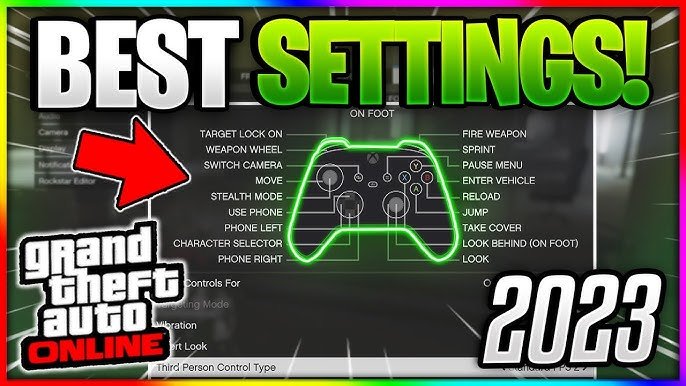
GTA 5 Online all controller settings include options for movement, aiming, vehicle control, and interaction, allowing you to customize button layouts and sensitivity to suit your play style.
Jumping into Los Santos’ chaos? You’ll quickly find that how you interact with the game heavily relies on your controller setup. The default configuration works fine for some, but optimizing your experience with GTA 5 online all controller settings can give you a definite edge.
Finding the right button mapping and sensitivity adjustments makes a big difference in a firefight or while navigating a high-speed chase. So lets dive into the configurations and find the perfect setup for your play.

GTA 5 Online All Controller Settings
Getting the controller settings just right in GTA 5 Online can make a huge difference. It’s like finding the perfect pair of shoes – suddenly, everything feels easier and more comfortable. Whether you are racing through the streets of Los Santos, flying a jet, or battling other players, having the right settings can give you a real edge. This guide will help you understand each setting and how to adjust them for the best possible experience.
Understanding the Basics of Controller Settings
Before diving into specifics, let’s cover some basic concepts. The controller settings in GTA 5 Online let you change how your character responds to your button presses and stick movements. These settings can be broadly divided into a few main groups:
- Movement and Camera Controls: This affects how your character moves, how quickly they turn, and how the camera follows them.
- Combat Controls: These settings determine how you aim, shoot, and use weapons in combat.
- Vehicle Controls: These settings focus on how you drive cars, fly planes, and control other vehicles.
- General Controls: This area includes settings that affect your interaction with the game world, like using the menu and interacting with objects.
Movement and Camera Settings
How your character moves and how you see the world is very important. These settings affect how smooth and responsive your gameplay feels. Getting them right can make navigating the chaotic world of Los Santos much easier.
Stick Sensitivity
Stick sensitivity controls how quickly your character turns or moves when you move the controller sticks. Higher sensitivity means faster movement, while lower sensitivity means slower, more precise movements. It’s a personal preference, but here’s a breakdown:
- High Sensitivity: Good for fast-paced action, quick turns, and reacting to sudden threats. It might take some time to become comfortable with this setting.
- Medium Sensitivity: A balanced option, great for general gameplay and comfortable for many players.
- Low Sensitivity: Best for precise aiming, slow-paced actions, and situations where accuracy matters most. It could feel a bit slow for some players in general play.
Look/Aim Sensitivity
This setting specifically controls how fast your camera moves when aiming with weapons. It’s related to stick sensitivity, but it only applies when you’re aiming. You can fine-tune this so it feels just right.
- High Look Sensitivity: Quick camera movements for fast aiming and shooting, which is useful for close-range combat.
- Medium Look Sensitivity: A good balance between speed and precision, suitable for a wide range of combat scenarios.
- Low Look Sensitivity: Precise aiming at longer ranges, excellent for snipers or players who need to line up their shots very carefully.
Camera Options
These settings affect how the camera behaves during gameplay, like its position and its follow behavior.
- Third-Person Camera: This is the standard view where you see your character from behind. It is usually set as a default and is most commonly used.
- First-Person Camera: This puts you directly in the eyes of your character, making the game feel more immersive. It’s also good for some combat situations.
- Camera Shake: This setting determines how much the camera shakes during explosions and other intense moments. Some players prefer to turn this down or off to prevent nausea or distraction.
Combat Controls
Combat is a huge part of GTA 5 Online. Having your aiming and shooting settings dialed in will give you a serious advantage during firefights. These controls help you hit your targets and manage your weapons effectively.
Targeting Mode
This is one of the most important combat settings. It determines how you lock onto targets when you aim.
- Assisted Aim – Full: This is the most assisted mode. Your aim will snap to enemies, making it much easier to hit them, great for beginners.
- Assisted Aim – Partial: Aim assist is less aggressive. It will give some help when aiming but does not lock on completely, giving the player more control.
- Free Aim: No aim assist. You must aim completely on your own. Best for skilled players looking for a challenge and often used by competitive players.
Aiming Sensitivity
This is similar to look sensitivity, but it specifically affects your aim while using weapons. Getting the right aim sensitivity will help you track targets and land shots with ease.
Weapon Wheel Controls
The weapon wheel is how you select different guns. Your settings can affect how quickly and easily you change weapons.
- Weapon Wheel Style: You can choose between several styles, such as classic or radial, each affecting how you select your weapons.
- Weapon Switching Speed: Adjusting this can help you change weapons more quickly or with more precision.
Vehicle Controls
Driving is a massive part of GTA 5 Online, and these settings can change how smoothly and effectively you handle vehicles. Whether you’re cruising, racing, or flying, the right settings are key.
Steering Sensitivity
Steering sensitivity affects how quickly your vehicle turns when you move the stick. Similar to movement sensitivity, higher sensitivity means sharper turns.
- High Steering Sensitivity: Great for quick turns and drifting. Can be harder to control on rough terrain or when going at very high speeds.
- Medium Steering Sensitivity: A good all-around option that works well for most situations. Offers better control than high sensitivity.
- Low Steering Sensitivity: Good for very precise driving and when you need very specific control while driving a specific type of vehicle.
Braking Controls
The way you control your brakes impacts how you slow down and navigate corners.
- Standard Braking: Brakes respond as usual. Good for most situations and easier for newer players to get the hang of.
- Anti-Lock Braking System (ABS): The game gives you a little extra help to prevent your tires from locking. Good for handling faster cars, especially when not used to these types of cars.
Flight Controls
These settings determine how you fly planes and helicopters. These are some of the trickiest vehicles to control, so dialing in the settings can be very useful.
- Inverted Pitch: Whether the up and down movement of the stick is inverted (pull down to go up and push up to go down) or not. Some players find this control much more natural than default.
- Rudder Control: How you steer using the triggers or shoulder buttons. Can be adjusted for better responsiveness.
- Throttle Sensitivity: How quickly your vehicle reaches top speed when accelerating. It can be useful in a range of situations, like escaping or catching up to someone.
General Controls and Interface
Beyond movement and combat, there are many settings that affect how you interact with the game world and menus. These settings can greatly improve your overall enjoyment of the game. These options help your experience be more intuitive and easier to navigate.
Button Layout
You can customize what every button on your controller does. This is really useful for setting up controls that feel comfortable to you.
- Re-mapping Buttons: You can swap the functions of buttons to fit your playstyle, like having the sprint button in a position that you can comfortably reach.
- Preset Button Layouts: You can also choose between different pre-set control schemes, like a layout designed for easier combat or driving.
Menu Navigation
How you move through menus affects how quickly you can access important information and options. These are settings that you may not think about at first, but they have a big impact on your experience.
- Menu Speed: This can change how quickly you move through in-game menus.
- Highlight Controls: The game can highlight the options on which you are selected, making it easier to see which option you are picking.
Interaction Options
These settings help you interact with objects in the game world, like picking up weapons or getting into vehicles.
- Tap vs. Hold: You can choose whether you have to tap or hold down a button to interact with something.
- Interaction Prompts: You can choose whether to display prompts telling you which button you need to press when you come across an item or vehicle.
Advanced Tips and Tricks for Settings
Now that we’ve covered the basic settings, here are some advanced tips and tricks to help you fine-tune your controls even more.
Experiment with Different Settings
The best way to find the perfect settings for you is to experiment. Try adjusting different sensitivities, button mappings, and camera settings until you find what feels most comfortable and effective. Don’t be afraid to make big changes to see what works best.
Consider Your Playstyle
Your preferred way of playing should inform your choices. If you love racing, focus on vehicle settings. If you are all about combat, focus on weapon controls. Adjust your settings to complement your unique playing style.
Practice Makes Perfect
Once you’ve adjusted your settings, give yourself time to get used to them. It might take a few hours of gameplay before everything starts to feel natural. Don’t be discouraged if it feels different at first, with a little practice it will feel second nature.
Watch Professional Players
Watching how professional GTA 5 Online players set up their controllers can provide good ideas. You might learn something new or find a setting that works really well for you.
Use the Settings Menu Frequently
Don’t just set your controls once and forget about them. As you get better at the game, your needs and preferences might change. Check back on your settings every now and then to make sure they’re still working for you. Take some time and check up on the settings if something feels off.
Getting your controller settings just right can make a world of difference in GTA 5 Online. It’s all about finding what feels most comfortable and effective for you. By experimenting with different options and settings, you can take your gameplay to the next level. Don’t be afraid to try new things, and remember that there’s no single “best” setup. Have fun playing!
BEST SETTINGS TO USE FOR ALL CONSOLES IN GTA 5! (Easy Guide)
Final Thoughts
Adjusting your controller settings in GTA 5 Online significantly impacts gameplay. Experimenting with different configurations can improve aiming, driving and overall control. Finding what works best for you is essential.
A personalized setup boosts your performance and enjoyment. Carefully review all available options. Remember that ‘gta 5 online all controller settings’ customization greatly affects your experience, so fine-tuning is key for success.

