
To stop your phone from automatically downloading games, you need to adjust your app store settings and disable automatic updates for apps.
It’s incredibly frustrating when your phone starts downloading games you never asked for, right? This unexpected drain on your data and storage can be a real pain. Many people are asking “how do i stop my phone from automatically downloading games” and thankfully, it’s a very manageable problem.
The good news is that with a few simple setting changes, you can take back control of your downloads. We’ll guide you through the steps so you can enjoy a clutter-free phone.

How Do I Stop My Phone From Automatically Downloading Games?
It can be super annoying when you look at your phone and see a new game you didn’t even ask for just sitting there. It’s like, “Where did that come from?” These automatic game downloads can eat up your phone’s storage, use your data, and just generally be a pain. Good news! You’re not stuck with them. Let’s explore why this happens and, most importantly, how you can stop your phone from automatically downloading games.
Understanding Why Games Download Automatically
Before we jump into fixing the problem, it helps to know why it happens in the first place. There are a few common reasons your phone might be pulling in games without your permission:
Pre-Installed Apps (Bloatware)
Many phone manufacturers and carriers include pre-installed apps, sometimes called bloatware. Some of these might be games that you didn’t choose. These apps often come as part of the phone’s software and might download updates or even entirely new games automatically. Think of it like when you get a new cereal box and there’s a toy inside; you didn’t ask for the toy, but it’s there.
Automatic App Updates
Your phone is set to automatically update apps so that you’re always using the latest version, which is usually a good thing! However, sometimes, app developers add new content, which could include games or promotional items. Also, some apps might include mini-games inside them. This is not strictly a new app download, but it might look like one if you see new gaming elements suddenly appear inside apps. It is also possible that the phone manufacturer or mobile company pre-installs the app and then updates it and with the updates, it starts downloading games.
Shared Accounts and Device Sync
If you share an account with another family member or use the same account across multiple devices, any app installed on one device may attempt to download on others that share the account. This is especially true for Android using Google accounts or Apple devices linked by an Apple ID. It is done by system sync for consistency across devices. So, if a game is downloaded on a tablet, your phone may download it as well.
Promotional Offers and Carrier Apps
Sometimes your phone carrier or the phone manufacturer has deals and promotional partnerships with various game apps. These apps may be pre-loaded with automatic download settings. Your phone could get these apps because the phone company is pushing them. These downloads are sometimes based on usage and may happen in the background.
Stopping Automatic Game Downloads on Android
If you have an Android phone, there are several ways to take control of those unwanted game downloads.
Disabling Automatic App Updates
This is the biggest step to take. By turning off auto-updates, you decide when apps update. This can help you avoid unwanted game downloads associated with app updates. Here’s how:
- Open the Google Play Store app.
- Tap your profile picture at the top right corner.
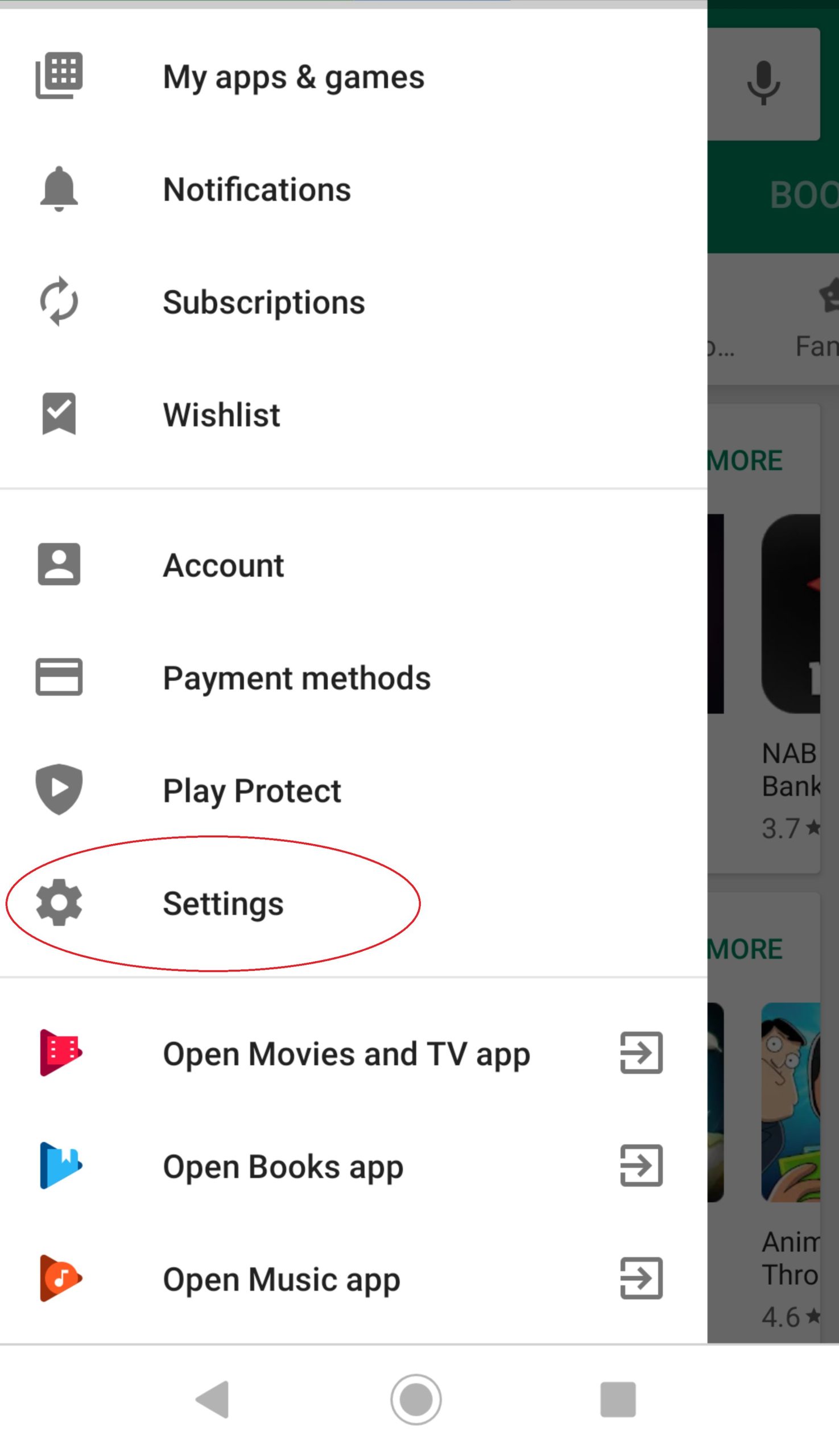
- Select Settings.
- Tap Network preferences.
- Choose Auto-update apps.
- Select Don’t auto-update apps or Auto-update apps over Wi-Fi only to control downloads.
Removing Bloatware
You can often uninstall pre-installed games and apps from your Android. Here’s how:
- Open Settings on your phone.
- Go to Apps or Applications.
- Find the game you want to uninstall.
- Tap the app and choose Uninstall.
Note: Some apps might be deeply integrated into your phone’s system and may only allow you to disable them rather than uninstall. In this case, tap “Disable” option instead of uninstall option.
Turning Off Google Play Instant Apps
Google Play Instant lets you try apps without installing them. However, sometimes, this setting can contribute to unexpected downloads. To turn it off:
- Open the Google Play Store app.
- Tap your profile picture at the top right corner.
- Select Settings.
- Choose Google Play Instant.
- Turn off the switch to disable this feature.
Adjusting Device Sync Settings
If your phone is syncing apps with other devices on the same Google account, here’s how to stop it:
- Open Settings.
- Go to Accounts or Users & Accounts.
- Choose your Google account.
- Tap Account sync.
- Review the list and turn off sync for Apps or other items if necessary.
Checking Carrier Apps Settings
Some carriers have their own apps that could download games. You might find these in your app list. Here’s what to do:
- Open Settings.
- Go to Apps or Applications.
- Locate your carrier’s app and open its settings.
- Look for options related to downloads or promotions, and turn them off.
Stopping Automatic Game Downloads on iPhone
If you have an iPhone, the method is a bit different, but you can still effectively stop those unwanted game downloads. Let’s take a look:
Disabling Automatic App Updates
This is the key to avoiding new game downloads from app updates. Here’s what you should do:
- Open the Settings app.
- Tap App Store.
- Under Automatic Downloads, turn off the switch next to Apps.
Removing Unwanted Apps
Just like on Android, you can uninstall unwanted games from your iPhone:
- Find the app you want to delete on your home screen.
- Tap and hold the app icon until it jiggles.
- Tap the (x) button on the top left of the app icon.
- Tap Delete to confirm the uninstall.
Adjusting Family Sharing Settings
If you are sharing an Apple ID with other devices through Family Sharing, you may need to adjust your download settings. Here’s how:
- Open Settings.
- Tap your Apple ID profile at the top.
- Go to Family Sharing.
- Tap your name (the organizer’s name).
- Tap Purchase Sharing.
- If desired, turn off “Share Purchases with Family”. You can also review your family’s app settings to prevent unwanted game downloads.
Managing Offload Unused Apps Feature
This feature offloads apps, it doesn’t delete them, but it can help manage storage and avoid auto-re-downloads. Here’s how to manage it:
- Open Settings.
- Tap App Store.
- Find Offload Unused Apps and choose to turn it on or off based on your preference.
Checking Carrier Apps and Promos
While less common on iPhones, some carriers may still have their own apps and promotions. Check for these:
- Open Settings.
- Scroll down and look for your carrier’s app in the list.
- Tap the app and go through its settings for any potential automatic download options.
Tips to Further Prevent Automatic Downloads
Beyond the steps above, here are a few extra tips to help keep your phone game-free if you don’t want it:
- Regularly review your installed apps. Take a few minutes to scan your phone’s apps and remove anything you don’t recognize or use.
- Be careful when installing apps. Before you click “install,” make sure you know what the app does and who made it. Read reviews if you’re unsure.
- Use Wi-Fi for large downloads. If you do choose to download new apps, it’s better to do it over Wi-Fi so you don’t use up your mobile data.
- Periodically check your app store settings. Things can change, so it’s a good idea to double-check your app store settings every few months to make sure they are still what you want.
- Keep your operating system updated. While this may sometimes include new features that include apps, system updates often include better settings for app management.
Dealing With Stubborn Downloads
Sometimes, despite your best efforts, some unwanted downloads persist. In these cases, you may need to take extra steps:
Contacting Your Phone Manufacturer or Carrier
If you find a pre-installed game app that keeps reinstalling itself or won’t fully uninstall, you might need to reach out to your phone’s manufacturer or your mobile carrier. They may provide specific instructions or tools to remove the app.
Performing a Factory Reset (Last Resort)
A factory reset wipes your phone clean and returns it to its original state. This is a more drastic measure and you will need to back up your important data before doing this. If you are still facing issues with persistent game downloads even after exhausting all the above steps, a factory reset might be a solution. Remember, this will remove everything, so use this as a last measure.
Understanding Data Usage
Automatic downloads aren’t just about storage, they can affect your mobile data. Downloading games takes up data. If you don’t have unlimited data, these downloads can increase your bill. So, it’s important to control them to avoid overspending on data.
Monitoring Your Data Usage
Both Android and iPhone devices allow you to check your data usage. You can often see which apps are using the most data. Here’s how:
On Android:
- Open Settings.
- Go to Network & Internet or Connections.
- Find Data usage or similar option to review the apps using the most data.
On iPhone:
- Open Settings.
- Tap Cellular.
- Scroll down to see a list of apps and their data consumption.
Setting Data Usage Limits
Both platforms also allow you to set data limits for your phone. Here’s how:
On Android:
- Open Settings.
- Go to Network & Internet or Connections.
- Find Data usage and set data limits and alerts based on your needs.
On iPhone:
You can set data limits with your carrier, if you have an option to do this in your carrier app. iPhone also has a feature called “Low Data Mode” under cellular settings that can help conserve mobile data.
By understanding your phone’s settings and taking a few simple steps, you can gain better control over what is downloaded onto your device and prevent unwanted games from appearing on your screen.
Taking these steps will help you keep your phone clean, organized, and free from unwanted games. No more surprises! Enjoy having control of your phone.
How to Stop Apps & Games Auto Update problem in Android Mobile Tamil | VividTech
Final Thoughts
To stop your phone from automatically downloading games, adjust the settings within your app store. For Android, navigate to Google Play Store settings, then disable auto-updates. On iOS, find App Store settings and toggle off automatic downloads for apps and updates.
These simple steps prevent unwanted game installations and conserve storage. By managing these settings directly, you are in control of app downloads and update process. Therefore, you now have the answer to: how do i stop my phone from automatically downloading games.

