
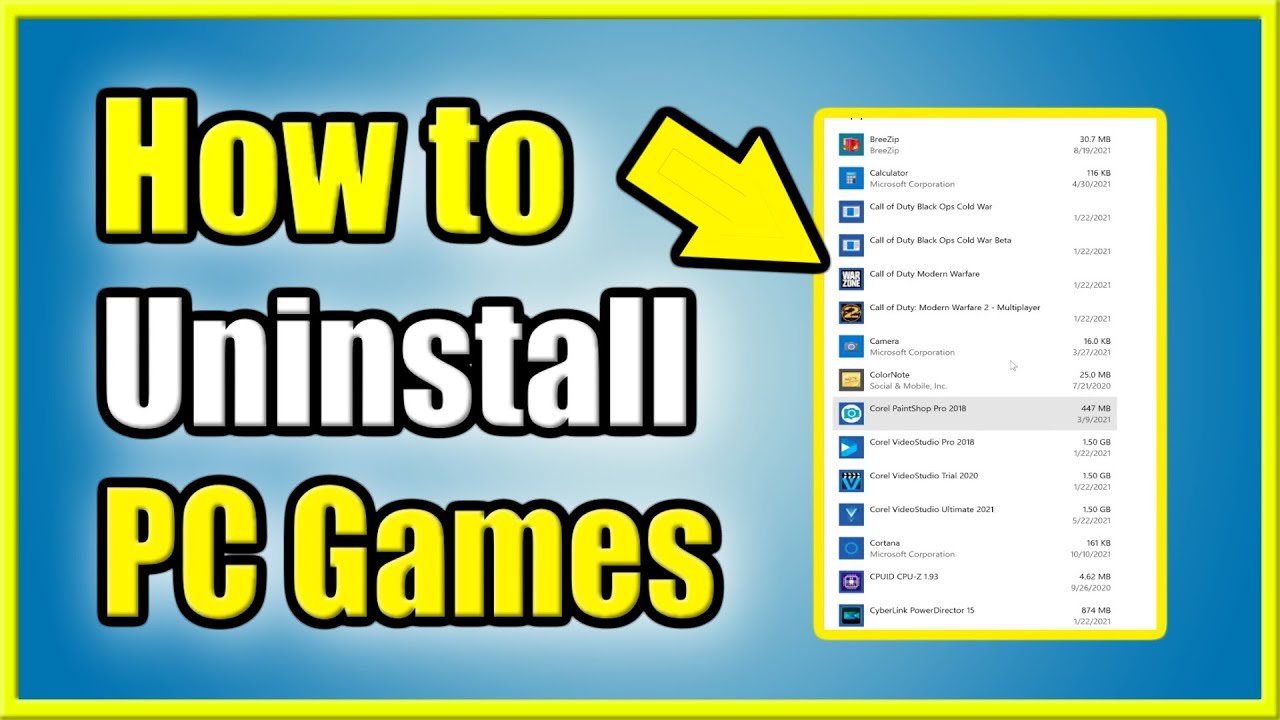
To uninstall a game, you typically need to find it within your operating system’s application management area, then select the option to remove or uninstall.
Ever felt your hard drive groaning under the weight of too many games? Maybe you need space for new adventures, or just want to declutter your digital world. This is when you find yourself wondering, “how do i uninstall a game”?
It’s a common question, and thankfully, it’s a pretty straightforward process. The methods vary slightly depending on your platform, but the general steps are similar for PC, consoles, and mobile devices.

How Do I Uninstall a Game?
So, you’ve decided it’s time to say goodbye to a game. Maybe it’s taking up too much space, you’re just not enjoying it anymore, or perhaps you need to make way for a new digital adventure. Whatever the reason, knowing how to properly uninstall a game is a useful skill for any gamer. It’s not as simple as deleting a shortcut – there are some important steps to follow to make sure the game is completely gone and doesn’t leave behind any annoying files.
Why Uninstalling Games Properly Matters
You might be thinking, “Why can’t I just drag the game folder to the trash?” Well, there are several good reasons why you should uninstall games using the correct methods.
Avoiding Leftover Files
When you install a game, it often places files in many different locations on your computer, not just in the main game folder. These files include save games, settings, and sometimes even drivers. If you simply delete the game folder, these extra files will remain, taking up space and potentially causing problems in the future. Think of it like moving out of a house but leaving all your old clothes and furniture behind – it’s just messy! Uninstalling properly helps remove all these extra bits and pieces.
Preventing Registry Issues
The Windows registry is a special database where your computer stores important information about installed programs. Games often add entries into the registry. When you uninstall a game the right way, it usually cleans up these registry entries. If you just delete the game folder, those registry entries remain, which can sometimes slow down your computer or cause conflicts with other programs. A clean registry is a happy registry!
Keeping Your Computer Organized
Uninstalling games correctly helps keep your computer clean and organized. It’s like keeping your room tidy – it makes things easier to find and helps everything work better. By removing all the game’s files, you prevent your hard drive from becoming cluttered with old, unused data.
Uninstalling Games on Windows
Windows offers a few ways to uninstall a game, and the best method will depend on how the game was installed. Here’s a breakdown of the most common ways:
Using the Control Panel or Settings App
This is the most common way to remove most Windows programs, including games. Here’s how to do it:
- Click the Start button (the Windows logo in the bottom-left corner of your screen).
- Type “Control Panel” and click on the Control Panel app when it appears.
- If your Control Panel is in “Category” view, click on “Uninstall a program” under the “Programs” section. If it’s in “Large icons” or “Small icons” view, click on “Programs and Features.”
- A list of all the programs installed on your computer will appear. Find the game you want to uninstall.
- Click on the game, and then click the “Uninstall” button at the top of the list.
- Follow the on-screen instructions. This may involve clicking “Next” several times or confirming your decision to uninstall.
Using Settings App (Windows 10 and 11)
- Click the Start button, and then click the gear-shaped “Settings” icon.
- Click on “Apps.”
- Select “Apps & Features” on the left side.
- Find the game you want to uninstall in the list.
- Click on the game, and then click the “Uninstall” button.
- Follow the on-screen instructions to complete the process.
Using the Game Launcher
Many games are installed using a game launcher, such as Steam, Epic Games Launcher, or GOG Galaxy. These launchers also have their own built-in uninstallation features, which are often the best way to remove games installed through them. Here’s how:
Uninstalling a Steam Game
- Open the Steam client.
- Click on “Library” at the top of the window.
- Find the game you want to uninstall in your library list.
- Right-click on the game and select “Manage” then “Uninstall.”
- Steam will ask you to confirm that you want to uninstall the game. Click “Uninstall” again to proceed.
Uninstalling an Epic Games Game
- Open the Epic Games Launcher.
- Click on “Library” on the left side.
- Find the game you want to uninstall.
- Click on the three dots (…) next to the game’s name.
- Select “Uninstall” from the menu.
- Epic Games will ask you to confirm. Click “Uninstall” to proceed.
Uninstalling a GOG Galaxy Game
- Open the GOG Galaxy launcher.
- Find the game you want to uninstall in your library.
- Click on the game to go to its game page.
- Click the “More” button (it looks like three vertical dots) at the top of the page.
- Select “Manage” and then click on “Uninstall.”
- GOG Galaxy will ask for confirmation. Click “Uninstall” to confirm.
Using the Game’s Own Uninstaller
Some games come with their own dedicated uninstaller. You might find this in the game’s installation folder. Look for a file named something like “uninstall.exe” or “unins000.exe.” To use it:
- Open File Explorer.
- Navigate to the game’s installation folder (usually in “Program Files” or “Program Files (x86)”).
- Locate and double-click the uninstaller file.
- Follow the on-screen prompts to complete the uninstallation process.
This method is less common, but it’s still good to know.
Uninstalling Games on macOS
Uninstalling games on a Mac is usually quite straightforward. Most games are installed as application bundles, which means they are contained in a single folder or package. Here’s how to remove them:
Using the Applications Folder
- Open “Finder.”
- Click on “Applications” in the sidebar.
- Find the game you want to uninstall.
- Drag the game’s icon to the “Trash” bin in the Dock. Or you can right-click (or Control-click) the game’s icon and select “Move to Trash”.
- Empty the Trash by right-clicking on the Trash bin icon in the Dock, and then select “Empty Trash.”
Using Launchpad
- Click on “Launchpad” in the Dock.
- Find the game you want to uninstall.
- Click and hold on the game’s icon until all the icons start to wiggle.
- Click the “X” that appears in the corner of the game’s icon.
- Click “Delete” to confirm.
This method only works for apps installed through the Mac App Store or other app store installations.
Using Game Launchers (like Steam) on Mac
If you installed the game through a launcher like Steam, Epic Games, or GOG, follow the same steps you would on Windows, as described in the previous section. The process is almost identical. For example, to uninstall a Steam game on Mac, you’d open Steam, go to your Library, right-click the game, select “Manage,” and then “Uninstall.”
Checking for Leftover Files on Mac
Even though uninstalling through the Applications folder or Launchpad usually cleans up well, it’s still wise to check for leftover files, especially for games that don’t come from the Mac App Store. Here’s how:
- Application Support: Open Finder, click “Go” in the menu bar, and select “Go to Folder”. Type ~/Library/Application Support and press Enter. Look for folders related to the game and delete them if they are there.
- Preferences: In the same “Go to Folder” window, type ~/Library/Preferences. Look for .plist files related to the game and delete them.
- Caches: Again in the “Go to Folder” window, type ~/Library/Caches. Look for folders or files related to the game and delete them if present.
Uninstalling Games on Consoles
Uninstalling games on consoles is generally simpler than on computers because the consoles are designed for games. Here’s a guide for some popular consoles:
Uninstalling a Game on PlayStation (PS4, PS5)
PS4
- From the main menu, go to “Library.”
- Highlight the game you want to uninstall.
- Press the Options button on your controller.
- Select “Delete.”
- Confirm your choice and the game will be uninstalled.
PS5
- From the home screen, go to “Games.”
- Highlight the game you want to uninstall.
- Press the Options button on your controller.
- Select “Delete.”
- Confirm your choice to remove it from the console.
Uninstalling a Game on Xbox (Xbox One, Xbox Series X/S)
- From the home screen, go to “My games & apps.”
- Select “See all.”
- Highlight the game you wish to uninstall.
- Press the Menu button on your controller (the button with three lines).
- Select “Uninstall” and confirm your choice.
Uninstalling a Game on Nintendo Switch
- From the home screen, highlight the game you want to uninstall.
- Press the + or – button on your controller.
- Select “Manage Software.”
- Select “Delete Software” and confirm your choice.
Keep in mind, deleting a game from a console removes the game itself. Your saved game data may stay on the system unless you specifically remove save data. Also, digital licenses of games purchased from online stores remain tied to your account. You can re-download them anytime.
Troubleshooting Common Uninstall Issues
Sometimes, even when following the correct steps, you might encounter problems during uninstallation. Here are some common issues and how to address them:
The Game Doesn’t Appear in the Programs List
If the game is not showing up in the Control Panel or Settings app list, this usually means that it didn’t install properly or that the uninstallation information is missing. Here are a few things to try:
- Use the Game’s Uninstaller: If you have the game’s install folder, look for the uninstaller program inside (like “uninstall.exe”).
- Use a Third-Party Uninstaller Tool: Programs like Revo Uninstaller can sometimes force an uninstallation, even if the game doesn’t appear in the list.
- Reinstall then Uninstall: If none of the above solutions work, try re-installing the game and then uninstall it properly.
Error Messages During Uninstallation
Error messages can be frustrating, but they often offer clues about what’s going wrong. Some common errors include:
- “Access Denied” or “Permission Error”: This can mean that the game files are being used by another program or process. Restart your computer and try uninstalling again. You can also try running the uninstaller as administrator (right-click the uninstaller and select “Run as administrator”).
- “Files Cannot Be Found”: This may happen if files related to the game have been moved or deleted. It’s best to reinstall the game to make sure all necessary files exist before uninstalling properly.
- “Installation Corrupted”: This can happen when the game didn’t install correctly in the first place. This is a tricky situation, and sometimes it’s best to reinstall and uninstall.
Leftover Files After Uninstallation
Even after a normal uninstallation, some game files might be left behind, for that you need to manually check these locations, and then you can remove them. It’s important to remember that some programs or launchers have hidden folders so you need to show the hidden items as well.
- Program Files or Program Files (x86) folders.
- Appdata folder – For Windows users this folder is present in local disk. You need to go user folder and then Appdata folder (ensure you enabled viewing hidden folder in the File explorer view option)
- Library folder – For Mac users the steps are given above in the section “Checking for Leftover Files on Mac”
- Search for game folders or files: If you know the game name you can search in your file explorer/finder.
Always be cautious when deleting files, especially in important system folders. It’s best to be certain the files are related to the game you’re trying to remove. If you’re unsure, it’s a good idea to search online or ask for help before deleting anything.
By following these steps, you can keep your computer or console tidy and running smoothly. Remember, cleaning up digital clutter is just as important as keeping your physical space organized. Happy gaming!
How to Uninstall PC Game on Windows 10 & 11 (Save Space!)
Final Thoughts
Removing games varies slightly across platforms, but the core process is similar. Usually, you locate the game within your library, then find an ‘uninstall’ or ‘remove’ option.
Clicking that button initiates the uninstall process. This removes the game’s program files from your storage. Confirm the action when prompted, and that’s how you uninstall a game.
So, the key takeaway is that knowing how do i uninstall a game involves finding the proper selection or menu on your gaming platform and executing the removal command.

