
To play iMessage games, you first open a message thread, then tap the App Store icon, select the game from your installed apps, and begin playing.
Ever wonder how do u play iMessage games? It’s simpler than you might think. You’re already using iMessage for texts, so games are just a quick tap away.
The little App Store icon is your gateway. There you’ll find all sorts of fun and engaging games to play right within your message threads. Pick your game and get started.

How Do You Play iMessage Games?
Playing games with your friends and family is super fun, especially when you can do it right from your phone! iMessage games let you challenge your buddies to a quick round of something silly without ever leaving your text conversation. It’s like having a mini arcade right in your messages. But if you’ve never done it before, figuring out how to get started can feel a little tricky. Don’t worry; it’s actually pretty easy! Let’s explore all the fun ways you can play iMessage games, so you can jump in and start having some laughs with your contacts. We’ll cover everything you need to know, from finding the games to sending challenges to your pals.
Finding iMessage Games
Before you can start playing, you need to know where to find these hidden gems. iMessage games aren’t hiding in a separate app; they’re tucked away within the Messages app itself. Think of it like a secret treasure chest waiting to be opened. Here’s how you can locate these fun little diversions:
Accessing the App Drawer
The first step is to open up the Messages app and start a conversation with the person you want to play with. Any chat will do! Once you’re in the chat, look for a little row of icons at the bottom of the screen, just above the keyboard. This is called the App Drawer. It looks like a gray bar with small icons inside, including a camera, app store symbol and other things depending on the apps you have installed. If you are not able to find it, it might be possible that the drawer is hidden, so you need to tap on the app store icon and the drawer will show up.
Navigating the App Store Icon
Inside the App Drawer, you’ll see different apps you can use within iMessage. The one we’re interested in is the blue App Store icon – the one that looks like an “A” inside a circle. Tap on this icon, and it will take you to the iMessage App Store. It’s like a smaller version of the regular App Store, but it only contains apps that work with iMessage.
Browsing for Games
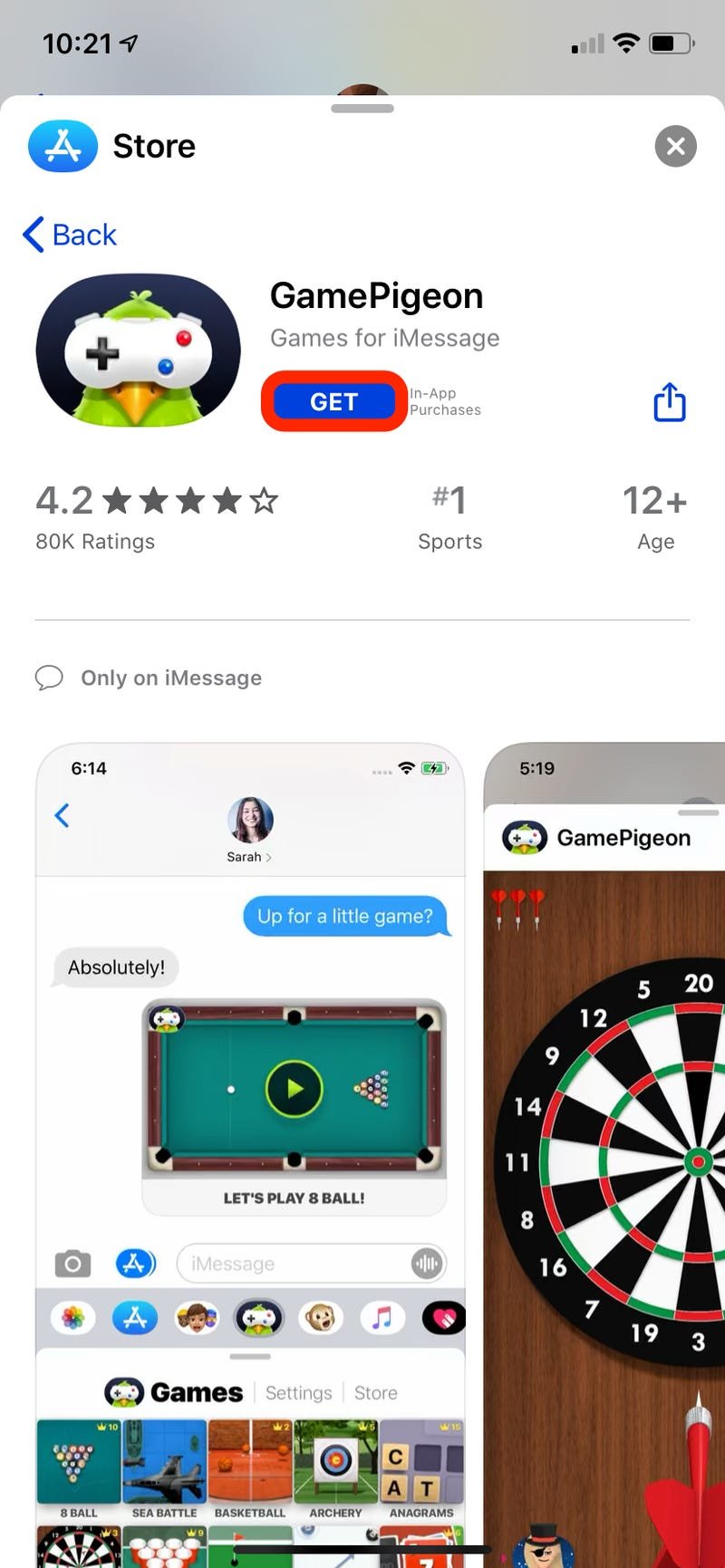
Once you’re in the iMessage App Store, you’ll see a bunch of different apps, and many of them are games! You can scroll through the suggested options, browse by category, or use the search bar at the top of the screen to look for a particular game you have in mind. Remember that some games are free, while others might cost a small amount of money, just like regular apps. You can tell the difference by the presence of price, and if it says “Get” instead of “Open”, you will need to download before playing.
Installing and Managing iMessage Games
Once you have found a game that you like the look of, it’s time to add it to your collection.
How to Install Games
The installation process for iMessage games is very similar to how you install regular apps on your iPhone. Just find the game in the iMessage App Store that you want to play. If the game is free, you will see a button that says “Get,” and if the game costs money, it will show the price. Tap that button and, if needed, confirm the installation using your Face ID, Touch ID, or Apple ID password. Once the app is installed, it’ll appear in your iMessage App Drawer so you can access it easily.
Managing Your iMessage Apps
If you end up with lots of iMessage apps, the drawer can feel cluttered. To make things easier, you can manage your apps:
- Reorder Apps: Tap and hold any app in the App Drawer and drag it to a new position to customize the order.
- Remove Apps: Swipe left on an app in the App Drawer. Then press ‘More’ which will take you to the app drawer management. From there you can swipe left on the app and press ‘Delete’ to uninstall the app.
This helps keep your favorites within easy reach and hide the ones you rarely use.
Starting a Game
Now that you have some games installed, it’s time to play! Here’s how to begin a game with your friend:
Launching the Game
Go back to the conversation with the friend you want to play with. Tap on the App Drawer and find the icon for the game you want to play. Tap on it, and the game will start up right there in the message area.
Sending a Challenge
Many iMessage games let you challenge your friend to a round, so the game can appear on their phone screen too. Usually, the game will have a button that says something like “Send,” “Challenge,” or “Play.” Tap that button, and your challenge will be sent to your friend.
Waiting for the Other Player
After you send the challenge, your friend will see it in the message thread. They’ll tap on it to accept your challenge and join in the fun. Depending on the game, you might be taking turns or playing at the same time.
Popular iMessage Games
There are lots of cool games available for iMessage. Here are some of the popular ones you might want to try:
Game Pigeon
Game Pigeon is a classic collection of many different mini-games all inside one app. It includes classics like:
- 8 Ball Pool
- Checkers
- Minesweeper
- Crazy 8
- Anagrams
- And many more!
This is a great option if you enjoy variety and want lots of choices all in one place.
Words with Friends
Words with Friends is a popular word game where you can challenge your friends to see who can make the most points using tiles to create words on a game board. If you enjoy scrabble, then this game is for you.
Pictionary
With the iMessage version of Pictionary, you can draw pictures using your fingers, and your friend has to guess what the picture is of. It’s a super fun game of creative guessing.
Cobi Hoops
If you love basketball, Cobi Hoops is a fun mini-game where you try to flick balls into a hoop. It’s quick, simple, and addictive.
Other Fun Games
There are tons of other fun games out there! Explore the iMessage App Store and discover the different types of games available. There are card games, puzzle games, sports games and many more things to try.
Tips and Tricks for iMessage Games
Here are a few helpful tips and tricks to make your iMessage gaming experience even better:
Turning off Notifications
If you find your iMessage notifications are becoming too frequent, you can turn them off for specific games. Simply go to your iPhone settings, find Notifications, then locate the game in the list of apps. From here, you can turn off the notifications for that particular app.
Checking for Updates
Make sure you keep your games up-to-date! App developers regularly release updates to fix problems and add new features. Open the App Store and tap your account photo at the top. Then, select “Updates” to see which apps need updating.
Exploring Different Game Types
Don’t be afraid to explore different types of games. There are lots of genres out there, from puzzles and word games to sports and strategy games. Try new things and you might discover some new favorites!
Using Multiple Games
You don’t have to stick with only one game! If you and your friend want to play more than one game at a time, you can start multiple games going within the same chat thread.
iMessage Games on Different Devices
iMessage games can be played on different Apple devices, like your iPhone or iPad. Just make sure your device is compatible and running the latest version of iOS or iPadOS. For most games to work correctly, you and your friend will need to have a device running a reasonably recent version of iOS.
Why iMessage Games Are Great
iMessage games are a fantastic way to stay connected with friends and family. They are easy to access, provide entertainment on the go, and offer a fun way to pass the time during everyday moments. They can make waiting in line, riding the bus, or just chilling at home more fun. The games provide a way to connect with people that you might not otherwise do. They help to keep conversations flowing, and also keep you in contact with people you know.
So, that’s the lowdown on how to play iMessage games! From finding the games in the app drawer to sending out challenges, it’s a simple process that leads to lots of fun. Grab your phone, invite a friend, and get ready to play. There are so many amazing games to try!
How To Play Games On iMessage!
Final Thoughts
Playing iMessage games is straightforward. Open a conversation, tap the App Store icon, and select the games you want. Many iMessage apps offer multiplayer options.
Download the compatible game from the App Store. After download, you can find it in messages. It’s a simple way to enjoy games with your friends. How do u play imessage games is essentially this direct. The games must be compatible to work within Messages.

