
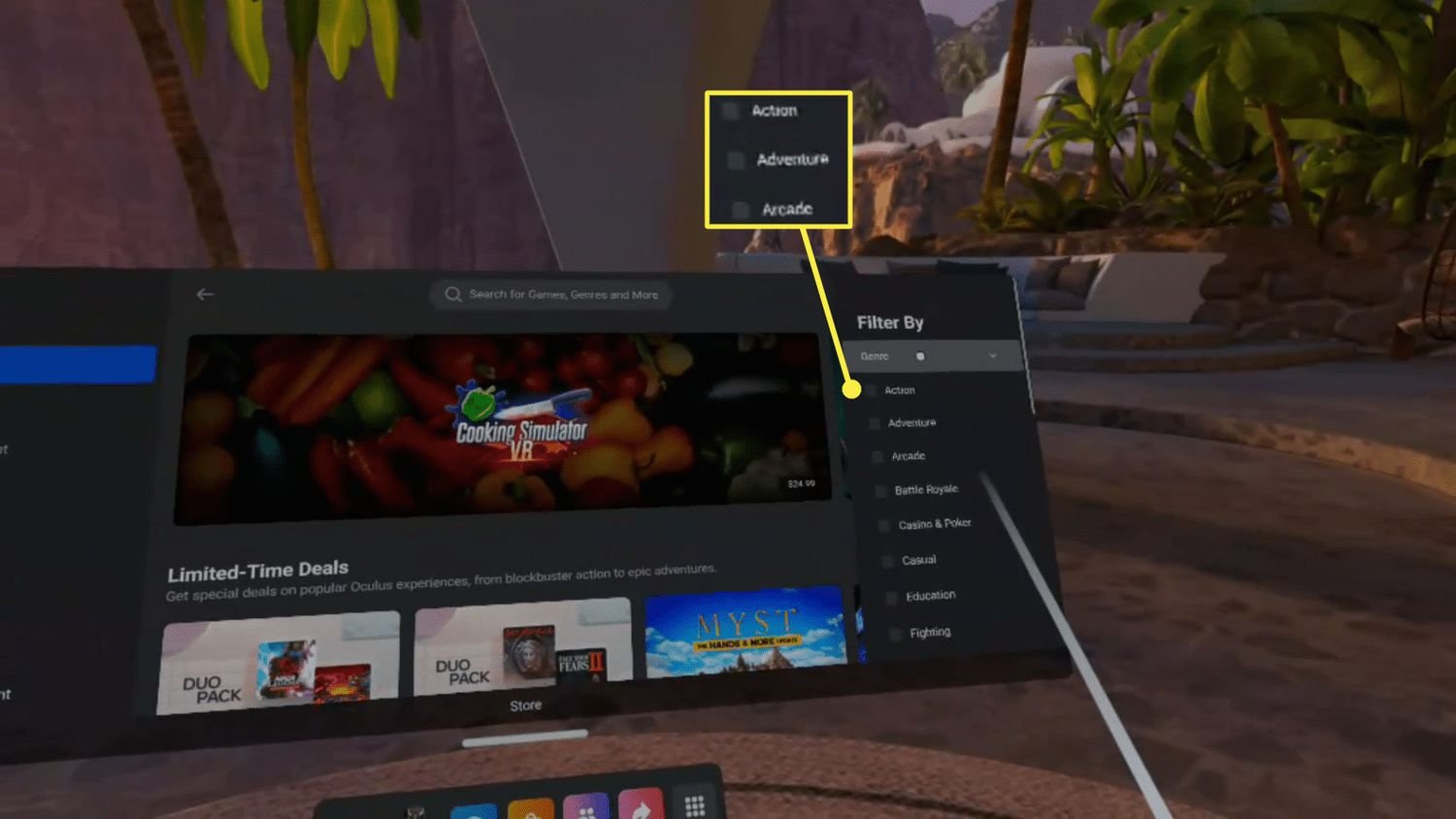
To buy games on Oculus, you can browse the Oculus store using your VR headset or the Oculus mobile app, select the games you want, and then purchase them with your linked payment method.
Ready to dive into the amazing world of VR gaming? Figuring out how do you buy games on oculus can seem a little tricky at first, but it’s actually quite simple.
The process involves using either your VR headset itself or the handy Oculus mobile app on your phone or tablet. Both options allow you to explore the entire catalog of games.
You just need to pick the titles that grab your attention and checkout with the payment details already linked to your account. Happy gaming!

How Do You Buy Games on Oculus?
Getting new games for your Oculus VR headset is like going to a special video game store, but instead of shelves, you’ll find everything on a screen! It’s a pretty easy process, but there are a few things to know so you can get to playing your favorite virtual adventures as quickly as possible. Let’s explore all the ways you can buy games on your Oculus device.
Understanding the Oculus Store
Before we get into the nitty-gritty of buying, it’s good to understand the place where you’ll be finding all those cool VR games: the Oculus Store. Think of it like the app store on your phone, but for virtual reality. This is where Meta (the company behind Oculus) keeps all the games and apps available for their headsets. When you buy a game, you’re essentially getting a license to download and play it on your Oculus device. You don’t get a physical copy, but that’s what makes it so quick and easy to start playing!
Navigating the Oculus Store
You can access the Oculus Store in a few different ways, depending on which headset you have and what you find easiest:
- On Your VR Headset: This is the most common way. Put on your Oculus headset, and you’ll see a menu bar at the bottom of your view. Look for the ‘Store’ icon, which usually looks like a shopping bag, and click on it. You’ll then be transported to the virtual version of the Oculus Store where you can browse through different sections, look at new releases and find games by genre.
- Using the Oculus Mobile App: If you have the Oculus app on your phone or tablet, you can also browse the store from there. Just open the app, tap the ‘Store’ tab, and you’ll be able to browse, read reviews, and even buy games without having to wear the headset. This can be very useful if you’re doing research on a new game while you’re away from your VR setup or want to purchase while the device is charging.
- On a Web Browser: You can also visit the Oculus Store through your computer’s web browser. Go to the Oculus website, and you can browse the store just like you would on your mobile app or VR headset. This is useful for when you want to make purchase on a larger screen.
Exploring the Store
Once you’re in the Oculus Store, you’ll see a variety of options:
- Featured Games: These are usually new releases, popular titles, or games that are on sale. Look here to see what’s hot!
- Categories: Games are grouped by categories, like action, adventure, sports, puzzle, and more. This makes it easier to find games that you’re likely to enjoy.
- Search Bar: If you know the specific name of the game you want, you can use the search bar to find it quickly.
- Wishlist: If there’s a game you want but you’re not ready to buy yet, you can add it to your wishlist. This way, you can keep track of games you like. You can even receive notifications when the price of games on your list goes down.
- Ratings and Reviews: It’s always a good idea to check out what other people have said about a game before you buy it. You can find star ratings and written reviews from other players to help you decide.
How to Buy a Game: Step-by-Step
Alright, now for the most important part: actually buying a game! The process is pretty much the same no matter how you access the Oculus Store, but here’s a step-by-step guide:
Step 1: Find Your Game
Start by browsing the Oculus Store and find the game you want to purchase. You can look through different categories, use the search bar, or check out the featured titles. Take your time and see what catches your eye!
Step 2: Check the Game Details
Once you find a game you like, click on it. You’ll be taken to the game’s details page. Here’s what to pay attention to:
- Game Title: Double-check that you’ve selected the correct game. Some games have similar titles.
- Price: The price of the game will be listed clearly. Keep an eye out for sales and discounts!
- Game Description: Read this to get a good idea of what the game is about. Does it sound like something you’d enjoy?
- User Reviews and Ratings: Check the star rating and read what other players think of the game. This can help you decide if it’s worth buying.
- System Requirements: Make sure that your Oculus headset is compatible with the game. Sometimes older headsets may not be able to play newer titles. Check for specifications of the game.
- Screenshots and Trailers: Look at the screenshots and watch the game trailer to see what it looks like and how it plays.
Step 3: Click “Buy”
If you’ve decided to buy the game, look for the button that says ‘Buy’ or ‘Purchase’. Click on this button to add the game to your virtual shopping cart.
Step 4: Payment Information
If it’s your first time buying a game on the Oculus Store, you’ll be asked to add payment information. You can use either a credit card, a debit card, or PayPal. Follow the on-screen instructions to enter your payment details. Once your payment method is stored, you’ll be able to use it for future purchases. If you have previously entered payment information, you’ll be taken to the purchase confirmation screen.
Step 5: Confirm Your Purchase
Once you’ve entered your payment information (or if you’ve already done that), you’ll be taken to a confirmation screen. Double-check that the game and the price are correct, then click on ‘Confirm Purchase’. You may also be asked to verify with a password.
Step 6: Downloading the Game
After you confirm your purchase, your game will start downloading to your Oculus device. You can usually start playing the game once the download reaches a certain percentage. You can see the status of the download from the menu in your VR headset, or in the library section on your phone’s Oculus app. The time it takes to download depends on the size of the game and your internet speed. Keep in mind some games can be very large and can take a while to download.
Step 7: Playing Your New Game
Once the download is complete, you’ll be able to find your new game in your game library. Just click on the game icon to launch it, and you’ll be transported into the virtual world you just bought! Have fun and enjoy your game!
Payment Methods on the Oculus Store
The Oculus Store accepts several different payment methods, making it convenient for you to purchase your favorite games. Here are the most common payment options:
- Credit Cards: You can use most major credit cards like Visa, Mastercard, American Express, and Discover.
- Debit Cards: Debit cards with the Visa or Mastercard logo are generally accepted.
- PayPal: If you prefer to use PayPal, that’s also an option. You’ll need to log in to your PayPal account to complete the purchase.
Adding or Changing Payment Methods
You can add or change your payment methods at any time from your Oculus account settings. Here’s how to do it:
- On Your Headset: Go to Settings in the Oculus menu. Look for ‘Account Settings’, then ‘Payment Methods’. Here you can add new payment options, edit the ones you have stored, or remove them if you want.
- On the Oculus Mobile App: Open the app, tap on your profile picture in the top right corner. Look for the “Payment” option, then you’ll be taken to a screen where you can change payment methods
- On a Web Browser: Log into the Oculus website on your computer, go to your account settings and find ‘Payment Methods’ to add, change, or remove your cards.
Sales and Deals on the Oculus Store
Nobody wants to pay full price if they don’t have to! The Oculus Store often has sales and deals on games, so it’s a good idea to keep an eye out for these opportunities. Here are some ways to find good deals:
Seasonal Sales
Like other digital game stores, the Oculus Store often has big sales during holidays, like Black Friday, Christmas, and summer. During these sales, you can find games at big discounts, sometimes even up to 50% off or more.
Daily and Weekly Deals
The Oculus Store also offers daily and weekly deals on selected games. These deals change regularly, so check the store often to see what’s on sale.
Bundles
Sometimes, the Oculus Store offers game bundles, which are a group of games sold together at a discounted price. Bundles are a good way to get a collection of games for a lower cost than buying them individually. This is a great option if you’re trying to get started with a certain genre of games.
Wishlist Notifications
Remember that wishlist feature? If you add games to your wishlist, you’ll be notified when those games go on sale. This helps ensure you won’t miss out on a good deal for games you actually want to buy.
Refunds on the Oculus Store
Sometimes, a game might not be what you expected. If that happens, you might be able to get a refund. Here’s how the refund process works on the Oculus Store:
Refund Eligibility
To be eligible for a refund, there are a few rules you have to meet:
- Playtime Limit: You must have played the game for less than two hours.
- Purchase Date: You must request the refund within 14 days of purchasing the game.
- Usage: You must not have violated the usage guidelines of the game you want to return.
How to Request a Refund
Here’s how you request a refund:
- Contact Oculus Support: You’ll need to reach out to Oculus support via their website or through the Oculus app.
- Provide Purchase Details: You’ll need to tell them which game you want to return and provide proof of purchase.
- Reason for Refund: You might need to briefly explain why you want a refund.
- Processing Time: If your refund request is approved, it might take a few days for the money to be returned to your account.
Exceptions
Keep in mind there are some situations where refunds might not be granted, even if you meet the playtime and time limit. For example, if you’ve violated the game’s rules or if your account was involved in a security breach. The refund policy is in place for fair use.
Free Games and Apps
Besides paid games, the Oculus Store also has a selection of free games and apps. These are a great way to experience new things without spending any money! They can also help you to decide if you even want to invest in Virtual Reality.
How to Find Free Games
To find free games, just filter your search on the Oculus Store, or take a look through the ‘Free’ section. You can also filter by price when browsing games. Many free games and apps are available, ranging from mini games to virtual experiences.
Starting with Free Games
Playing free games is a good way to get used to VR controls and different styles of games. The free games are often good quality, and are a great start to any VR journey. Some even come with free updates and content.
Buying games on Oculus is a smooth process, whether you’re doing it from your headset, your phone, or your computer. With the Oculus Store’s variety of titles, sales, and refund options, you can have a lot of fun exploring the vast world of virtual reality. Just remember to check out those ratings, read the descriptions carefully, and always be on the lookout for deals! Happy gaming!
How to Buy Games on Meta Quest 2
Final Thoughts
To purchase games, you use the Oculus mobile app or the headset’s built-in store. Browse the available titles, select the game you want, and proceed to checkout. You must have a payment method linked to your account for purchases.
You can pay with a credit or debit card, or PayPal. After a successful purchase, the game automatically downloads and installs to your library. So, how do you buy games on oculus? Through the app or headset store, linked to your payment method.

