
To delete a game, you typically need to locate it within your device’s app management settings or within the game platform itself and choose the uninstall or delete option.
Ever found yourself needing to make some digital space? Maybe you’re tired of that game collecting virtual dust or you just need more storage. The question then arises, how do you delete a game? This is actually a really common scenario that many people face.
Deleting games is not always straightforward. The exact method varies depending on the device, be it a phone, a console, or a computer. Therefore, this quick guide will shed light on how to handle this task effectively.

How Do You Delete a Game?
So, you’ve decided it’s time to say goodbye to a game. Maybe you’ve finished it, maybe it’s taking up too much space, or maybe you just don’t enjoy it anymore. Whatever the reason, learning how to delete a game properly is a useful skill for any gamer. It’s not always as simple as hitting a delete button, and the process can vary depending on the platform you’re using. Let’s dive into the different ways you can remove a game from your devices, from consoles to PCs to phones, and cover all the important details. We’ll explore the “why” behind each method and make sure you’re confident in getting those games off your system.
Deleting Games on Different Gaming Consoles
Consoles are a common place for games, and each system has its own method for removing games. Let’s take a look at the most popular consoles.
Deleting Games on PlayStation 5
The PlayStation 5 (PS5) makes deleting games pretty simple. Here’s how you do it:
- Turn on your PS5 and go to the Home screen.
- Navigate to the Game Library. You can find this on the top right side of the screen.
- Find the game you want to delete. Use the directional buttons or thumbstick to move around.
- Once you’ve found the game, press the Options button on your controller (it’s the small button with three lines).
- A menu will appear. Choose “Delete” from the menu.
- The system will ask if you’re sure. Select “OK” to confirm.
It is important to remember, deleting a game from your PS5 only removes the game data. Your save data, if you have any, is usually stored separately. If you also want to delete the save data, you may need to do that through a separate menu.
Deleting Games on PlayStation 4
The process for deleting games on the PlayStation 4 (PS4) is very similar to the PS5:
- Turn on your PS4 and go to the main menu.
- Go to the “Library” option, which is usually next to the “Store” icon.
- Find the game you want to get rid of.
- Highlight the game and then press the “Options” button on your controller.
- Select the “Delete” option.
- Confirm by selecting “OK”.
Like with PS5, this will remove the game, but not your save files. Make sure to manage save data separately if needed.
Deleting Games on Xbox Series X/S
The Xbox Series X and Xbox Series S both use the same method for removing games:
- Turn on your Xbox and go to the Home screen.
- Press the Xbox button on your controller to open the guide.
- Go to “My Games & Apps.”
- Select “See All.”
- Go to “Games.”
- Find the game you want to delete.
- Press the Menu button on your controller (it’s the button with three lines).
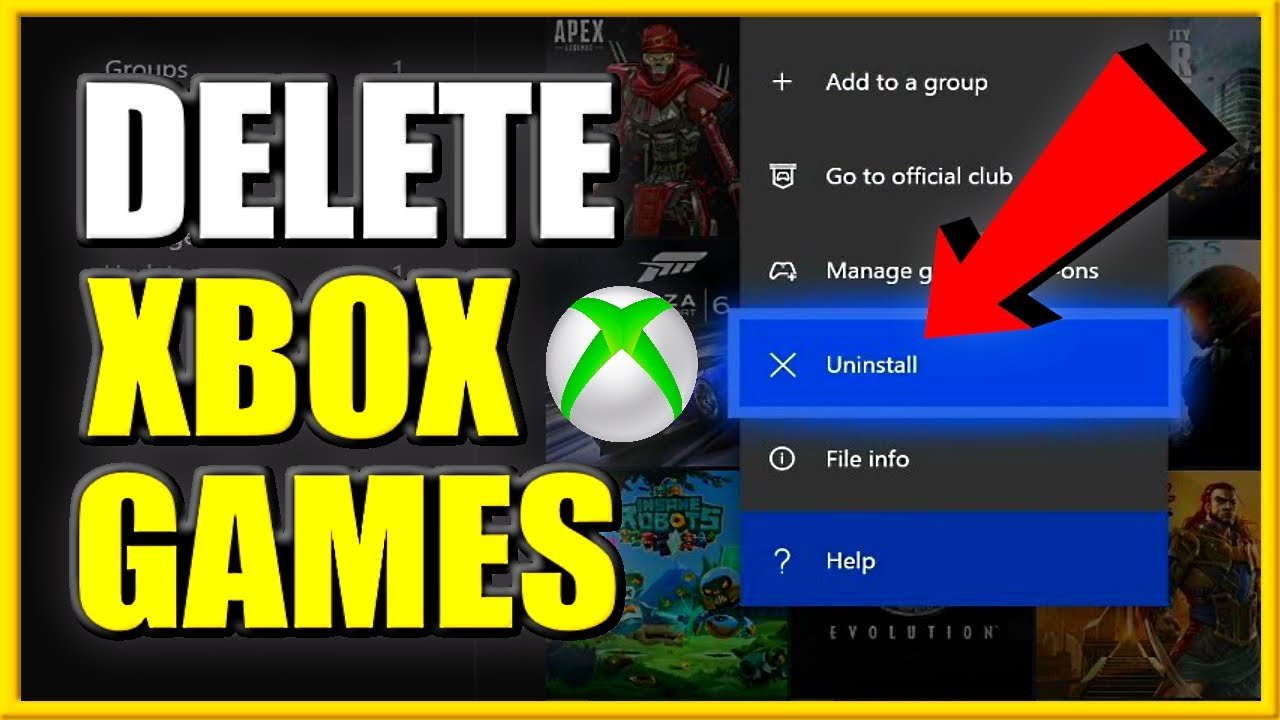
- Select “Uninstall” from the menu.
- Confirm that you want to delete the game.
Xbox consoles offer a lot of ways to manage your storage. Games are usually large files, so knowing how to remove them is key to making room for new adventures.
Deleting Games on Xbox One
The Xbox One has a similar process for deleting games:
- Turn on your Xbox One and go to the Home screen.
- Go to “My Games & Apps.”
- Go to “Games.”
- Highlight the game you want to delete.
- Press the Menu button on your controller.
- Select “Uninstall” from the menu.
- Confirm that you want to remove the game.
Deleting Games on Nintendo Switch
The Nintendo Switch has two methods for removing games, archived and deleted, let’s look at both:
Archiving Games on Nintendo Switch
Archiving a game removes the game data from your system but keeps the game icon on your home screen, so you can quickly redownload it. Here’s how:
- Go to the Nintendo Switch Home menu.
- Highlight the game you want to archive.
- Press the “+” or “-“ button on your controller.
- Select “Manage Software.”
- Select “Archive Software.”
Archiving keeps your game save data and lets you quickly download the game later if you want to play again.
Deleting Games on Nintendo Switch
To completely remove the game from your system, including the icon, follow these steps:
- Go to the Nintendo Switch Home menu.
- Go to “System Settings.”
- Select “Data Management.”
- Select “Software.”
- Find the game you want to delete.
- Select “Delete Software”.
- Confirm that you want to remove the game.
Keep in mind, that this also gets rid of the game icon on the main menu and means that you’ll have to re-download the game to play again. Your save data, if it was stored on your device, will be removed. If your saves are saved to cloud services with a paid Nintendo Online Subscription, then you will retain your saves when you re-download the game.
Deleting Games on PC
PCs offer a bit more flexibility when it comes to deleting games, as the process can vary based on where you got the game.
Deleting Games from Steam
Steam is a very popular platform for PC games, and its removal process is simple:
- Open the Steam app on your computer.
- Go to your “Library.”
- Find the game you want to remove.
- Right-click on the game.
- From the menu that appears, hover over the “Manage” option.
- Select “Uninstall” from the submenu.
- Steam will ask you to confirm. Click “Uninstall” again.
Steam automatically removes game files from your hard drive. It usually keeps your saves, so you can continue playing where you left off if you reinstall the game later.
Deleting Games from the Epic Games Store
The Epic Games Store also has a very simple way of uninstalling games:
- Open the Epic Games Launcher.
- Go to your “Library.”
- Find the game you want to remove.
- Click the three dots next to the game’s name.
- Select “Uninstall” from the menu.
- The launcher will ask you to confirm. Click “Uninstall” again.
Deleting Games from GOG Galaxy
GOG Galaxy is a great platform for DRM-free games and its removal process is as simple as the rest:
- Open GOG Galaxy.
- Go to your “Owned Games”.
- Find the game you want to remove.
- Click on the game’s cover.
- Click on the “Manage Installation” icon (the cogwheel).
- Choose “Uninstall.”
- Confirm the action.
Uninstalling Games Directly from Your PC
Sometimes, you might have games that you installed directly from discs or other sources, and not through a launcher. In that case, you can use these steps:
Using the Control Panel (Windows)
- Click the Start button and type “Control Panel” into the search bar.
- Click on “Control Panel.”
- Go to “Programs” and then “Programs and Features” (or just “Uninstall a program” on some versions of Windows.)
- Find the game you want to remove in the list.
- Click on the game and then click “Uninstall” (or “Uninstall/Change”).
- Follow the prompts to remove the game.
Using Settings (Windows 10 and 11)
- Click the Start button and select “Settings”.
- Go to “Apps” and then “Apps & Features.”
- Find the game you want to remove in the list.
- Click on the game and then click “Uninstall.”
- Follow the prompts to remove the game.
On the PC you also might need to manually delete folders in your file explorer after uninstalling to get rid of any left over files, just be careful what you are deleting and make sure it’s the correct game file before deleting anything.
Deleting Games on Mac
Mac computers make deleting games pretty easy. Most of the time, they are installed as an application that can be deleted like any other program.
- Open the “Finder” app.
- Go to “Applications”.
- Find the game you wish to delete.
- Drag the game to the “Trash Can” or right-click on it and select “Move to Trash”.
- Right-click on the “Trash Can” and select “Empty Trash” to fully remove the game from your Mac.
If you installed your game through a game launcher such as steam, then you can follow the steps we provided earlier for deleting games through that launcher.
Deleting Games on Mobile Devices
Mobile gaming is huge, so it’s important to know how to manage your games on your phone or tablet.
Deleting Games on Android Devices
Android provides a few different methods for removing games:
Uninstalling Through the App Drawer
- Find the game icon in your app drawer (the list of all your apps).
- Tap and hold on the game’s icon.
- A menu will pop up. Tap “Uninstall”.
- Confirm you want to remove the game by tapping OK.
Uninstalling Through the Settings Menu
- Open your device’s Settings app.
- Go to “Apps” or “Applications.”
- Find the game you want to remove.
- Tap on the game’s name.
- Tap “Uninstall.”
- Confirm your decision.
On android devices, you might still have some cache files left over after deleting, you can remove them in the same section in settings as the “uninstall”.
Deleting Games on iOS Devices (iPhone/iPad)
Apple’s iOS also has several ways to remove game apps:
Deleting Through the Home Screen
- Find the game icon on your Home screen.
- Tap and hold on the game icon until it starts to wiggle.
- Tap the “X” button in the top corner of the app icon.
- Confirm that you want to remove the app by tapping “Delete.”
Deleting Through the App Library
- Go to the App Library (swipe left past your last Home Screen).
- Find the game in the App Library.
- Tap and hold the game icon.
- Tap “Delete App.”
- Confirm that you want to remove the game by tapping “Delete.”
Deleting Through Settings
- Open the “Settings” app.
- Go to “General” then to “iPhone Storage” (or “iPad Storage”).
- Find the game app you want to remove.
- Tap on the name of the game app.
- Select “Delete App”.
- Confirm your decision.
Deleting the game app does not delete game saves. If you want to remove these, you will need to do so inside the game’s settings menu.
Cloud Saves and Backup
When you delete a game, you need to be aware of cloud saves and backups. Many games save your progress to the cloud. This means that if you uninstall and then reinstall the game, your save files might still be there. If you don’t want this, you will have to go into the settings of your game to delete cloud saves. Consoles often use cloud saves with a paid online subscription service, but if you are playing free to play game on your mobile device they often use cloud save services without any paid subscription.
However, not all games use cloud saves. Some save the progress directly to your device. This means if you delete the game, you might also lose your save data. Always check the options before deleting, especially if you are not going to reinstall the game later.
Why Delete Games?
There are lots of reasons why someone might want to delete a game. Here are a few of the most common:
- Free Up Space: Games can take up a lot of storage space, especially large, modern games. Deleting a game frees up storage for other games, photos, videos, and other files.
- Finished Playing: When you’ve completed a game, you might not want to keep it around. Deleting it makes your console or computer cleaner.
- Dislike the Game: Sometimes, you might not like a game. If you do not enjoy a game, then you may choose to delete it to make room for the games you do enjoy.
- Performance Issues: If your device is running slowly, deleting large games can help improve performance.
- Organizing: Some people like to keep their gaming libraries organized. Deleting games they don’t play anymore is a good way to do it.
Important things to Remember
- Check Cloud Saves: Make sure your game progress is backed up if you plan to play it again.
- Save Data: Be aware that deleting a game doesn’t always mean that save data is deleted as well.
- Free Space: Deleting large games can make a big difference in how much free space you have on your device.
- Double Check: Make sure you want to remove a game before doing so, sometimes you need to re-download a game after deleting it which can be time consuming.
- Game Launcher: If you installed the game with a game launcher, then you should delete the game through the launcher, this means you will not have to do any additional steps.
Knowing how to delete a game is a useful skill for anyone who plays games. This guide has provided simple steps for removing games on all sorts of gaming platforms. By following these steps, you can make sure that your devices are free from un-needed games and are organised for a better user experience.
Nintendo Switch: How to Uninstall / Delete Games & Apps
Final Thoughts
Deleting a game varies by platform. On consoles, you often find the option within the game library or system storage settings. Mobile devices typically let you uninstall through the app manager. Understanding the specific steps is key to manage your game library.
If you play on PC, you might delete it through the gaming platform itself, like Steam, or directly from your operating system’s programs list. Knowing how do you delete a game is essential for creating space. It is very important to manage and update device storage.

