
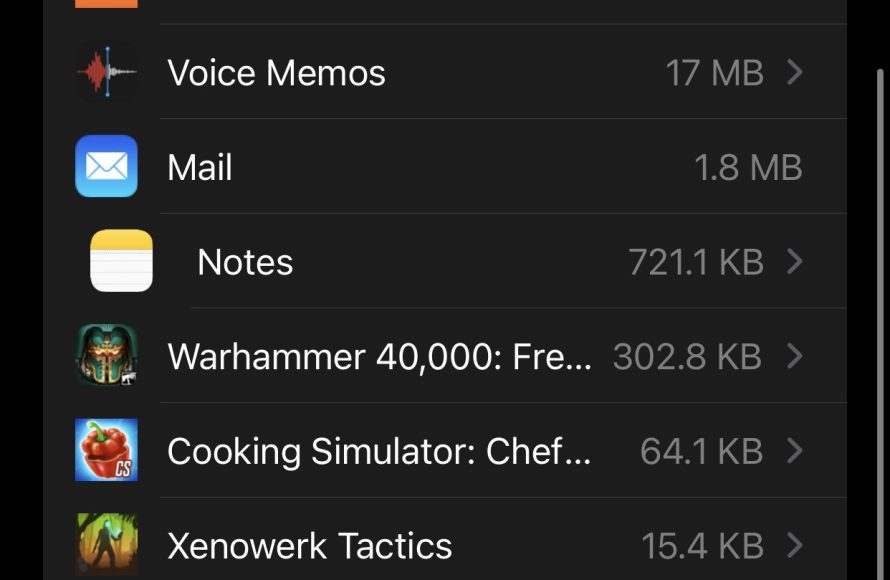
To delete game data on your iPhone, go to Settings > General > iPhone Storage, find the game, and tap “Delete App.” This removes the app and all its related data.
Struggling with game data taking up precious space on your iPhone? We often install and play games, but forget about the digital footprint they leave behind. Now, you might be asking, how do you delete game data on iphone? It’s actually simpler than you might think!
Managing storage space on our iPhones is essential for smooth operation. Games, especially, can quickly accumulate a lot of data, impacting performance. This is why cleaning house becomes necessary.

How Do You Delete Game Data on iPhone?
Ever felt like your iPhone is bursting at the seams with game data? Maybe you’ve moved on to new adventures and need to clear out old ones, or perhaps you want to start a game fresh without past progress weighing you down. Deleting game data on your iPhone isn’t as simple as just uninstalling the app. This article will guide you through all the different ways you can erase your game progress, free up space, and keep your iPhone running smoothly.
Understanding Game Data Storage on iPhone
Before we jump into the ‘how’, let’s understand ‘where’ game data lives. On your iPhone, game data isn’t just bundled with the app itself. It’s often stored in a few different places:
- Locally on your device: This is where the main game progress, settings, and downloaded content are stored.
- iCloud: If you’ve enabled iCloud for your game, your data might be backed up there. This allows you to sync your progress across multiple Apple devices.
- Game Center: This Apple service tracks achievements, leaderboards, and sometimes game progress, especially for games that use it for user accounts.
- Third-Party Game Servers: Many online or multiplayer games save your data on their own servers, linked to your game account.
Knowing these storage locations will help you choose the right method for deleting your game data effectively.
Deleting Game Data Tied to the App
The most common method involves managing the app data itself. Here’s a detailed breakdown:
Offloading the Game App
Offloading an app is a neat trick that removes the app but keeps the documents and data. It’s great if you plan to play the game again later, as you won’t lose all of your progress. Here’s how to do it:
- Go to Settings on your iPhone.
- Tap General.
- Tap iPhone Storage.
- Find the game app you want to offload and tap on it.
- Tap Offload App.
- Confirm by tapping Offload App again.
When you offload the app, the app icon will still be on your screen. When you tap the icon, it will download the app again, and the previous app data will be there for you to enjoy.
Deleting the Game App
To erase all app data tied locally, uninstall the app. When you uninstall the app, all the local app files are deleted. Here’s how:
- From the Home Screen:
- Touch and hold the game app icon until a menu appears.
- Tap Remove App.
- Tap Delete App to confirm.
- From the App Library:
- Go to the App Library screen.
- Search for the game you want to delete.
- Touch and hold the game app icon, and tap Delete App from the menu, and tap again on Delete.
- From Settings:
- Go to Settings on your iPhone.
- Tap General.
- Tap iPhone Storage.
- Find the game app and tap on it.
- Tap Delete App, and confirm by tapping on Delete App again.
Deleting the app removes its local data, but if the game uses iCloud, Game Center, or third-party servers, your data might still be stored there.
Managing iCloud Game Data
If the game utilizes iCloud, deleting the app might not remove all your data. You might need to manage iCloud settings to fully erase the game progress. Let’s explore how to do that.
Disabling iCloud Sync for Games
You can prevent a game from storing data in iCloud by turning off its iCloud sync. Here’s how:
- Open the Settings app.
- Tap your name (Apple ID, iCloud, Media & Purchases) at the top.
- Tap iCloud.
- Tap Manage Storage.
- Tap Documents.
- Scroll down to find the game app’s data, and tap the game.
- Tap Delete Data, confirm by tapping on Delete.
By turning off iCloud sync, you prevent new data from being saved, but old data might still be there if already stored.
Deleting iCloud Data
To remove data that is already backed up in iCloud, follow these steps:
- Go to Settings.
- Tap your name (Apple ID, iCloud, Media & Purchases).
- Tap iCloud.
- Tap Manage Storage.
- Tap Documents.
- Find the game data and delete it.
This will remove all the data saved in iCloud. If you play the game on another device, it will not sync any previous progress as all data has been deleted from iCloud. It’s important to know that deleting data from iCloud is a permanent process.
Dealing with Game Center Data
Game Center tracks your achievements and scores. While you can’t directly remove the scores from Game Center, you can hide your profile from other players if you are concerned about your past achievements being seen.
Hiding Your Game Center Profile
To hide your Game Center profile:
- Go to Settings.
- Scroll down and tap Game Center.
- Turn off the toggle for Allow Finding by Friends, and Nearby Players.
- If you want to make sure your game profile is private, Turn on Profile Privacy toggle.
This won’t remove your game data, but it will make it private. Keep in mind that your data remains on Apple’s servers and will be visible if you choose to turn Game Center back on and allow others to see it.
Clearing Data from Third-Party Servers
For online games, the most critical game data is often on the developer’s servers, linked to your in-game account. To remove this data, you need to use in-game options or contact the game support team. Let’s explore the options.
Using In-Game Options
Some games will allow you to reset the game data from the in game options. Here’s how:
- Launch the Game: Open the specific game you are playing.
- Navigate to Settings: Look for the settings area of the game.
- Look for Reset Options: Within the settings, search for options like “Reset”, “New Game”, or “Start Over”.
- Confirm Reset: follow the onscreen prompts, and confirm the reset.
The way to reset varies from game to game. Always read all the confirmation pop-ups before tapping on any option. These options are usually designed to let you start a new game, or delete previous game progress.
Contacting Game Support
If you are unable to delete the game data in-game, you will need to contact the game support team. Here’s how you do that:
- Visit Game’s Website: Find the game’s official website, usually from the app page in the app store.
- Look for Support: Search the site for “support” or “contact” options.
- Create a Ticket: Fill out a support form and create a support ticket with a request to delete your data associated with your account in their game.
- Follow Instructions: follow any directions from the game support team.
The exact process to reach out to support varies depending on each game.
Strategies for Managing Space and Game Data
Sometimes, deleting data isn’t just about starting fresh, it’s also about making room on your iPhone. Here are some tips for managing game data to ensure your device keeps running smooth.
Regularly Offload or Delete Games
As mentioned earlier, offloading apps frees space without erasing all the data. If you want to start over or are done with a game, delete it altogether. Doing this regularly ensures your phone is not cluttered with data from games you don’t play.
Review iCloud Storage Regularly
Periodically review your iCloud storage to see which game data is using space. Delete data from games you do not need.
Limit Background App Refresh
Some games might refresh in the background, using resources and storing unnecessary data. Turn off background app refresh for games you’re not actively playing to save battery life and prevent unnecessary data usage. Here’s how:
- Open Settings.
- Tap General.
- Tap Background App Refresh.
- Find the game and turn the toggle off.
Be Mindful of In-App Purchases
Some games save your purchased items. Check your account and restore settings before deleting app data, if you want to transfer the purchase history or transfer the data to a new device. Contact the game developer if you can’t figure out how to do this.
By regularly following these strategies, you can keep your iPhone’s storage organized.
Final thoughts on managing game data on your iPhone
Deleting game data on your iPhone requires a good understanding of where that data is stored. You can delete a game app to free up local storage. You can manage data synced to iCloud, and you can take steps to manage data that is stored on Game Center and Third Party servers. By taking the steps outlined above, you can free up space on your phone and manage data from your game. Whether you are trying to reclaim precious memory, or want to completely start over in your favorite game, following these steps will make you the master of your device!
How To Delete / Reset Game Data On iPhone
Final Thoughts
To delete game data on iPhone, you must first find the game in Settings. Locate the specific app, then select ‘Delete App’. This action removes the game and all related data.
Alternatively, some games let you manage data within their own settings. Check for reset or clear data options inside the game. These methods answer the question of ‘how do you delete game data on iphone’. Remember that deleting an app removes all saved game progress permanently.

