
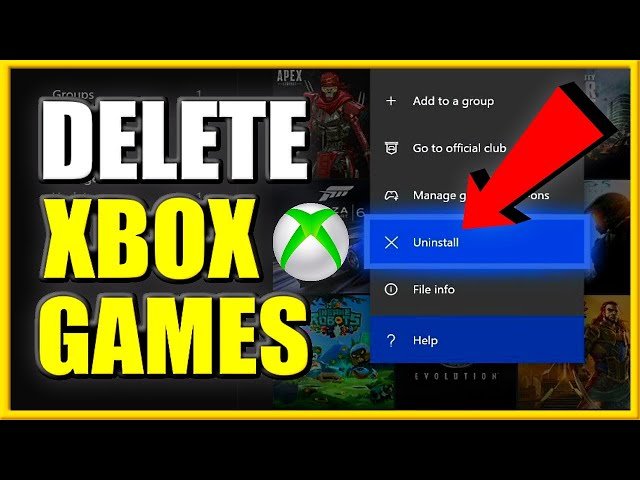
To delete games on the Xbox One, navigate to ‘My games & apps’, highlight the game, press the ‘Menu’ button, and select ‘Uninstall’.
Is your Xbox One storage reaching its limit? Games take up a lot of space, and sometimes you need to make room for new ones. Knowing how do you delete games on the xbox one becomes essential for managing your library effectively.
This simple process helps free up storage, ensuring smoother gameplay and quicker downloads. We’ll show you the exact steps for removing unwanted titles.
You can easily keep your console tidy and ready for your next gaming adventure. Let’s dive into the straightforward method.

How Do You Delete Games on the Xbox One?
Okay, so you’ve got a bunch of games on your Xbox One, and maybe it’s starting to feel a little crowded. You’re not alone! Lots of people need to clear out some digital space, and that’s totally okay. Whether you’re making room for new games, or just want to get rid of games you don’t play anymore, deleting games is pretty simple. Let’s walk through all the ways you can do this, making sure you understand every step along the way.
Understanding Storage on Your Xbox One
Before we dive into deleting, let’s talk a little bit about storage. Your Xbox One has a certain amount of space for storing games and apps. Think of it like a big closet. When you download new games, they take up space in that closet. If your closet gets too full, you can’t put anything else in it. That’s when deleting games comes in handy! It’s like reorganizing and getting rid of things you no longer need.
Checking Your Storage Space
It’s a great idea to see how much space you have left before you start deleting. This helps you know what games you can keep and what games you really need to say goodbye to. Here’s how to check:
- Press the Xbox button on your controller to open the guide.
- Go to “Profile & system” (the icon that looks like your picture or avatar).
- Select “Settings”.
- Go to “System”.
- Select “Storage”.
Here, you will see a breakdown of how much space your games, apps, and other things are taking up. Knowing this helps you decide what’s best to delete.
Deleting Games from the Xbox Home Screen
This is probably the most common way to delete games. It’s quick and easy, and you can do it right from the main Xbox screen. Let’s see how it’s done:
Step-by-Step Guide
- Turn on your Xbox One and go to the Home screen.
- Find the game you want to delete. You can scroll through your installed games and apps, or go to the “My Games & Apps” section.
- Highlight the game using your controller. Don’t press ‘A’ to start the game.
- Press the Menu button on your controller (it’s the button with three lines, often called the ‘start’ button).
- A menu will pop up. Select “Uninstall” from this menu.
- A confirmation message will appear. Choose “Uninstall” again to confirm.
And that’s it! The Xbox will remove the game from your console. Remember that doing this doesn’t delete your saved game progress – that stays safe in the cloud. You can re-download the game later and continue where you left off.
What Happens After You Uninstall a Game?
After you uninstall a game, it’s no longer taking up space on your Xbox One. The game’s icon will be removed from your installed list. The only thing that’s removed from your console is the game itself, not your saved data. Your save files and game progress are saved to your Xbox profile and in the Xbox cloud storage. This is great because it means if you reinstall a game later, you can pick up right where you left off.
Deleting Games From My Games & Apps
You can also delete games from a dedicated section on your Xbox. This is useful if you want to see all your games and apps together. Here is how you can delete games from there:
How to Delete via My Games & Apps
- Go to your Home screen on your Xbox One.
- Scroll to the right and find “My games & apps”.
- Select “See all”.
- Highlight the game you want to delete.
- Press the Menu button.
- Select “Uninstall”.
- Confirm by selecting “Uninstall” again.
This method is pretty similar to deleting from the Home screen. The main difference is that here you are viewing a more comprehensive list of all your games and applications installed.
Deleting Games from External Hard Drives
Many Xbox One users use external hard drives to store even more games. If you have games stored on an external drive, you can delete them in almost the same way. Let’s see how to do that:
Steps to Delete From External Drives
- Go to “My games & apps”.
- Select “See all”.
- Look for the “Filters” option. It is usually at the top of the screen.
- From the dropdown menu choose “All Storage”.
- Now Select “External”.
- Scroll to the game you wish to remove, then select it.
- Press the Menu button on your controller.
- Select “Uninstall”.
- Confirm by choosing “Uninstall” again.
The game will now be removed from your external hard drive. This is very handy for keeping your console and your external storage organized.
Managing Your Game Storage: Helpful Tips
Here are some extra tips that can help you keep your storage organized and make managing your game library easier:
Prioritizing Games
It’s a good idea to think about what games you play most often. Keep the games you love and delete the ones that you don’t play anymore. This helps make the most of your storage space.
Using the Cloud
Remember, your game progress is always saved in the cloud. This means you can confidently remove games and reinstall them later. You don’t have to worry about losing your saved games. Just make sure your Xbox is connected to the internet so it can sync your saves.
Reinstalling Games
If you want to play a deleted game again, you can always re-download it from the Xbox Store. If you have a game disc, you can reinstall it from the disc too. It’s pretty quick and easy to get your games back when you want to play them again.
Regular Cleanups
It’s a good habit to regularly check your storage and remove games that you are not playing. This keeps your Xbox running smoothly and helps you avoid running out of space when you want to download new games. Set a reminder to check your storage every month or two and keep things tidy.
Checking Download Queue
Sometimes when you download multiple things at once, things can get a little out of hand. It’s a good idea to check your download queue to make sure that unwanted game updates are not consuming your storage. If you see a game that you have uninstalled or no longer wish to have updated, you can cancel the update in the queue.
Game Pass and Game Ownership
It’s important to keep in mind where you got the games that you’re installing. If the game was a part of the Xbox Game Pass subscription and you unsubscribe you won’t be able to play it unless you buy the game. However, it will still be installed on your console. If you remove it you can always install it again from the Game Pass if you re-subscribe or if you buy the game. If you own the game, either on disc or via download, you can always re-install the game whether or not you still have a Game Pass subscription.
Troubleshooting Deletion Issues
Sometimes, things might not go as smoothly as planned. Here are some common issues and how to fix them:
Game Won’t Uninstall
If a game doesn’t seem to uninstall, try restarting your Xbox One. Power it off completely, wait a few seconds, and then power it back on. Then, try uninstalling the game again.
Error Messages
If you see an error message while trying to uninstall a game, write down the error code. You can then look up the error code on the official Xbox support website or in online communities to find the solutions for it. Error messages can be caused by a number of things including corrupted data or connection problems.
Slow Deletion
If the deletion process is very slow, make sure that your Xbox is connected to a good and reliable internet connection. A slow or unstable internet connection can often cause problems with downloads and deletions. If you are still having problems with slow deletion it might mean that your hard drive is running slowly or is beginning to experience problems.
Games Reinstalling Automatically
If you see a game automatically reinstalling after you have deleted it, it may be due to automatic updates. If this is the case you will need to go to the games section and turn off automatic updates for that game. Another reason for this happening might be that the game is not completely uninstalled and some small files still reside on your hard drive and the system is simply trying to re-download the game again. Try uninstalling again by following the proper steps, making sure that you select “uninstall” for the game that you want to remove.
Organizing Your Digital Game Library
Beyond just deleting games, there are a few things you can do to keep your game library organized and easy to manage:
Creating Groups
Xbox lets you create groups of games, which helps you find the games you want quickly. This is especially helpful if you have lots of games or if you play certain types of games more than others. For instance, you might create a group called “Favorite Games” or “Action Games”.
Using the Filter System
Xbox has some good filters available. You can filter games by the date you last played them or by the type of game it is. Learning to use the filter system means it’s quicker and easier to manage your installed games.
Utilizing Tags
Xbox also has a tag system. This feature lets you tag games with keywords like ‘multiplayer’ or ‘family-friendly’. This makes finding the games you are in the mood for very easy.
Deleting games on your Xbox One is a simple but important part of managing your gaming experience. By understanding the different methods and practicing regular cleanups, you can keep your console running smoothly. Keeping things organized and making the most of your space will make your gaming experience a lot better and a lot more fun! Knowing how to delete games is just one part of being a smart gamer, and now you’re all set!
How to DELETE GAMES on XBOX ONE & Uninstall APPS (Easy Method!)
Final Thoughts
To delete games on the Xbox One, navigate to “My games & apps.” Select “See all,” then highlight the game. Press the menu button, choose “Manage game & add-ons,” and finally, “Uninstall.” This removes the game from your console’s storage.
You’ve successfully learned how to delete games on the xbox one. This process frees up space. It keeps your console organized. It also allows you to manage your game library effectively.

