
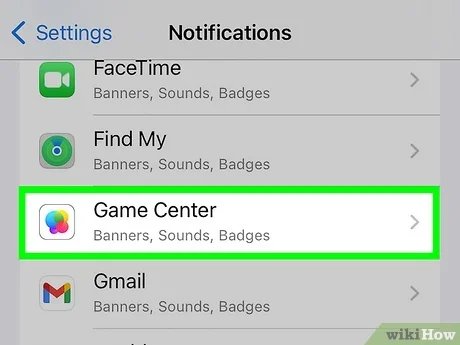
To disable Game Center, navigate to your device’s settings, find the ‘Game Center’ option, and toggle the switch to off.
Annoyed by constant notifications or simply not using it? Many ask, “how do you disable game center?” It’s a valid question for those wanting a cleaner gaming experience. This feature, while convenient for some, can sometimes feel intrusive.
We’ll guide you through the simple steps to turn it off, giving you back control. The process is straightforward and takes only a few moments. You will feel a sense of relief after following this.

How Do You Disable Game Center?
Game Center, Apple’s social gaming network, can be a lot of fun. It lets you track your high scores, play with friends, and see how you stack up against other gamers. But sometimes, you might just want to play your games without all the extra stuff. Maybe you don’t want notifications popping up or you’d prefer not to share your gaming activity. Whatever your reason, disabling Game Center is totally possible, and it’s pretty easy once you know how. This guide will walk you through exactly how to do it on your iPhone, iPad, or Mac.
Understanding Game Center and Why You Might Want to Disable It
Before we get into the how-to, let’s quickly talk about what Game Center actually does. It’s basically like a social network specifically for games. When you use a game that supports Game Center, it can:
- Keep track of your achievements in the game.
- Store your high scores and compare them to others.
- Allow you to invite friends to play multiplayer games.
- Show you what your friends are playing.
- Send you notifications about game invites, achievements, and other activities.
While all of that sounds great, it can sometimes be a bit too much. Maybe you find the notifications distracting, or perhaps you are concerned about privacy. Some common reasons people disable Game Center include:
- Privacy concerns: You might not want your gaming activity shared with your contacts or with Apple.
- Distracting notifications: Constant notifications about game invites or achievements can be disruptive.
- Reduced battery life: Game Center can sometimes use up a little extra battery in the background, though usually not a significant amount.
- Simpler gaming experience: You might just prefer to play your games without the social features.
Whatever your reason, understanding these points helps you make a good decision about managing Game Center on your device.
Disabling Game Center on Your iPhone or iPad
The process for disabling Game Center on an iPhone and iPad is the same, since they both run on iOS or iPadOS. Let’s get started:
Turning Game Center Off Completely
If you want to disable Game Center entirely, here’s what you need to do:
- Open the Settings app on your iPhone or iPad. You can find it by looking for the gray gear icon on your home screen.
- Scroll down until you see the option that says Game Center. It’s usually located near the bottom of the list, somewhere between “Privacy & Security” and “Passwords”. Tap on it.
- At the very top of the Game Center settings, you’ll see a switch. It’s a green toggle. To disable Game Center, simply tap on that switch. When the switch is toggled to the left and the color changes from green to grey, Game Center is now off.
Now, your device will not connect to Game Center when you play games. Your scores, achievements and game data won’t sync to Apple. Any games you play won’t have the Game Center social features anymore.
Disabling Game Center for Specific Games
Sometimes, you might only want to disable Game Center for certain games, not all of them. Here’s how you do that:
While you can’t directly disable Game Center individually for specific games, you can control its notifications and data sharing settings for them. Here’s how to limit the impact of Game Center on individual games:
Controlling Notifications
- Open the Settings app, like before.
- Tap on Notifications.
- Scroll down until you find your games. They will be listed alphabetically.
- Tap on the specific game you want to adjust.
- On this screen you can turn off “Allow Notifications” entirely by toggling the switch. Or, you can customize notifications. Turn off certain notification types by toggling the different notification switch options. For example, you can disable alerts on your Lock Screen, Notification Center or Banners. You can also customize sound, and more.
Managing Game Data
To manage how games access your data, you will need to adjust privacy settings. Although you won’t be disabling Game Center for a specific game, you’ll limit the game’s access to certain data:
- Open the Settings app.
- Tap on Privacy & Security.
- Select Tracking.
- You can turn off “Allow Apps to Request to Track” to prevent all apps, including games, from requesting to track your activity. Or toggle the switch next to the specific game to prevent data tracking.
- Go back to Privacy & Security then select Analytics & Improvements.
- Toggle the switch to the off position to “Share iPhone Analytics” to prevent device data from being shared with Apple.
These steps will restrict the amount of information individual games can share with Game Center and other apps, essentially making your gaming experience more private.
Important Notes When Disabling Game Center on iOS/iPadOS
- Game progress: If you disable Game Center, your game progress might not be saved to the cloud, so it could get lost if you switch devices or delete the game. Some games do save progress to their own servers, but this is not always the case.
- Social features: You will not be able to participate in multiplayer games, see your friends’ progress, or earn achievements if Game Center is disabled.
- Re-enabling: If you change your mind, you can easily re-enable Game Center by going back to the Settings menu and tapping the switch to turn it on.
Disabling Game Center on Your Mac
Disabling Game Center on a Mac is a bit different from doing it on an iPhone or iPad. Here’s how to get it done:
Turning Game Center Off Completely on macOS
To completely disable Game Center on your Mac, follow these steps:
- Click on the Apple logo at the top left corner of your screen.
- Select System Settings (or System Preferences on older versions of macOS).
- In the settings window, find and click on Game Center.
- You’ll see a toggle switch at the top of the screen. This turns on or off the Game Center service for all games on your device. Click the toggle to turn Game Center off. When the switch is toggled to the left and the color changes from green to grey, Game Center is now off.
With Game Center disabled, your scores, achievements, and game progress will no longer sync to the Game Center service. You won’t get game-related notifications, and you won’t be able to play multiplayer games with Game Center.
Managing Game Center Settings on macOS
Similar to iOS, you can control certain aspects of Game Center on your Mac without disabling it completely.
Controlling Notifications
You can manage which types of notifications you receive from Game Center or specific games. Here’s how:
- Open System Settings (or System Preferences).
- Click on Notifications.
- Scroll down until you see the list of apps. Find your games. They will be listed alphabetically.
- Click on each game to adjust it’s notifications individually.
- On this screen, you can turn off “Allow Notifications” entirely by toggling the switch. Or, you can customize notifications. Turn off certain notification types by toggling the different notification switch options. For example, you can disable alerts on your Lock Screen, Notification Center or Banners. You can also customize sound, and more.
Managing Game Data
To manage how games access your data, you will need to adjust privacy settings. Although you won’t be disabling Game Center for a specific game, you’ll limit the game’s access to certain data:
- Open System Settings (or System Preferences).
- Click on Privacy & Security.
- Select Tracking.
- You can turn off “Allow Apps to Request to Track” to prevent all apps, including games, from requesting to track your activity. Or toggle the switch next to the specific game to prevent data tracking.
- Go back to Privacy & Security then select Analytics & Improvements.
- Toggle the switch to the off position to “Share Mac Analytics” to prevent device data from being shared with Apple.
These adjustments will make your gaming experience more private and limit the personal information shared with Apple and other parties.
Important Notes When Disabling Game Center on macOS
- Game progress: Disabling Game Center might affect some of your game progress. Some games rely heavily on Game Center for cloud saves, and your saved games may not be accessible if Game Center is off.
- Multiplayer games: You might not be able to join multiplayer games that use Game Center.
- Re-enabling: If you want to turn Game Center back on, just go back to the System Settings and toggle the switch on again.
Alternative Ways to Limit Game Center’s Interference
If you don’t want to completely disable Game Center, but you still want to reduce its impact, here are a few things you can try:
- Use Do Not Disturb mode: If you’re finding notifications annoying, turning on “Do Not Disturb” on your iPhone, iPad, or Mac will silence those alerts.
- Turn off specific notifications: You can disable specific notification types from Game Center in your device’s notification settings, as we explained earlier. For example, you can choose to only see notifications for game invitations and not game achievements.
- Play offline: Some games can be played without an internet connection. This way, your device won’t connect to Game Center even if it’s enabled. This only works for games that don’t require online access.
- Adjust privacy settings: As we have outlined, you can adjust tracking, analytics, and advertising settings to limit how much information apps can share with Apple.
These are valuable options if you want the basic Game Center functionality but don’t want to be bombarded by notifications or have your data freely shared.
Disabling Game Center might seem like a small change, but it can have a noticeable impact on your overall gaming experience. Whether you’re seeking more privacy, fewer interruptions, or just a simpler way to play games, knowing how to disable Game Center gives you greater control over your device. You can customize how you play and adjust the settings to meet your particular needs.
HOW TO TURN OFF GAME CENTER NOTIFICATION ON ANDROID PHONE | DISABLE GAME CENTER NOTIFICATION
Final Thoughts
To disable Game Center, navigate to your device’s settings. Find the “Game Center” option and tap it. Then, toggle the switch to the off position. This action will completely turn it off.
You now know how do you disable game center. Remember, you can easily enable it again following these steps if needed. This simple process gives you control over its functionality.

