
To get Game Pigeon, you must download it from the App Store on your iPhone or iPad.
Ever found yourself bored and needing some quick, fun competition with friends? Perhaps you’ve heard whispers about a certain app that lets you play mini-games directly within iMessage. The question often arises: how do you get Game Pigeon? It’s simpler than you might think.
Game Pigeon provides various casual games to play with contacts within your iMessage app. It’s a great way to connect and have a little friendly rivalry. This short guide will explain exactly how to add this feature to your iOS device and start having fun right away.

How Do You Get Game Pigeon?
Okay, so you’ve heard all the buzz about Game Pigeon and now you’re itching to get in on the fun. Maybe your friends are challenging you to epic rounds of 8-Ball, or you’re seeing those crazy “Word Hunt” scores pop up in your messages. Whatever the reason, you’re in the right place! Getting Game Pigeon isn’t tricky at all, and we’re going to break it down step-by-step so you can start playing in no time. Think of this as your friendly guide to the world of iMessage games. We’ll go over what Game Pigeon actually is, how to install it, some tips for getting started, and a few common issues you might encounter. Let’s dive in!
What Exactly is Game Pigeon?
Before we get into the “how,” let’s talk about the “what.” Game Pigeon is a free app that works inside your iMessage app. That means you don’t need to open a separate app to play games. It’s kind of like a mini-game console built right into your text messages! This makes it super easy to challenge your friends to a quick game, even while you’re still chatting about something else.
Game Pigeon offers a bunch of different games, from classics like checkers and chess to more modern fun like mini golf and tank battles. There are even word games and drawing games to test your skills. The best part? You can play directly with your friends or family in real-time. It’s all about having some fun, friendly competition.
Why is Game Pigeon So Popular?
Game Pigeon has become really popular for a few key reasons:
- Easy Access: It’s built directly into iMessage, which means no extra downloads or complicated setup for most iPhone users.
- Lots of Variety: There’s a game for pretty much everyone! Whether you’re into strategy, word puzzles, or action, Game Pigeon has something you’ll enjoy.
- Social Fun: It’s a great way to connect with friends and family. Playing games together is a fun way to spend time and have some laughs.
- Free to Play: The core Game Pigeon app is free, although some games might have in-app purchases for extra features, which we’ll discuss later.
Step-by-Step: Getting Game Pigeon
Now for the part you’ve been waiting for – how to actually get Game Pigeon on your device. It’s a pretty straightforward process. Here is a guide to get you started.
Is Your Device Compatible?
First things first, let’s make sure your device can run Game Pigeon. Game Pigeon is designed to work on Apple devices (iPhone, iPad, or iPod Touch) that use the iMessage app. You’ll need to have the following to be able to download the Game Pigeon:
- An Apple Device: iPhone, iPad, or iPod touch. Sorry, Android users, Game Pigeon is not available for you at the time being.
- iOS Version: Make sure you have the latest version of iOS (or iPadOS). Game Pigeon requires at least iOS 10 or later to work properly. Generally, the most updated operating system is best.
- iMessage enabled: You need to have iMessage enabled on your device to use it. This will require a phone number that is registered to iMessage.
If you are unsure of how to check for iOS updates, go to your setting app, click general, then select “Software Update” to check for any new updates.
Finding Game Pigeon in the App Store
Now that we’ve made sure your device is compatible, let’s get the app! Here’s how:
- Open the App Store: Look for the blue App Store icon on your home screen, it has an “A” symbol on it.
- Search for Game Pigeon: Tap the “Search” icon at the bottom of the screen (it looks like a magnifying glass). Type “Game Pigeon” in the search bar and press “Search.”
- Locate the App: The Game Pigeon app should pop up in the results. It has a white pigeon logo on a purple background.
- Download: Tap the “Get” button (or the cloud icon if you’ve previously downloaded it) next to the Game Pigeon app. The installation will begin after this step.
- Authenticate: If prompted, you may need to verify with your Apple ID or passcode, or Face ID/Touch ID to continue the download.
Wait for the app to download and install. Once finished, the “Get” button will change to an “Open” button, and you’re ready to move on to the next step!
Accessing Game Pigeon in iMessage
Now that Game Pigeon is installed, let’s use it! You won’t find the application on your home screen as you would expect, you need to access it from your iMessage app. Here’s how to do it:
- Open iMessage: Open the iMessage app on your device.
- Select a Conversation: Choose any chat message with one of your contacts.
- Access the App Drawer: Look for the small row of icons located at the bottom of the screen, usually just above the keyboard. This is called the app drawer.
- Find the Game Pigeon Icon: Scroll through the app drawer to find the purple and white Game Pigeon icon. It will be a pigeon within a circle. Tap the icon, it should be in purple.
If this is your first time using Game Pigeon, you might see an intro screen or tutorial, it might prompt you to log into a game center account. Pay attention to any instructions given by the app at this point. Now you’re able to start playing games with your friends and family!
How to Start Playing Game Pigeon
Okay, you’ve got the app and you’ve found it in your iMessage. Let’s start playing! Here’s how to get a game going:
Choosing a Game
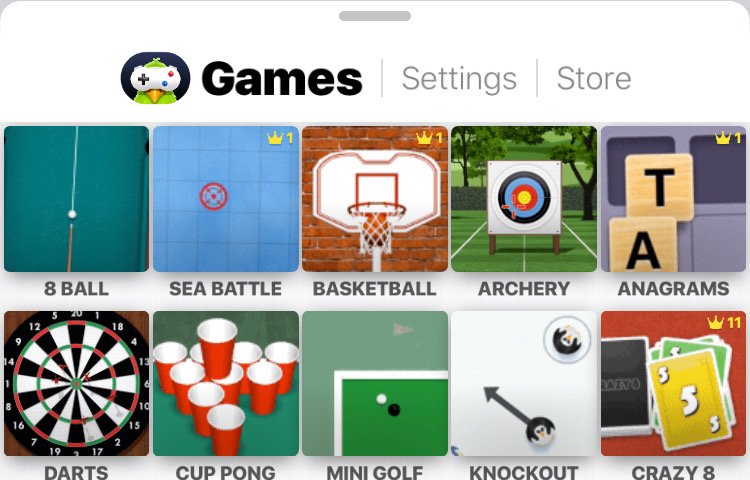
When you tap the Game Pigeon icon in iMessage, you’ll see a list of all the available games. Scroll through the list and choose the one you want to play.
Here are some of the popular choices:
- 8-Ball: A classic billiards game.
- Mini Golf: Take your best shot on different mini golf courses.
- Word Hunt: A word search game that tests your vocabulary.
- Cup Pong: It’s pong, but with cups.
- Checkers: A strategy game that requires thinking a few moves ahead.
- Chess: The classic board game that’s been around for ages.
- Anagrams: Rearrange letters to create a word.
Tap on the game that you want to play. You can also browse to explore all the games offered!
Starting a Game
Once you choose a game, you’ll be prompted to send the game to a specific contact to initiate the game. This is how the invitation system works in Game Pigeon.
- Send to a Friend: Tap the send button (usually a blue arrow), to send the game request to your friend in your iMessage chat.
- Waiting for Your Turn: Your friend will see a notification in the iMessage chat that you’ve sent them a game invitation. They can then tap on it to start playing.
- Start Playing: Once your friend has accepted the game invite, both you and your friend will be able to take turns playing!
Playing a Game
Each game has its own set of rules. You’ll be given instructions when you begin the game, so read them carefully. Make sure you have a good understanding of the game before you start playing.
Here are some general things to keep in mind when playing:
- Take Turns: Most games are turn-based. Wait for your turn before making your move.
- Follow the Rules: Each game has its own set of rules, so be sure you know the rules before playing.
- Be Patient: Sometimes it takes time to get the hang of things! Don’t get frustrated if you don’t win every time.
- Have Fun: The most important thing is to enjoy yourself and have fun with your friends.
Tips and Tricks for Game Pigeon
Want to get even better at Game Pigeon? Here are some tips and tricks:
Practice Makes Perfect
Like any game, the more you play, the better you’ll become. Try different games and experiment with different strategies. Don’t be afraid to lose. Each loss will teach you something. Use your experience to improve your game.
Learn from Others
Watch how your friends play. See what strategies they use and try to implement them into your own gameplay. Ask them for tips if they’re beating you at a game, your friends will probably be happy to help.
In-App Purchases
Some of the games have in-app purchases that might enhance the way you play. Some games allow you to purchase skins or upgrades that can boost your gameplay. Always make sure to get a parent’s permission before buying anything in any app!
Stay Updated
Keep your iOS software updated to ensure that Game Pigeon works correctly. New games are sometimes introduced in new updates, so staying up-to-date will help you gain access to them.
Common Problems and How to Fix Them
Sometimes things can go wrong, even with the simplest of apps. Here are a few common issues you might run into and what to do about them:
Game Pigeon is Not Showing Up
If you can’t see the Game Pigeon icon in your app drawer, try the following:
- Make Sure it’s Installed: Go to the App Store and make sure that the Game Pigeon app is installed. The button will read “Open” if it is installed.
- iMessage Apps Setting: Go to “Settings”, then click “Messages”, then click “iMessage Apps”. From here you can find Game Pigeon and make sure it’s on.
- Restart iMessage: Close the iMessage app completely and reopen it.
- Restart Your Device: If all else fails, try restarting your device.
Game is Freezing or Not Loading
If a game is not loading correctly or is freezing during gameplay:
- Check Your Internet Connection: Make sure you have a stable internet connection. Weak or unstable Wi-Fi can cause issues with the app.
- Close Other Apps: Other apps that run in the background can sometimes interfere with Game Pigeon. Try closing other apps that you might be running in the background.
- Update the App: Go to the App Store and check if there are any available updates to the Game Pigeon App. Updating may fix any known bugs in the app.
Game Pigeon Crashing
If Game Pigeon keeps crashing, try the following:
- Update the App: Make sure you have the latest version of Game Pigeon from the App Store.
- Update iOS: Make sure your device’s software is up-to-date to ensure that the app is compatible.
- Reinstall the App: Delete the Game Pigeon app and reinstall it from the App Store.
Problems with Game Play
If a game glitches out, or isn’t working the way that it should:
- Report the Issue: If the game has a glitch or is not working properly, there may be a bug in the game. Go to the Game Pigeon settings and contact the support to report the issue.
- Try Again Later: Sometimes, temporary server issues can affect the game play. Try restarting the game, or even try later to see if the issue has resolved itself.
If you’re still having trouble after trying these steps, reaching out to Game Pigeon’s support team is also an option to get more help.
Getting Game Pigeon is straightforward, and now you have the tools you need to start playing! Remember to have fun and enjoy the different types of games that Game Pigeon provides. It’s a great way to connect with your friends and family, and a fun way to pass the time. Go try it out!
SECRET break in Game Pigeon 8 ball pool, NO MODS!!
Final Thoughts
To get Game Pigeon, you must first have an Apple device like an iPhone or iPad. Then, simply open the App Store and search for “Game Pigeon”. Install it.
Once the app is installed, you access it through your Messages app. You’ll find it as an option in the app drawer when texting. This is how do you get game pigeon; by downloading through app store.

