
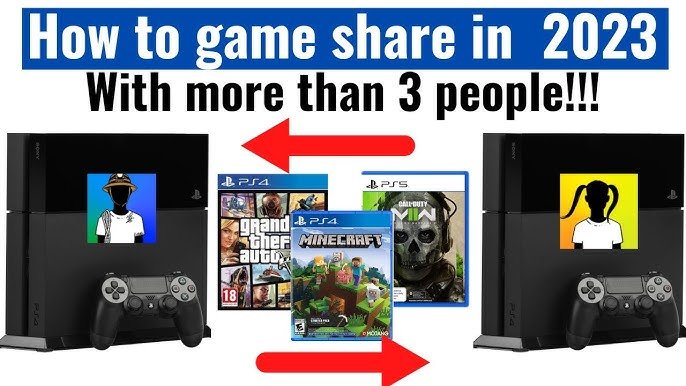
Two people can game share on a PS5 simultaneously, one account as the primary console and another accessing games on a secondary console.
Want to enjoy your digital game library with a friend or family member? The question of how many people can game share on PS5 is common among players. It’s a great way to share games and save some money.
PlayStation allows a specific setup for game sharing, letting you and a chosen person access each other’s digital content. Understanding the limits is crucial for a smooth experience. This arrangement lets you both enjoy a wide range of titles.

How Many People Can Game Share on PS5?
Okay, let’s dive into the fun stuff – sharing your amazing PlayStation 5 games! You’ve got a shiny new PS5, and you’re probably wondering, “How many of my friends can I share my digital games with?” Well, the answer isn’t quite as straightforward as saying “three” or “five.” It involves a bit of understanding how PlayStation Network (PSN) accounts and console settings work together. The short answer is that you can technically game share with one other person at a time.
Understanding the Basics of PS5 Game Sharing
Before we jump into the details, let’s break down what game sharing actually means on the PS5. Basically, it’s a way to let someone else play the games you’ve bought digitally, without them having to purchase the same games themselves. It’s done through a clever system that involves activating one PS5 as your “primary” console and the other person’s PS5 as your “secondary” console. This setup requires a few specific steps on both the consoles and with both PSN accounts.
The Primary Console and Secondary Console Relationship
Think of it like this: you have one home base (your primary console) and one other spot (the secondary console) where you can enjoy your game library. Your primary console is where all your games are available to anyone who uses that console, regardless of their PSN account. On the secondary console, only one specific user can access your games – the owner of the PSN account that purchased the games.
Here’s a more detailed look:
- Primary Console: This is the PS5 you usually use. It’s where your games are considered “home”. Anyone who uses this PS5, even with a different PSN account, can play the games you’ve downloaded.
- Secondary Console: This is the PS5 where your friend, family member, or anyone you share your games with plays. You can access your digital library on this console using your own PSN account, but it does not get free access like on your primary PS5. It’s important that the person using the secondary console needs to play with your PSN Account only for that.
Setting up Game Sharing on PS5: A Step-by-Step Guide
It may seem a little complicated at first, but following these steps will make setting up game sharing easy.
On Your (Primary) PS5 Console
- Log in to Your Account: Make sure you’re signed in to your main PSN account, the one with all your purchased games.
- Go to Settings: Navigate to the settings menu. You can find this by pressing the PS button, and selecting Settings from the menu.
- Find Users and Accounts: Select “Users and Accounts,” then click on “Other”.
- Choose Console Sharing and Offline Play: In the “Other” menu, select “Console Sharing and Offline Play.” If it says “Disabled,” click on this option.
- Enable Console Sharing: Select “Enable” to make this console your primary console. If it says “Enabled” already, then your PS5 is already set to your main console, where your game can be shared.
On Your Friend’s (Secondary) PS5 Console
- Log in with Your Account: Your friend needs to log out of their PSN Account on their console and log in to the PSN Account which owns the games on their console.
- Go to Settings: Just like before, go to the PS5 settings.
- Find Users and Accounts: Navigate to the “Users and Accounts” settings, then go to “Other.”
- Choose Console Sharing and Offline Play: Just like your console, select “Console Sharing and Offline Play.”
- Enable Console Sharing: Select “Enable.” This will make your friend’s PS5 a secondary console for your account. This is how you’ll be sharing your games to another console.
- Log back to your Friend’s Account: After enabling the console sharing on your friend’s console, your friend now needs to log out from your PSN account, and log in to their PSN account.
Important Note: Your friend now has to play your shared games using their account which means you’re sharing the digital games only on the secondary console. Your friend can still access your games from their account.
The One-to-One Game Sharing Rule
Here’s the most important thing to remember: you can only have one secondary console set up for your PSN account at any given time. This means you can only share your games with one other person simultaneously. You can change who you’re sharing with, but only one secondary PS5 can have access to your games at a time.
Why Only One Secondary Console?
Sony put this restriction in place to prevent widespread game sharing, which would hurt game sales. It’s a balancing act to allow sharing among close friends and family while still encouraging people to buy the games they want to play.
What Happens if You Try to Game Share with More Than One Person?
If you try to activate your account on a second console as your secondary console while another console is already designated your secondary console, the first console will lose access to your game library. It will essentially deactivate it from your account. This protects against users abusing the system by trying to share with multiple people simultaneously.
Limitations and Things to Keep in Mind
Game sharing on PS5 is a fantastic feature, but it’s important to be aware of its limitations.
Simultaneous Play
While game sharing is great, you cannot play the same game at the same time. If you both want to play the same game together, you’ll both need to own a digital copy of that game. If you’re playing the game with your primary account on primary PS5 and your friend is also playing with their account on secondary PS5, there will be no issue, you can both play together, but if you play with one account on both PS5 at same time, the game will be locked on one of the consoles.
Playstation Plus Benefits
PS Plus benefits are tied to individual accounts. Even when you share games, if your PSN account has Playstation Plus, the secondary account will not receive the Playstation Plus benefits such as online multiplayer, monthly games and discounts. The secondary account needs its own Playstation Plus subscription to receive these benefits.
Digital Games Only
Game sharing only works with digital games. Physical game discs are tied to the console they’re inserted in, and there is no way to share these digital game copies with another person’s console without inserting the same disc on their PS5.
Trust and Responsibility
Since you’re giving someone else access to your digital game library, it’s important to be sharing with someone you trust. You are giving the person access to your account, which can also affect your account details and credit card details. Make sure you keep all these things in mind.
Switching Primary Consoles
You can change which PS5 is your primary console but there is a limit on how often you can do this, and doing it frequently might lead to suspension by Playstation Network. To switch, simply follow the steps mentioned earlier and change the settings. Make sure you set up your own primary console first before setting up your friend’s PS5 as your secondary console.
Troubleshooting Common Issues
Sometimes, game sharing might not work as expected. Here are some common issues and how to fix them:
Game Locks or Errors
- Verify your connection: Make sure your PS5 consoles are connected to the internet with an active internet connection.
- Primary Account is on Secondary Console: Make sure you have the correct Primary Console setup. Log out from the PSN account in your secondary PS5, and log in with your friend’s PSN account. Your friend should be using their PSN account in their PS5 for playing shared games.
- Check Console Sharing Settings: Go to console sharing settings on both consoles, and disable and enable them again.
Activation Errors
- Network Issues: Make sure you have a stable internet connection, and all consoles are connected to the network.
- Account Status: Make sure your account status is okay.
- Wait Period: Sometimes you might have to wait for some time, then try again.
If you are having any issues, contact Sony support through their website or by phone. They’ll help you troubleshoot issues that you can’t fix yourself.
Game sharing on the PlayStation 5 is a great feature, allowing you to share your digital library with one other person. It’s a great way to play games with friends, and family. Just remember that you can only have one primary console and one secondary console set at the same time. You also need to keep in mind the limitations. By following the steps mentioned above, you can share games with ease. Enjoy playing!
How to GameShare on PS5 – OverSimplified (2024)
Final Thoughts
You can game share with one other person on a PS5. This means two consoles can access the same digital games. Both users can enjoy the library you own.
Essentially, only two PlayStation 5 consoles can actively share games simultaneously. Understanding this limitation is important for managing your library. Remember, ‘how many people can game share on ps5’ is effectively limited to one other console.

