
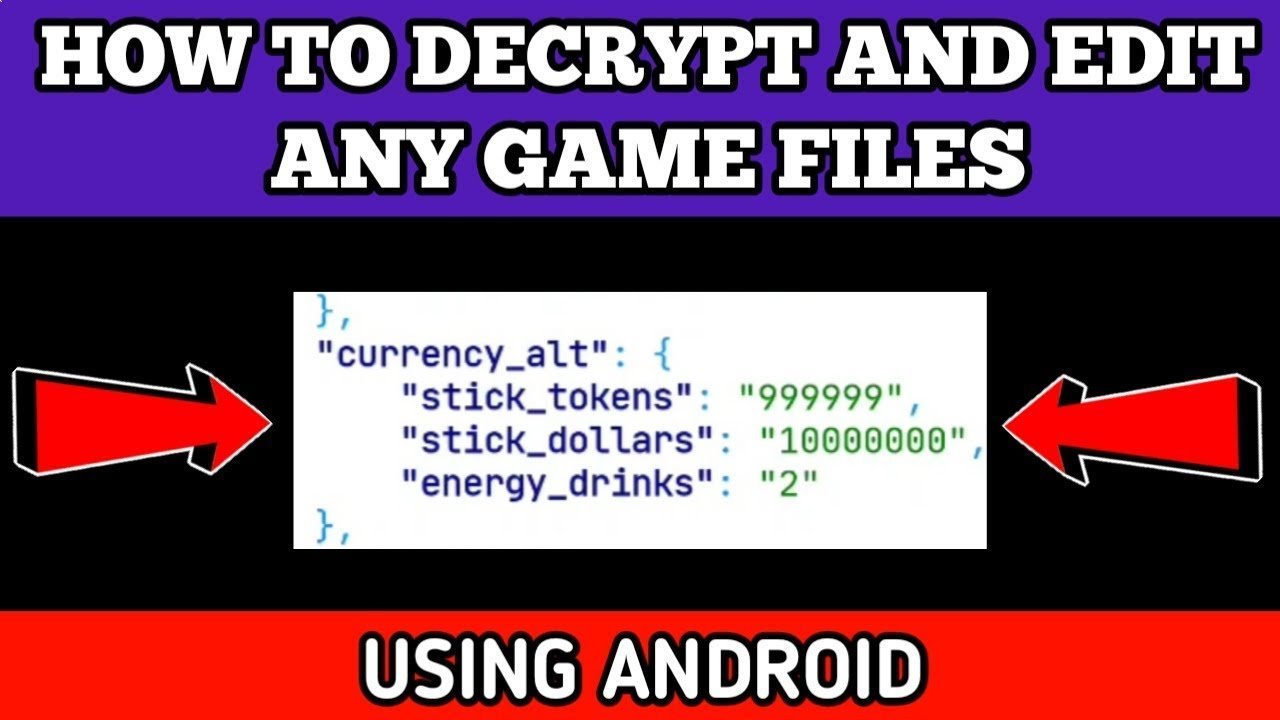
To edit android game files, you typically need to use a file explorer capable of accessing root directories, along with an appropriate text or hex editor to modify the specific game files.
Ever wondered how people tinker with their favorite Android games? It’s possible, and it’s not as daunting as you might think. We often hear about modding communities who change in-game values or even add new features.
This process involves more than just simple tweaks; understanding the structure of game files is key before you attempt to edit them. This guide will provide you with a basic idea on how to edit android game files.

How to Edit Android Game Files
Have you ever wished you could tweak your favorite Android game? Maybe you want more coins, a faster character, or just a different look? It might seem like magic, but it’s often possible to edit game files and make these changes. This isn’t about making completely new games, but more like customizing the games you already have. This can be a fun way to learn how games work, and sometimes it can make your game even more enjoyable. Just remember, it’s important to be careful and only edit games you own, and avoid using these techniques to cheat online. Let’s explore the world of Android game editing!
Understanding Android Game Files
Before you start changing things, it’s good to understand the types of files you’ll encounter in Android games. Games don’t just appear on your phone screen magically; they’re made up of many different pieces of code and resources all working together.
Types of Game Files
Games use a mix of file types, and each one plays a crucial part:
- APK (Android Package Kit): Think of this as the main container for the game. It’s like a zipped folder holding all the game’s resources and code. You usually download and install games on your device in APK format.
- DEX (Dalvik Executable): This is where the game’s code lives. It tells the game what to do. Editing DEX files is tricky, and you need special knowledge and tools.
- XML (Extensible Markup Language): Many game settings, like user interface layouts, are stored in XML files. These are often easy to read and edit with a simple text editor.
- Image Files (PNG, JPG): These are the pictures you see in the game, such as character sprites or backgrounds. You can edit them using an image editor to change the look of the game.
- Audio Files (MP3, WAV): These are the sounds and music used in the game. You can even change these if you want a totally different experience.
- Data Files (JSON, TXT): These files hold important game data like game levels, object details, or text within the game. They’re often easily editable with a text editor.
Where to Find Game Files
Android games often store their data in two main places:
- Internal Storage: This is where the game’s main application (the APK file) lives. You might see a folder named after the game in your phone’s main storage.
- External Storage (SD card): Some games store larger resources or save files here to save space. The game’s data folder will be under the Android/data folder and then find a folder named for that game.
To view these files, you will need a file manager application. There are many free file managers available on the Google Play Store. Some good options are Solid Explorer, ES File Explorer, and FX File Explorer. Make sure to enable ‘show hidden files’ in the app settings to see all folders.
Tools You’ll Need
Editing game files needs some special tools. Here’s a list of what you might need:
Essential Tools for Editing
- File Manager: An app to browse the files on your device (mentioned above).
- Text Editor: A tool to edit XML, JSON, and other text-based files. Some popular choices on Android include QuickEdit Text Editor and Turbo Editor. For your computer, you can use Notepad++, Sublime Text, or VS Code.
- Image Editor: If you plan to change the game’s images, you’ll need an editor like Pixlr, Photoshop, or GIMP.
- APK Editor App: This tool, which is available on the Play store (you might want to search for ‘APK Editor X’) or on external sites (be careful), allows you to extract and modify the game’s APK file, you should use this carefully because this involves changing the original game files.
- Zip Program: To manage APK files (which are essentially ZIP files), use a program like 7-Zip or WinZip on your computer.
Advanced Tools (Use with Caution)
Some more advanced options exist but require a better understanding of the code. These include:
- Smali/Baksmali: For editing the game’s DEX files (Java code). This is complex and needs significant technical knowledge.
- Hex Editor: Allows you to directly modify binary files. This is an advanced technique and should be used with care.
Basic Editing Techniques
Let’s look at some simple edits you can try. These examples are relatively safe and won’t completely break the game if you’re careful.
Editing XML Files for Interface Changes
Many games store layout information in XML files. These files describe how the buttons, text, and other parts of the screen are organized. Here’s how you can make some basic changes:
- Locate the XML File: Use your file manager to find the XML files you want to edit. Look for folders like layout or ui in the game’s data folders.
- Open with Text Editor: Select the XML file and open it with your text editor.
- Make Changes: You can change text sizes, colors, positions, and more. For example, you might find code like this:
    <TextView
        android:layout_width="wrap_content"
        android:layout_height="wrap_content"
        android:text="Hello"
        android:textSize="16sp"
        android:textColor="#000000" />
You can change android:text to change the text displayed, android:textSize to change text size, and android:textColor to alter the text color. Remember to save your changes.
- Replace the Original File: Copy the changed XML file back to its original location in the game’s folder. You might need to overwrite the original file.
- Test the Game: Start the game and see if your changes have taken effect. If the game breaks or doesn’t work well, try reverting to the original files to troubleshoot.
Modifying Text in TXT and JSON Files
Games often store in-game text, like item names or quest descriptions, in TXT or JSON files. Here’s how to edit them:
- Find the Files: Look for TXT or JSON files, usually in the same folder as other data files.
- Open with Text Editor: Open these files with your chosen text editor.
- Edit Text: Locate the text you want to change and edit it. For example, in a JSON file, you might see this:
     {
        "itemName": "Potion of Healing",
        "itemDescription": "Restores health"
     }
You can change “Potion of Healing” to “Super Potion” and “Restores health” to “Restores a lot of health”.
- Save and Replace: Save your edits, and copy the modified file back into the game’s folders, overwriting the original file.
- Test the Changes: Run the game to check your changes. Make sure the game doesn’t break.
Simple Image Editing
You can change images using a suitable image editor to change the game’s visuals:
- Find Image Files: Use your file manager to locate PNG or JPG images used in the game.
- Open in Image Editor: Open the images you want to edit in an image editor.
- Modify Images: You can draw, add shapes, change colors, or replace the entire image.
- Save and Replace: Save your modified image file with the same name as the original, then place the modified image back to the game’s folder. Remember, the dimensions should be same, otherwise, the game might not display the image correctly.
- Test Your Edits: Open the game and check if the new images appear correctly.
Advanced Techniques (Use with Caution)
These techniques are more complex and might require some background knowledge of coding. Proceed with caution, and understand that you might cause your game to crash or have other problems if you make mistakes. If you are not very comfortable with coding then you can avoid this.
APK Modification
The APK file is the core of your Android game. Changing it involves unpacking it, making changes, then repacking it. Here’s a simplified outline:
- Backup Original APK: Always back up your original APK file.
- Use APK Editor: Use APK Editor on your phone, or use 7-Zip or a similar program on your computer to extract the APK file’s contents.
- Find Files to Modify: Once extracted, you can locate resource files, like images, XML files, or DEX files.
- Make Your Changes: Use your text editors, image editors, or other programs to change the files inside the extracted APK.
- Repack the APK: Use the APK editor or a similar tool to repackage all the files back into a single APK file.
- Install the New APK: Uninstall your original game, and then install the modified APK you just created. (You might need to allow installation from unknown sources in your Android settings.)
- Test: Start the game and verify that your edits work correctly.
Editing DEX files (Java Code)
DEX files contain the Java code of the game. This can be a very complicated process and needs a lot of experience. But for a basic idea, you can explore the following.
- Extract DEX file: You can extract DEX files from APK file using APK editor or other tool.
- Decompile the DEX file: You need to use tools like Baksmali to convert the DEX code to a more human-readable Smali code.
- Edit Smali: Now you can edit Smali code, but you need good understanding of how Java code works.
- Recompile the code: Once your code is modified, you will have to recompile using Smali tool.
- Include back to APK: Now you have to put it back to the APK file, then sign and reinstall it.
Important Considerations
Before you jump in, it’s essential to be aware of the risks involved in game file editing:
Legal and Ethical Concerns
- Copyright: Most game files are copyrighted, so modifying and sharing them might violate copyright laws.
- Online Games: Changing game files in online games is often seen as cheating. You could get banned from the game.
- Personal Use: Only modify games you legally own for personal use.
Risks and Precautions
- Game Instability: Editing files incorrectly can cause games to crash or malfunction. Always back up files before making changes so that you can revert them if things go wrong.
- Security Risks: Getting game files from untrusted sources can introduce malware or viruses to your device. Always download tools and files from a reputable source.
- Data Loss: Changes made incorrectly may cause you to lose game progress or other data.
Tips for Safe Editing
- Backup Everything: Make copies of the original game files before starting to edit. This will ensure you can always go back if things go wrong.
- Start Small: Don’t change too many things at once. Begin with simple edits, test, and then move on to more complex ones.
- Check Forums: Look for user forums or guides for the specific game you want to modify. Other players might have shared their knowledge and advice.
- Be Patient: Game modification can be a trial-and-error process, so be patient, learn from your errors, and take it one step at a time.
Editing Android game files can be a very interesting process if you have a technical mindset, and a desire to dig deep into how games work. It gives you an opportunity to customize game based on your preference. Just always remember that you have to be careful, responsible and always respect the game developers. Don’t do anything which might break the game or harm other players. Use these skills for your learning, and don’t try to create issues or unfairness for the other players.
HOW TO DECRYPT AND EDIT GAME FILES USING ANDROID
Final Thoughts
Editing Android game files requires specific tools and understanding. You’ll need file explorer apps that can access system folders. Root access might be necessary for some games. Always back up original files before making changes.
Modifying game files lets you alter gameplay. Be careful when changing values, as this may cause crashes. You should research the specific files that you want to modify. How to edit android game files is a complex task.

