
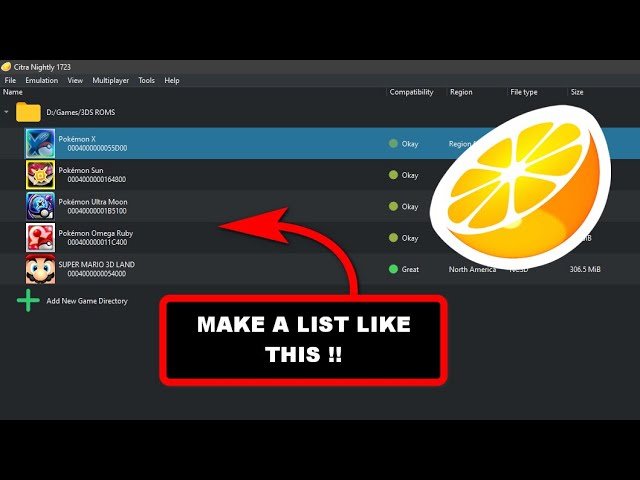
To add games to Citra, you must obtain game files (.3ds, .cci, or .cia) and then open Citra, navigate to ‘File,’ then ‘Load File,’ and select your game.
Want to jump into your favorite 3DS games on your PC? It’s easier than you might think! Figuring out how to add games to citra can initially seem confusing, but the process is very straightforward once you get the hang of it.
We will guide you through it step-by-step, ensuring you can enjoy all your beloved 3DS titles. Get ready to play!

How to Add Games to Citra
Alright, let’s get to the fun part! You’ve got Citra all set up, but now you need some games to play. Don’t worry, it’s not as tricky as it might seem. Adding games to Citra is like putting the right puzzle pieces together. You’ll need your games, which are usually in a special file format, and then tell Citra where to find them. It’s a bit like showing your pet where their food bowl is. Let’s jump in and see how it’s done!
Understanding Game File Formats
Before we dive into the how-to, it’s important to understand the types of game files Citra can use. These files aren’t just regular folders with game names. They’re special formats the emulator needs to understand. Here are the most common ones:
- .3ds: This is the most common type of file for 3DS games. It’s basically a complete copy of the game’s data. Think of it as a complete digital cartridge.
- .cci: Another common format, very similar to .3ds. You can use either one without a problem.
- .cia: These are like installable packages for the 3DS. Citra can use these files too, but they might require an extra step sometimes (we’ll get to that later!).
Imagine these file types as different kinds of keys. Each one can open the door to a game but must be recognized by the lock – which in this case is Citra!
Finding Your Games
Now comes the part where you actually get the games you want to play. This is a critical step, and it’s super important to do this the right way. You need to acquire your games legally. The easiest and most proper way is to rip your own games from your physical 3DS cartridges. This is like making a digital copy of your physical game. There are guides online that can help with this process, and it involves special software and sometimes hardware tools.
Why Is This Important?
Using games that you don’t own is against the rules. It can get you into legal trouble and also affects the people who create the games. Think of it like borrowing a friend’s toy without asking – it’s not nice, and it’s wrong. Always make sure you are following copyright laws and playing games you own.
Adding Games Directly to Citra: The Easy Way
Once you have your game files, adding them to Citra is quite simple. There are a couple ways you can do this, depending on how you prefer to work with your files. Let’s look at the most straightforward method first.
Using Citra’s “Load File” Option
This method is like opening a single game at a time. It’s perfect if you have a few specific games you want to play right away.
- Open Citra: Launch the Citra emulator on your computer.
- Go to “File”: Look for the “File” menu at the top of the Citra window. It’s usually in the top-left corner.
- Select “Load File”: Click on the “Load File” option. This will open a window that looks like your computer’s file explorer.
- Find your Game: Navigate to the folder where you saved your game file (.3ds, .cci, or .cia).
- Select and Open: Click on the game file and then click the “Open” button.
Citra will now try to load the game. If everything is set up properly, the game should start running. If not, it might mean you have a problem with a specific game file. Don’t worry, we’ll get to troubleshooting later on!
Adding Game Folders: Managing Your Library
If you have many 3DS games, managing them one by one would be pretty tedious. Luckily, Citra has a way to organize your collection into folders. This is like having a bookshelf for all your games.
Setting up Game Folders
Citra watches specific folders for games, so you just need to point it to where your games are. Here’s how:
- Open Citra: Just like before, get Citra up and running.
- Go to “File”: Find the “File” menu.
- Select “Open Citra Folder”: Click on “Open Citra Folder.” This will open a new window that shows Citra’s special folder.
- Create a “load” Folder: In this special folder, if you dont see it, you may want to create a new folder. Call it “load” (all lowercase). This is where Citra will look for your games.
- Copy/Move Your Games: Copy or move all your game files (.3ds, .cci, .cia) into that new “load” folder.
Now, each time you start Citra, the emulator should automatically see all the games inside the “load” folder. You’ll see a list of your games on Citra’s main screen. If you see it in the game list, now you can simply click on it to play!
Benefits of Using Game Folders
- Organization: It’s easier to find the game you want to play when they’re all in one place.
- Automatic Loading: Citra automatically loads the games every time you open it, so no need to go through the “Load File” process each time.
- Cleaner Citra Interface: Keeps your main Citra window looking tidy, especially when you have a big library.
Working With .CIA Files
While .3ds and .cci files are usually quite simple to load, .cia files are a little different. These files are more like installable packages, similar to what you might find on the 3DS itself. Sometimes Citra can use them directly, but sometimes they may need an extra step.
Installing .CIA Files Using Citra
Citra generally handles .cia files the same way it handles .3ds and .cci files. However, there can be cases where they need to be installed using the tools menu inside of Citra. Here’s how to try directly loading them with Citra:
- Follow Steps for Direct Loading: Try following the “Load File” steps described earlier with your .cia files.
- Check the Result: If the game starts, great! If you get an error, move on to the next step.
Installing CIA Files Through Citra’s Install Function
If you encounter problems loading .cia files directly, Citra can install them in a way that mimics how they install on the real 3DS console. This is a good step to try if you have issues with your .cia games.
- Open Citra: Run the Citra emulator.
- Go to “File”: Find the “File” menu.
- Select “Install CIA”: Click on “Install CIA.”
- Choose Your .CIA File: Find the .cia file you want to install and click “Open”.
- Wait for Citra to Finish: Citra will process the file. You might see a message saying “installing” or something similar.
Once the install is done, the game should appear on your main Citra screen, and you should now be able to play it just like any other game.
Troubleshooting Common Issues
Sometimes things don’t go as smoothly as planned. Here are some common problems you might encounter and how to deal with them:
Game Not Appearing in Citra
- Check Your File Type: Make sure your game is in the correct format (.3ds, .cci, .cia).
- Check the “load” Folder: If you’re using folders, ensure your games are inside the correct “load” folder you created.
- Rename the Folder: If nothing seems to work, delete the load folder in the Citra folder and recreate it.
- Restart Citra: Try closing and reopening Citra. Sometimes it just needs a refresh.
Game Not Starting
- Check File Integrity: Make sure your game file is complete and not corrupted. Try re-copying it if possible.
- Citra Version: You might be using a very old version of citra, use the latest citra emulator.
- Check Required Files: Some games require specific “firmware” or “keys” files for Citra to use them correctly. You’ll need to research how to get those. It’s part of setting up Citra initially.
Graphics or Performance Issues
- Citra Settings: Adjust Citra’s graphics settings. Try different options in the “Graphics” section of the settings menu. You might need to change the resolution or rendering method.
- Computer Specs: Some games need a lot of processing power. If your computer is older, it might struggle to run them smoothly.
- Update Your Drivers: Make sure your graphics card drivers are up to date.
.CIA Files Not Working
- Try Installing: If you try to load your .CIA files directly and have issues try to install them.
- Corrupted Install: Try uninstalling the CIA from the “install CIA” menu and then reinstalling it again, it may be a corrupted install.
Tips for a Smooth Experience
Here are some extra tips to help you have the best gaming time with Citra:
- Keep Citra Updated: New versions of Citra often have improvements and bug fixes. Make sure you are using the latest version of Citra.
- Organize Your Games: Use folders to sort your game files, it makes your life a lot easier when it comes to finding a certain game.
- Experiment with Settings: Don’t be afraid to try out the different settings Citra offers to find the right combination for your games and computer.
Adding games to Citra is an easy and important step to start playing your favorite 3DS games on your computer. Remember to acquire your games legally and follow all the correct steps when loading them into citra. With a little bit of understanding and patience, you’ll be playing all your 3DS games on Citra in no time!
How to add games to CITRA, Create a list of games
Final Thoughts
To sum it up, adding games to Citra requires acquiring game files in the correct format, typically .3ds, .cci, or .cia. Then, you go to Citra and choose “File” followed by “Load File”.
Select your downloaded game file and the emulator will run it. You must make sure the game file is compatible. That’s how to add games to Citra.

