
To add games to Dolphin emulator, you need to acquire game files (ISOs or GCMs) and then load them through the emulator’s interface.
Want to play your favorite GameCube and Wii titles on your computer? You can with Dolphin, a powerful emulator, and it’s not as complicated as you might think. We’ll walk you through the process.
Many gamers are curious about how to add games to dolphin emulator and get their collection running on a PC. The most important step is getting game files, then they can be loaded through the program.
This guide explains everything you need for a smooth setup, so prepare to relive those classic gaming memories!

How to Add Games to Dolphin Emulator
So, you’ve got Dolphin Emulator all set up, ready to play your favorite GameCube and Wii games. Awesome! But now you’re probably wondering, “Okay, how do I actually get games into this thing?” Don’t worry; it’s simpler than you might think. Let’s walk through it step-by-step so you can start playing your games in no time.
Understanding Game Files
Before we dive into the process, it’s good to understand what game files are and why they’re important for Dolphin. When you see game files for Dolphin, they typically come in specific formats. The most common ones you’ll encounter are:
- ISO (.iso): This is like a perfect copy of the entire game disc. It’s probably the most common format you’ll see for both GameCube and Wii games. Think of it like a digital clone.
- GCM (.gcm): This is another format used mostly for GameCube games. It’s very similar to an ISO.
- WBFS (.wbfs): This format is specific to Wii games. It’s often used because it can compress the game data to take up less space.
- NKit (.nkit.iso or .nkit.gcz): NKit is a special compressed format. It can create smaller game files.
These files hold all the data your Dolphin Emulator needs to run the game. They include everything from the game’s code to the graphics and audio. It’s important to make sure you have these files in the correct format to ensure the game works correctly.
Acquiring Game Files
Now, let’s talk about how to get these game files. This is a crucial step, and it’s essential to do it legally. Here are your options:
Dumping Your Own Games
The most legal way to get game files is by dumping them from your own physical GameCube and Wii game discs. This means taking the data from your discs and creating a digital copy of it. Here’s how you can do it:
For GameCube Games
You’ll need a special device connected to your computer called a DVD drive capable of reading GameCube discs. GameCube discs are mini-DVD’s which might not be readable by all computer DVD drives. Here’s a simplified process:
- Connect the drive: Make sure your drive is properly connected to your computer and that it can recognize the disc.
- Use appropriate software: You’ll need software designed for dumping GameCube games. Popular options include CleanRip and Rawdump. These programs will guide you through the dumping process.
- Insert the disc: Put your GameCube game disc into the drive.
- Start the dumping process: Follow the software instructions to create an ISO file from your disc.
- Save the ISO: Save the file to a safe and accessible place on your computer. Make sure it’s in a location you can easily find later.
For Wii Games
Dumping Wii games is a bit easier because most computer DVD drives can read regular-sized Wii discs. The general process is quite similar to dumping GameCube games:
- Use CleanRip: CleanRip is a popular program used to dump Wii games. You can run this program on your modded Wii or use it on a computer connected to a Wii disc drive.
- Insert the disc: Put the Wii game disc into the drive.
- Start the dumping process: Follow the instructions in CleanRip to begin the dumping process.
- Choose the format: When dumping, you have an option to choose which format to save your game in, choose between ISO, WBFS or NKit. NKit is the preferred format as it’s smaller.
- Save the file: Save the file in a safe folder where you know you can find it for Dolphin.
Dumping your own game discs ensures you’re using the games legally.
Important Note About Downloading
Downloading ROMs from unofficial sources can be risky and illegal. You could end up with files that have viruses or malware, and you could be breaking copyright laws. It’s always better to obtain your games legally by dumping your own game discs.
Adding Games to Dolphin Emulator
Now that you have your game files, let’s get them into Dolphin Emulator! Dolphin makes it easy to manage where it looks for games. There are a few methods you can use:
Setting a Game Directory
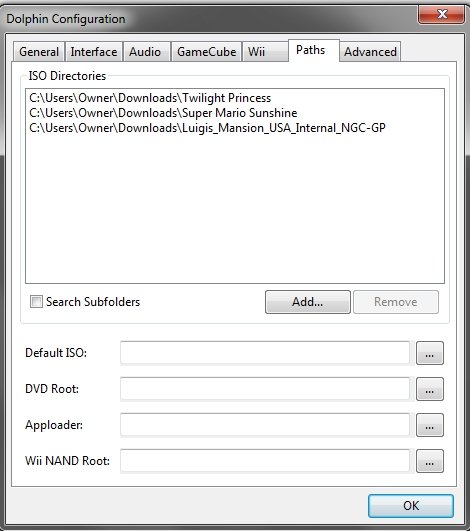
The most common way is to tell Dolphin where you store your game files. This way Dolphin can automatically find all the games you have available. Here’s how to set a game directory:
- Open Dolphin Emulator: Start up the Dolphin Emulator on your computer.
- Go to Config: At the top of the Dolphin window, look for the “Config” button or an option like “Options”. Click it.
- Select “Paths” or “Directories”: In the Config menu, you’ll find a tab or option labeled “Paths”, “Directories,” or something similar. Click on that.
- Add your Game Folder: You’ll see a button that says “Add…” or something like “Browse…”. Click on that button and select the folder where you saved all your game files.
- Apply Settings: Click “OK,” “Apply,” or “Save” to save the changes.
- Games are Visible: Now, Dolphin should be able to see all the games in that folder. Go back to Dolphin’s main screen; your games should appear listed.
Dolphin will now automatically find any game files you put in that chosen directory, making it easy to add more games later.
Opening Games Individually
If you want to open a specific game file, you can use this method. This is useful when you have games spread across different folders, or when you do not want to add a general game directory.
- Open Dolphin Emulator: Start up the Dolphin Emulator on your computer.
- Click “Open”: In the main Dolphin screen, click on the “Open” button on the top left side of the screen.
- Find your Game: A file browser will appear, navigate to the location of your game files and click on it.
- Start the Game: Once you’ve clicked on your game, it will be automatically added to the main Dolphin screen and ready to play.
Managing Your Game Library
After adding your games, Dolphin emulator shows them in a list. It’s very useful to use different features in dolphin to help you quickly find and manage your games.
Sorting Games
You can organize your game list in Dolphin by different parameters such as:
- Alphabetical order: This is useful to quickly find games by their title.
- Last played: This shows the most recently played games, making it easy to go back to something you’ve been playing.
- Game rating: Games can be given a rating, and sort by that rating to quickly go to your favorite games.
Filtering Games
It’s useful to filter games, especially if you have a very big library. This can be done with the following filters:
- Platform: You can filter games by Gamecube or Wii, this is useful when you want to play games from a specific console.
- Genre: Games have genres assigned, this lets you filter by a specific genre if you want to play a specific type of game, such as sports or racing.
- Search Bar: The search bar helps you search for a specific game title.
Game Settings
Dolphin lets you adjust settings for each game individually, this means you can fine-tune the game so that it is optimized for your computer and play style. To do this, you have to right click on the game and click “properties”.
- Graphics: You can adjust the graphics settings for a specific game, for example you can adjust the resolution or texture quality.
- Enhancements: This gives you options such as applying widescreen patches or setting different levels of anisotropic filtering.
- Controllers: Change different controller settings for each game, you may want to use a Wiimote for one game, and an XBOX controller for a different game.
Adding Custom Covers
To make your game list look nicer, you can add custom game covers. This is a fun way to personalize your library and make games easier to identify. Here’s how:
- Find Game Cover: Look online for the cover art of your game. You can usually find a lot on image search engines.
- Download Image: Download the picture to your computer. Make sure it’s a good quality picture.
- Right click on Game: Right click on the game and select “Set Cover”.
- Browse the Image: A file browser will pop up, select the image you downloaded.
- Cover is set: The cover art should now be showing on the game in your game list.
Custom cover art is a great addition to personalize your collection.
Troubleshooting Common Issues
Sometimes, things don’t go as planned. Here are some common issues and how to fix them:
Game Won’t Load
If a game doesn’t load, first check these things:
- Check the file format: Make sure your game file is in the correct format (ISO, GCM, WBFS, or NKit).
- Verify game file is not corrupt: Redownload the game from the original source again and check if the problem persists.
- Update Dolphin: Ensure you’re using the latest version of Dolphin Emulator, as this may fix compatibility bugs.
- Check minimum system requirements: The game may not run well if your computer does not meet the minimum requirements.
Performance Issues
If your games are running slowly or are choppy, you can try these solutions:
- Adjust Dolphin Settings: Play around with the graphics and performance settings in Dolphin. Lowering the resolution or graphics quality can sometimes make games run smoother.
- Close Background Programs: Make sure you don’t have a lot of other programs running at the same time as Dolphin, as this may take resources away from the game.
- Upgrade Hardware: If your computer has old or outdated parts, your game may not be running well. Consider getting newer hardware for an improved experience.
Missing Audio
Sometimes, sound might be missing or glitchy. Here’s how to resolve this:
- Check Dolphin’s Audio Settings: Make sure that audio is enabled in the Dolphin config menu. Try adjusting your settings.
- Update Audio Drivers: Make sure that your computer’s sound card drivers are up to date.
- Use DirectSound: In Dolphin settings, try using the DirectSound driver to fix potential audio issues.
Tips for a Better Experience
Here are some tips to make your experience using Dolphin even better:
- Controller setup: Configure your controller correctly in Dolphin settings for the best gaming experience, it’s recommended to use a controller that has analog sticks.
- Use save states: Save states are like checkpoints that you can go back to at any point, this can be useful when going through a difficult part of a game.
- Explore enhancements: Dolphin has many advanced settings that can enhance graphics, try experimenting to see what you prefer.
Adding games to Dolphin Emulator is straightforward once you understand the file formats, how to obtain game files, and how to use the emulator’s file management features. By following the steps in this guide, you’ll be able to build a great collection of GameCube and Wii games to play on your computer!
How to Add Games to Dolphin (Updated)
Final Thoughts
To add games to Dolphin emulator, you need ISO or WAD files. Place these files in a location your emulator can access. Then, use the emulator’s “open” or “load” function to select and play them.
Finding game files is a must for using the emulator effectively. Ensure you acquire your game files through legal methods. The emulator itself does not provide these files.
Remember the process to add games to dolphin emulator requires you to provide your own game files, whether as ISOs or WADs. You can then start gaming.

