
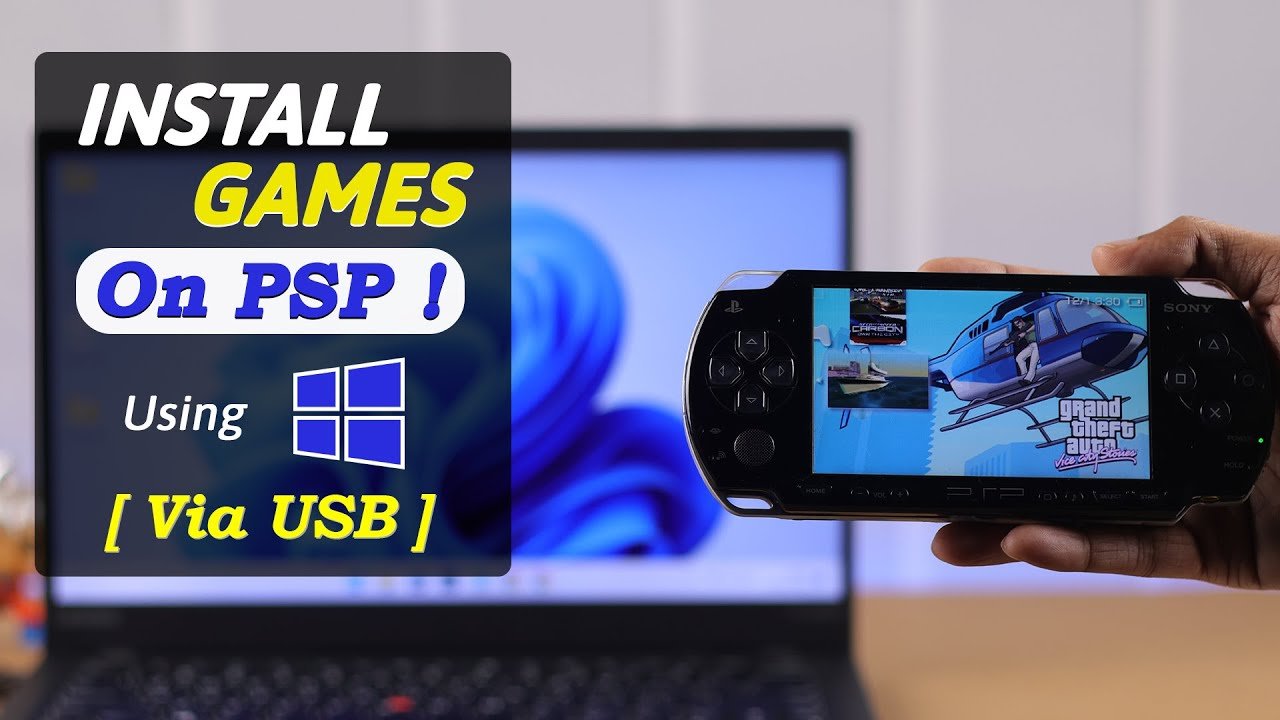
To add PSP games to your PSP, you typically need to connect your PSP to a computer, transfer the game files (usually ISO or CSO format) to the correct folder on the memory stick, and then access them through the PSP’s game menu.
Ever felt that nostalgic itch to play those classic PSP games again? Perhaps you’ve found some game files and are now wondering how to add psp games to psp? It’s not as complicated as you might think.
The process mainly involves using your computer and a USB cable. You’ll be moving game files over to the PSP’s memory card and getting ready to play. Let’s get started.

How to Add PSP Games to PSP: A Complete Guide
So, you’ve got a PSP, and you’re ready to dive into some awesome games! That’s fantastic! But how do you actually get those games onto your little handheld console? It’s not as tricky as it might seem. This guide will walk you through everything you need to know about adding games to your PSP, even if you’re not super tech-savvy. We’ll cover different ways to do it, making sure you can get to playing your favorite titles quickly and easily.
Understanding Your PSP and Game Files
Before we jump into the “how,” let’s talk about a few important things. Your PSP, or PlayStation Portable, uses special files to run games. These files usually come in two main types: ISO and CSO.
- ISO files: Think of these as exact copies of the game discs, stored as files on your computer. They are larger, but usually work perfectly.
- CSO files: These are like ISO files, but they’ve been made smaller. They work great and are really good when you have a limited space on your PSP memory stick, but they might take a bit more time to load.
You’ll need a place to keep these files, which is usually a Memory Stick PRO Duo. This is a small memory card that fits into your PSP. If you’re going to add a lot of games, you will need a bigger memory stick!
Checking Your PSP Version
Another thing to know is your PSP’s firmware. This is like the operating system of your PSP. You can see your PSP’s system software by going to the “Settings” column in the XMB menu, scrolling down to “System Settings,” and then going to “System Information.” The system software version will be displayed there. Knowing this will help you know whether you need a modded or unmodded PSP. For older PSP models, modding or installing custom firmware (CFW) could be necessary to play games downloaded online, especially if they are in ISO or CSO file formats. On the other hand, newer models sometimes have a limitation on playing game files that are not official.
Method 1: Adding Games via a USB Cable (For Official Games)
This method is straightforward and works for games you purchase from the PlayStation Store. This method is for the legally purchased games from the official Playstation store.
- Connect Your PSP to Your Computer: First, take your USB cable and plug the small end into your PSP. Then, plug the other end into your computer. Make sure your PSP is turned on.
- Turn on USB Connection: On your PSP, scroll over to the “Settings” column. Then select “USB Connection” and press the ‘X’ button. Your PSP’s screen will change, and your computer should now be able to see it as a removable drive.
- Drag and Drop Games: Open the removable drive on your computer, this is your PSP. You’ll see folders inside. Look for a folder named “PSP”. If you don’t see it, create a new folder with the name “PSP” all caps. Inside this folder, create another folder and name it “GAME” all caps. For digital downloads, games will usually go into GAME folder.
- Transfer Your Games: Now, find the game files on your computer that you want to put on your PSP. Usually, these will come in a ZIP or RAR file that you will need to extract. Then, drag and drop the extracted game files to the “GAME” folder you created in your PSP drive.
- Disconnect and Play: Once the transfer is complete, safely eject the PSP drive from your computer, and then on your PSP, press the ‘O’ button to disconnect USB mode. The PSP will now go back to normal screen. Find your game in the Games section of the main menu. Select the game icon and have fun!
Method 2: Adding Games via Memory Stick PRO Duo (For Game Files)
This method is for adding games that you may have downloaded as ISO or CSO files. It involves using your memory stick, which is the storage for your games.
Using a Card Reader
The easiest way to add games from your computer to your memory stick is by using a card reader. This makes the process faster and less troublesome.
- Remove the Memory Stick: First, turn off your PSP. Then, carefully take the Memory Stick PRO Duo out of the PSP.
- Connect to Your Computer: Now, put the Memory Stick into a card reader, and plug the card reader into your computer. Your computer should recognize it as a removable drive.
- Navigate to the Correct Folder: Just like in the previous method, you should see a PSP folder in your memory stick. if you don’t see a folder called “PSP,” then you need to make a new one and name it “PSP”. Make sure you use all caps. Inside that PSP folder, there should be a folder called “GAME”. if you don’t see it, create one, also in all caps.
- Drag and Drop Your Games: Find the ISO or CSO game files on your computer that you want to add, and drag and drop them into the “GAME” folder.
- Safely Eject: Once the transfer is done, safely eject the memory stick from your computer and the card reader.
- Put the Memory Stick Back: Carefully put the memory stick back into your PSP. Turn on the PSP, and go to the games menu to find the new games you added.
Direct Connection Method
If you do not have a card reader, you can also use your PSP to transfer the files from your computer to your memory stick.
- Connect Your PSP to Your Computer: Turn on your PSP and connect it to your computer using your USB cable.
- Turn on USB Connection: Just like before, go to the “Settings” column, then select “USB Connection”. The PSP will show up on your computer as a removable drive.
- Navigate to the Correct Folder: Open the PSP drive on your computer, go into the “PSP” folder and then the “GAME” folder. If you don’t see “PSP” and “GAME” folders, create them. Always use all caps.
- Drag and Drop Your Games: Find the ISO or CSO game files on your computer that you want to add, and drag and drop them into the “GAME” folder.
- Disconnect and Play: Once the transfer is finished, safely eject the PSP drive from your computer. On the PSP, press the ‘O’ button to disconnect USB mode. Your new games should appear in the game menu!
Troubleshooting Common Problems
Sometimes, things don’t go as planned. Here are a few common issues and how to fix them:
Game Not Showing Up
- Check the Folder: Make sure the game files are in the correct “GAME” folder, inside the “PSP” folder on your memory stick. Remember all caps.
- File Format: Double-check that the game files are either ISO or CSO files.
- Corrupted Files: If the file did not copy properly, your game might not work correctly. Try downloading the file again from the source.
PSP Not Recognizing the Memory Stick
- Clean the Contacts: Take the memory stick out, and lightly clean the gold contacts with a soft cloth.
- Make Sure it is inserted properly: Sometimes the memory stick will not be inserted properly. Remove and insert back the memory stick gently.
- Check the Memory Stick: Make sure that you have a memory stick PRO Duo. The PSP only recognizes that type.
USB Connection Issues
- Try a Different Cable: Sometimes, the USB cable itself could be faulty. Try using another cable.
- Restart Devices: Try restarting both your PSP and computer.
- Check USB Port: Try plugging the USB cable into a different USB port on your computer.
Tips for Downloading Game Files
Finding game files online can sometimes be tricky. Here are some tips to help you find safe and reliable files:
- Use Reputable Sites: Stick to well-known and trusted websites for downloading game files. Avoid sites that seem suspicious or are full of ads.
- Check File Comments: Before you start a download, check comments or user reviews for a game, to make sure that the file is working properly.
- Scan for Viruses: Always scan downloaded files with your antivirus software before transferring them to your PSP. This is very important!
- Be Patient: Downloading big game files can take a while, depending on the speed of your internet connection. Make sure you have the time for the download to finish.
Legal Considerations
It’s important to remember that downloading and using game files from unofficial sources can have legal consequences. Make sure you understand the rules in your area before you start downloading game files. If possible, buying games is the best option, because it supports the game developers.
Adding games to your PSP can be a fun and rewarding experience. With the right steps, you can enjoy a wide selection of games on the go. Whether you’re using the official method through the PlayStation Store or using ISO or CSO files, the process is fairly simple. With a bit of practice, you will be a pro in no time!
How To Play Downloaded PSP Games On A PSP
Final Thoughts
To add PSP games, first ensure your PSP has custom firmware. You then must connect your PSP to your computer via USB. Locate the ISO or CSO game files and copy them to the ‘ISO’ folder on the PSP’s memory stick.
Safely eject the PSP. Navigate to the game menu on your PSP and the new game should appear ready to play. That is how to add psp games to psp.

