
Moving game files to another drive typically involves using your game launcher’s settings to relocate the installation folder or manually copying the files, then updating the launcher with the new location.
Is your primary drive getting full with all those amazing games? Running out of space is a common problem for gamers. You may find yourself asking ‘how to move game files to another drive’. It’s a straightforward process, thankfully. We can easily free up space on your main drive and improve system performance. Let’s go through the simple steps you need to take to accomplish this.

How to Move Game Files to Another Drive
So, your computer is getting a little full, huh? Maybe your main drive, where Windows is, is starting to get cramped. All those awesome games take up a lot of space! Don’t worry, you don’t have to delete anything. You can move those big game files to a different drive, like a secondary hard drive or an external drive. It’s easier than you might think, and it can really help speed up your computer and make more room for other things. Let’s dive into how to do it!
Why Move Game Files?
Before we jump into the “how,” let’s talk about the “why.” There are several great reasons to move your game files to a different drive:
- Free up space on your main drive: Your main drive (usually the C: drive) is where your operating system (Windows) lives. It’s best if this drive has plenty of free space to keep your computer running smoothly. When your main drive gets too full, your computer can slow down. Moving games to another drive helps give your main drive some breathing room.
- Improve game loading times: If you move games to a faster secondary drive, like a solid-state drive (SSD), your games will probably load faster. SSDs are much quicker than traditional hard disk drives (HDDs). This means less waiting around to play and more game time!
- Organize your computer better: Sometimes, it’s nice to keep games separate from your other files. Moving your game files to their own designated drive can help you stay organized.
- Avoid reinstalling games: Reinstalling games can be a pain because it takes a lot of time and bandwidth. Moving your game files is way easier than going through the whole installation process again.
Different Ways to Move Game Files
There are a few different methods you can use to move your game files to another drive. The best method depends on where you got your games, the game itself, and your comfort level with computer settings. Let’s look at some of the most popular ways:
Moving Games through Steam
If you use Steam, moving games is quite simple. Steam has a built-in feature that lets you move games easily. Here’s how:
- Open Steam: First, make sure you have Steam open and you’re logged in to your account.
- Go to Settings: Click on “Steam” in the top left corner, and then click “Settings” from the drop-down menu.
- Select Downloads: In the settings window, click on the “Downloads” tab on the left side.
- Go to Steam Library Folders: At the top of the page, you’ll see “Steam Library Folders.” Click on this button.
- Add a new library folder: Click the “Add Library Folder” button. Navigate to the drive and folder where you want to move your games, and then create a new folder like “SteamGames” or whatever you prefer. Select that new folder and click “Select”.
- Moving the game: Now go back to your steam library, right-click the game you want to move, select ‘Properties’, then select “local files” and then click “Move Install Folder”. Select the new location you created, and click move folder button.
- Wait for the move: Steam will then move your game files to the new location, this may take some time depending on the size of the game.
That’s it! Steam handles all the details. You can repeat this process to move more games to the new drive. This is the easiest and safest method when using the Steam platform. Always ensure your steam app is running smoothly and avoid moving the game files if steam is in the middle of any downloads or updates for the games or steam app.
Moving Games through the Epic Games Launcher
The Epic Games Launcher also has a way to move games around without reinstalling them. Here’s the process:
- Open the Epic Games Launcher: Get your Epic Games Launcher up and running. Log into your account if you have to.
- Go to your Library: Click “Library” on the left side of the launcher.
- Find the Game: Locate the game you wish to move.
- Click the three dots: Click the three dots (…) next to the game’s name and select “Uninstall”. This will not delete your saves or online data, but only the game files.
- Reinstall: Then, click on the same game and go through the install process again. On the install page, you’ll see a link under the installation folder section which says “Browse”. Click this and pick your new location, where you want to install this game.
- Download: Now click Install and Epic games launcher will download your game to the new location you picked.
This method is similar to Steam but with a slight variation, instead of direct moving it involves “uninstalling” and “reinstalling”. The process takes a bit longer than the steam one. But it’s still much faster than downloading the game from scratch. Always check to make sure you have adequate space on the drive, and avoid using the computer for other tasks during downloads.
Moving Games from the Xbox App (Microsoft Store)
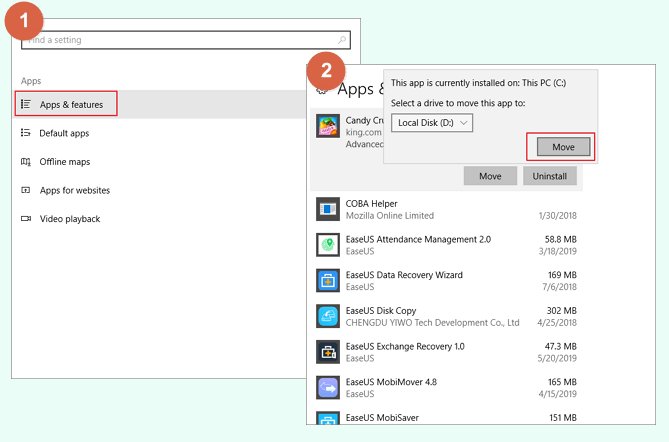
If you got your games from the Microsoft Store or the Xbox App, moving them is slightly different but still manageable. Here’s how:
- Open Settings: Click the Start menu, then click the Settings icon (the gear).
- Select Apps: In the settings window, click on “Apps”.
- Go to Installed Apps: From the left side, select “Installed Apps” or “Apps & Features.”
- Find Your Game: Scroll down and find the game you want to move in the list.
- Click the three dots: Click the three dots (…) next to the game’s name.
- Move or Modify: Click on “Move” or “Modify” (depending on which option appears). If you see “Move”, select your new drive, and click move button. If it is “Modify”, click on “Modify”, then in the next pop-up you will see “Move” button, select the new location.
- Select Your New Drive: Pick the new drive from the drop-down menu.
- Wait for the move: The game will begin to move to the new drive. This may take some time, depending on the size of the game.
The Xbox app usually does a good job of moving games safely. Just be patient, and let the move complete before playing. If you face any issue you might have to reinstall the game.
Manually Moving Game Files (Advanced users only)
This method is a bit riskier and is best used only if you know what you’re doing. When moving files manually, there is a chance your games might stop working due to loss of connection with the game launcher, and then you have to reinstall them. This method is usually used for games that do not have launchers or when all other methods fail, and user has to reinstall the game anyway. This method involves using windows file explorer.
Before starting, note that manually moving the files may break the game installation if the game has dependencies on file paths. Here’s how to do it, with extreme caution:
- Find the Game Folder: Use File Explorer to find where your game files are located. This is usually in the “Program Files” or “Program Files (x86)” folder on your main drive, but sometimes you might find them in your user folder “Documents”.
- Copy (or Move) the Folder: Carefully copy the entire game folder to the desired location on your new drive, instead of directly moving the folder.
- Test: After copying the folder to your new location, try running the game executable file (.exe file) to see if the game works from the new location. If it does not work correctly, you will most likely have to uninstall and reinstall the game. If it does not work then you should revert back to original position on the drive and follow the proper method of moving the game files.
Important Notes for Manual Moves:
- Be extremely careful: Manually moving files can cause the game to not work correctly. Double check the game’s specific requirements if it does not work.
- Registry Issues: Manually moving the folder does not update the game path in the registry. This could lead to the game not starting and you need to reinstall it.
- Back up: If you proceed with manual method, you should back up all the game files to another location on another drive so you can restore your original game installation if something goes wrong.
Things to Consider Before Moving Game Files
Before moving any game files, there are a few things to keep in mind:
- Enough Space: Make sure your new drive has enough free space for the game you’re moving. It is best to have some extra space, so your drive does not get completely full.
- Game Launcher: Most games are managed through launchers like Steam, Epic Games, or the Xbox App. Use the built-in move features in those apps for the easiest and safest move. If you move the games outside of the game launcher methods, the launcher will not recognize the game’s new location.
- Save Files: Some game save files are not located with the game folder and maybe stored somewhere else like in your user folder. You might have to manually move your game save files as well.
- Game Updates: After moving your games, you should ensure that the game launcher can still find the new location. Sometimes you might have to manually point to new game’s location if the launcher does not recognize the games. You might encounter an issue if the location is not properly updated.
- Drive Health: Ensure your new drive is working fine and it is in good health before starting moving your games.
Troubleshooting Common Issues
Sometimes, things might not go perfectly when moving game files. Here are some common problems and how to deal with them:
- Game Doesn’t Launch: If the game doesn’t start, check if you moved all the files, including any hidden folders. Double check and ensure that you have followed the game launcher specific steps and moved the game via the game launcher. Make sure the game launcher knows the new location. You may have to reinstall it, if the problems persists.
- Missing or Corrupted Files: If the game is not working correctly, missing or corrupted game files during the move could be the issue. Again, you should reinstall the game, if the issue still remains after checking the file integrity in game launcher.
- Slow Move Speeds: If the move seems slow, it may be because your new drive is slow, specially with traditional HDD, or the old drive from where you are moving the files is full and fragmented. Try defragmenting the old drive if you have traditional HDD. If you still face slow speeds, consider moving the games during non-peak hours to avoid congestion.
- Error Codes: If you face any error codes while moving, copy or pasting, search for the error code online and follow troubleshooting steps.
Moving your game files to another drive is a good way to make your computer run better and to free up valuable space on your main drive. There are multiple ways to move the game files, but you have to consider your game launchers and whether you understand the processes fully before attempting the move. Always follow the official way of moving the files with respective game launcher to avoid any issues. Be cautious with the manual methods as it could break the installation. If you encounter any problems, don’t panic. Just go through this process again and double check everything.
Move installed software / Game to another drive in Windows 10/11
Final Thoughts
Moving game files is straightforward. Use Steam’s move install folder feature or manually copy the game files and then point the launcher to the new location. This process is quick and effective. You can free up space on your primary drive by using this method.
How to move game files to another drive is a very important thing to know. It allows better game management and space management across your hard drives. Ensure your game launcher is updated for the changes to avoid future issues.

