
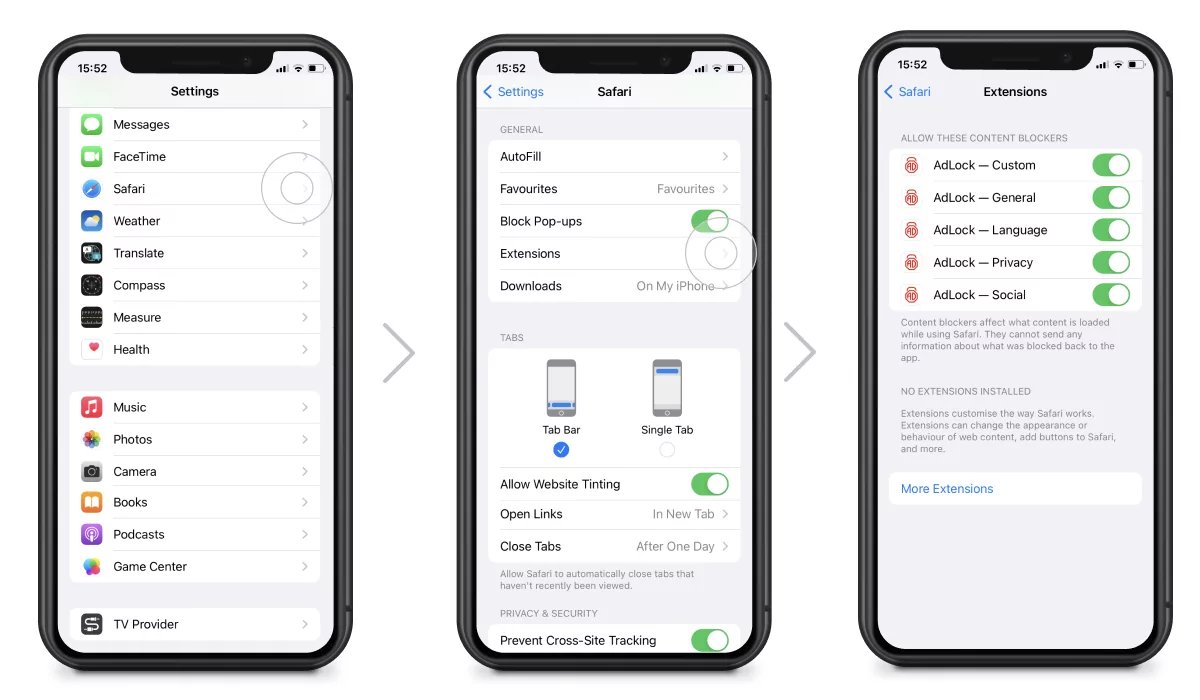
To block in game ads, you can utilize ad-blocking applications, adjust your device’s network settings, or consider a premium game version.
Tired of those pesky interruptions while you’re deep in a game? We understand. Those annoying ads can really break the flow, right? It’s frustrating, but the good news is that you can absolutely learn how to block in game ads, and we’ll walk you through it.
There are several methods available to achieve an ad-free gaming experience. Some involve using specific applications, while others leverage your device’s built-in settings. We’ll explain the most common approaches.

How to Block In-Game Ads: A Simple Guide
Alright, let’s talk about something that can be super annoying – those ads that pop up while you’re trying to have fun playing games! Whether you’re battling dragons, building cities, or racing cars, unexpected ads can really ruin the flow. But guess what? You’re not stuck with them! There are ways to take control and get rid of those pesky interruptions. This guide will show you some easy methods and tips for blocking in-game ads. We’ll cover everything from simple settings changes to using specific apps. Let’s make your gaming time more enjoyable and uninterrupted!
Understanding Why Ads Appear in Games
Before we dive into blocking ads, it helps to know why they’re there in the first place. Most of the time, the games we play are free. Game developers need a way to make money so they can keep creating these awesome games. Showing ads is one way they do this. These ads are often designed to be interactive, sometimes even offering rewards in the game if you watch them. However, too many ads can make games less fun. Knowing this, let’s look at how to get rid of them!
Types of In-Game Ads
In-game ads come in different forms. Understanding these can help you figure out the best way to block them:
- Banner Ads: These are the ads that usually appear at the top or bottom of your screen. They’re usually just a picture or a simple animated display.
- Interstitial Ads: These ads pop up in full screen and sometimes require you to watch a video or close them before you can keep playing.
- Video Ads: These are short video clips that play before, during, or after a game.
- Rewarded Ads: These ads give you something in the game for watching them, such as extra lives or coins.
Sometimes, these ads are skippable after a few seconds, but many of them are not and they interrupt the gaming experience. Knowing these different types helps understand the strategy behind why they appear and how to deal with them.
Simple Steps to Reduce Ads on Your Mobile Device
Let’s start with some straightforward solutions that you can try right away on your phone or tablet. These methods usually work with many free games.
Using Airplane Mode
This is one of the quickest and easiest tricks! When you put your device in airplane mode, it turns off your Wi-Fi and mobile data. This stops ads from loading. Here’s how:
- Find the ‘Settings’ app on your phone or tablet.
- Look for an option labeled “Airplane Mode” or something similar.
- Flip the switch to turn it on.
Important Note: When you do this, you will not be able to play games that require an internet connection. This method works best for offline single-player games. You also won’t receive messages or notifications in this mode.
Adjusting Your Wi-Fi Settings
Sometimes, the way your phone is connected to the internet allows ads to come through. By making some slight changes to your Wi-Fi settings, you can make it difficult for the ads to load.
Here’s how to do that:
- Go into your phone’s settings and choose ‘Wi-Fi’.
- Click on your active Wi-Fi connection.
- Look for ‘Advanced Settings’ or ‘Configure DNS’.
- In the DNS settings, change the DNS from ‘Automatic’ to ‘Manual’ or ‘Custom’.
- For the first DNS, enter 1.1.1.1 and for the second enter 1.0.0.1.
What this does is change the domain name server to a public one, which can sometimes block ad requests. This method does not always work for all ads. Sometimes they still manage to appear, but it is still worth a try. If this method does not work for you, then move on to the next method.
Turning Off Ad Personalization
Many apps and games use your data to show you ads that they think you’ll like. You can limit this by turning off ad personalization in your device settings. This may not block all ads, but it could lead to fewer and less targeted ads.
For Android devices:
- Open your phone’s ‘Settings’ app.
- Find ‘Google’ and click it.
- Tap ‘Ads’.
- Turn on ‘Opt out of Ads Personalization’.
For iOS devices:
- Go to your phone’s ‘Settings’ app.
- Tap on ‘Privacy’.
- Select ‘Advertising’.
- Turn on ‘Limit Ad Tracking’.
By turning off ad personalization you can help to limit the amount of data being used to show you tailored advertisements. This is not a full stop ad blocker, but may help to limit the number of ads that appear.
Using Third-Party Ad-Blocking Apps
Sometimes, the built-in options aren’t enough, and you need to bring in some extra help. That’s where third-party ad-blocking apps come in! These apps are specifically designed to block ads across all your apps and games, giving you a smoother experience.
How Ad Blockers Work
Ad blockers work by filtering your internet traffic and blocking requests to ad servers. They use databases of known ad URLs and sometimes analyze the content to identify and block ads. There are different kinds, some are VPN-based (virtual private networks) and some use local DNS (domain name system) settings. Let’s go through some different options and ways to use them.
Recommended Ad-Blocking Apps
Here are a few popular ad-blocking apps that you can try on your mobile device:
- Blockada: This app works by creating a local VPN connection on your device, blocking ads at the network level. It’s free and open-source, offering customization options. It’s worth noting that you can’t download Blockada from the app store, you have to download it directly from the Blockada website.
- AdGuard: AdGuard is another strong option that works as a filter. They are available on the app store and they are good for mobile devices, and also have a desktop version as well. AdGuard can filter ads on the application level, which is a very good option.
- NextDNS: NextDNS works using DNS filtering to block ads, which is generally a reliable method. You can try out a trial version of this software for free, and then you will have to pay for it. However, it is a great option for both mobile and desktop.
- Brave Browser: If you mainly play games in your web browser, Brave is a good alternative, as it is a browser that automatically blocks ads and trackers. This is a good all-around browser and it can also block ads on various websites.
Setting up an Ad-Blocking App
While the exact setup steps may vary depending on the app you choose, the general process is usually similar. Here’s an example of how to set up Blockada, one of the more popular options:
- Download the app directly from their website (blockada.org), as it’s not available on the App Store.
- Open the app and agree to any terms.
- Tap the large button in the middle to start blocking ads.
- If prompted, give it VPN permissions, so that it can work correctly.
Most other apps are similar; they will ask for various permissions to block ads, which is usually VPN permission or DNS settings permission. Follow their specific instructions to get everything set up correctly.
Important Note: Be careful when downloading apps from the internet. Only download apps from sources you trust. Ad-blocking apps do take up space on your phone and they will use some battery while running. Usually, this is minimal, but it’s something to keep in mind.
Using Modified Game Apps (With Caution)
Another method that some players use is installing modified versions of games. These modded apps are usually tweaked to remove advertisements. However, this approach comes with significant risks. It’s important to understand both the benefits and potential drawbacks before you consider this method.
How Modified Apps Work
Modded apps are created by third-party developers who make changes to the original game’s code. These modifications can remove ads, give you unlimited resources, or other gameplay advantages. These apps are usually not available on the official app stores like Google Play or the Apple App Store. People usually find these modded game versions on different forums or websites across the internet.
Risks of Using Modified Apps
There are some significant risks with downloading and using modified apps.
- Security Threats: Modified apps can contain malware or viruses that can harm your device or steal your personal information. These apps are often not checked by security companies, and therefore it may be risky to download them.
- Unstable Apps: Modified apps can often be unstable and cause your game to crash or not run properly. They are not the official version of the app, and this often means the app does not run as well as the original version.
- Ban Risks: If you play a multiplayer game that has an online component, the game developers may detect that you’re using a modified version and ban your account. This means you can lose all of your progress in the game.
- Legal Issues: Using modified versions of games can violate copyright laws. This could potentially lead to legal problems, although this is unlikely.
Ethical Considerations
Even without considering the potential legal and safety issues, there is still an ethical side to modded games. The games are usually free to play, which means that the developers will make a profit from ad revenue. When people are using modified versions of games that remove the advertisements, they are essentially depriving the developers of profit. In turn, this could lead to less money to create and develop more games.
Recommendation: Because of all of these risks, it is not generally recommended to use modded apps. If you decide to use them, make sure to do so with a lot of caution and only download from well-trusted sources. However, for the safest experience, it is best to use other ad-blocking methods, rather than modded game versions.
Tips for a Better Gaming Experience
Here are some extra tips to help you make your gaming experience even better:
- Consider Paid Versions: If you really enjoy a game, you may consider paying for the ad-free version. This helps the game developers and also provides an uninterrupted gaming experience. This also gives you support from the developers if you have problems or questions about the game.
- Adjust Game Settings: Some games have a setting that reduces ads or asks you before showing them. Take a look at the game settings to see if they have something like this.
- Update Your Apps Regularly: Make sure you keep your games up to date. Sometimes, updates fix issues with ads or give you new ad-blocking features.
- Report Bad Ads: If you find an ad to be inappropriate or confusing, many platforms have a way for you to report it, which can help improve the game for others.
By using these extra tips with your ad-blocking tools, you can really improve your gameplay experience.
Ad Blocking on Specific Platforms
It is useful to note that not all devices function in the same way. There are different things to consider when blocking ads, depending on the platform that you are playing on. So let’s have a quick look at ad blocking on some of the more common platforms.
PC Gaming
For PC gaming, you have a different set of tools available. For example, you can block ads on your web browser using software such as AdBlock or uBlock origin. Also, if you have games that are not in your browser, you can often adjust settings in your Windows settings to make it harder for ads to load on your device.
Console Gaming
Consoles like PlayStation or Xbox are harder to block ads on. However, they usually have fewer ads anyway, so this is not usually a big issue. You can adjust your network settings to try to block ads, as we have discussed earlier. However, you may not have as much success on this as you may have on a mobile phone or PC.
Mobile Gaming
We have already discussed various ad-blocking strategies for mobile phones. The methods such as installing third-party apps, using airplane mode and adjusting settings in your phone are very effective for most of the free to play mobile games that people enjoy.
In conclusion, while ads can be frustrating, you have many options for reducing or completely blocking them in your games. Whether you choose simple in-device adjustments, reliable ad-blocking apps, or more cautious methods, you can reclaim control of your gaming experience and enjoy uninterrupted play. Remember, it’s about finding what works best for you and your specific needs.
Block Ads on ALL Games (FREE and FAST) #shorts
Final Thoughts
To effectively block in game ads, use a reputable ad-blocking app or adjust your device’s network settings. These methods redirect ad requests, preventing them from appearing in your games. Some games may also offer a premium subscription that removes ads, providing an ad-free experience.
You can also explore third-party apps specifically designed to block ads within games, these often use VPN or DNS techniques. Remember that the best approach depends on your device and game preference. The key is to find the method that works best for you to block in game ads.

