
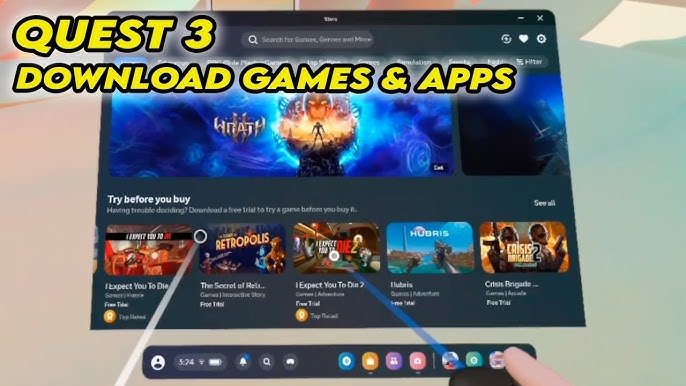
To buy games on Meta Quest 3, you can use the headset’s built-in store or the Meta Quest mobile app to browse and purchase titles.
Ready to dive into incredible virtual worlds? Getting new experiences on your Meta Quest 3 is simple. This article guides you through the process of how to buy games on Meta Quest 3.
You can find a wide variety of content right in the headset store. Alternatively, use the Meta Quest app on your phone to browse for titles and make purchases. The process is user-friendly and takes only a few minutes.

How to Buy Games on Meta Quest 3
Getting new games for your Meta Quest 3 is like stepping into a brand-new world of fun! It’s easier than you might think, and this guide will walk you through everything you need to know. We’ll explore all the ways you can find and purchase exciting new adventures, from the comfort of your headset to using your phone or computer. Let’s dive in and get you ready to expand your game library!
Navigating the Meta Quest Store
The Meta Quest Store is your central hub for all things gaming on your Quest 3. Think of it like a giant online video game shop, but for virtual reality. You can access it directly from inside your headset or through the Meta app on your phone or computer. The store is full of games and experiences, so finding what you’re looking for is key.
Accessing the Store in VR
To jump into the store using your headset, put on your Meta Quest 3. You’ll see a menu in front of you that shows different options. Look for the icon that looks like a shopping bag or a store logo. It usually says “Store” or “Meta Quest Store.” Point your controller at the icon and click the trigger button. Now you are inside the store, ready to explore!
Understanding the Store Layout
Once you’re in the store, you’ll notice different sections. There’s usually a homepage with featured games, new releases, and popular titles. You can also find categories like Action, Adventure, Puzzle, and Multiplayer. Take your time to browse through these sections. Look for games that catch your eye, check out trailers, and see what other players think.
Browsing and Searching for Games
With so many choices, you need ways to find the perfect games. Meta Quest Store makes it easy to browse and search. Let’s look into how to effectively explore and find what you’re searching for.
Using the Search Bar
If you already have a specific game in mind, the search bar is your best friend. It is usually at the top of the screen in the headset or on the app/website. Type in the name of the game using the virtual keyboard (in headset) or your phone/computer’s keyboard and hit enter. The store will show all games that match your search. This is super helpful when you know what you want to play.
Exploring Categories
Sometimes you don’t know exactly what you want. That’s where the categories come into play. The store organizes games into sections like:
- Action
- Adventure
- Puzzle
- Sports
- Multiplayer
- Fitness
Click on these categories to see games grouped by genre, making it easier to find something that fits your interest.
Using Filters
Filters are great if you’re looking for something specific. These allow you to narrow your search by price, rating, number of players, and more. For example, if you only want to see games that are free or have a high rating, use the filters to quickly find those gems. This saves time and shows you what matters most to you.
Reading Reviews and Ratings
Before making a purchase, check out the reviews and ratings other players have given to a game. This gives you an idea of what to expect. Pay attention to what players liked and didn’t like about the game. This can help you make a more informed decision and choose a game you will truly enjoy. A five-star game with lots of positive comments is generally a safer bet than one with a lower rating and negative reviews.
Purchasing Your Games
Now that you’ve found the games you like, it’s time to buy them. The Meta Quest Store offers a few different ways to pay. Let’s go through how you can actually get your hands on these digital goodies!
Adding Payment Methods
Before you can buy anything, you’ll need to add a payment method to your Meta account. This can be done through the Meta app on your phone or computer, or directly within the Meta Quest Store in your headset. You can use a credit card, debit card, or PayPal. Meta keeps your information safe and secure. Here is how to add a payment method.
- Open the Meta app on your phone or visit meta.com on your computer.
- Go to your account settings. Look for something like “Payment Methods.”
- Click “Add Payment Method” and follow the instructions to enter your information.
Making a Purchase in the Headset
When you find a game you want to buy in your headset, click the price button. This will take you to a screen to confirm your purchase. You’ll usually see the price, the name of the game, and the payment method you’ve added. Double-check everything before you hit the “Buy Now” button. If you’re all set, click that button and the game will start downloading!
Making a Purchase Using the App or Website
If you prefer to shop on your phone or computer, you can do that too! Simply open the Meta app or go to meta.com on your computer. Browse the Meta Quest Store and find the games you want to buy. The purchase process is very similar to that in the headset. Click the price button, double-check the details, and hit “Buy Now.” The game will be added to your account and you can download it when you wear the headset.
Understanding Game Pricing
Game prices on the Meta Quest Store vary. Some are free, while others can cost anywhere from a few dollars to around $50 or $60.
Free Games and Demos
Keep an eye out for free games and demos. These are great ways to try new experiences without spending any money. Free games often have ads, or they may be a less complex experience, but they provide access to fun and give you a taste of the potential of your Meta Quest 3. Demos offer a short, free play of a full game, letting you experience it before buying the full version.
Sales and Discounts
The Meta Quest Store often has sales and discounts. Make sure you watch out for these, as they’re a great way to get games at lower prices. Sales events happen around holidays or when new games are released. They usually have big banners in the store. Pay attention to these sales and you can expand your library while saving money. Adding games to your wishlist will make it easy to know when the price drops.
Bundles
Sometimes, the store will offer bundles. This is when they combine several games into one package for a lower price than buying each one separately. Bundles are a good option if you like several games by the same developer, or are looking to try different game genres in one go. These can give good value for your money.
Installing and Playing Your Games
Once you have purchased your games, it’s time to install them and begin playing. This process is straightforward but important to understand.
Downloading Your Purchased Games
After you buy a game, it starts to download automatically to your headset. You can check its download progress in your Library. It usually shows the name of the game and the download percentage. The time it takes to download a game will depend on the game size and your internet connection. Larger games require more time to download. Also, a fast Wi-Fi makes a huge difference.
Finding Games in Your Library
Once the download is complete, the game will appear in your Library. Your Library is where all your games and apps are stored. To see it, open the menu in your headset and look for the Library icon, which usually looks like a bookshelf. Click on that, and you will see all your installed games. You can also find uninstalled games here, ready for you to download later.
Launching Your Games
To begin playing a game, just select it from your Library and click the start button. The game will then start. Some games may start with a tutorial. Always pay attention to the tutorial, because this will give you all the required knowledge you need to get started. Then it’s time to step into your virtual world and enjoy your adventure.
Managing Your Game Library
As you buy more games, it’s good to keep your library organized. Here are some tips for managing your games effectively.
Uninstalling Games
If you need to free up space on your headset, you can uninstall games you’re not currently playing. Go to your Library and find the game you want to uninstall. Click on the game’s menu and select the option to uninstall. This will remove the game from your headset but you don’t lose it. It still stays in your library, ready to be downloaded again when you want to play it.
Reinstalling Games
If you decide you want to play a game again, just find it in your Library. Even if it has been uninstalled, it will still appear. Simply select the game, and it will download again to your headset, and you can play it once more. Your game progress is usually saved on the cloud, so you can continue where you left off.
Organizing with Collections
The Meta Quest store allows you to create collections to organize your games. For example, you can create collections such as “Action Games,” “Multiplayer Games,” or even “Games I Play with Friends”. This makes it easier to find the games you’re looking for, especially if you have a large library. To create a collection, click the “Create Collection” button in your library. You can add games to the collection as you like.
Staying Safe While Buying Games
Just like any online shopping experience, it’s important to stay safe when buying games. Here are a few tips to keep in mind.
Using Strong Passwords
Make sure you use a strong password for your Meta account and keep it safe. A strong password includes numbers, upper and lower case letters, and special characters. Don’t use a password you use for other things. The stronger the password, the safer your account is.
Recognizing Scams
Be wary of links and messages that seem suspicious. If something doesn’t feel right, don’t click it. Only buy games directly from the Meta Quest Store or through reputable sellers. Scammers might try to trick you into entering your information on fake websites. Be careful of those types of methods.
Monitoring Your Purchases
Keep an eye on your account activity and purchases. If you see any transactions you didn’t make, contact Meta Support right away. Also, make sure your payment information is safe and secure.
Buying games on your Meta Quest 3 is a fun and straightforward process. From exploring different genres to downloading games and keeping your library organized, each step is designed to help you get the best out of your device. By taking these points to mind, you’ll soon have a collection of games that bring you hours of fun and entertainment. So, go ahead, and enjoy everything your Meta Quest 3 has to offer!
How to BUY GAMES for META QUEST 3
Final Thoughts
To buy games on your Meta Quest 3, simply navigate to the Meta Quest store within your headset. Browse the selection, and then select the game you desire. You can purchase using payment methods linked to your Meta account.
After selection, confirm your purchase. The game downloads to your device automatically. This is how to buy games on meta quest 3 quickly. Enjoy your new VR gaming experience.

