
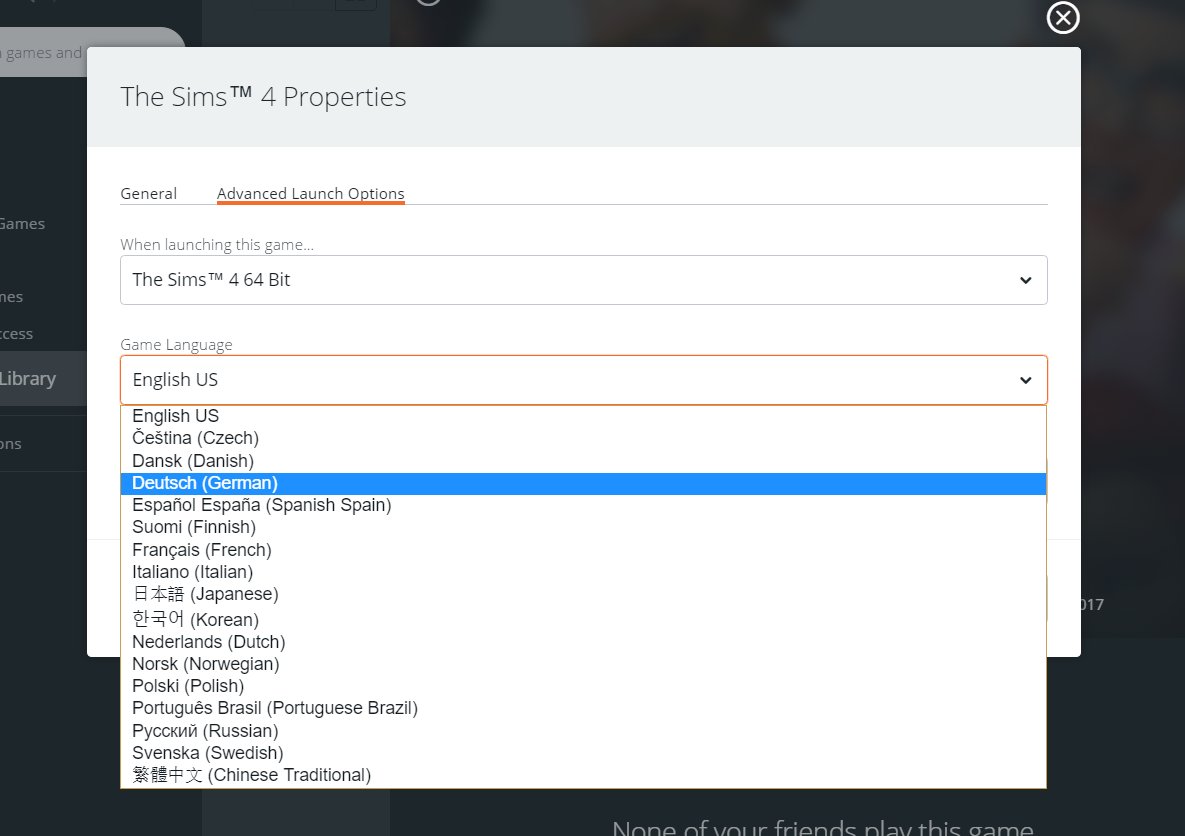
To change a game to English, navigate to the game’s settings menu, find the language options, and select English.
Have you ever started a game, only to find it’s not in the language you understand? It can be frustrating trying to navigate menus in a foreign tongue! This guide will show you how to change game to english.
Most games offer a language setting within their options menu. You typically find this option within the game itself, not your system settings. We will show you how to find it.

How to Change Game to English
So, you’ve got a cool game, but all the words are in a language you don’t understand? That can be super frustrating! Don’t worry, lots of games let you change the language to English. It’s like magic, but really, it’s just a few settings changes. This guide will walk you through how to switch your game to English on different platforms. We will cover the most common methods, troubleshooting steps, and even touch on those tricky situations where a game doesn’t seem to want to switch.
Why is My Game Not in English?
Before we jump into changing things, let’s figure out why your game might be showing another language in the first place. There are a few common reasons for this:
- Default Language Settings: Some games pick a language based on where you bought the game or what language your computer or console uses.
- Region Locks: Sometimes, the game version you have is designed for a certain part of the world and comes with a set language.
- Accidental Changes: It’s possible you or someone else might have accidentally changed the game’s language settings.
- Game Updates: Occasionally, game updates can reset language settings. This is rare, but it can happen.
Changing Language on PC Games
Computer games often have a lot of options, so changing the language might seem confusing. But it’s usually pretty simple if you know where to look. Let’s go through the common methods.
Changing Language Within the Game Settings
This is the most common and easiest method to change the language of your game to english. Here’s how to do it:
- Start the Game: Open the game you want to change to English.
- Find the Options or Settings Menu: Usually, there’s a button or a menu option that says “Options,” “Settings,” or something similar. It might be on the main menu screen or in the game’s pause menu. Look for a gear icon or something that looks like it represents settings.
- Look for Language Settings: Once inside the options, find where the language settings are. It might be labeled “Language,” “Language Settings,” or “Audio & Language”. If the game has different audio languages, there might be a separate option just for that.
- Choose English: You will likely see a drop-down menu or list of languages. Pick “English” from the list.
- Save and Restart (if needed): Some games will change the language right away. Others might ask you to save the changes and might require you to restart the game for the new language to take effect. If the game suggests to restart the game, do as the game says, otherwise, it might not work properly.
Tips for Finding Language Settings:
- Look for a globe icon; it often indicates language-related settings.
- Sometimes, languages are listed with their country’s flag.
- If you see many settings, try searching the words “language”, it might be hidden.
Changing Language Through the Game Launcher
Some games, especially online games, use a “launcher” – a separate program you open before the actual game starts. This is another place you might be able to change the language.
- Open the Launcher: Start the launcher for your game. It’s often the program you open to update or start the game.
- Look for Settings or Options: Find the launcher’s options or settings menu. The layout will vary depending on the game’s launcher. It might be a gear icon, a menu, or a button at the top of the launcher screen.
- Find Language Selection: Inside the settings, there will likely be a place where you can choose a language for the game.
- Select English and Save: Pick English from the list of languages available. Then, if required, save the changes you made.
- Start the Game: Start the game as usual through the launcher. The game should now be in English.
For instance, if you are playing a game through a platform like Steam, Epic Games Store, or GOG, each of these platforms has its own way of changing game language.
Changing Language Through Steam
Steam is very popular, and changing the language on Steam games is relatively straightforward. Here’s how:
- Open Steam: Launch the Steam application on your computer.
- Go to Your Library: Click on “Library” on the top left.
- Find Your Game: Locate the game you want to change the language for in your game library.
- Right Click and Properties: Right-click on the game and select “Properties”.
- Select language Tab: A new window will open. Choose the “Language” tab from the options on the left side of the window.
- Choose English: You’ll see a drop-down menu where you can select your desired language. Choose “English”.
- Close the window: Close the window, Steam will try to download English language data automatically.
- Start Your Game: Now you can start the game and it should now be in English.
Changing Language Through Epic Games Store
The Epic Games Store uses similar methods to change game languages:
- Open Epic Games Launcher: Open the Epic Games Store app on your PC.
- Go to Your Library: Click on “Library” on the left side of the window.
- Find Your Game: Find the game from your library that you want to change language for.
- Click Three Dots: Click on the three dots next to the game title.
- Options: Select “Options”.
- Choose English Language: Check the box next to “English”. Uncheck the other languages if you want.
- Start Game: Start your game from the library, now the game should be in english.
Changing Language Through GOG Galaxy
GOG Galaxy is another platform where you can easily change game languages:
- Open GOG Galaxy: Launch GOG Galaxy on your computer.
- Go to Owned Games: Go to “Owned Games” on the left side.
- Find Your Game: Find the game from your library that you want to change language for.
- Click More button: On the game card you’ll see a “More” button, click on this.
- Manage installation: Click on the “Manage Installation” option.
- Configure: Choose the option for “Configure”.
- Select Language: Find the “Language” option, select the English option and confirm.
- Start Game: Start your game from the library, now the game should be in English.
Changing Language by Editing Game Configuration Files
This is a more advanced method and is usually not needed. But if you cannot change language within the game or launcher, you might have to try it:
Warning: Be careful when editing game configuration files. Making mistakes could cause problems with the game. It’s a good idea to make a backup of the configuration file before changing anything.
- Find the Configuration Files: Game configuration files are usually located in the game’s installation folder or in your computer’s Documents folder. Look for file extensions like .ini, .cfg, or .json.
- Open the File: Right-click the configuration file and choose “Open With” and then select a text editor, like Notepad on Windows or TextEdit on Mac.
- Find the Language Setting: Look through the file for a setting that mentions “language,” “locale,” or “text”. It usually looks something like this:
language = "en". Or something likelocale = "en_US". - Change to English: If the setting is in another language, change it to the corresponding English codes (like ‘en’ for basic English, ‘en_US’ for American English, or ‘en_GB’ for British English). If you see other codes, you may search online what the English code is for that game.
- Save the File: Save the changes you made in the file.
- Start the Game: Try to start the game, the game should now be in English.
Changing Language on Console Games (PlayStation, Xbox, Nintendo Switch)
Console games often use the system’s default language settings. Let’s look at how to handle this on different consoles.
Changing Language on PlayStation (PS4, PS5)
The language on PlayStation is mostly tied to your console’s system language setting.
- Go to Settings: Turn on your PlayStation console and go to the main settings menu (look for the gear icon).
- Find System Settings: Find the “System” or “System Language” option.
- Choose Language: Pick “Language” and choose “English” from the list.
- Restart if needed: You may need to restart the console or the game for this change to be completely effective.
Changing Language on Xbox (Xbox One, Xbox Series X/S)
Xbox is similar to PlayStation in that the game language usually follows the console’s system language.
- Go to Settings: Turn on your Xbox and go to the main dashboard. Press the Xbox button and find “Settings”.
- Find System Settings: Select “System” then “Language & Location”.
- Choose Language: Change the language to “English” from the options.
- Restart if needed: You may need to restart the console or the game for this change to be completely effective.
Changing Language on Nintendo Switch
The Nintendo Switch also depends on the console’s language settings.
- Go to System Settings: Turn on your Nintendo Switch and go to the main menu. Select the “System Settings” (the gear icon).
- Find System Settings: Scroll down and select “System”.
- Choose Language: Select “Language” and pick “English” from the available options.
- Restart if needed: You may need to restart the console or the game for this change to be completely effective.
Troubleshooting Language Change Problems
Sometimes, despite doing everything, the game will still not switch to English. Here are a few common problems and what you can try:
Game Doesn’t Have an English Option
Not every game has all languages available. If you don’t see English listed in the options, it is possible that the game doesn’t have an English language pack included. If you really want to play the game in english, search online if there are any fan-made patches available.
Game Doesn’t Save the Language Settings
Sometimes, a game won’t save your language choices. Here are a few things to try:
- Run the game as administrator: On PC, right-click on the game’s shortcut and choose “Run as Administrator”. This might allow the game to save the settings correctly.
- Check for updates: Make sure the game is updated to the latest version. Some bugs related to language settings may get fixed in an update.
- Check Game File Integrity: Game files might be corrupted, which can make a game unable to save the settings properly. In Steam you can verify game file integrity, and in other platforms there should be a similar option.
Game Language Changes Back After an Update
Updates can sometimes reset settings. If this happens:
- Check settings: Go back to the language settings and change it back to English after the update.
- Contact support: If it keeps happening after each update, contact the game’s support team. It may be a bug.
Third-Party Language Packs or Patches
For some games that do not provide the official support for the English language, there might be third-party language packs or fan-made patches that can translate the game. Be careful and make sure to use only trusted resources and reputable websites to download these files from, and always scan them with antivirus software to keep yourself and your device safe.
Tips for Finding Help
If you’re still having trouble, here are some great places to seek help:
- Game’s Official Website or Forum: Look for an official website or forum related to your game. You might find answers in the FAQ section or be able to ask other users.
- Online Communities: Find a community for your game, like a subreddit or a Discord server. Often, other users have faced the same problem and can offer assistance.
- Game’s Support Team: Many games have a support team. Check the game’s website to find how to contact them. They may have specific solutions or advice.
- YouTube or Google: There are countless videos and articles online about changing game languages. Search for “how to change [game name] to English” on YouTube or Google to see if someone has made a specific guide for that game.
Changing the game language to English can feel like a big challenge if you don’t know how, but most of the time, it’s a matter of understanding where to look for the settings and then selecting the appropriate option. If you carefully follow the instructions provided above, in most scenarios you will succeed. If not, don’t panic, and keep trying different solutions, or ask other people for help, and you will eventually succeed!
Change language of any game from Russian to English.
Final Thoughts
Changing a game’s language usually involves finding the settings menu. Within the settings, locate the language options. Select “English” from the provided list. Sometimes, restarting the game may be required for changes to take effect.
Therefore, to summarize, changing a game’s language is mostly found in the settings section. You must select your preferred language, typically English. Now you know how to change game to english.

