
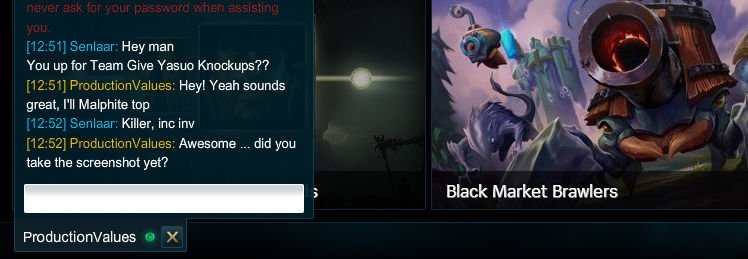
To chat in game League of Legends, press the ‘Enter’ key to open the chat window and type your message. Then, press ‘Enter’ again to send it to your teammates.
Ever felt the need to coordinate with your team or share a quick joke during a League of Legends match? Communication is key to victory, and knowing how to chat in game League of Legends is essential for any player. It’s surprisingly simple, yet a vital part of the game.
This small act can make all the difference between a great play and a missed opportunity. Chatting allows you to strategize, offer encouragement, or even just vent some frustration after a close call. This article will help you quickly get into the chat.

How to Chat in Game League of Legends
Talking to your teammates in League of Legends is super important! It’s how you plan attacks, call for help, and even make new friends. But if you don’t know how to use the chat, it can be like trying to play with one hand tied behind your back. This guide will show you everything you need to know about chatting in League of Legends, so you can communicate like a pro.
Opening the Chat Window
The first step to chatting is, of course, opening the chat window! It’s really simple. Here’s how you do it:
- Press Enter: The most common way is by pressing the Enter key on your keyboard. This opens the chat bar at the bottom of your screen.
Once you press Enter, you will see a blinking line. This is where you type your message.
Different Chat Channels
League of Legends has different “channels” for chat, so you can choose who sees your messages. Let’s explore these options:
Team Chat
Team chat is the default channel. This means that when you open the chat and type, only your teammates will see what you say. This is great for coordinating strategies and discussing what to do next. This is how to do it :
- Type Your Message and Press Enter: Once you have the chat bar open, start typing. Your message will only be visible to your team members. When you are done, press the Enter key to send your message.
All Chat
Sometimes, you want to talk to everyone in the game – both your team and the enemy team. This is where all chat comes in handy. You can use all chat to say “good game” after the match, or maybe even try to confuse the other team (though that’s not always a good idea!). Here’s how to access All Chat:
- Type /all or /a before your message: Before you type your message, type /all or /a followed by a space and then type your text. For example, you can write “/all Good luck everyone!”.
Remember that anything you type in all chat can be seen by everyone in the game.
Whispering (Private Messages)
Sometimes, you want to talk to a specific person without everyone seeing your conversation. Whispering lets you send a private message. Here’s how:
- Type /w or /whisper followed by the player’s name and your message: For example, to whisper to someone named “AwesomeGamer,” you would type “/w AwesomeGamer Hey, wanna duo?”. Only AwesomeGamer will see that message.
If the player is on your friend list, you can type a short version of their name.
Group Chat
If you are in a party with friends, there might be a group chat window open by default. Anything typed into that will only be seen by the people in the party that you are in.
It is useful when planning before the game starts. Remember to not give any valuable information to the enemy team.
Basic Chat Commands
League of Legends uses certain commands that will help you to navigate the in game chat. Here is some that you will see.
- /help: If you are unsure what any of the chat commands are, type /help in the chat bar and press enter. This will list all of the basic chat commands and explain how to use them.
- /mute or /ignore player name: If a player is saying unkind things or spamming the chat, you can use this command. Replace “player name” with the name of the person you want to mute or ignore.
- /fullmute player name: This is the same as /mute but it will also mute their pings too.
- /unmute player name: Use this command to unmute a player that you have previously muted.
- /deafen: This will mute all incoming chat from other players.
- /surrender or /ff: This is the command you can use to start a surrender vote.
These commands can really help you when you are playing League of Legends. Learning how and when to use them is useful.
Chat Etiquette: Being a Good Teammate
Chat is a powerful tool, but it’s important to use it in a way that helps your team. Here are a few rules of thumb:
Be Positive
Everyone makes mistakes. Try to be encouraging and offer helpful suggestions instead of criticizing or blaming. Positive attitudes can really change the flow of the game. This does not mean you shouldn’t suggest a change or give advice, this is very helpful to teammates and can help you win the game, just always be respectful.
Avoid Flaming
“Flaming” means being mean or insulting. No one likes to be flamed. It makes your teammates feel bad and doesn’t help anyone win. If someone is upset about losing, help them calm down.
Don’t Spam
Sending too many messages at once is called “spamming.” It makes it hard for your team to read important information. If you have a long message, try to make it easy to understand by putting line breaks into it.
Use Pings
Pings are visual signals on the map that can help you communicate with your team without typing. They are very fast and convenient. Here is how to use them
- Hold Alt or G key: When you press these buttons, you will see a wheel of ping options appear.
- Move your mouse: Move your mouse to the ping you want to make.
- Release the button: To send the ping you want, release the button you were holding.
There are different ping types, including:
- Danger: To warn your teammates of possible danger. Use this when the enemy team are near or if there is a chance of a gank.
- On my way: Let your teammates know that you are coming to assist them.
- Assist me: Signal to your teammates that you need help.
- Enemy Missing: Alert the team that the enemy is not visible and might be trying to surprise the team.
Pings are very useful and often more efficient than typing, so it is important to learn them.
Advanced Chat Tips
Once you get comfortable with the basics, here are a few ways you can use chat even more effectively:
Using Shortcuts
There are many shortcuts that you can use to help communicate. These are mostly using the F keys on your keyboard. Here are a couple of examples.
- F1-F5: These will bring you to your teammates cameras. For example, if you press F1, it will focus the camera on the character your first teammate is using.
- Spacebar: Pressing spacebar will lock the camera back on your own character. This is handy after looking around the map.
Using Timers
You can use the chat to tell the team when important objectives and summoner spells will come back up. For example, after the Dragon has been killed, you can type “Dragon is down for 5 minutes” into the chat. This will remind you and your team when the Dragon will come up next. This is a good tip to improve communication and increase your chances of winning the game.
Learning Common Terms
Players use a lot of short words and abbreviations in the game. These terms are used to save time and chat more efficiently. Here are some of the most common words you will see.
- “Gank”: This refers to when a jungler or other player comes to a lane to help get a kill.
- “B”: This is shorthand for “back”. This is to let your team know that you need to retreat to the base.
- “Push”: This is letting your team know that they need to focus on taking towers.
- “Farm”: This is referring to the last hitting minions to gain gold.
- “CD”: This is shorthand for “cool down”. This is to let your team know that your abilities are not ready to use yet.
- “CC”: This is shorthand for crowd control. Abilities that make it hard for the opponent to move are described as CC.
- “GG”: This is short for “good game”. Many people say this at the end of the match.
Troubleshooting Chat Issues
Sometimes, the chat might not work as expected. Here are a few things to check if you are having problems:
Check Your Chat Settings
Make sure that your chat settings in the game menu are turned on. Sometimes, these settings can get accidentally changed. Here’s how you do this :
- Click the Gear Icon: Look for the gear icon in the top right corner of your game client. This opens the game settings.
- Click Interface: There is a tab in the game menu called “interface”, click on this.
- Check Chat: In this tab, there should be settings related to chat. Make sure these settings are enabled.
Restart the Game
If you are still having issues, try restarting the game. Sometimes, a quick restart is all you need to fix the chat.
Check your Internet Connection
Sometimes your internet connection can be the cause of chat problems. Make sure that your internet is working correctly. Try closing and reopening the game if you are still having problems.
By following these easy steps, you can quickly be communicating and working with your team effectively.
Chatting in League of Legends doesn’t have to be tricky. By understanding the different channels, using the correct commands, and being a good teammate, you’ll communicate like a true champion. Remember, it’s about teamwork and having fun. So, get in the game, start chatting, and have a blast!
How to Chat in League of Legends – Communicate with players during the LOL game #lolguide
Final Thoughts
To chat in game, press enter. This opens the chat window. Type your message, then press enter again to send. Remember that you must use this method for all chats.
Team chat is the default option. To send messages only to your team, just type. To send messages to everyone, type /all before your text. This shows your message to both teams.
Understanding how to chat in game league of legends is crucial. Use the chat function effectively to coordinate with your team, but always maintain respectful communication. Good communication contributes to better teamwork, and team work is a must.

