
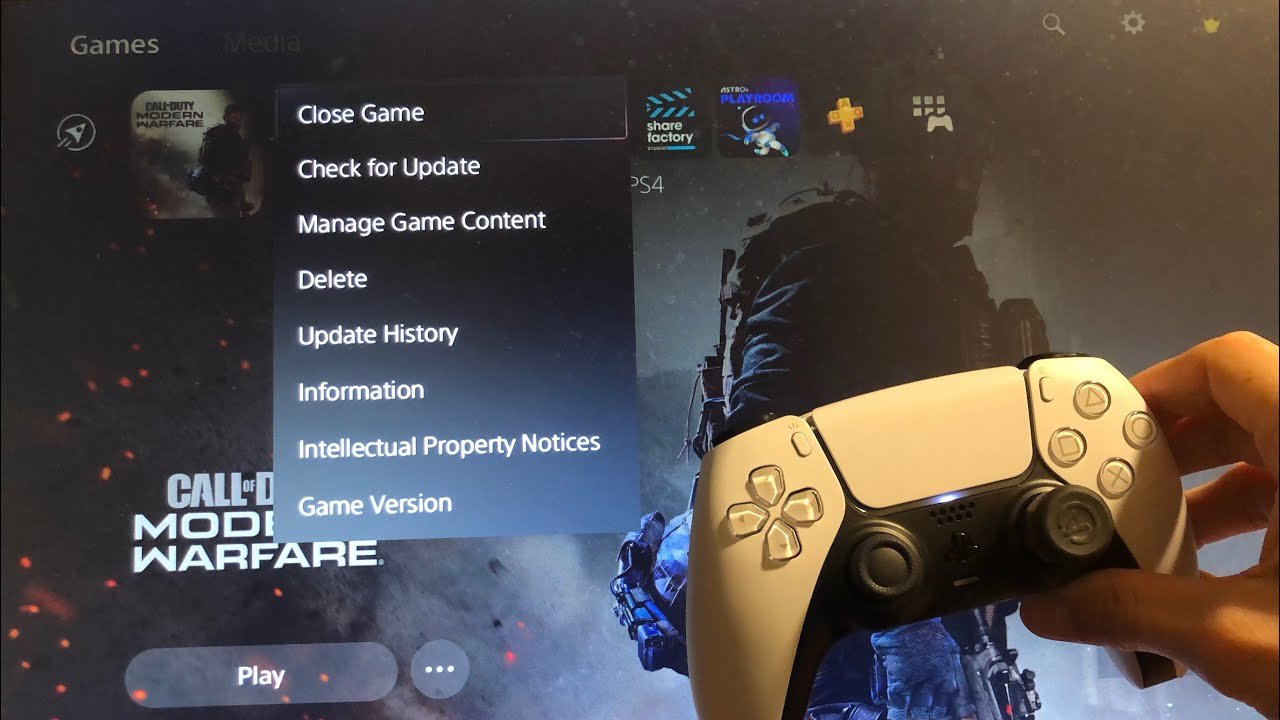
To close games on your PS5, press the PlayStation button, select the game from the Activity Cards or the Home Screen, press the Options button, and then choose “Close Game.”
Ever found yourself switching between games on your PlayStation 5 and wondered how to actually shut one down completely? It’s a common question, and understanding how to close games ps5 properly helps keep your console running smoothly.
Leaving games running in the background can sometimes impact performance, so knowing the simple steps to fully quit out of a game is useful. You’ll be surprised how easy this is to do.

How to Close Games on PS5
So, you’re playing an awesome game on your PlayStation 5, and it’s time to switch to something else, or maybe take a break? You might be wondering, “How do I actually close this game?” It’s not always as straightforward as just turning off the console, and leaving games running in the background can sometimes slow things down. Don’t worry, we’re here to help! Let’s explore all the easy ways you can close your games on the PS5.
Understanding Why Closing Games is Important
Before we dive into the “how,” let’s quickly talk about the “why.” You might be thinking, “Does it really matter if I close a game?” Well, yes, it actually does! Here’s why:
- Performance Boost: When you have games running in the background, even if you’re not actively playing them, they still use some of the PS5’s resources. This can make other games or even the system menus feel a bit slower. Closing games frees up those resources. Think of it like having too many toys out at once – it makes it harder to play with the ones you actually want!
- Preventing Errors: Sometimes, leaving a game running for too long can cause little glitches or errors. Closing and restarting the game can often fix these problems. It’s like giving your game a fresh start.
- Saving Game Progress: While most games autosave your progress, closing a game properly usually ensures that all your latest progress has been saved, so when you come back you can pick up right where you left off, without worrying about any lost progress.
The Quick and Easy Way: Using the PlayStation Button
The most common and easy method to close a game on your PS5 involves using the PlayStation button on your controller. This button is the one with the PlayStation logo on it. Here’s how it works:
- Press the PlayStation Button: When you’re inside the game, press the PlayStation button once. This will take you to the Control Center menu.
- Highlight the Game: In the Control Center, you’ll see icons for your currently running games, usually shown on the bottom card of the interface. Use the left stick or the D-pad to select the game you want to close.
- Press the Options Button: Once your game is selected, press the Options button on your controller. The options button is located near the center of your DualSense controller, and it has three horizontal lines on it.
- Choose “Close Game”: A small menu will appear. Scroll down and select “Close Game,” then press the X button to confirm your choice.
- Game is Closed: The game will now close, and you will be taken back to the PS5 Home Screen.
And just like that, you’ve successfully closed your game!
Closing Games From the Home Screen
Another way to close your game is directly from the PS5’s home screen. This is a great method if you have already returned to the home screen but forgot to properly close the game. Here’s how you can do it:
- Go to the Home Screen: If you’re not already there, press the PlayStation button once to return to the home screen.
- Find the Game: Use the D-pad or left stick to navigate through the games that you have installed and currently playing to find the game you want to close.
- Highlight the Game: Use the D-pad to select the game you wish to close.
- Press the Options Button: Once your game is selected, press the Options button on your controller, located near the center of your DualSense controller and has three horizontal lines on it.
- Choose “Close Game”: A menu will appear. Use the left stick or D-pad to select “Close Game” and then press the “X” button to confirm your choice.
- Game is Closed: The game will close and disappear from the currently running game card section of the home screen.
Using the Quick Menu
The Quick Menu gives you super fast access to some key PS5 features. You can use it to close your game, too! Here’s how it works:
- Press the PlayStation Button: While playing your game, press the PlayStation button on your controller once. This will bring up the Control Center, which is similar to the Quick Menu.
- Navigate to the Game Card: In the Control Center, look for the icon of the game you want to close, usually shown in the bottom card.
- Press the Options Button: With the game highlighted, press the Options button on your controller (the button with the three horizontal lines).
- Select Close Game: Choose “Close Game” from the menu that appears and press the “X” button.
- Game is Closed: The game will close, and you’ll return to the Control Center or Home Screen.
Switching Between Games: A Note on Closing
Sometimes you might want to quickly jump between a few games. You can do this from the Control Center using the game cards at the bottom of your screen. If you use this method, games may stay in a suspended mode. When you navigate away to another game it’ll stay in that mode. The game card itself will also show a little resume icon. However, you can still close games using the methods outlined above. So, if you want to fully close a game before starting another, be sure to take that extra step to ensure games are not suspended in the background.
What Happens If You Don’t Close Games Properly?
While the PS5 is designed to handle games in the background, it’s still a good habit to close them when you’re done. Here’s what can happen if you don’t:
- Resource Use: As mentioned, games running in the background still use some of the PS5’s processing power and memory. This can make the console run slightly slower.
- Potential Issues: Some games might experience glitches or performance issues if they’re left running for a long time without being restarted. This is less common but still something to keep in mind.
- Game Status: The game remains suspended in the background, which can be a problem if you need to reload the game for various reasons.
Why the PS5 Makes it Easy to Close Games
Sony designed the PS5 with user convenience in mind, and it’s no different when it comes to closing games. The system is designed to make it easy to manage your running games so that it doesn’t become a problem for you. Sony wanted to make sure players didn’t get into a bad habit of just exiting their games, they wanted the process of closing a game to be simple and fast, so they made it very easy to access the close game function from multiple places.
Troubleshooting Tips for Closing Games on PS5
Sometimes, things might not go exactly as planned. Here are some troubleshooting steps you can try if you’re having problems closing a game on your PS5:
Game Won’t Close
If the game appears to be frozen or won’t respond when you try to close it, you can try these tips:
- Force Close: You can force close an application by using the same methods described above, sometimes you need to try them more than once if the game is very stuck.
- Restart Your Console: Sometimes a simple restart can fix things. Hold down the PlayStation button until the power menu appears, then choose “Restart PS5”.
- Check for Updates: Make sure your PS5 and the game are fully updated. Sometimes, outdated software can cause problems. You can check for updates in your system settings.
Controller Issues
If your controller isn’t responding, try these steps:
- Check Battery: Make sure your controller has enough battery power. If it’s too low, plug it in to charge it.
- Reconnect Controller: If your controller is fully charged, try reconnecting it. You can do this by turning the controller off, and turning it back on. Sometimes you have to do this a couple of times.
- Use Another Controller: If you have another controller, try using it to see if the issue is with the controller itself.
Tips to Make the Process Even Smoother
Here are a few extra tips to keep in mind when closing games:
- Get Familiar with the Buttons: Knowing the location of the PlayStation and Options buttons is key to quickly and easily closing games.
- Regular Closing Habit: Make it a habit to close your game when you’re finished playing, even if you plan to return to it soon. This helps your PS5 perform at its best.
- Use the Control Center: The Control Center is your friend. Get used to using the menu to do more than just close games.
Closing games on the PS5 is really quite easy once you know how. Just remember the PlayStation button, the Options button, and you will have no trouble. By using these techniques, you’ll ensure that your console runs smoothly and your games are saved properly. Now you know how to close games on PS5 like a pro! Enjoy your gaming!
PS5: How to Close Games & Applications Tutorial! (For Beginners) 2024
Final Thoughts
To close games on your PS5, press the PlayStation button to access the control center. Then, highlight the game you want to close. Next, press the options button and choose ‘close game’.
This action shuts down the application. Understanding how to close games ps5 is crucial for proper system management and optimizing performance. It prevents background activity from using resources when you are done playing.

