
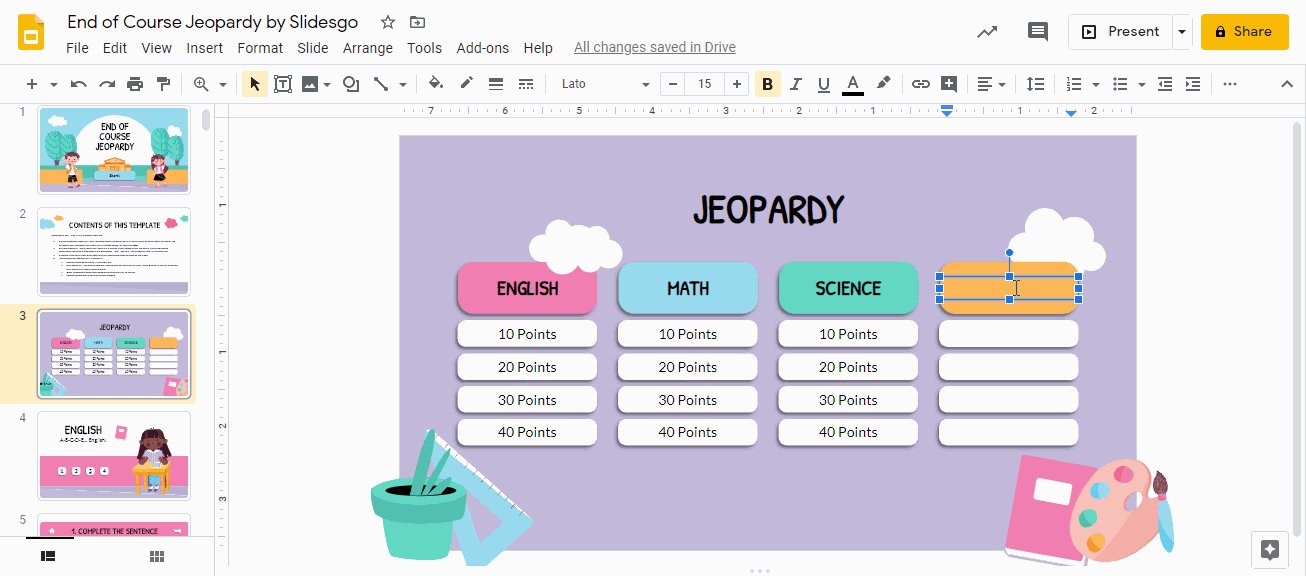
Creating a Jeopardy game in Google Slides involves setting up a grid, linking each square to a question slide, and then adding an answer slide, facilitating an interactive and engaging game.
Want to make your presentations more fun? Thinking about how to create a jeopardy game in google slides can be a great option. It’s simpler than you might think to design an engaging game using just slides. This method can bring a new level of excitement to learning or reviews.
With some smart linking and basic formatting, you can design a complete Jeopardy game. Your audience will be completely hooked on your presentation. It’s a simple technique with a large impact.

How to Create a Jeopardy Game in Google Slides
Creating a Jeopardy game in Google Slides is a super fun way to make learning exciting! You can use it for classroom reviews, family game nights, or even virtual hangouts. It’s easier than you think, and this guide will show you exactly how to do it, step-by-step. We’ll cover everything from setting up the game board to linking questions and answers, making your game interactive and engaging for everyone.
Setting Up Your Jeopardy Game Board
The first step in making your awesome Jeopardy game is creating the game board. This is where you’ll have your categories and point values. Here’s how you do it:
Creating the Grid
1. Open a new presentation in Google Slides.
2. Go to “Layout” under “Slide” menu and choose “Blank”.
3. Click on “Insert” then “Table”.
4. Decide how many columns (categories) and rows (point values) you want. A common setup is 6 columns for 6 categories and 5 rows for point values like 100, 200, 300, 400, 500. You will have a total 30 cells. You can adjust them as you like. For beginners 5 columns and 4 rows can be an easy start.
5. Adjust the size of your table by dragging the edges. Make sure it takes up most of the slide.
Adding Categories
1. Click in the top row of the table, in each cell. This will be the top row of your table.
2. Type in the names of your categories. Examples include “Science,” “History,” “Math,” “Pop Culture,” “Geography,” or “Animals.” Choose categories that suit your audience and the learning content. You can use single word categories or short word categories.
3. You can format the text using the formatting options (like font, size, color, and alignment) on the toolbar. Select all the text at the top and choose a style that you prefer. Keep it bold for better visibility.
Adding Point Values
1. Click in each of the cells of the remaining rows in the table.
2. Type in point values, start with the lowest point value in the top rows and highest in the last rows. For example, 100, 200, 300, 400, and 500.
3. Format the text in each point values as you did in the categories. This makes it easy to see.
Styling the Board
1. Select the entire table, by clicking the table.
2. Click on the ‘Fill Color’ option on the toolbar.
3. Choose a color that you like for your board. You can pick a light color, so that text is easily seen.
4. Click on the ‘Border Color’ option on the toolbar.
5. Choose a color that you like for the border of your board. You can use black for better visibility.
6. You can also adjust the thickness of the border using the ‘Border Weight’ option.
7. Consider making the text on the game board bold and large for easy reading.
Creating Question and Answer Slides
Now that you have your game board, it’s time to make slides for each question and answer. Each cell in the game board needs a dedicated question and answer slide.
Question Slides
1. Add a new slide.
2. Click on ‘Layout’ and choose ‘Blank’ option.
3. Insert a text box by going to ‘Insert’, and then click ‘Text box’. Draw a text box in the center of the slide.
4. Type your question inside the text box.
5. Adjust the size and color of the question text using the formatting bar so it is readable.
6. You can use animations to make the question appear after a click. For this, select the text box. Then, go to ‘Insert’ and select ‘Animation’. Choose an animation from the available options. Change the animation trigger to ‘on click’.
7. Repeat these steps for every question related to each cell in the main board. Remember to keep the text large and clear.
8. A good trick is to add a small text box at the bottom right of the slide, stating something like “Click to view Answer”.
Answer Slides
1. Add a new slide.
2. Click on ‘Layout’ and choose ‘Blank’ option.
3. Insert a text box by going to ‘Insert’, and then click ‘Text box’. Draw a text box in the center of the slide.
4. Type the answer in the text box, in bold text.
5. Adjust the size and color of the answer text.
6. Add a shape using the ‘Shape’ option in the toolbar. Draw an arrow shape towards the bottom of the slide.
7. Add a text box with “Return to Board” text inside the arrow shape.
8. Repeat these steps for every answer in your game.
Linking the Game Board to Questions and Answers
The secret to a functional Jeopardy game is linking everything together. This step can look complicated, but it’s easy if you follow the process carefully.
Linking from the Board to Question Slides
1. Go back to your game board slide.
2. Click on the first cell (top left) with a category and point value.
3. Click on “Insert” and select “Link” . You can also do this using the right-click option in your mouse.
4. In the link dialog box, click “Slides in this presentation”.
5. Choose the slide number that has the corresponding question.
6. Click “Apply”.
7. Repeat these steps for every cell on the game board, linking each to its corresponding question slide.
Linking from Question to Answer Slides
1. Go to your first question slide.
2. Click on the text box at the bottom right (e.g. “Click to view Answer”) of the slide that you created.
3. Click on “Insert” and select “Link”.
4. In the link dialog box, click “Slides in this presentation”.
5. Choose the slide number that has the corresponding answer.
6. Click “Apply”.
7. Repeat these steps for all question slides.
Linking Back to the Game Board from Answer Slides
1. Go to the first answer slide.
2. Click on the arrow shape (with “Return to Board” text).
3. Click on “Insert” and select “Link”.
4. In the link dialog box, click “Slides in this presentation”.
5. Choose the slide number that has your game board.
6. Click “Apply”.
7. Repeat these steps for all answer slides.
Adding Visual Appeal
To make your Jeopardy game more fun, you can add visual elements to it. This keeps it exciting and more appealing for players.
Backgrounds
1. Select the slide in the left side panel.
2. Right-click on the slide or go to ‘Slide’ menu and choose “Change background”.
3. Choose a color that is not too distracting. You can select gradient options also.
4. You can also upload an image as a background by clicking on the ‘Image’ option and clicking on the ‘Choose Image’ option.
5. Remember that your text should be easily visible, irrespective of the background that you choose.
6. Repeat this for all slides, ensuring the game looks consistent.
Images and Clipart
1. Go to “Insert” then “Image”, choose from upload from computer, search on web or any other available options.
2. Add relevant images to your category slides or question slides to make them more engaging.
3. Use the ‘Shape’ tool to draw basic shapes to make your content stand out more.
4. Google Slides offers variety of simple shapes.
Fonts and Colors
1. Keep the text fonts consistent, but make it bold and clear in all your slides. Use colors that are easy to read.
2. For category slides, and answer slides, the font should be different from the question slides, so that it attracts the user.
3. Test with different color combinations to see what looks best.
Making the Game Interactive
Even though we’ve already done linking, there are a few more tricks to improve the interactive aspect of the game.
Animations
1. We already discussed adding animations in the Question slide. You can add animations to text boxes and images too.
2. Don’t add too much animations, because this might distract the users from the game.
3. Click on any element, then “Insert” and “Animation”.
4. Choose from options such as “Appear,” “Fade in,” or “Fly in” to add a bit of surprise element to the game.
5. Set animation trigger to “on click” option.
Scorekeeping
1. You can use a whiteboard or piece of paper to track scores.
2. You can also add a slide to track scores within the game.
3. Add a text box for each player or team and manually update the score.
4. You can also consider having a member in each group to keep score.
Testing and Playing Your Jeopardy Game
Before you use your game with a real audience, it’s essential to test every part of it. Here’s what you should check.
Testing the Links
1. Start your slideshow.
2. Click on every cell on the board to make sure that it goes to the correct question slide.
3. Click on the link on the question slide to ensure that it goes to the correct answer slide.
4. Click the link on the answer slide to ensure that it goes back to the game board.
5. If a link isn’t working, double check the link destination in the edit mode.
Playing the Game
1. Explain the rules to the players.
2. Divide the players into teams or have individuals compete.
3. Select a team/player to choose a category and point value.
4. Reveal the question.
5. Give the player or team a time to respond.
6. Reveal the answer, and assign the score.
7. Continue until all questions are asked or time is over.
Making Adjustments
1. If any part of the game is confusing, fix it in edit mode.
2. If the questions are too easy or hard, adjust the game accordingly.
3. Make notes of things that you can improve for next time.
Creating a Jeopardy game in Google Slides is a fun and educational activity. It is a great way to review learning content or keep your audience engaged. By using the steps mentioned above, you will be creating an engaging Jeopardy game. Remember to practice before actually playing, so that the game goes smoothly. Have fun making your game!
Create a Jeopardy Game with Google Slides!
Final Thoughts
Creating a Jeopardy game in Google Slides is straightforward. You must structure your slides with a main game board and question/answer slides. Use hyperlinks to connect the categories to their specific questions.
Ensure your transitions are smooth for good gameplay. Adding animations can enhance the game. This is how to create a jeopardy game in google slides, easy and free.

